
Table of contents
Before you begin
At least one carrier has accepted you as a partner. See [Connecting with a Delivery Partner](../03-connecting-with-a-delivery-partner/en.md).
You know the recipient's name, phone and delivery address.
Steps
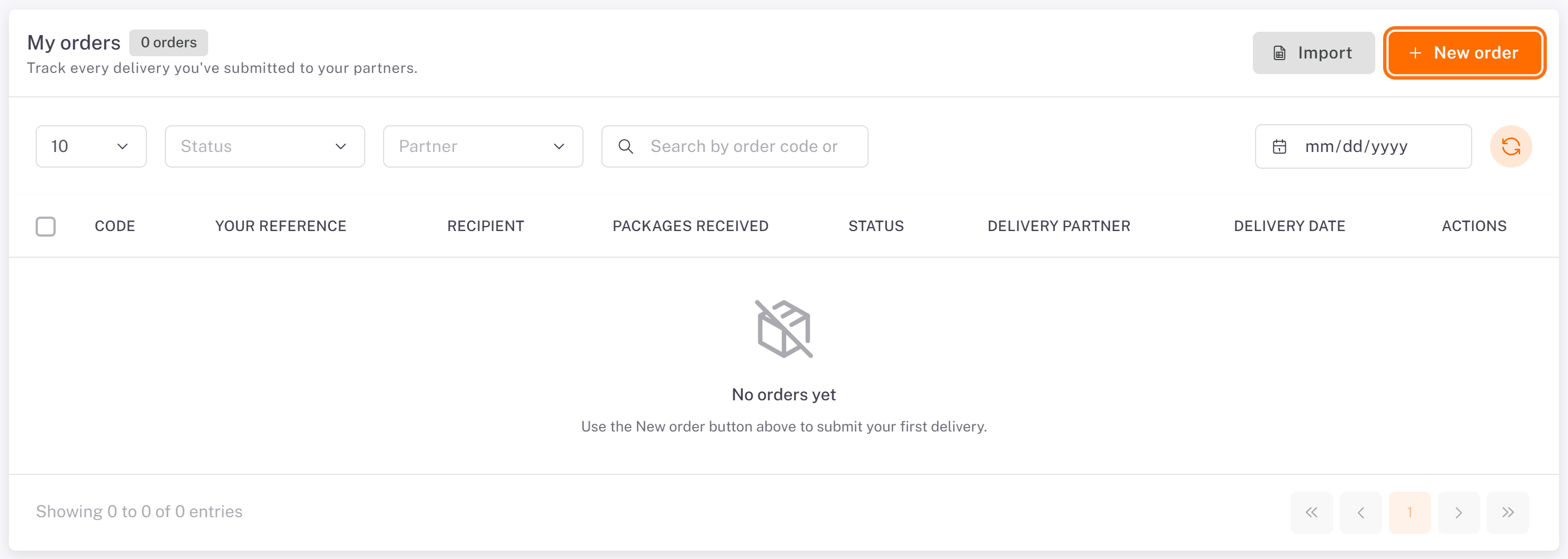
1. In the menu, open Orders and click New order.
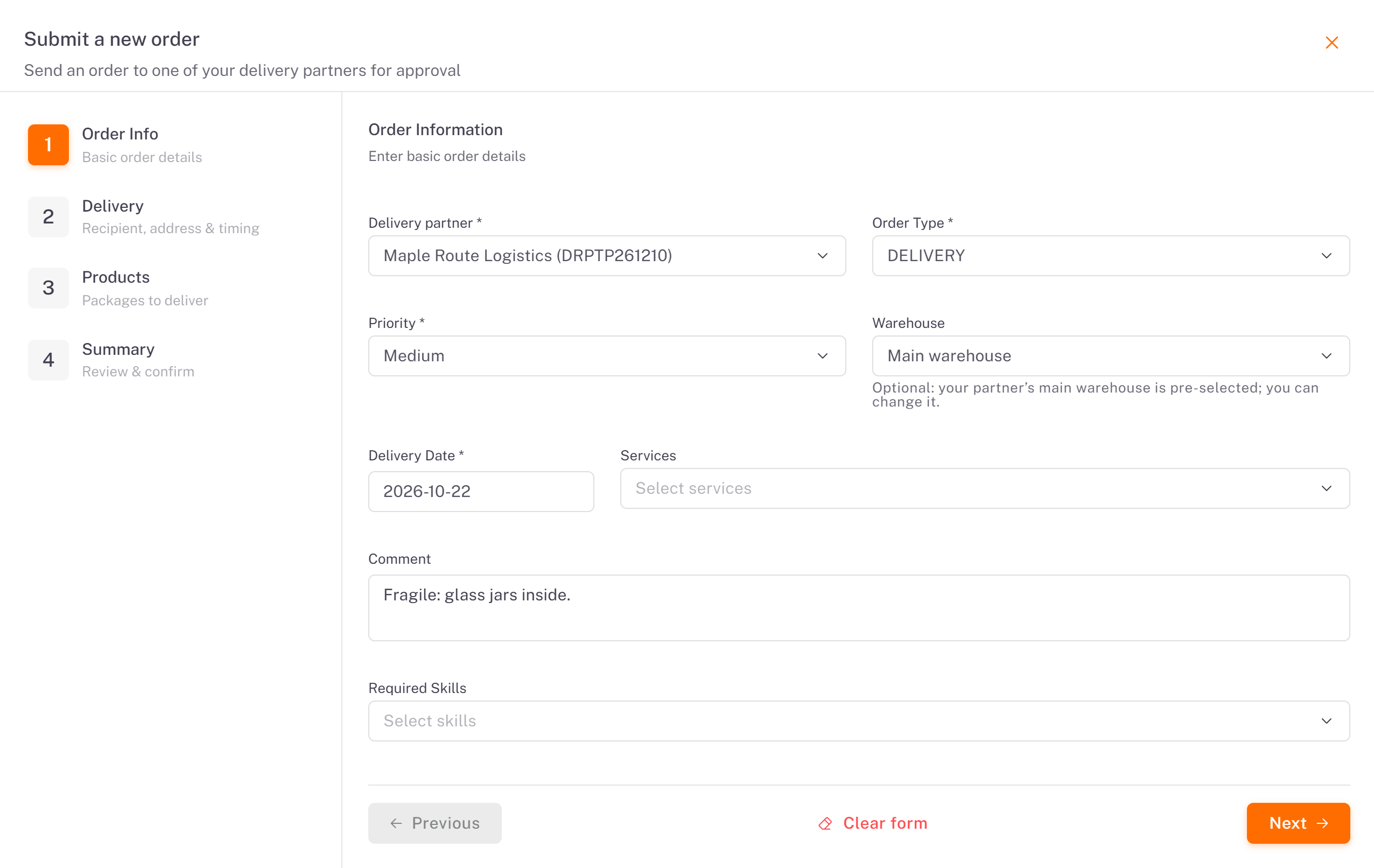
2. Order Info:
Delivery partner: the carrier that will deliver this order. Only your active partners are listed.
Order Type and Priority (Low, Medium, High or Urgent).
Warehouse: your partner's main warehouse is pre-selected; change it only if your carrier asks you to.
Delivery Date: today or a later day.
Services, Comment and Required Skills are optional.
Click Next.
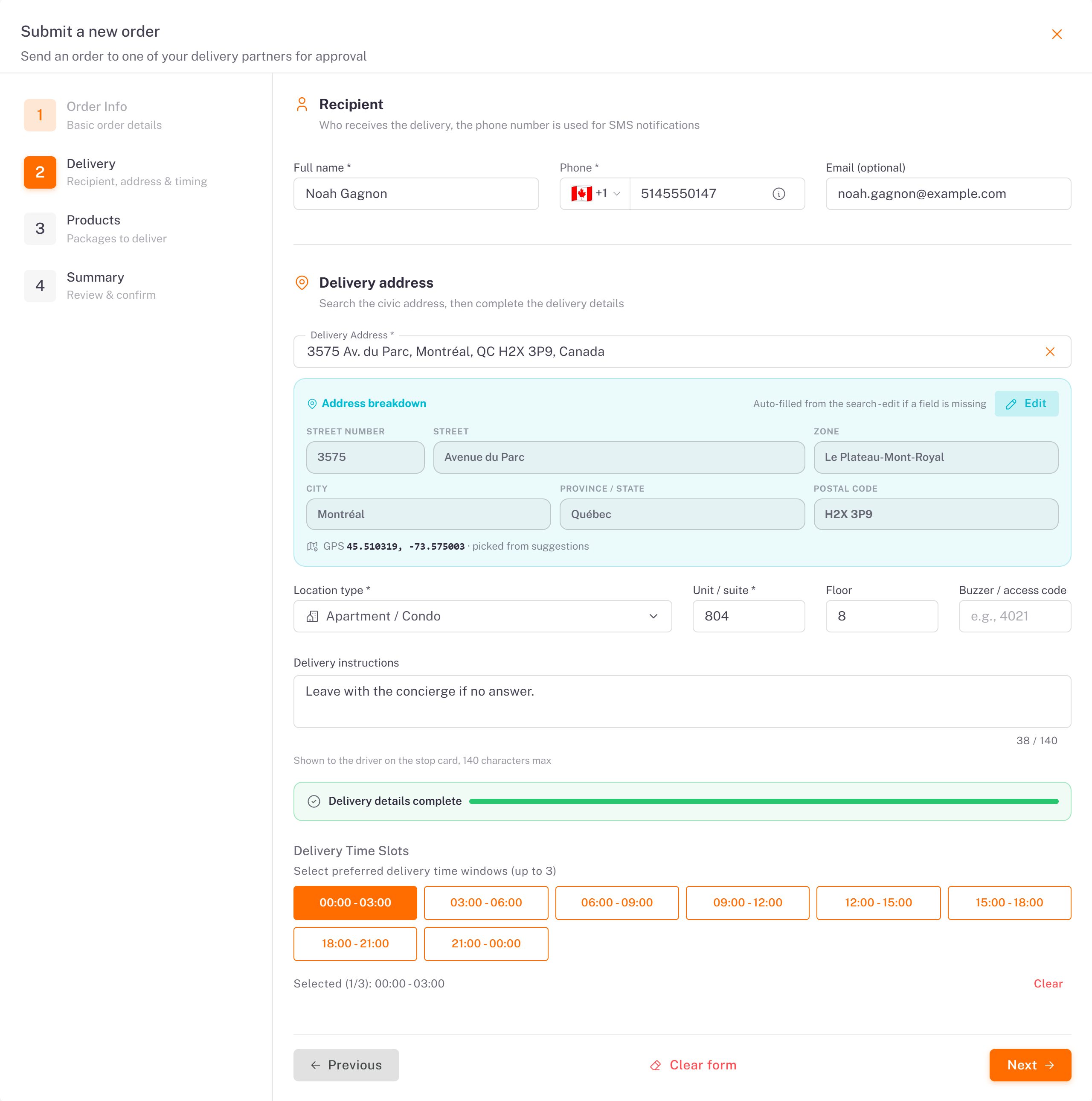
3. Delivery:
Under Recipient, enter the Full name and the Phone (choose the country, then type the number). The phone receives the delivery text messages. The email is optional.
Search the Delivery Address and pick a suggestion: the address breakdown fills in by itself.
Choose the Location type, then the Unit / suite, Floor and Buzzer / access code if needed, and add Delivery instructions for the driver.
Under Delivery Time Slots, select up to 3 windows of 3 hours, or none for any time of the day.
Click Next.
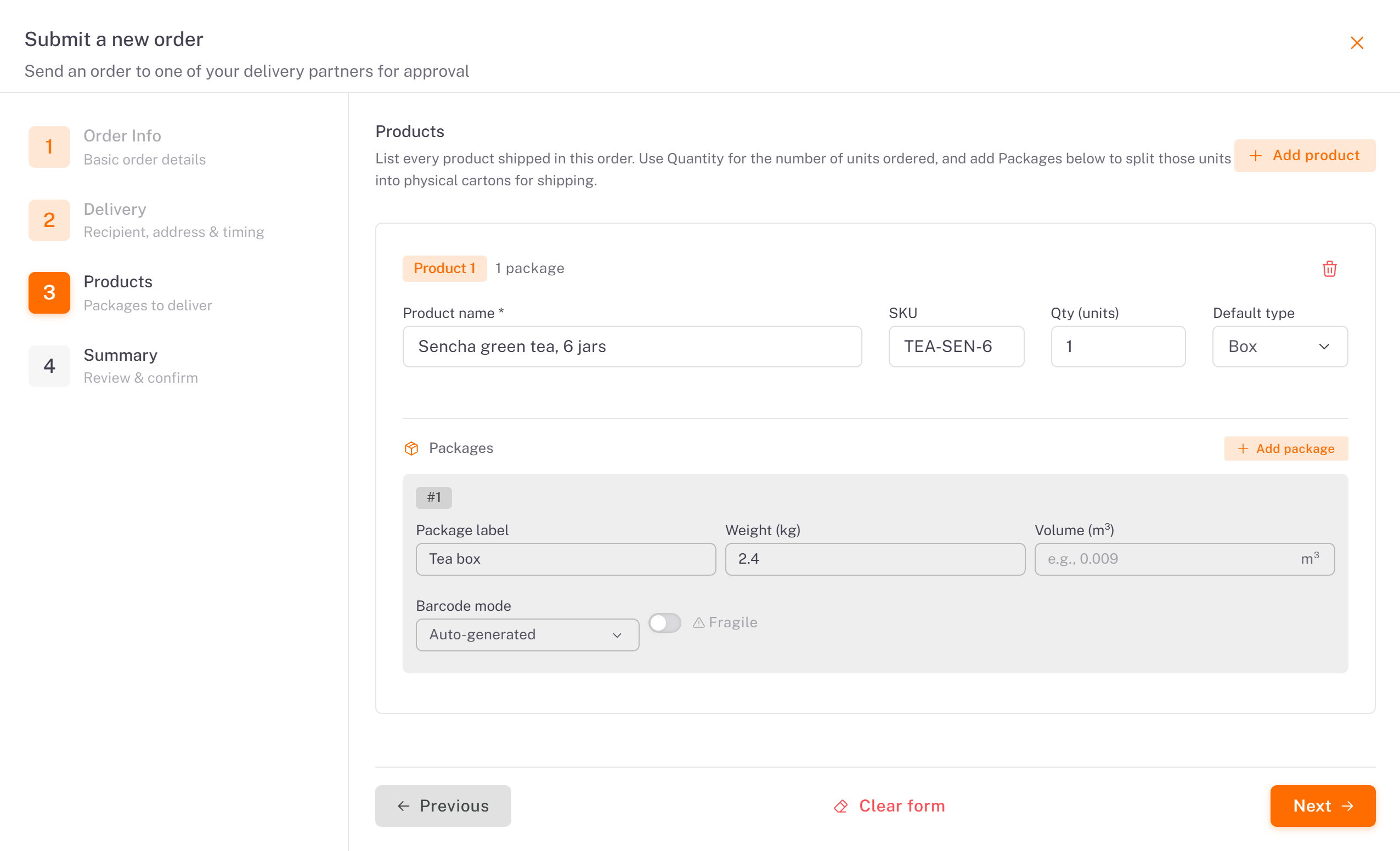
4. Products: click Add product, then enter the Product name, the SKU and the Qty (units). Each product comes with one package: give it a Package label and a Weight (kg), and a Volume (m³) if you know it. Click Add package when the product ships in several cartons, and tick Fragile if needed. Click Next.
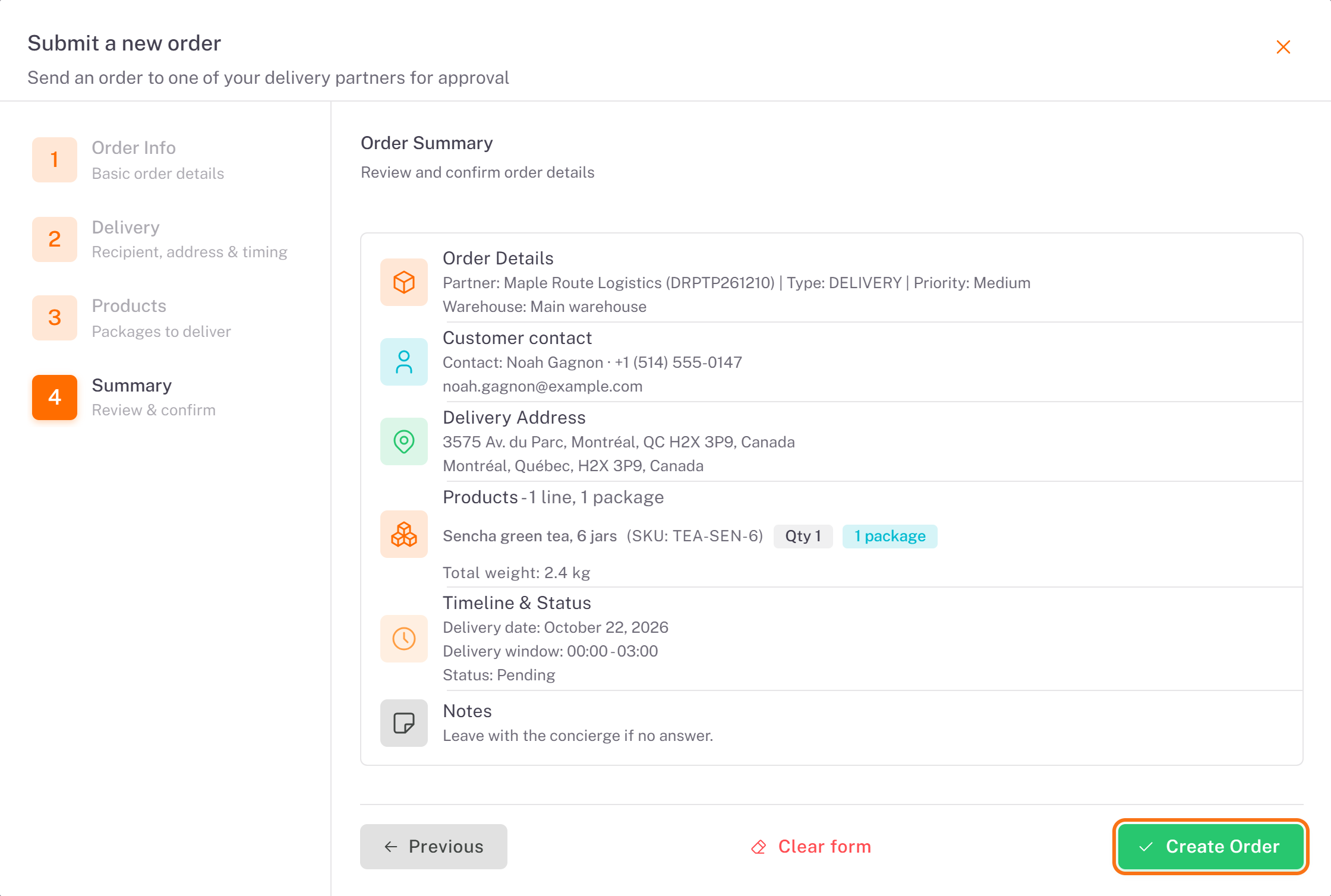
5. Summary: check each block, then click Create Order.
Result
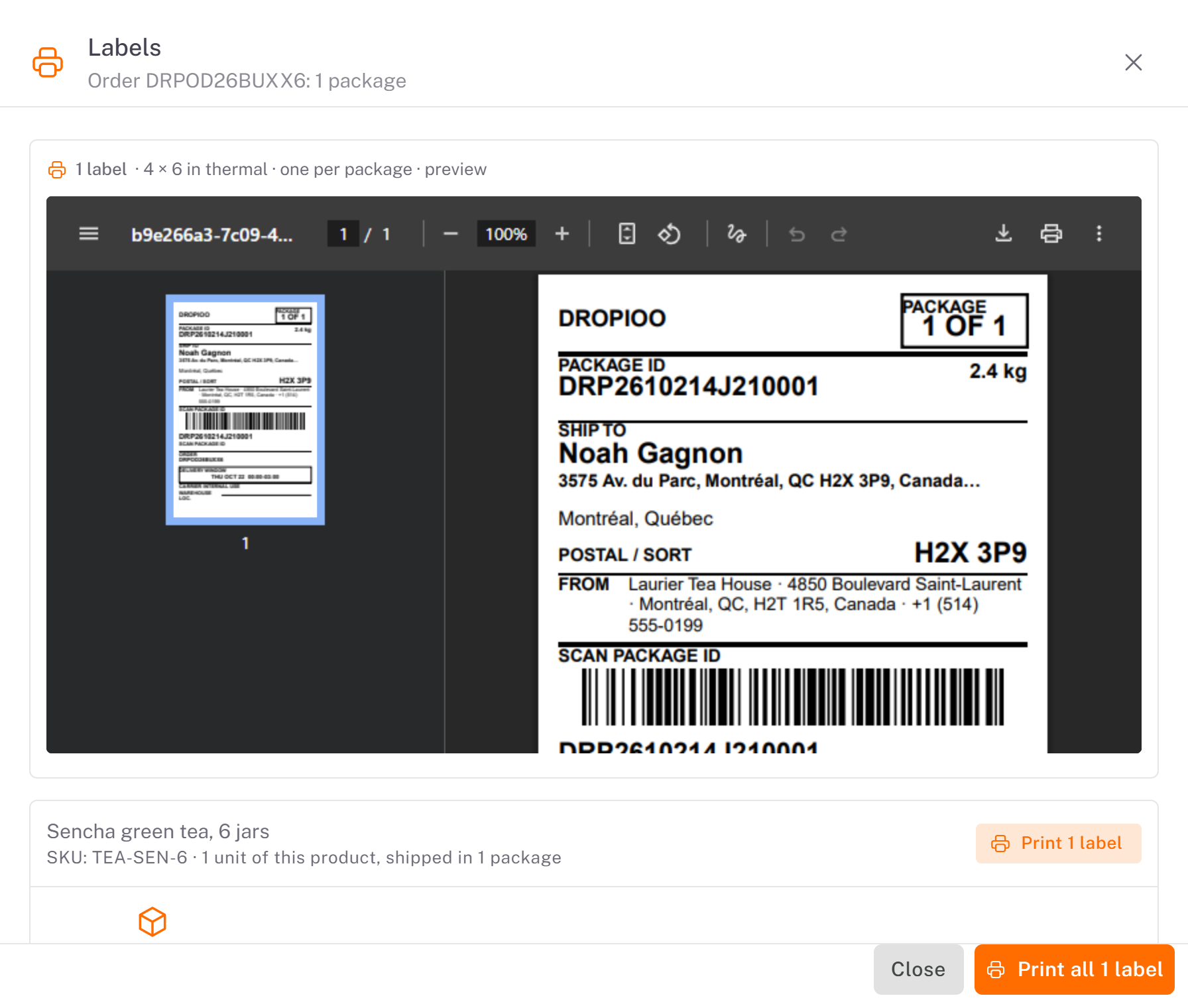
Order submitted successfully! appears and the Labels window opens: one 4 × 6 in label per package, with your pickup address in the FROM block. Click Print all N labels and stick each label on its carton before the carrier picks it up.
The order appears in My orders with the status Pending Approval. Once the carrier approves it, it moves to Awaiting Receipt: the carrier is waiting for your packages.
Change or cancel an order
While the order is Pending Approval, open it with the eye icon (View Details): Edit changes it, Cancel cancels it. The pencil icon in the list also opens Edit Order. Once the carrier has approved the order, these buttons disappear: contact your carrier to change it.
Good to know
A carrier can reject your order with a reason. The order then reads Canceled by …, and its details show the reason.
Print the labels now: a carton that reaches the depot without its label is hard to identify. You can print them again at any time with the labels icon in the list.
Was this article helpful?
Still need help?
Contact support