
Table of contents
Before you begin
The route is planned or already sent to the driver. See [Planning and Sending Routes](../../03-routes-orders/04-planning-and-sending-routes/en.md).
Its packages have been received at the warehouse. See [Receiving Packages at the Warehouse](../02-receiving-packages-at-the-warehouse/en.md).
Steps
1. In the menu, open Warehouse, then the warehouse's ⋮ > Inventory. Click Outbound.

2. The Outbound / Pick Package window opens. Under Assign to Route, open Route and pick the route: each one shows its date, code, driver and status. Only routes that can still be loaded are listed (planned, sent to the driver, or being loaded). Loading progress appears: the number of packages loaded out of the total, and under Missing, the codes of the packages still to load.
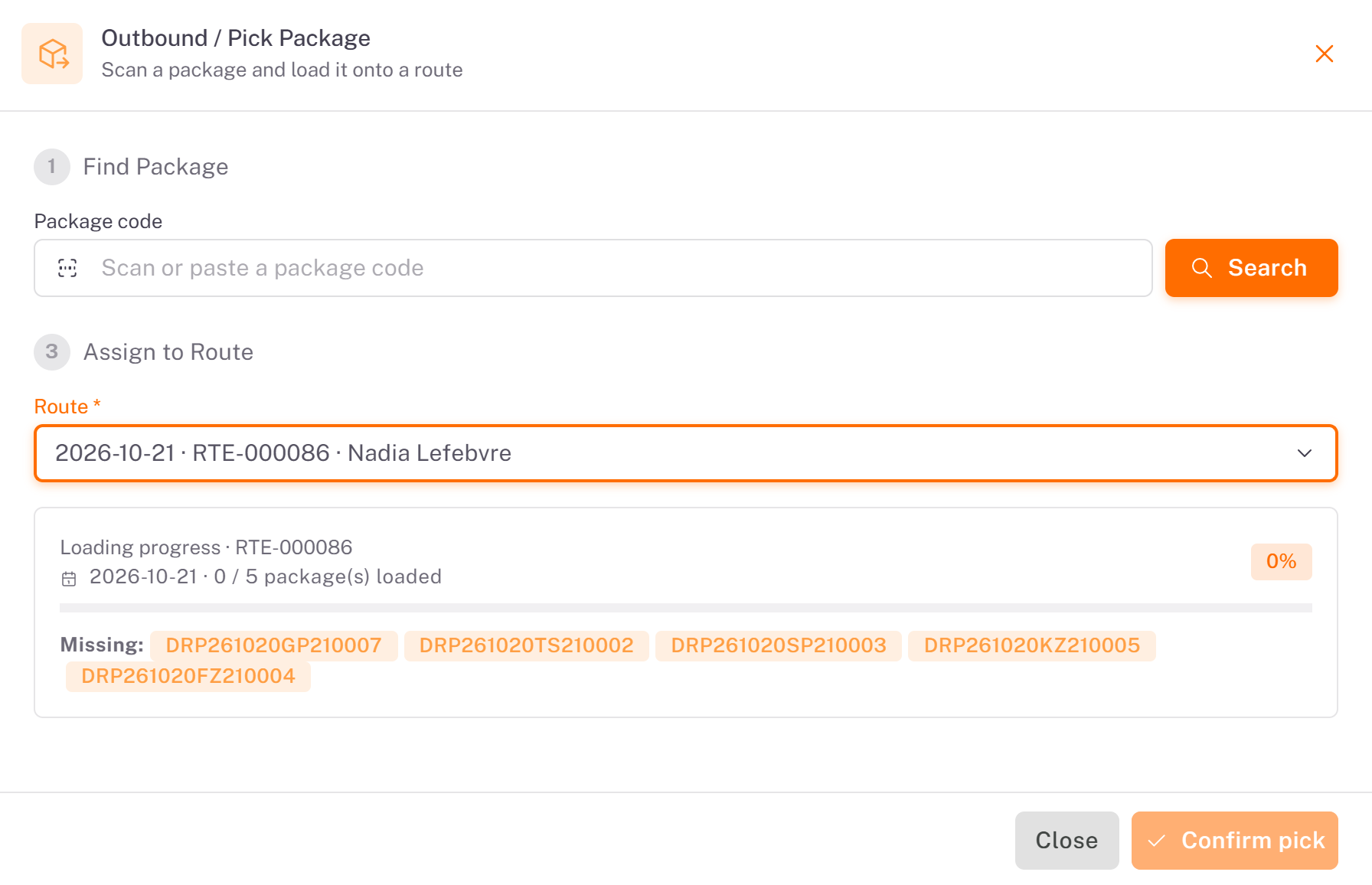
3. Under Find Package, scan the package label or paste its code in Package code, then click Search. Package Information shows the order, the merchant, the product, the weight, the storage bin and the type. On the right, Locate Package in Warehouse shows its bin on the warehouse map, or This package has no storage location assigned yet. when it was received without being stored.
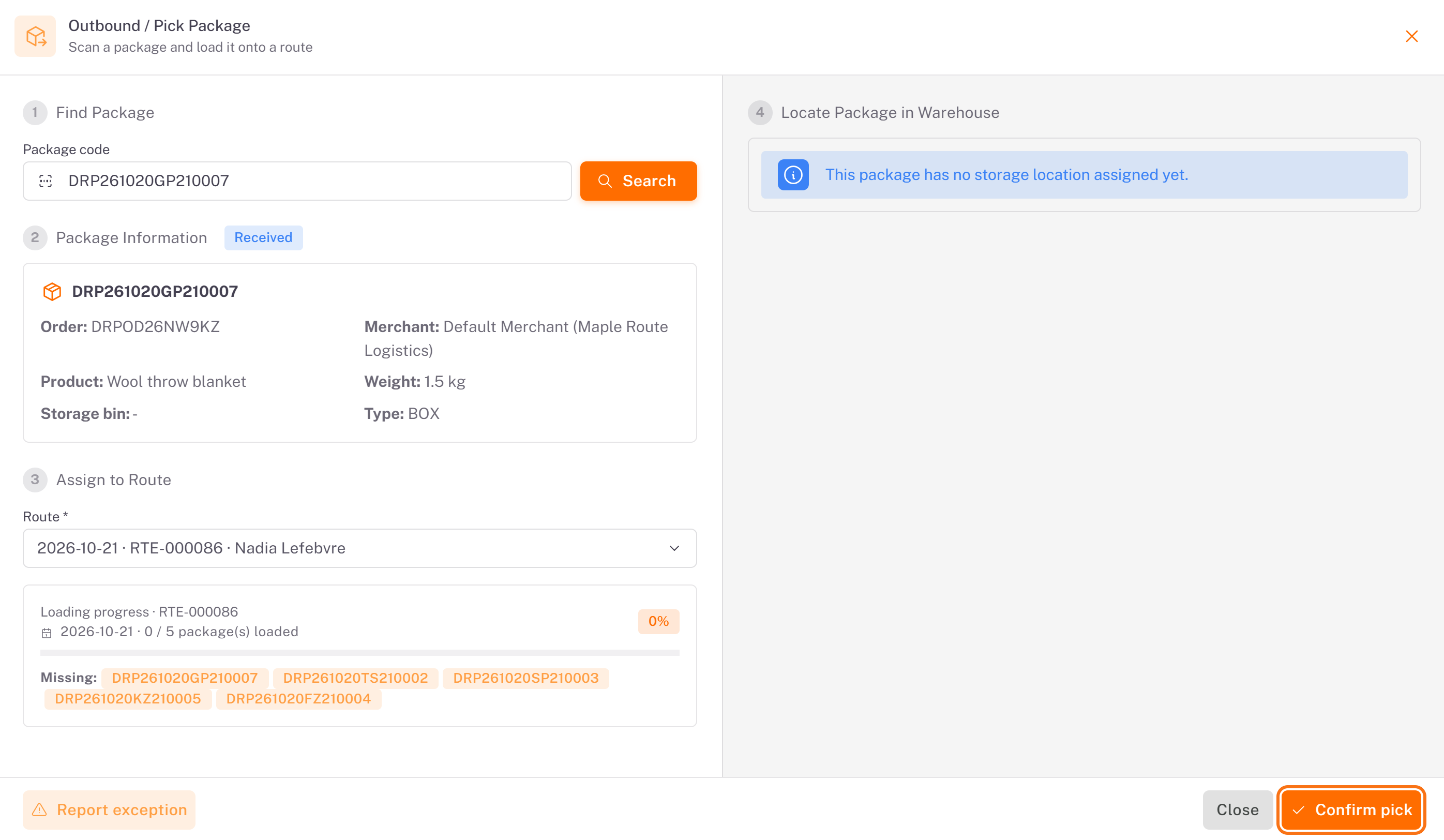
4. Click Confirm pick. Package loaded: scan the next one. confirms it, and the loading progress moves on. Repeat for each package in Missing.
When a package cannot be loaded
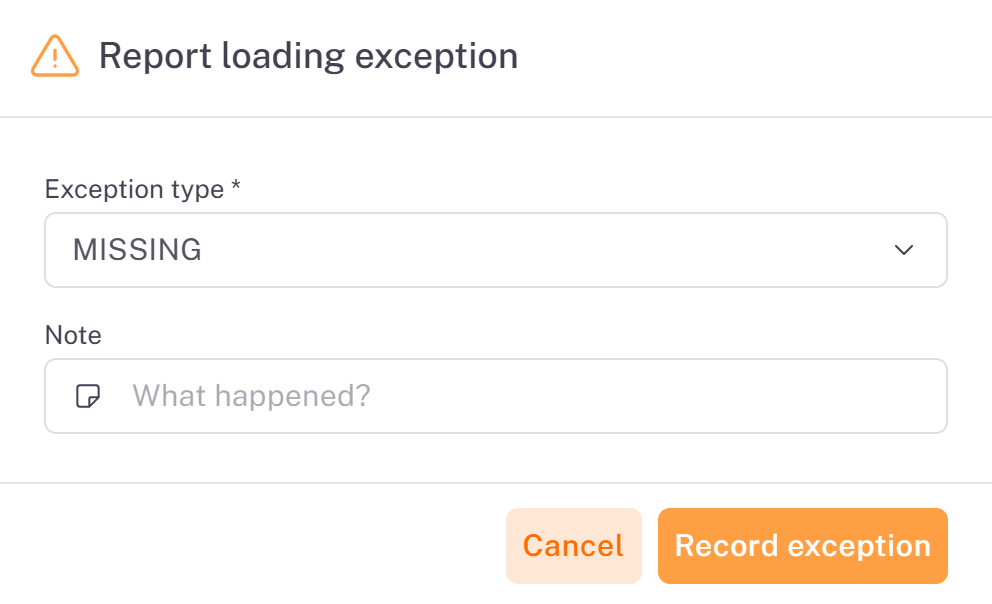
Click Report exception. In Report loading exception, choose the Exception type (MISSING, DAMAGED or WRONG_PACKAGE), describe what happened in Note, then click Record exception. The exception is recorded on the route.
Good to know
The driver can also load the vehicle with the app, by scanning each package at the depot. See [Loading Your Vehicle at the Depot](../../05-driver-app/04-loading-your-vehicle-at-the-depot/en.md).
Load in reverse order: the packages of the last stop go in first, at the back of the vehicle.
A route that has left the depot is no longer listed in Route.
Was this article helpful?
Still need help?
Contact support