
Table of contents
Before you begin
You have a role that can change the account settings
Steps
1. Open Settings (bottom of the menu), then the Automation tab.
2. Under Automatic Dispatch, leave Enable automatic dispatch on (it is on by default). When it is off, no daily run happens.
3. Set the Dispatch time (24 h format, 02:00 by default) and the Timezone it applies in.
4. Click Save changes.
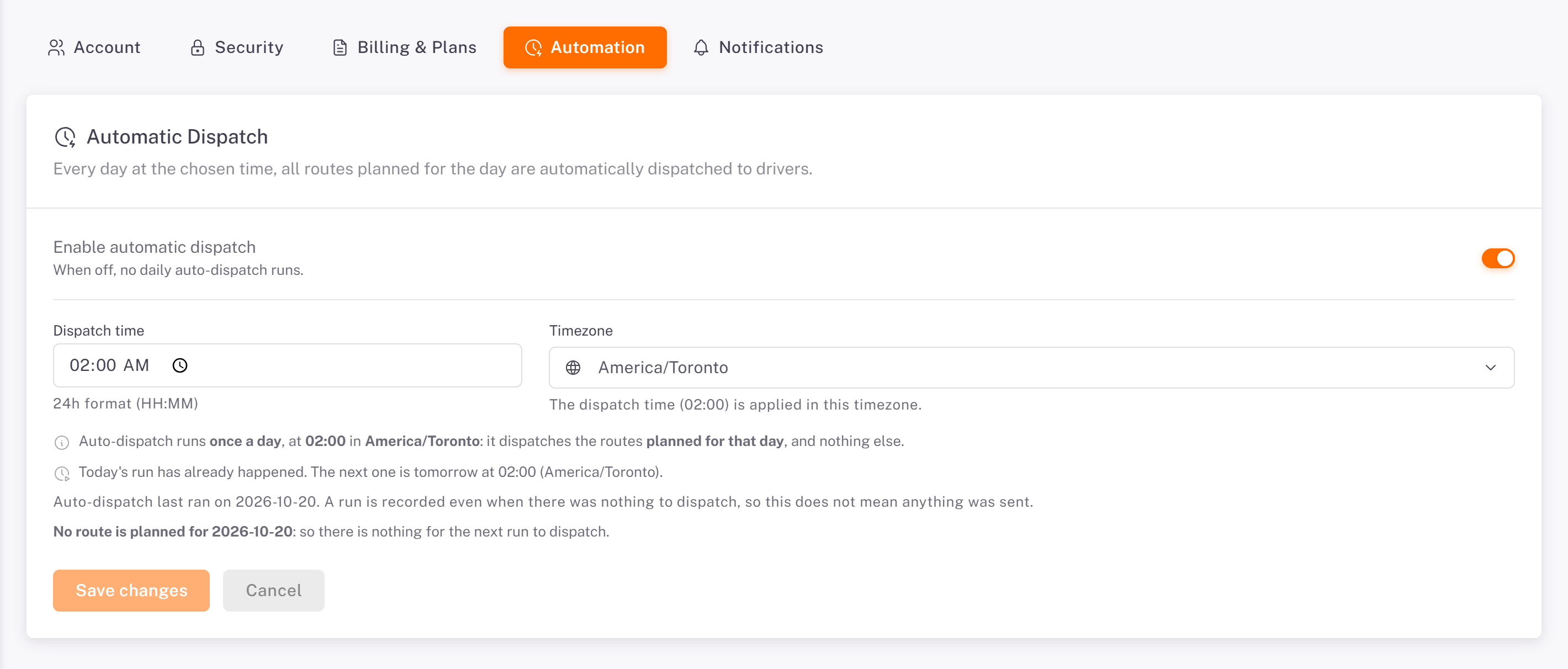
The tab tells you when the last run happened and what the next run will dispatch (for example No route is planned for …: so there is nothing for the next run to dispatch).
How it works
The run happens once a day, at the dispatch time, and dispatches the routes planned for that day, nothing else.
A route that cannot go (for example, its driver cannot be notified, or already holds an active route) stays Planned. Send it later with Dispatch in Plan & dispatch.
A route planned for today after the run does not wait: Send now sends it as soon as you create it.
Afternoon routes for a driver who is already on the road are sent by hand once the first route is finished.
Was this article helpful?
Still need help?
Contact support