
Table of contents
Before you begin
You have a role that can manage warehouses.
Your first warehouse was created by the welcome wizard. It is marked Primary: it is the default starting point of your routes.
1. Add a warehouse (optional)
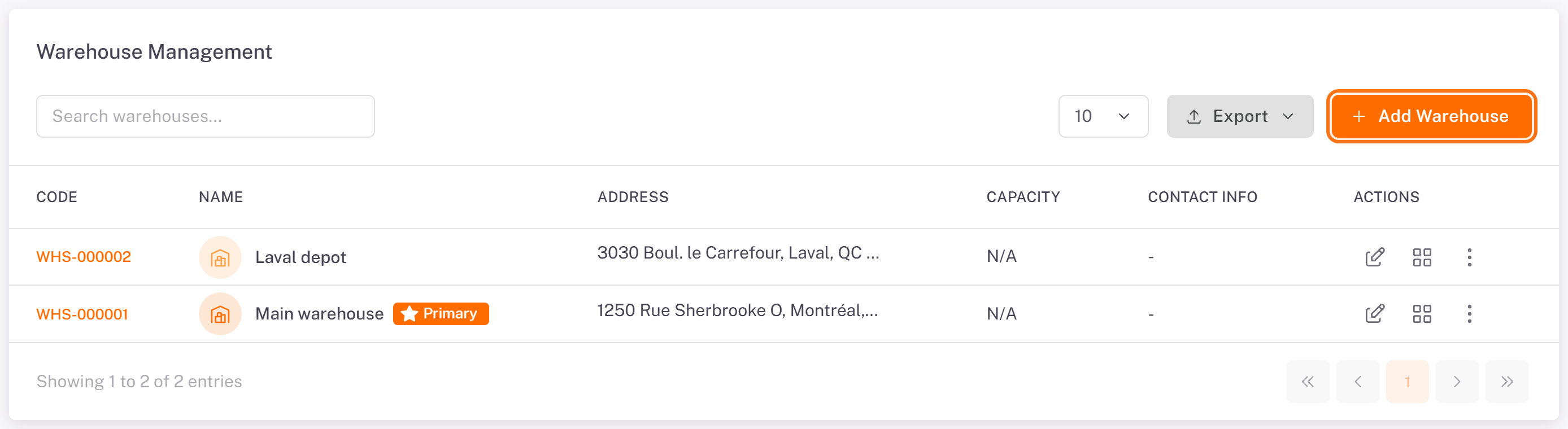
1. In the menu, open Warehouse. Warehouse Management lists your warehouses. Click Add Warehouse.
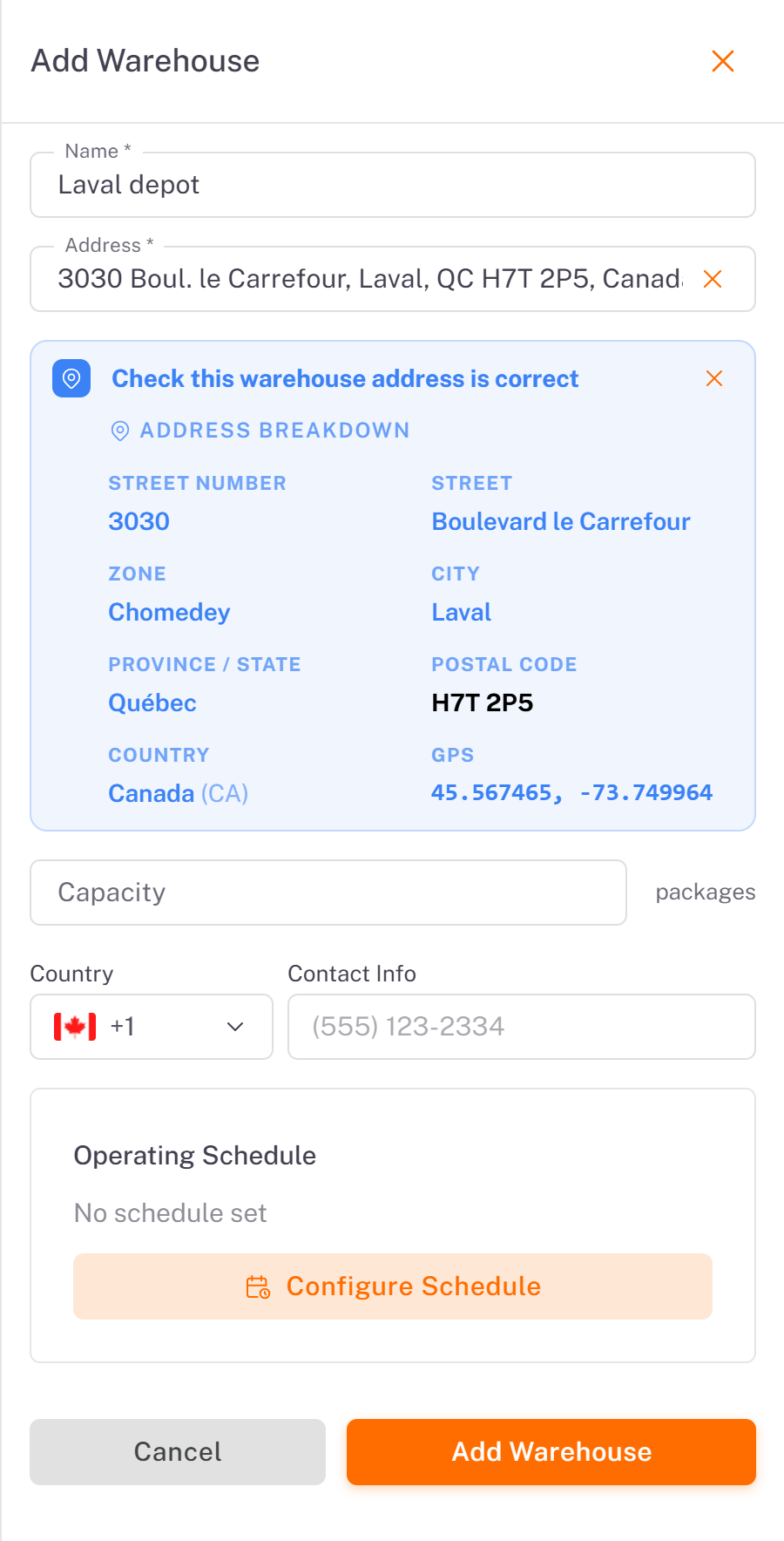
2. Enter the Name, then type the Address and pick it in the suggestions. Check the Address breakdown (street, city, postal code, GPS). You can add a Capacity, a Contact Info phone and an Operating Schedule. Click Add Warehouse.
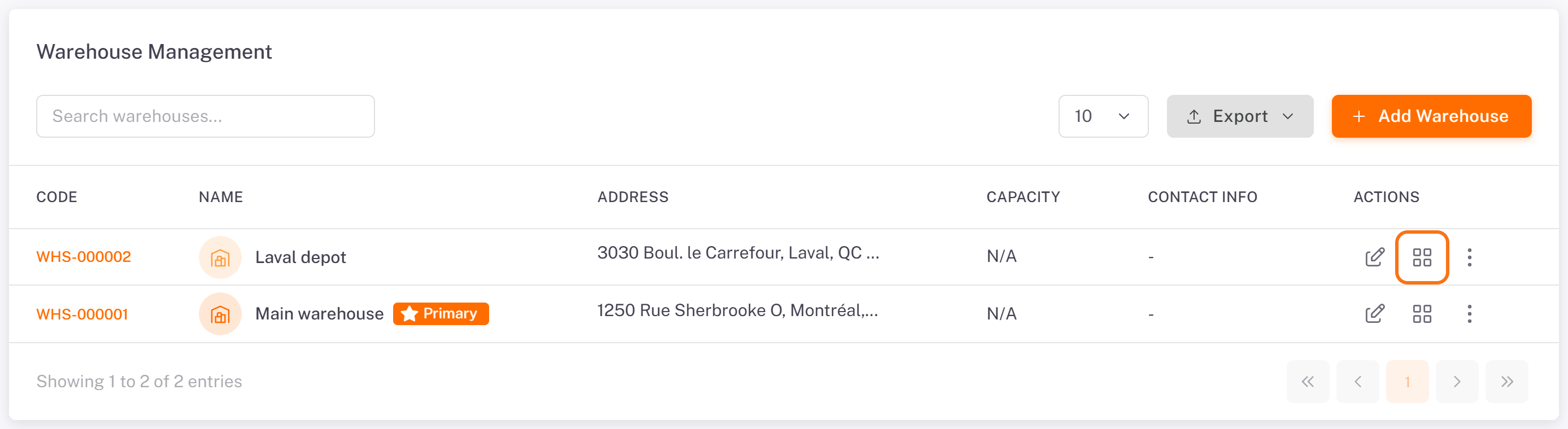
A new warehouse reads Layout not configured until you choose its size.
2. Choose the warehouse size
1. On the warehouse's row, click the Configure layout icon.
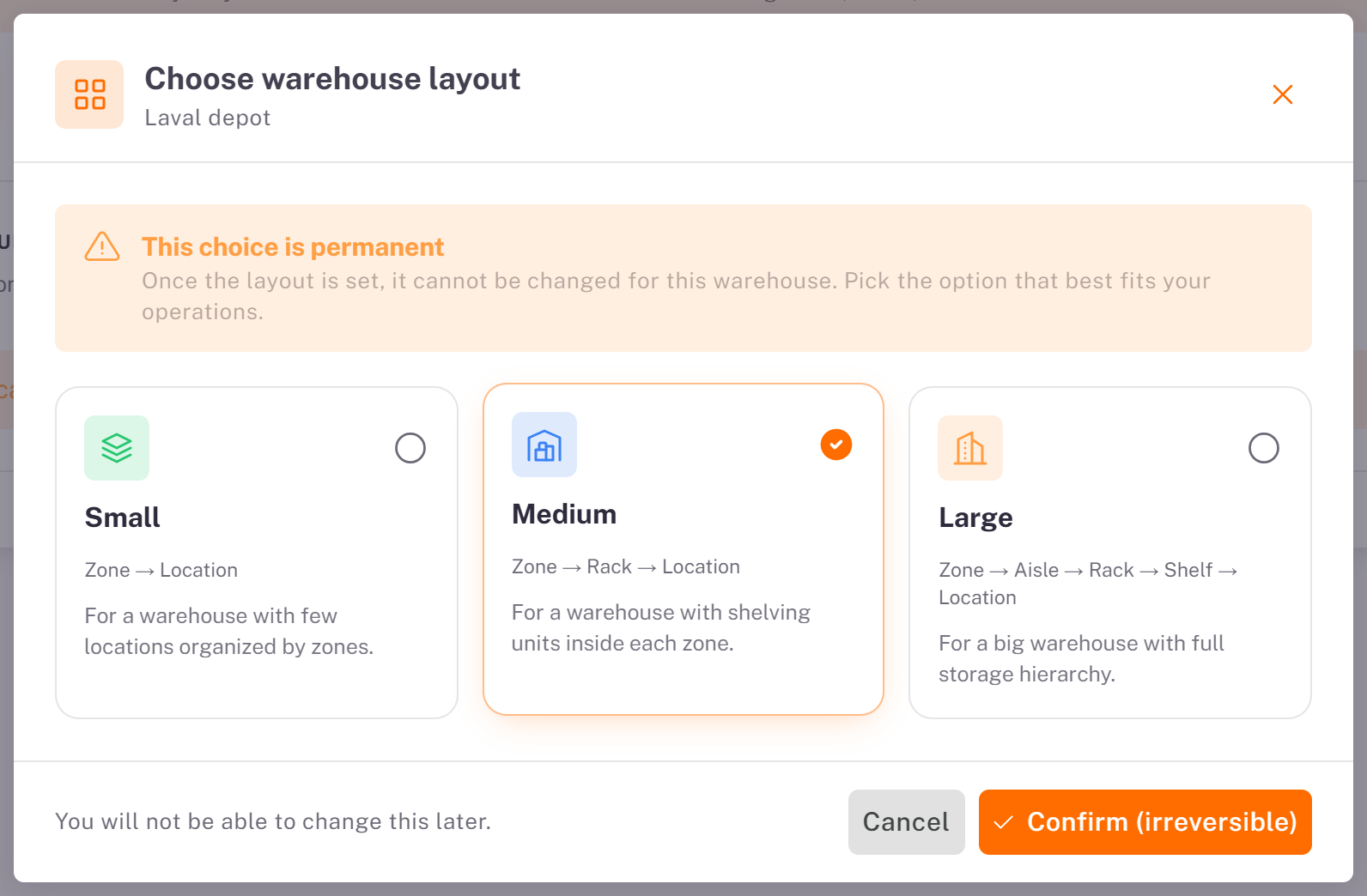
2. In Choose warehouse layout, pick the size that fits:
Small: Zone → Location. For a warehouse with few locations organized by zones.
Medium: Zone → Rack → Location. For a warehouse with shelving units inside each zone.
Large: Zone → Aisle → Rack → Shelf → Location. For a big warehouse with a full storage hierarchy.
3. Click Confirm (irreversible). This choice is permanent: pick the option that best fits your operations.
The layout page opens. A short guide points at each next step; you can replay it with Replay the guide.
3. Add a zone
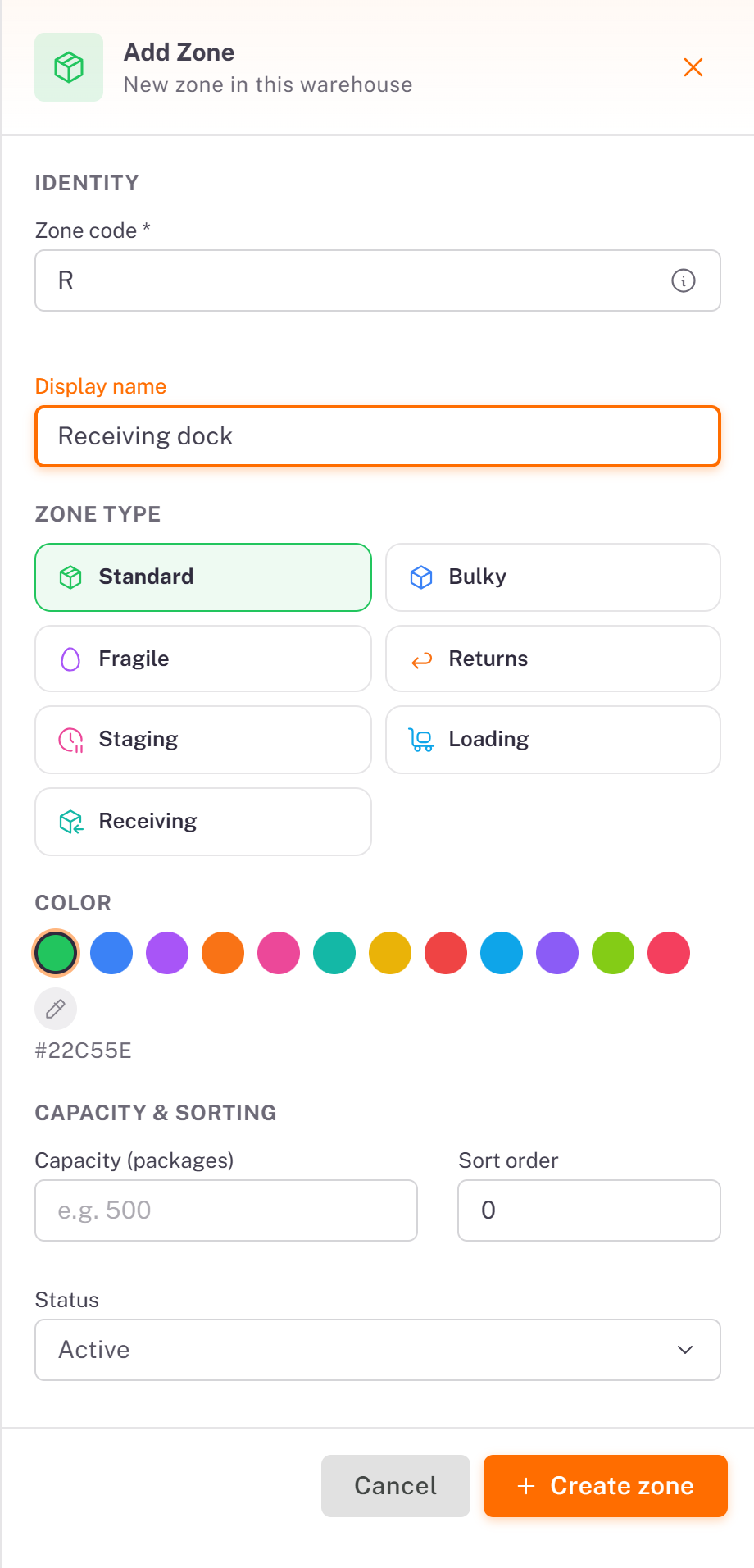
On the Zones tab, click Add Zone. Enter a Zone code (for example R) and a Display name (for example Receiving dock), choose the Zone Type (Standard, Bulky, Fragile, Returns, Staging, Loading or Receiving) and a color. Click Create zone.
4. Add racks (Medium and Large)
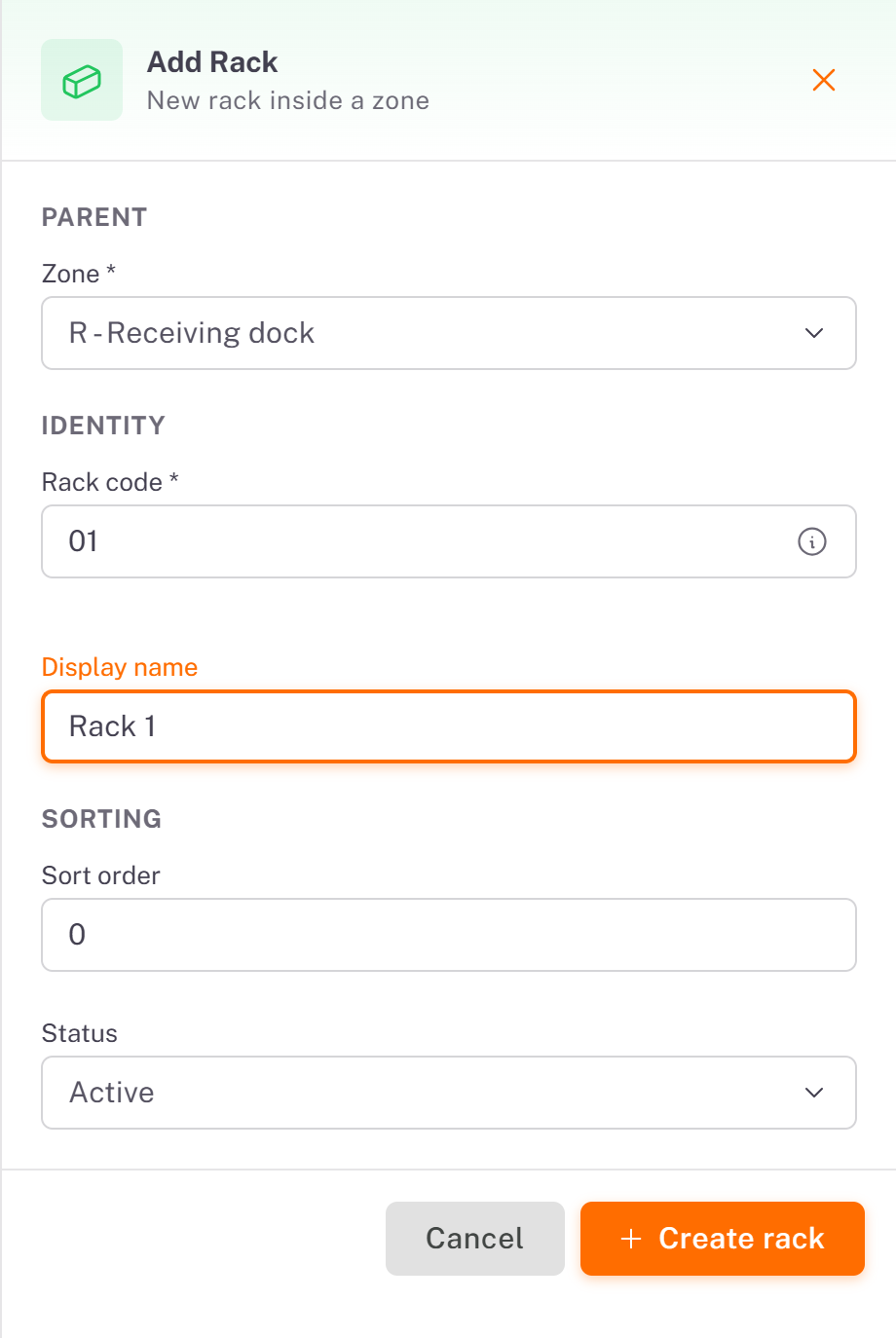
On the Racks tab, click Add Rack. Choose its Zone (and its aisle in a Large warehouse), enter a Rack code and a Display name, then click Create rack.
5. Add storage locations (bins)
On the Bins / Locations tab, click Add Bin.
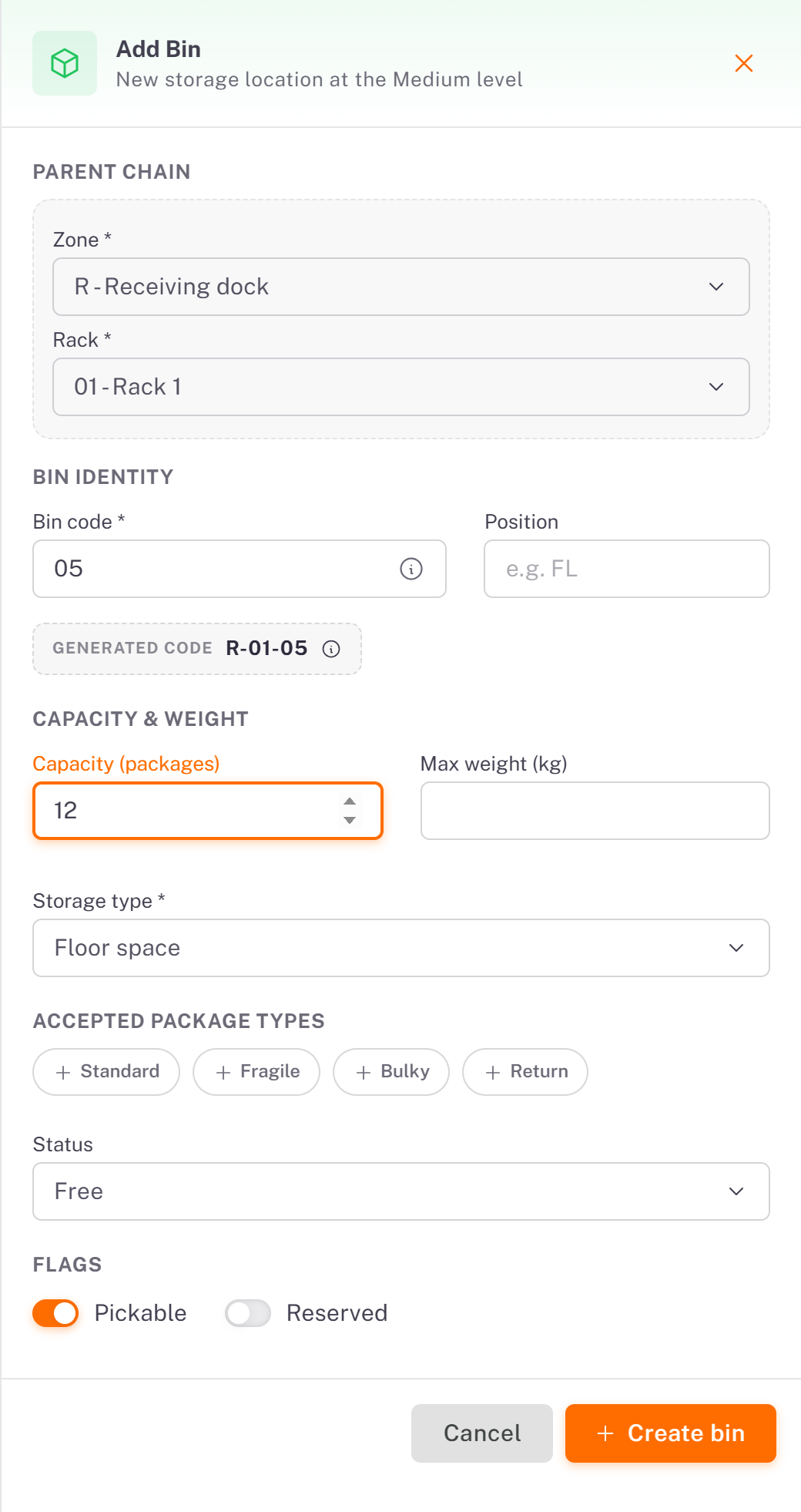
Under Parent chain, choose the Zone and the Rack.
Enter the Bin code. Dropioo shows the Generated code (for example R-01-05): the full code of the bin, which your team sees at reception and loading.
Set the Capacity (packages) and the Storage type, and the Accepted package types if the bin only takes some of them.
The Pickable and Reserved flags are markers for your team.
Click Create bin. Repeat for each bin.
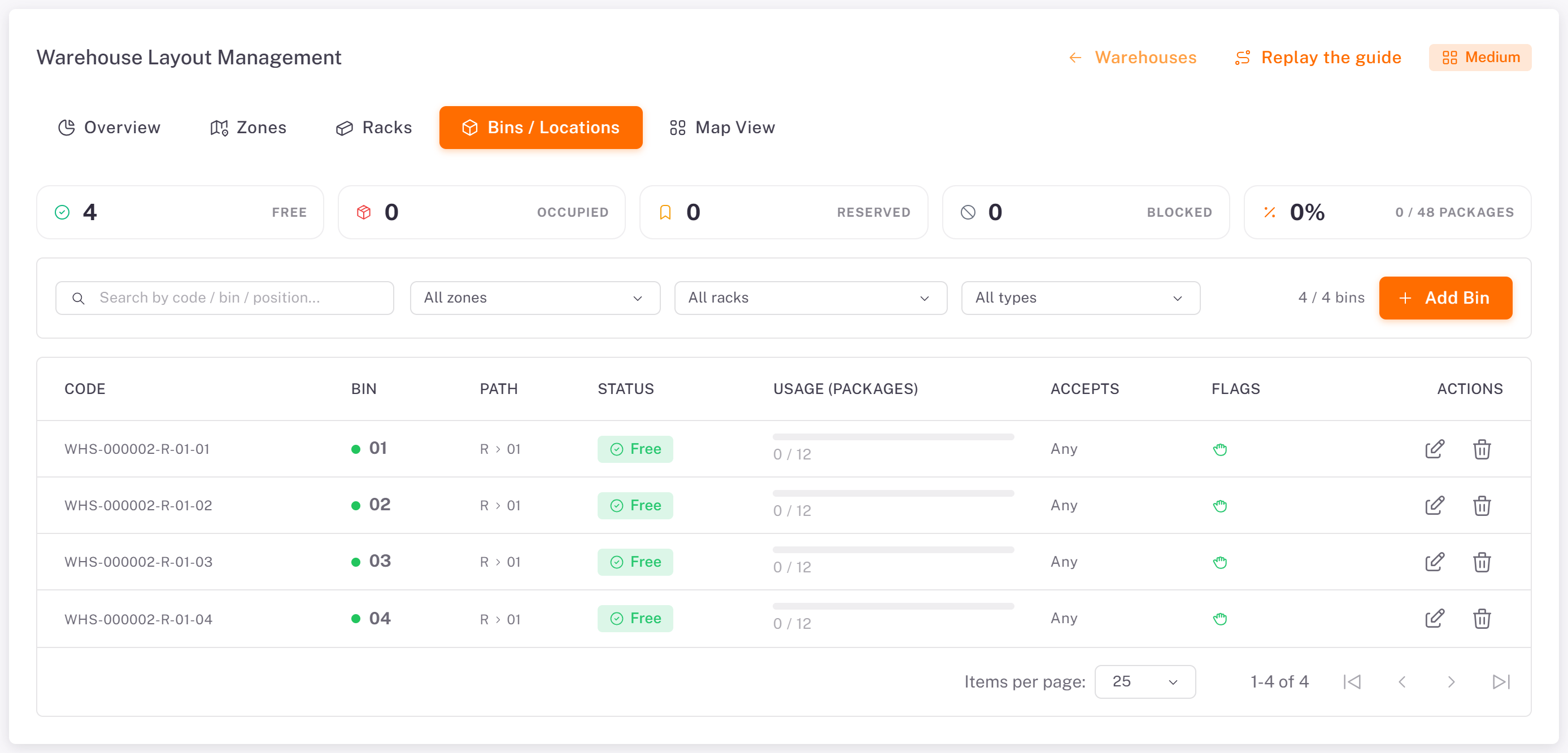
The Bins / Locations tab lists every bin with its path, its status (Free, Occupied, Reserved or Blocked) and its usage.
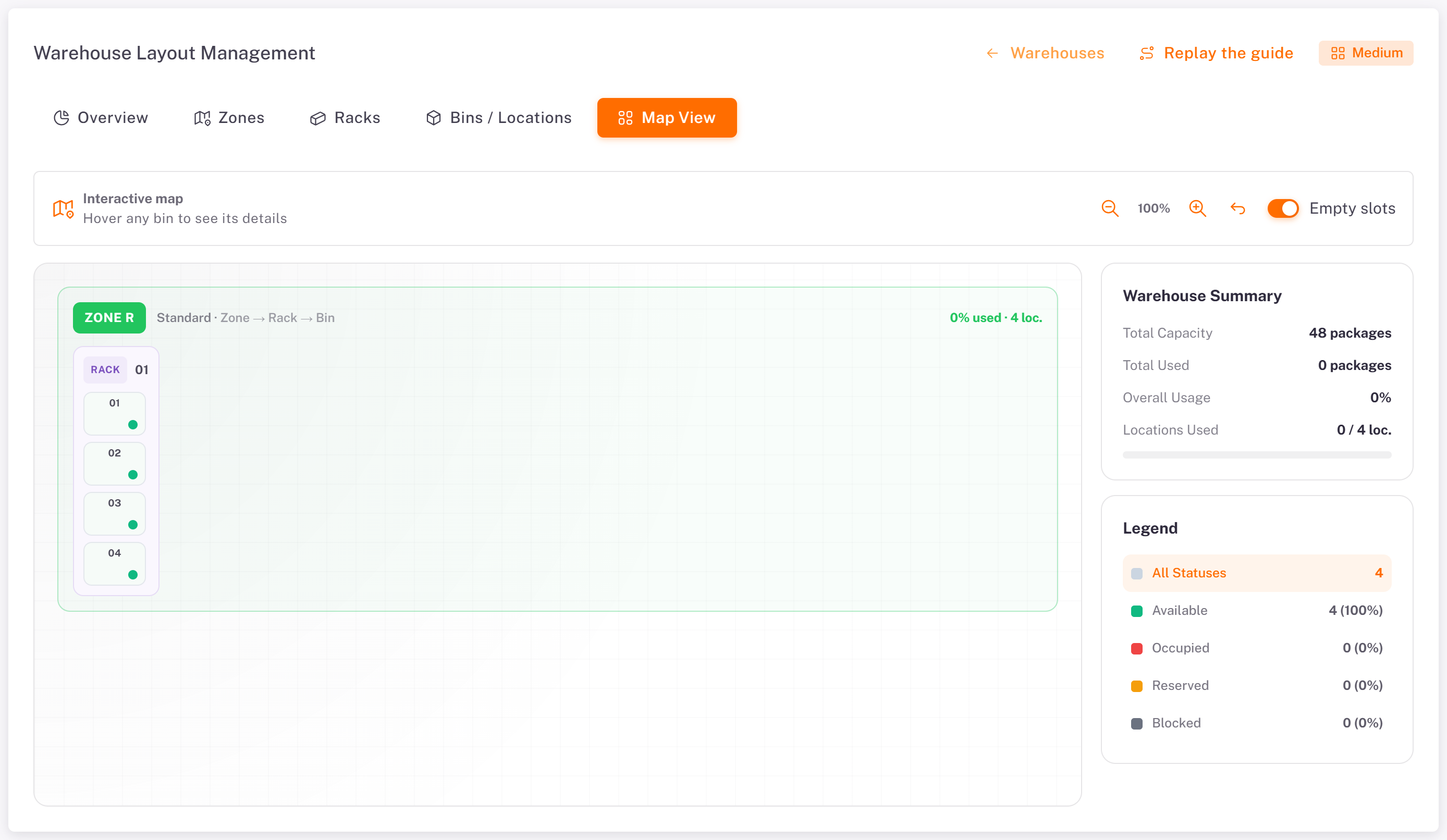
Map View shows the warehouse as a plan, with the occupancy of each bin. Hover a bin to see its details.
Good to know
The warehouse layout is the last task of the activation checklist. It is done when the warehouse has a size and its levels down to the bins.
Your team can receive packages without a layout (**Quick reception**), but bins tell everyone where a package is.
Was this article helpful?
Still need help?
Contact support