
Table of contents
Before you begin
Ask your carrier for its carrier code (for example DRPTP261210). The search only finds a carrier by its exact, full code: a partial code or a name finds nothing.
Send a request from the welcome wizard
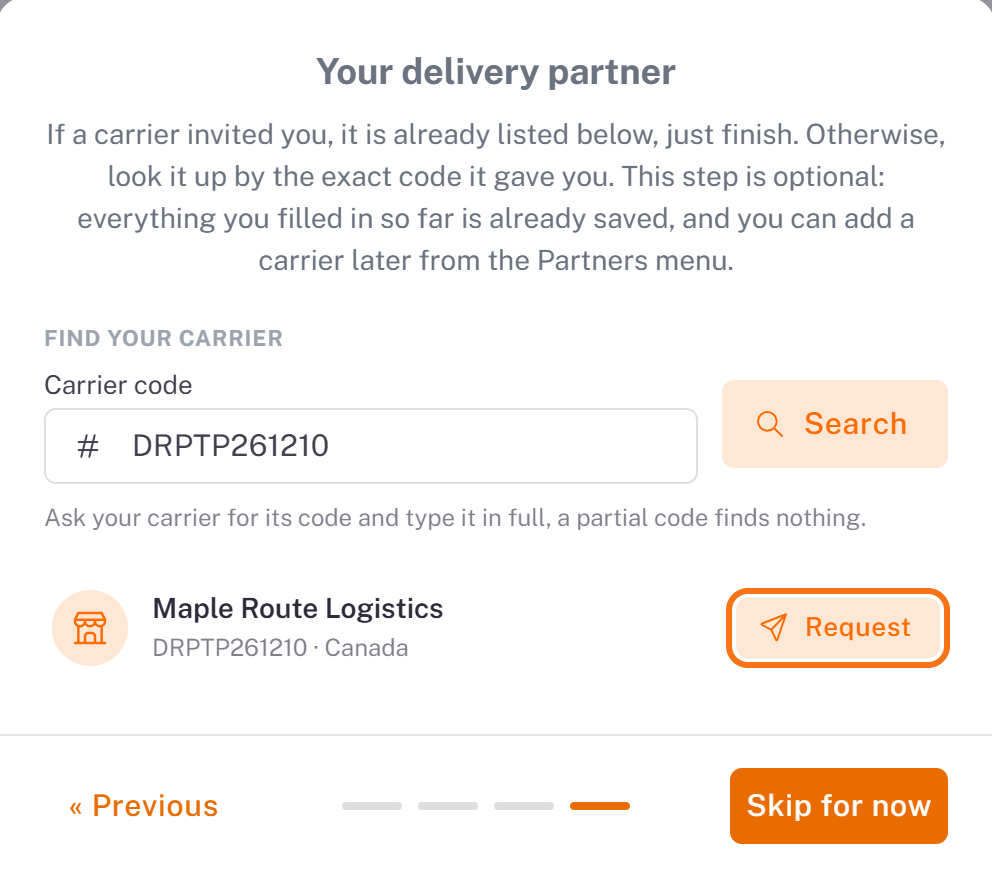
On the last step of the welcome wizard, Your delivery partner:
1. Type the code in Carrier code and click Search. The carrier appears with its code and country. Click Request.
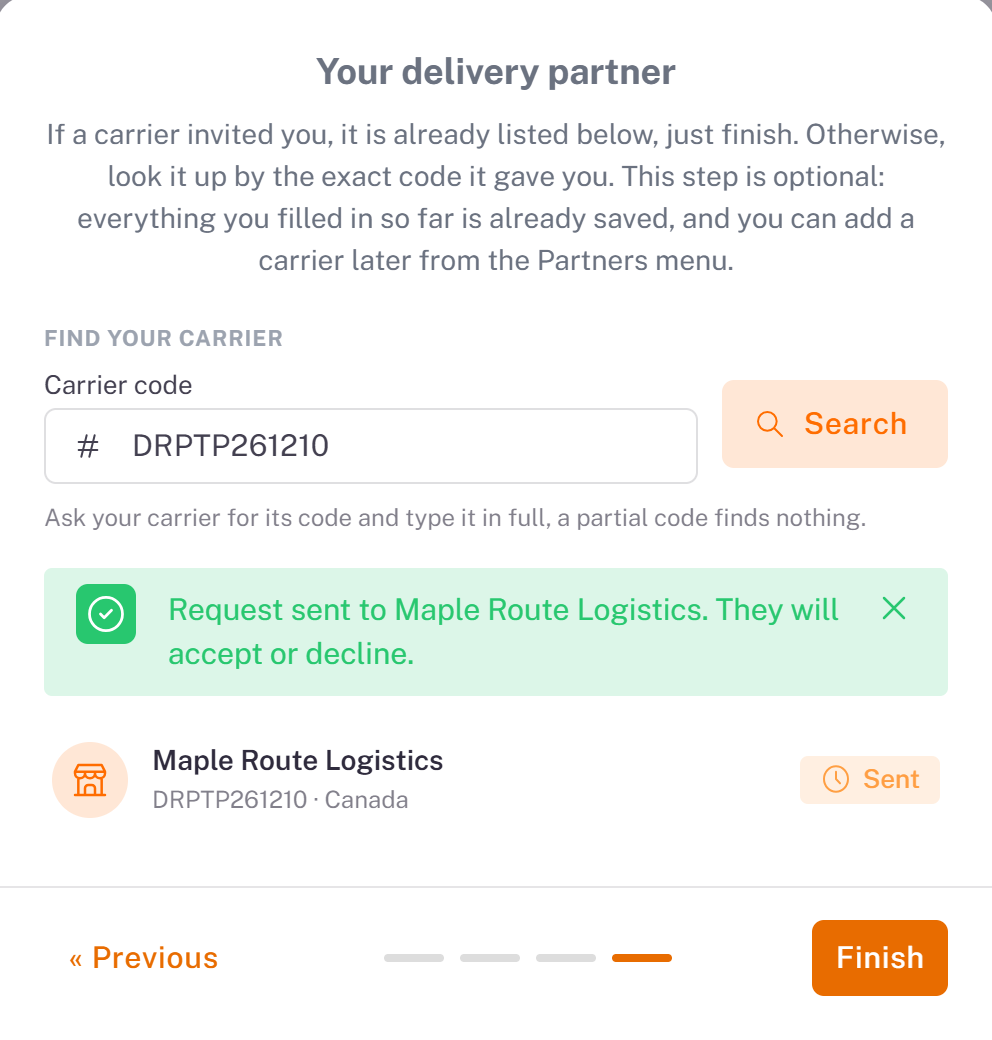
2. Request sent to … They will accept or decline. confirms the request; the button turns to Sent. Click Finish.
Send a request later, from the Partners menu
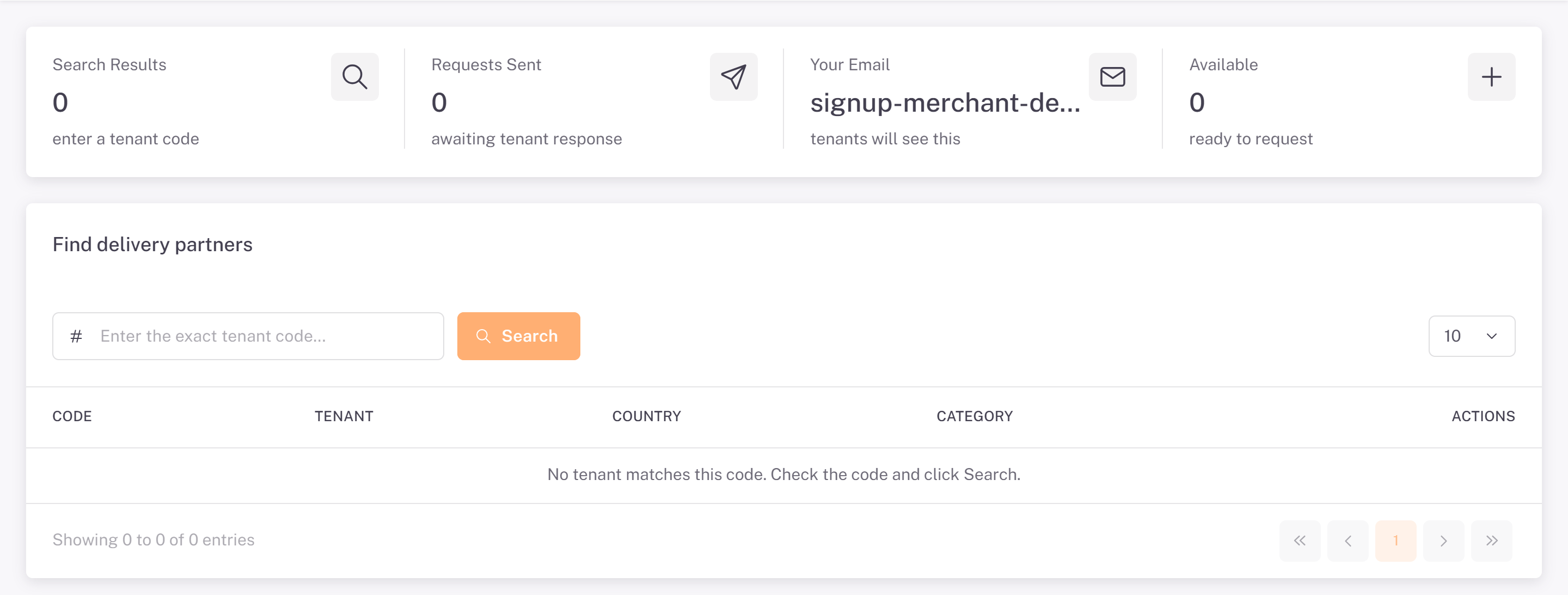
1. Open Partners > Find partners. Type the exact code under Find delivery partners and click Search.
2. In the result, click the send icon (**Send partnership request**). In the window, add a Message (optional), for example your products and expected volume (up to 500 characters), then click Yes, send request.
Follow your partners
Menu What it shows
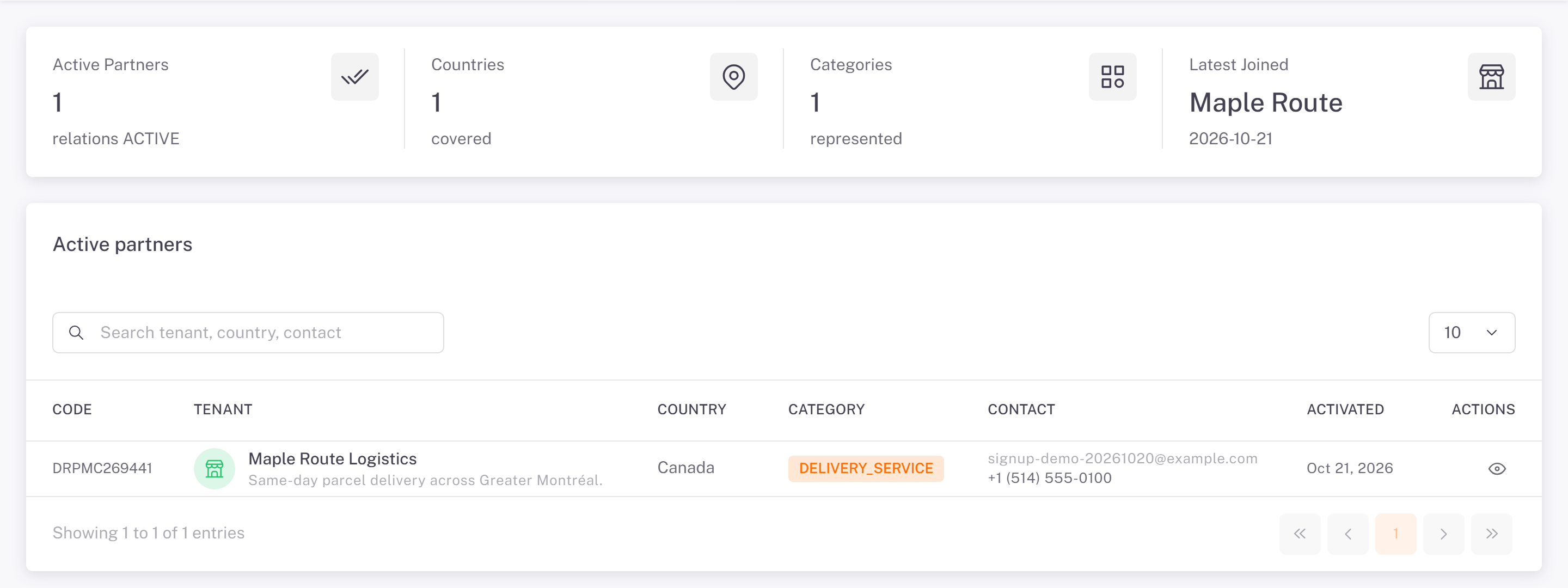
Partners > Active partners The carriers you work with, with their contact and the date the partnership started. The eye icon shows the details.
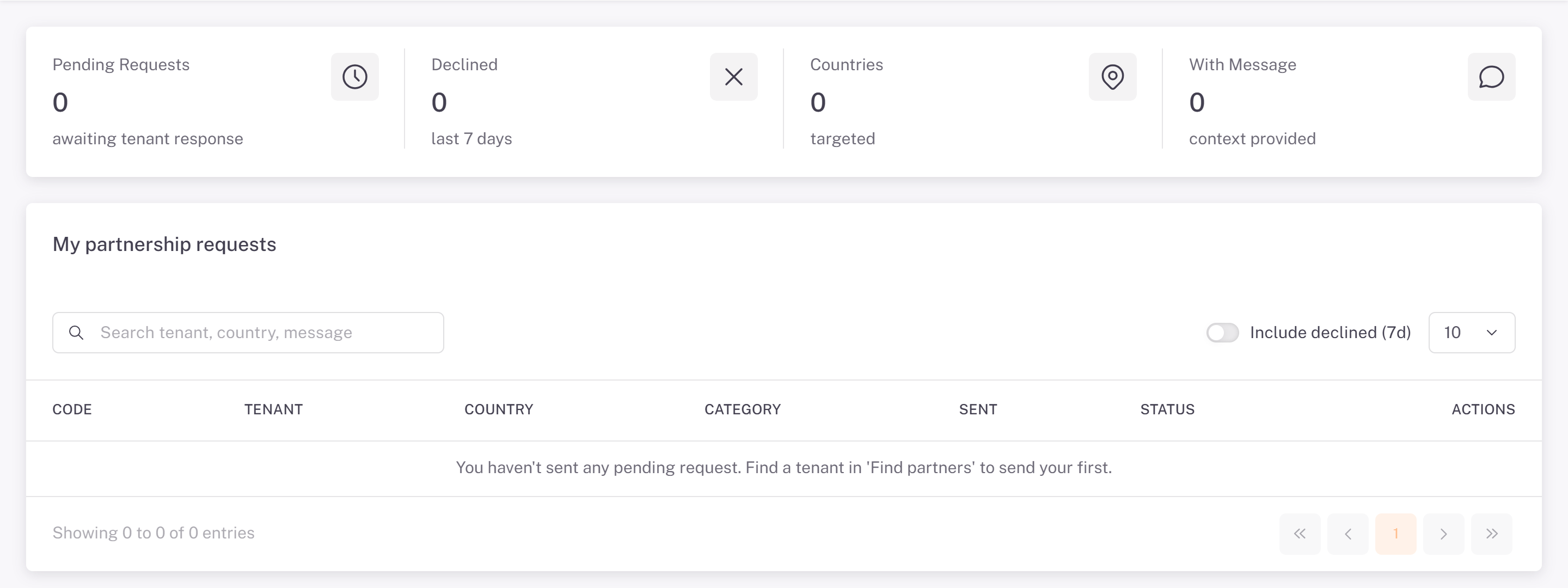
Partners > My requests The requests you sent and are still waiting for. Turn on Include declined (7d) to see those declined in the last 7 days; Send another request sends a new one. Cancel this request withdraws a pending request.
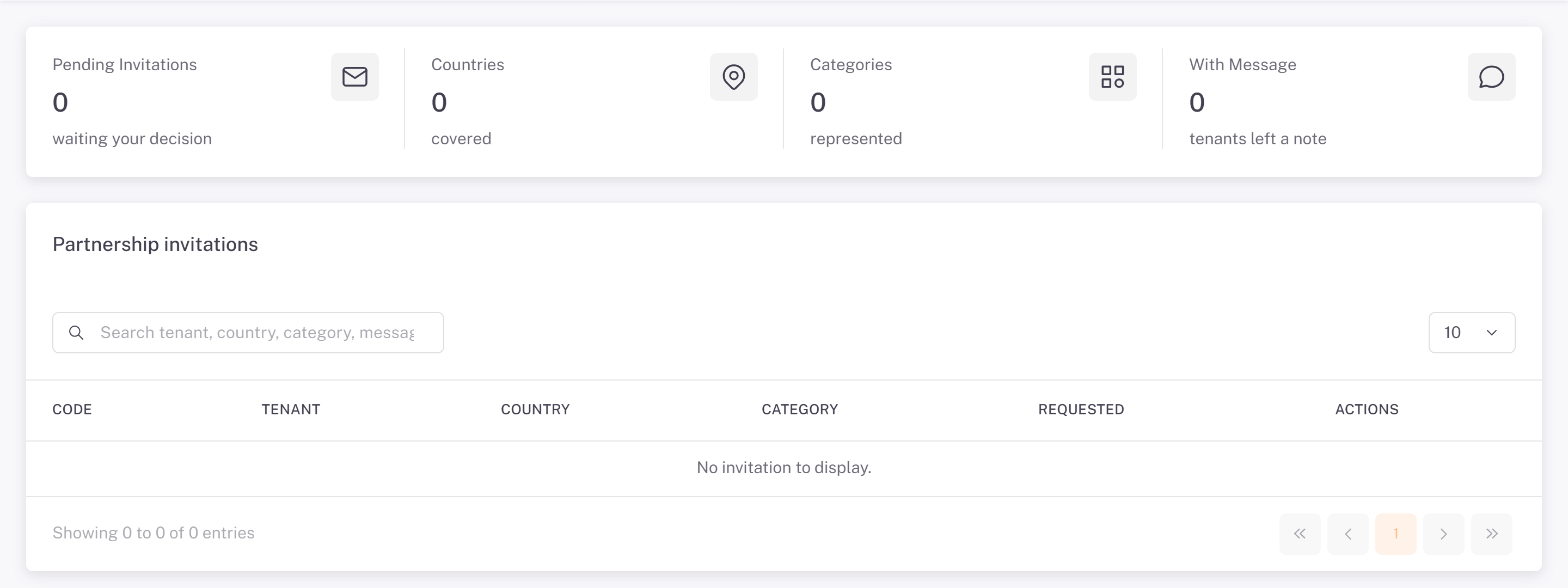
Partners > Inbox Invitations sent to you by carriers. Click Accept to start the partnership at once, or Decline.
Result
As soon as the carrier accepts, it appears in Active partners and in the Delivery partner list of the order form. You can submit orders to it.
Good to know
The carrier is notified of your request and accepts or declines it from its own console.
You can work with several carriers: choose the carrier on each order.
Was this article helpful?
Still need help?
Contact support