
Table of contents
Before you begin
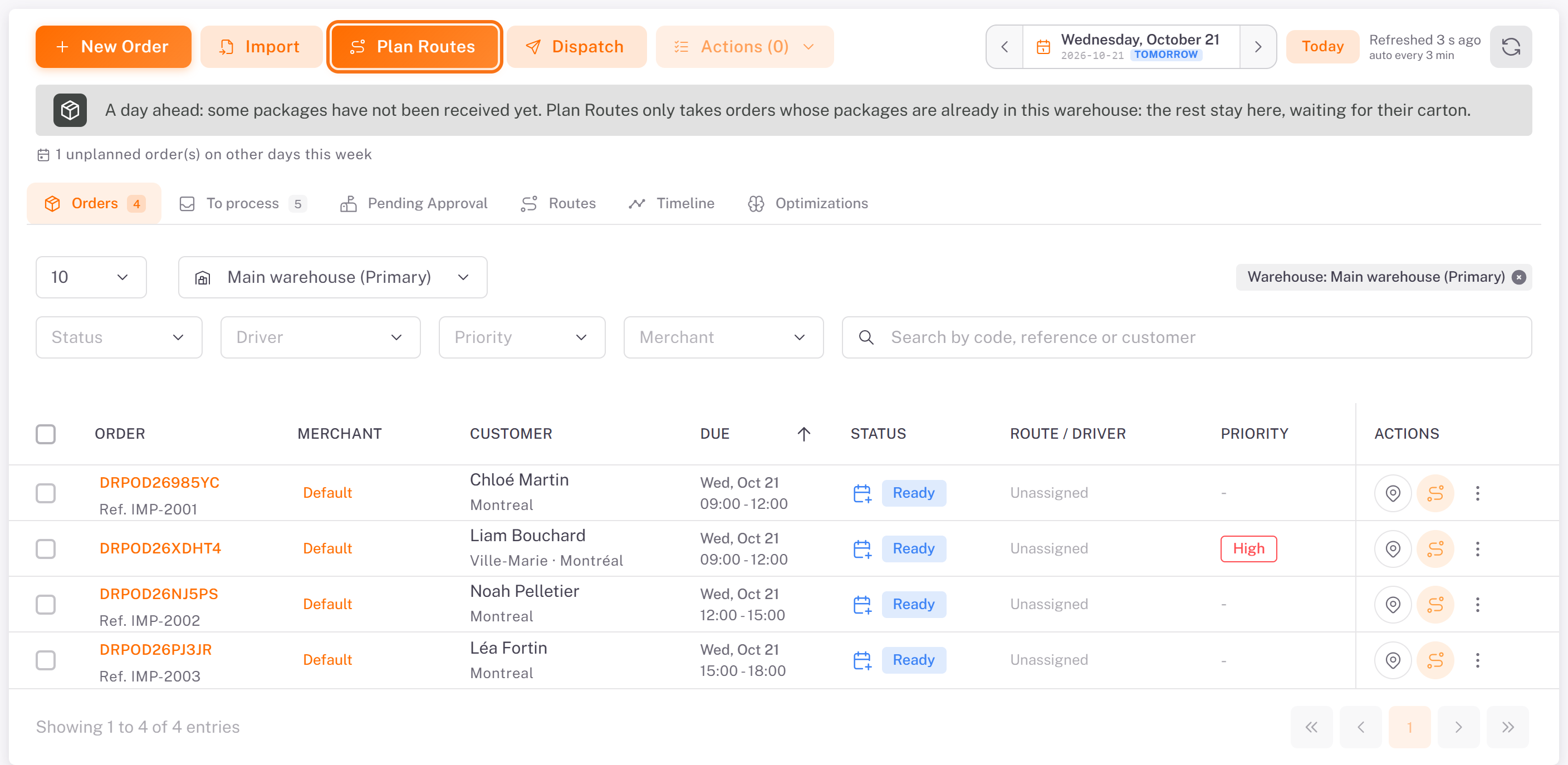
The orders are Ready: their packages are received at the warehouse. See [Receiving Packages at the Warehouse](../../04-warehouse/02-receiving-packages-at-the-warehouse/en.md).
Your drivers are active, have a default vehicle, and can be notified: they have an email address or have signed in to the driver app.
1. Open Plan Routes
1. In Plan & dispatch, choose the day with the arrows next to the date.
2. Click Plan Routes. To plan only some orders, tick them first: the button becomes Plan Routes (X) and only the ticked orders are planned.
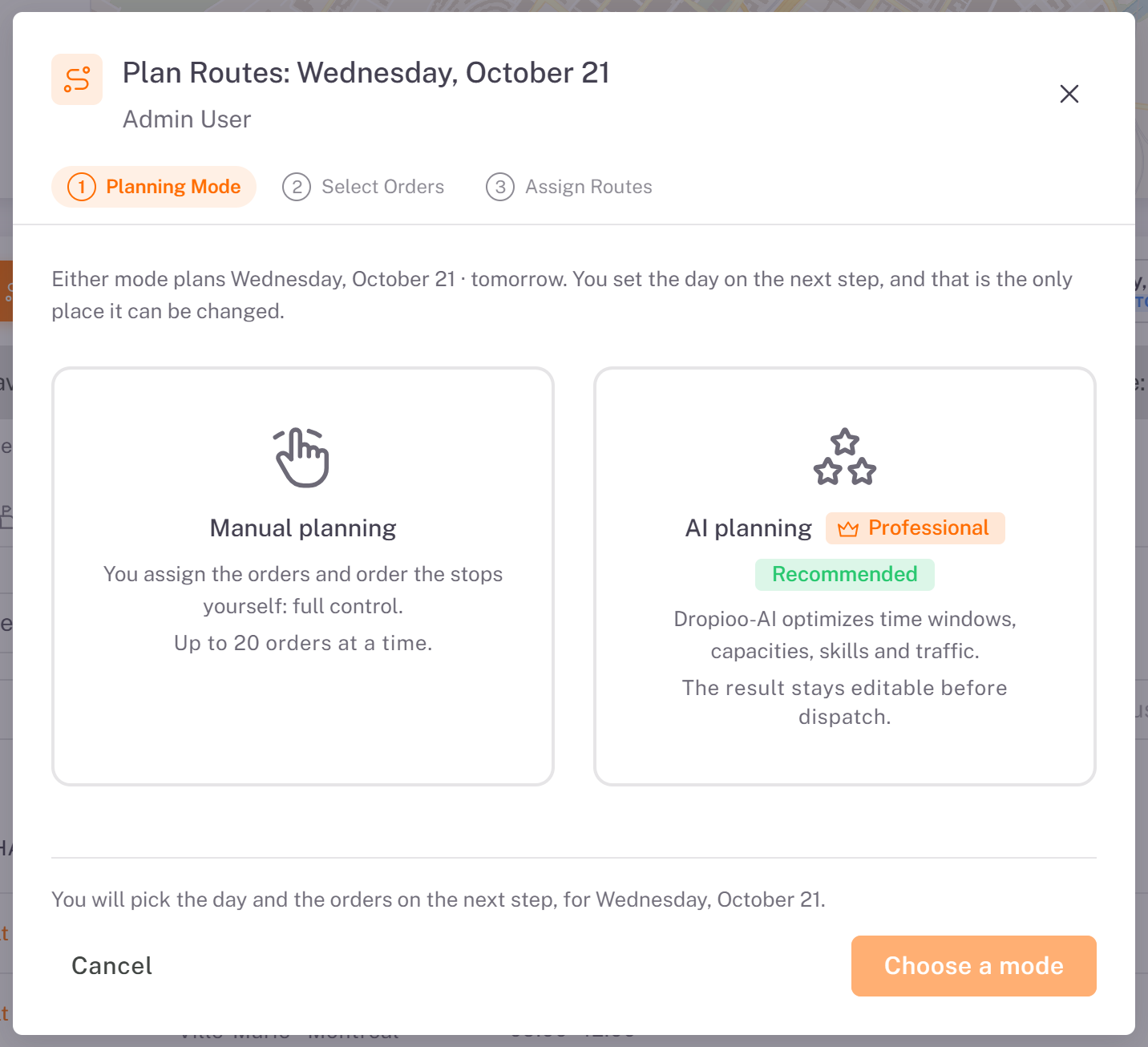
3. Planning Mode: choose a mode, then click the button at the bottom right.
Manual planning: you assign the orders and order the stops yourself, up to 20 orders at a time.
AI planning: the optimizer builds the routes for you (time windows, capacities, skills and traffic). The result stays editable before dispatch. It is included from the Professional plan: on a Starter plan, the card is locked and shows Upgrade to Professional (see [Managing Your Subscription and Invoices](../../10-billing-plans/01-managing-your-subscription-and-invoices/en.md)).
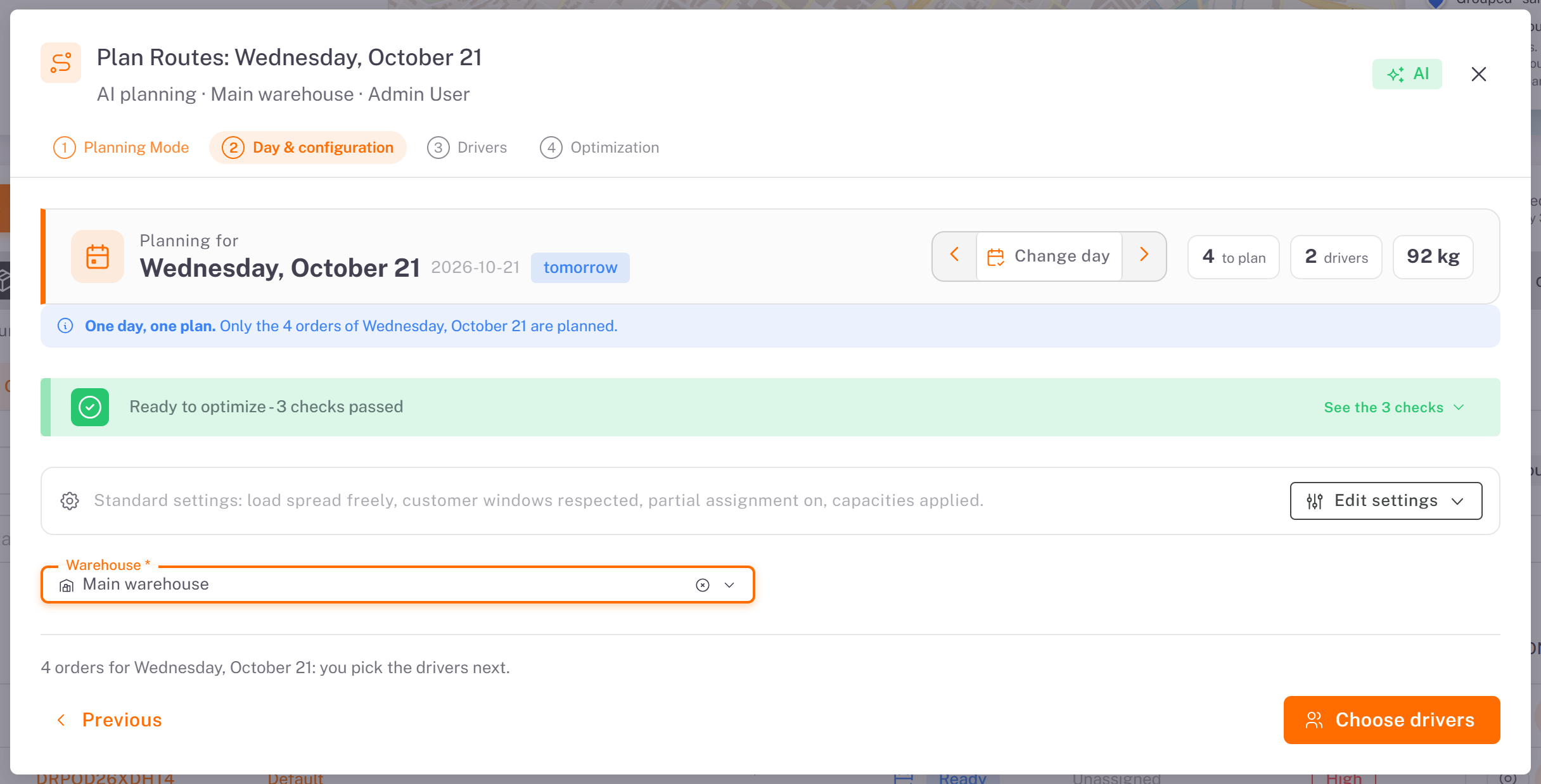
2a. Plan with the AI optimizer
1. Day & configuration: check the day and the counters (orders to plan, drivers, weight). If you have several warehouses, choose the Warehouse the routes leave from. Edit settings changes the planning rules. Click Choose drivers.
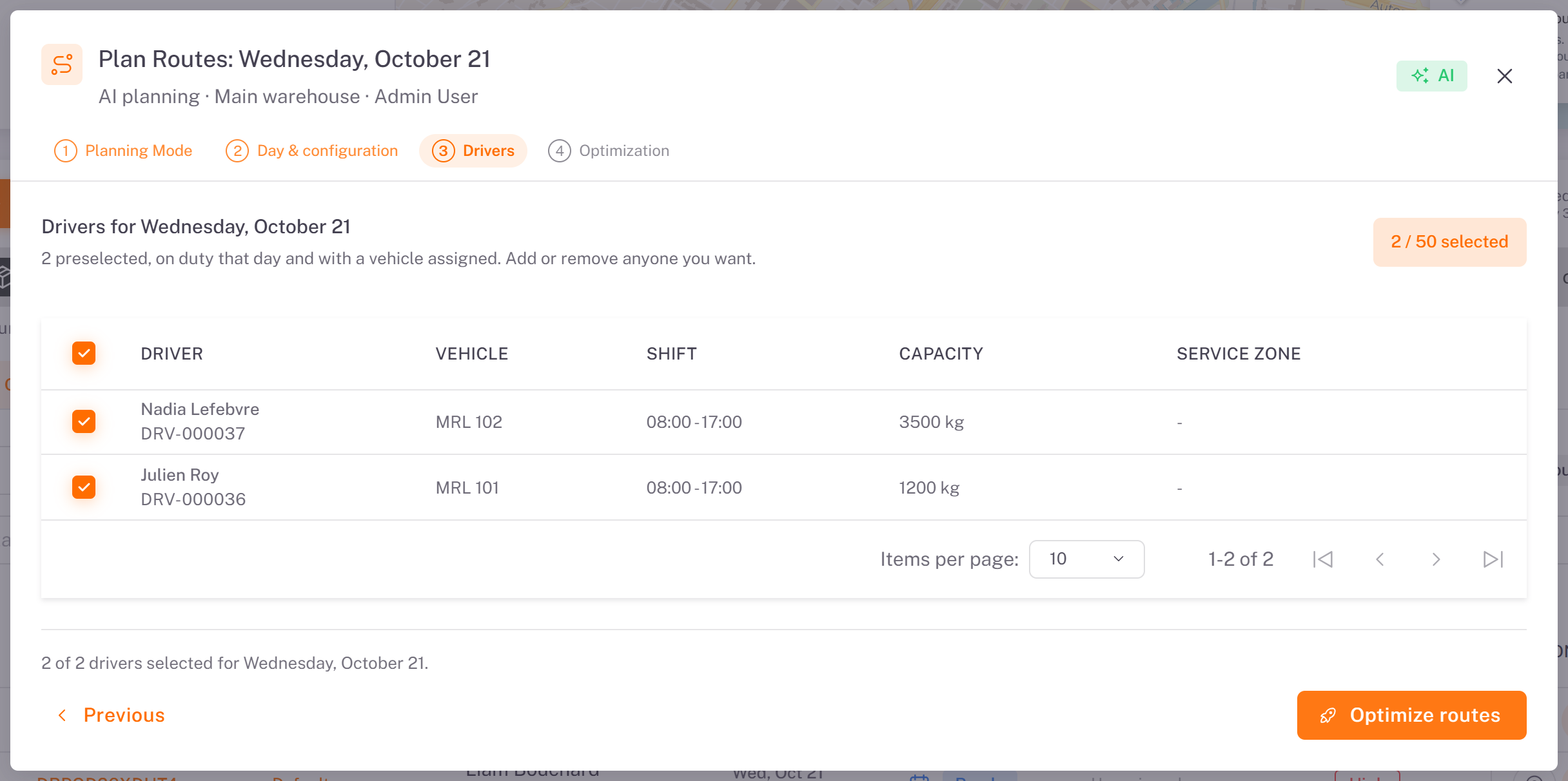
2. Drivers: the drivers on duty that day and with a vehicle are preselected. Untick a driver to leave them out. Click Optimize routes.
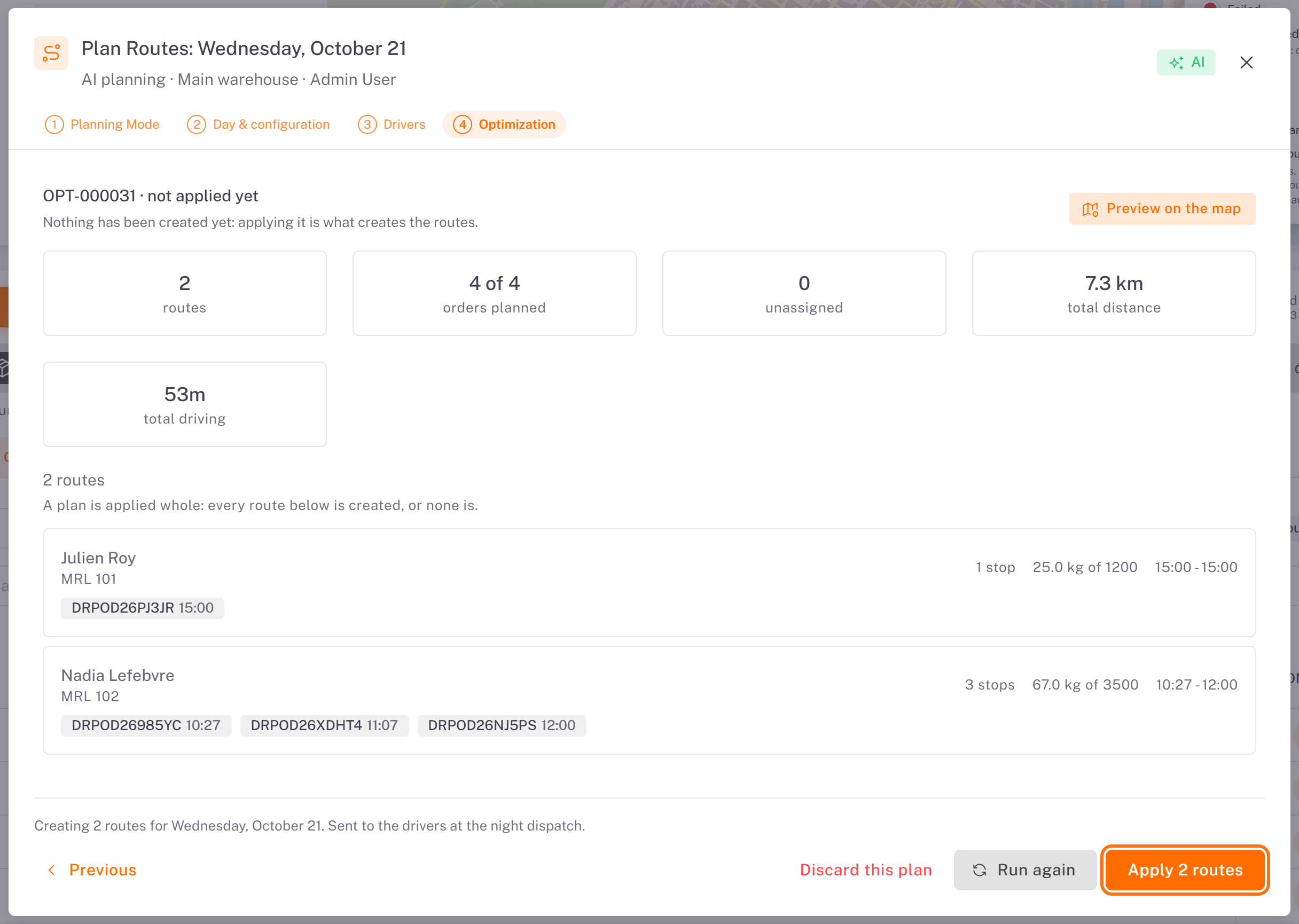
3. Optimization: the proposal shows the number of routes, the orders planned and left out, the distance and the driving time, then each route with its stops and times. Nothing is created yet.
Preview on the map draws the routes.
Run again computes a new proposal; Discard this plan drops it.
Apply N routes creates the routes. A plan is applied whole: every route below is created, or none is.
2b. Plan by hand
1. Select Orders: tick the orders to plan, then click Next.
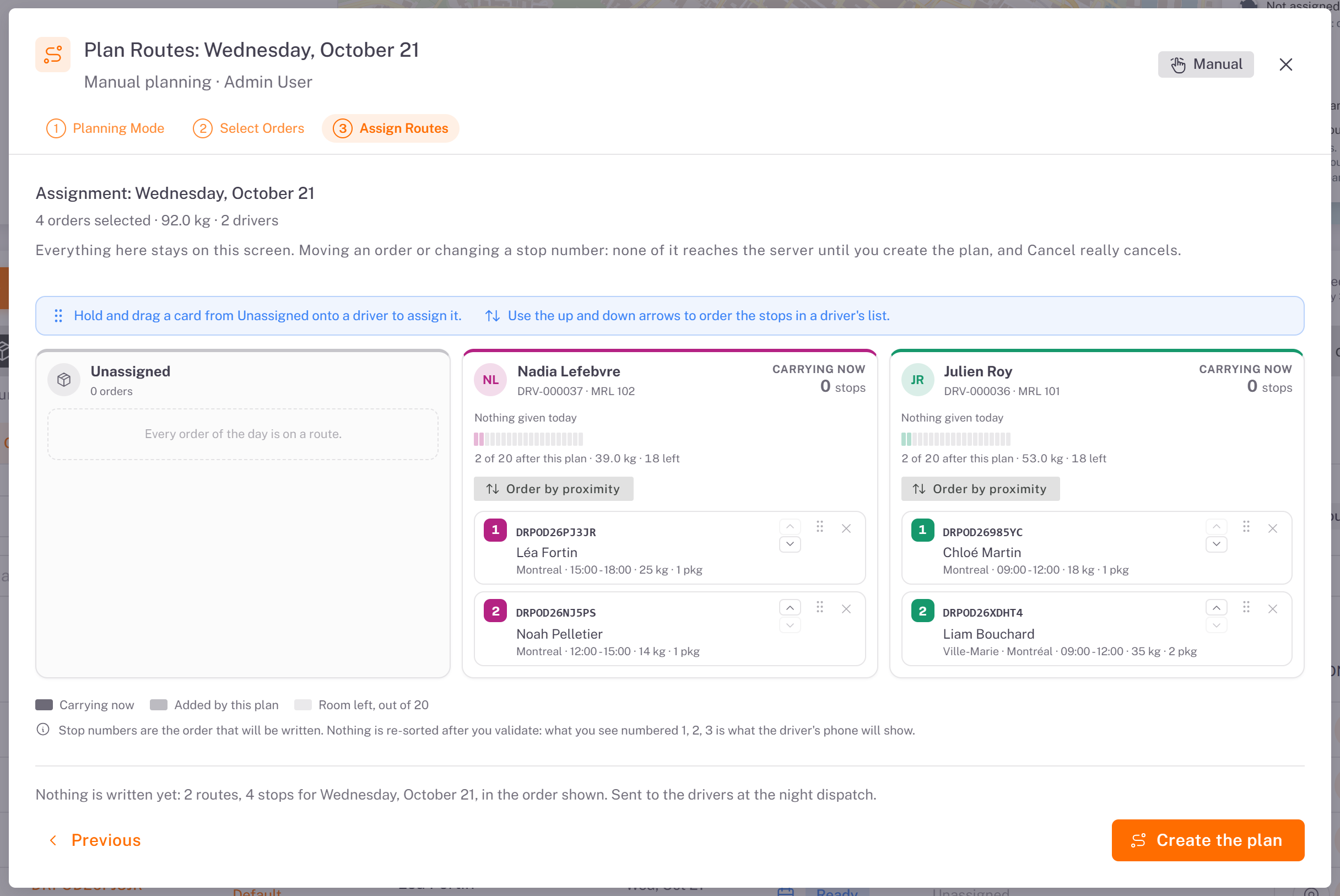
2. Assign Routes: the board shows Unassigned and one column per driver. Tick orders, click Assign to… and choose the driver, or drag a card onto a driver. Use the up and down arrows to order the stops; Order by proximity sorts them for you.
3. Click Create the plan.
3. Send the routes
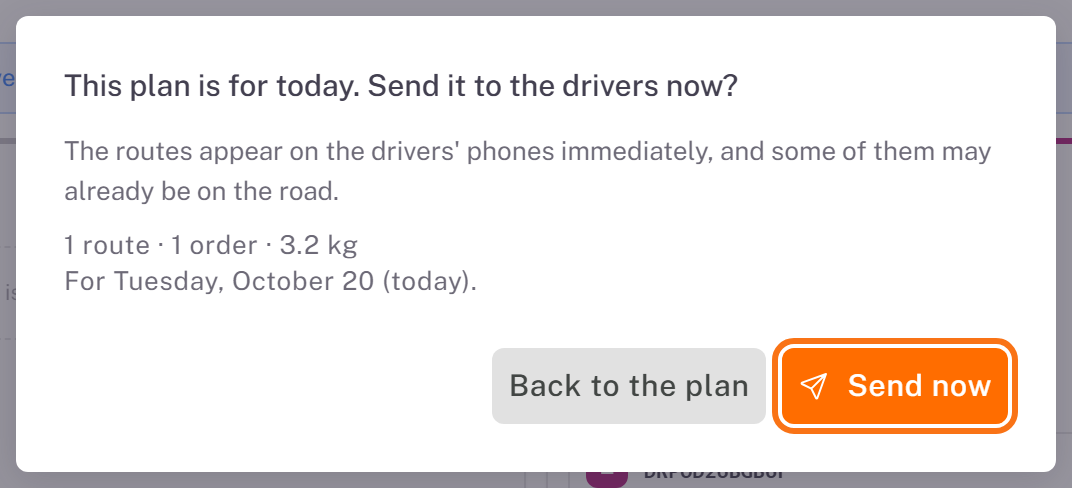
A plan for today is sent as soon as you create it. Dropioo asks: This plan is for today. Send it to the drivers now? Click Send now. Back to the plan returns to the plan without creating anything. Then check the Routes tab: if a route still reads Planned, send it with Dispatch.
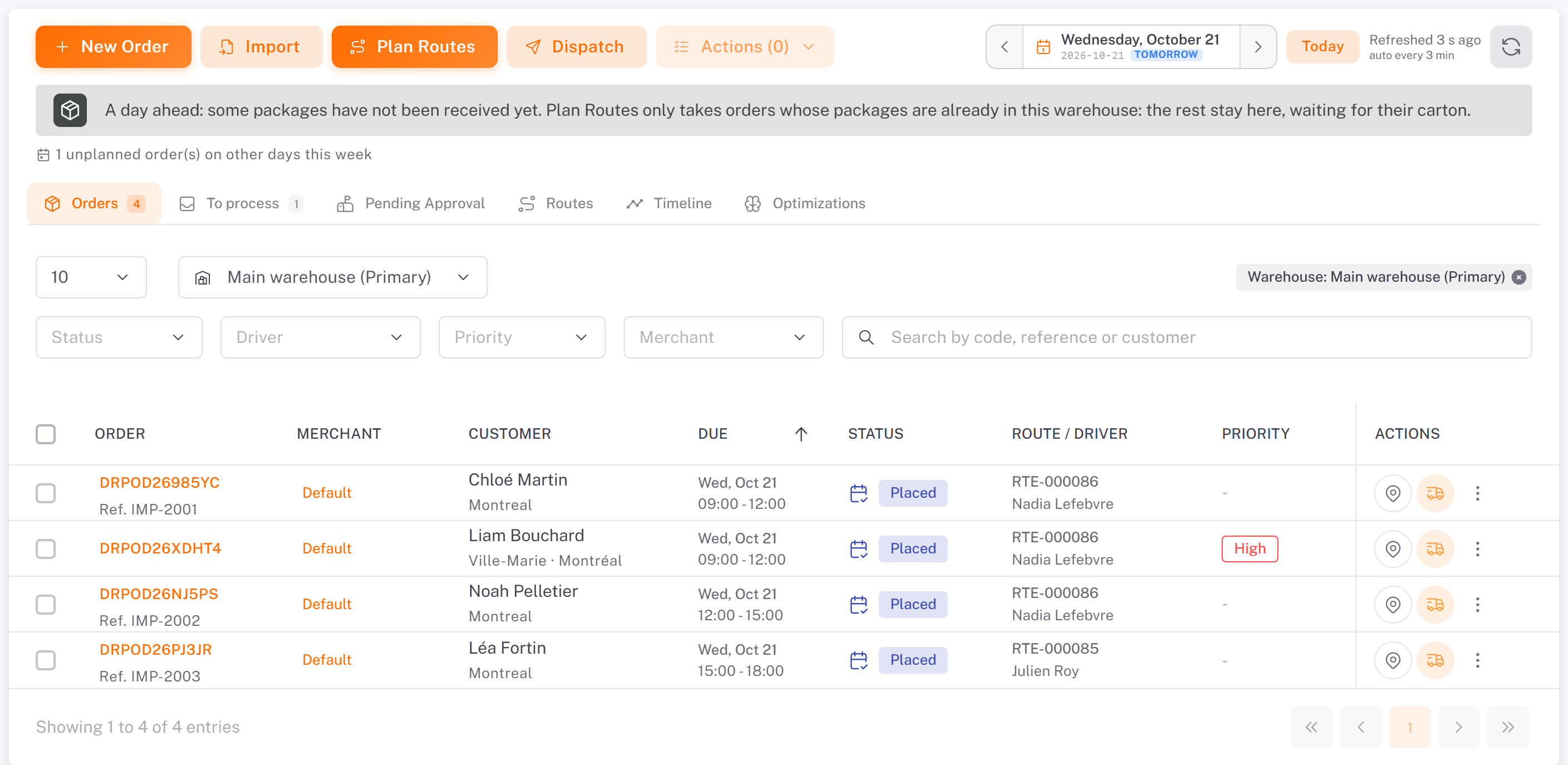
A plan for a later day creates the routes as Planned. The orders read Placed, with their route and driver.
Planned routes leave in one of two ways:
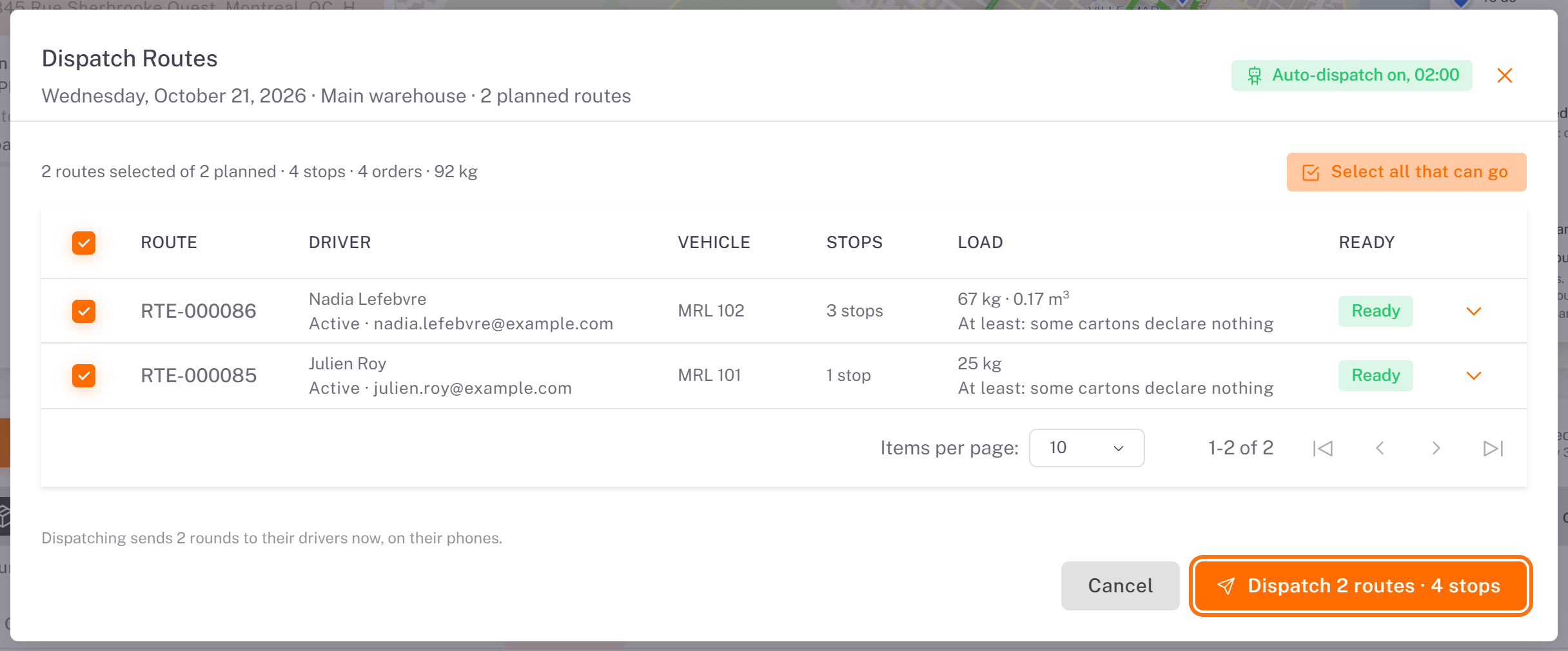
Automatic dispatch sends them early on their day, at the time set in Settings > Automation (02:00 by default; the Dispatch window shows Auto-dispatch on, 02:00). See [Configuring Automatic Dispatch](../../01-setup/04-configuring-automatic-dispatch/en.md).
Dispatch: click Dispatch, check the routes (**Select all that can go**), then click Dispatch N routes · M stops. A route that cannot go is marked with its reason, for example a driver who cannot be notified.
4. Follow your routes
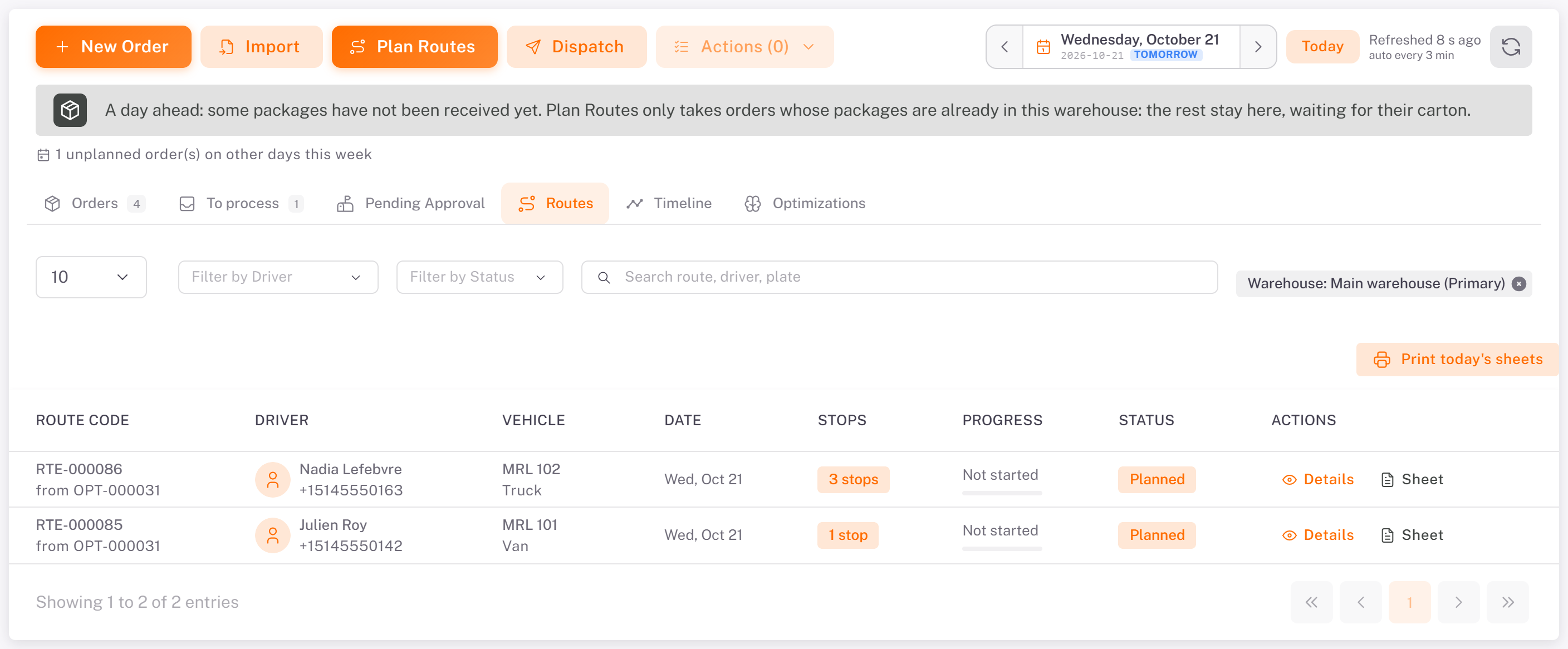
The Routes tab lists the day's routes with their driver, vehicle, stops, progress and status. Details opens the route window; Sheet downloads the driver's route sheet.
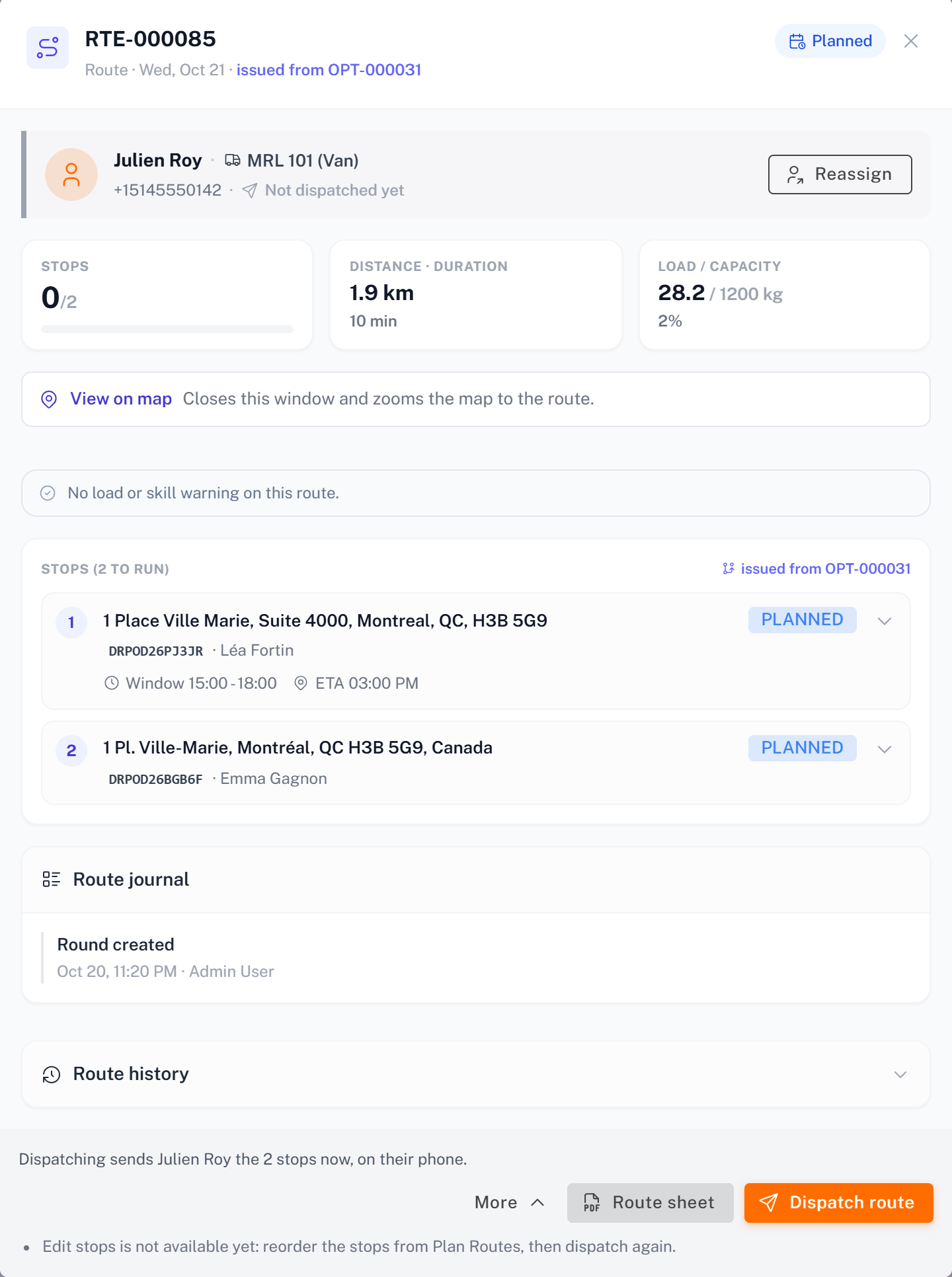
The route window shows the driver and vehicle, the stops in order with their window and estimated time, and the Route journal (created, dispatched, refused, and so on). The driver block at the top has a Reassign shortcut. At the bottom: Route sheet, Dispatch route, and under More: Reassign driver, Add quick stop and Cancel route.
Rules to know
One active route per driver. A driver who still has a route in progress cannot receive another one: the console refuses with The driver already holds an active round, … : it must be finished first. A driver can run several routes a day, one after the other.
One order, one stop. Two orders at the same address make two stops.
Only orders whose packages are at the warehouse are planned.
An order with a carton in a return not processed yet cannot go on a route. Process the return first from the warehouse inventory (**Returns**). See [Processing Returns and Unidentified Packages](../../04-warehouse/04-processing-returns-and-unidentified-packages/en.md).
An order refused by your team (merchant order rejected) is closed: it cannot be planned.
Was this article helpful?
Still need help?
Contact support