
Table of contents
Before you begin
Your warehouse exists, and so does at least one merchant. Your own company is always available as a merchant.
You know the recipient's name, phone and delivery address.
Steps
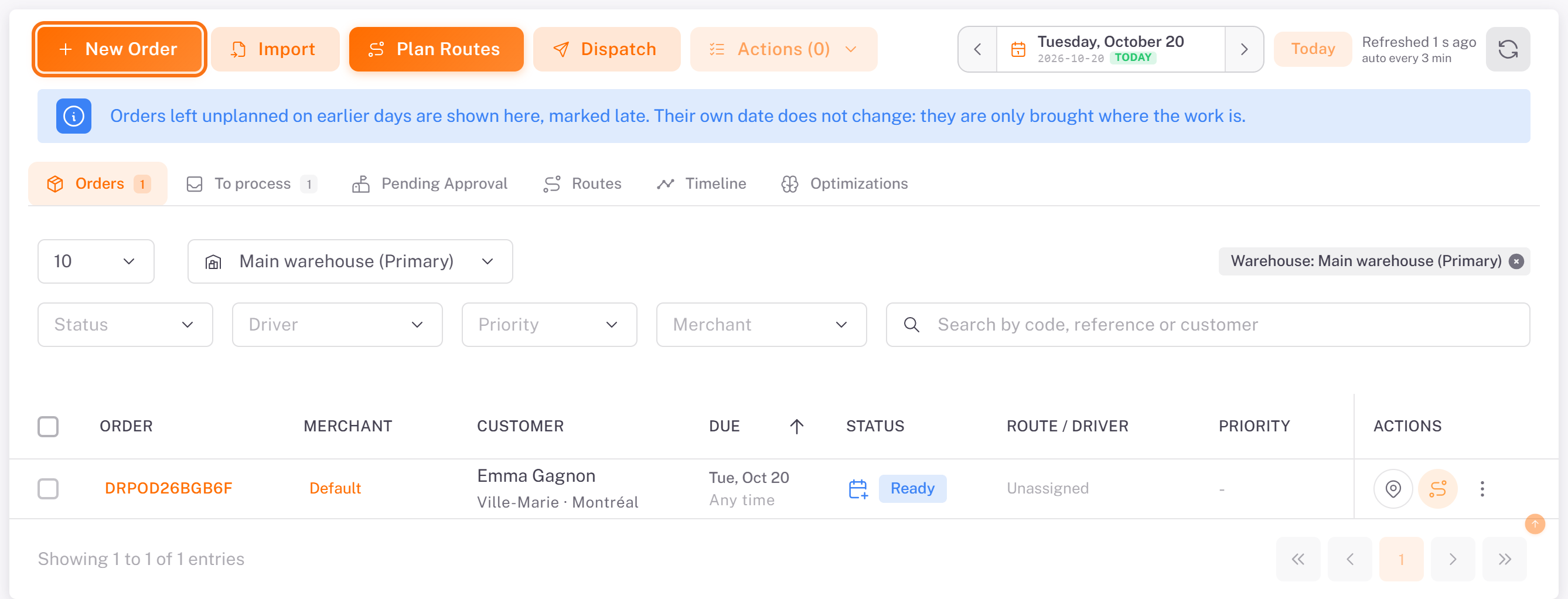
1. In the menu, open Plan & dispatch. On the Orders tab, click New Order.
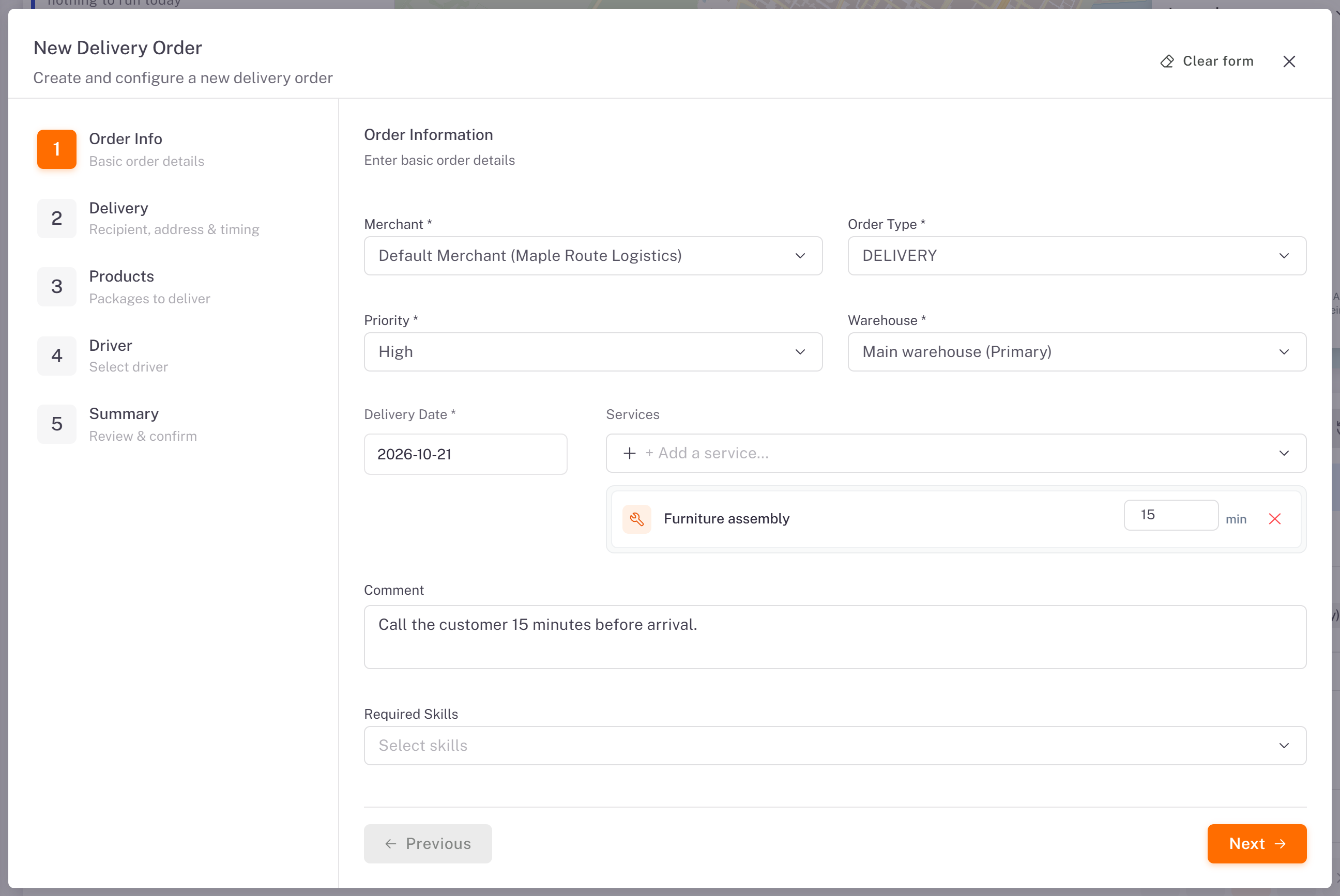
2. Order Info:
- Merchant: who the order is for (already selected when you have only one).
- Order Type and Priority (Low, Medium, High or Urgent).
- Warehouse: where the packages will be received.
- Delivery Date: today or a later day (a past day is refused).
- Services (optional): add a service, for example Furniture assembly. Its expected duration shows next to it.
- Comment (optional), and Required Skills (optional) when the order needs a specific driver skill.
Click Next.
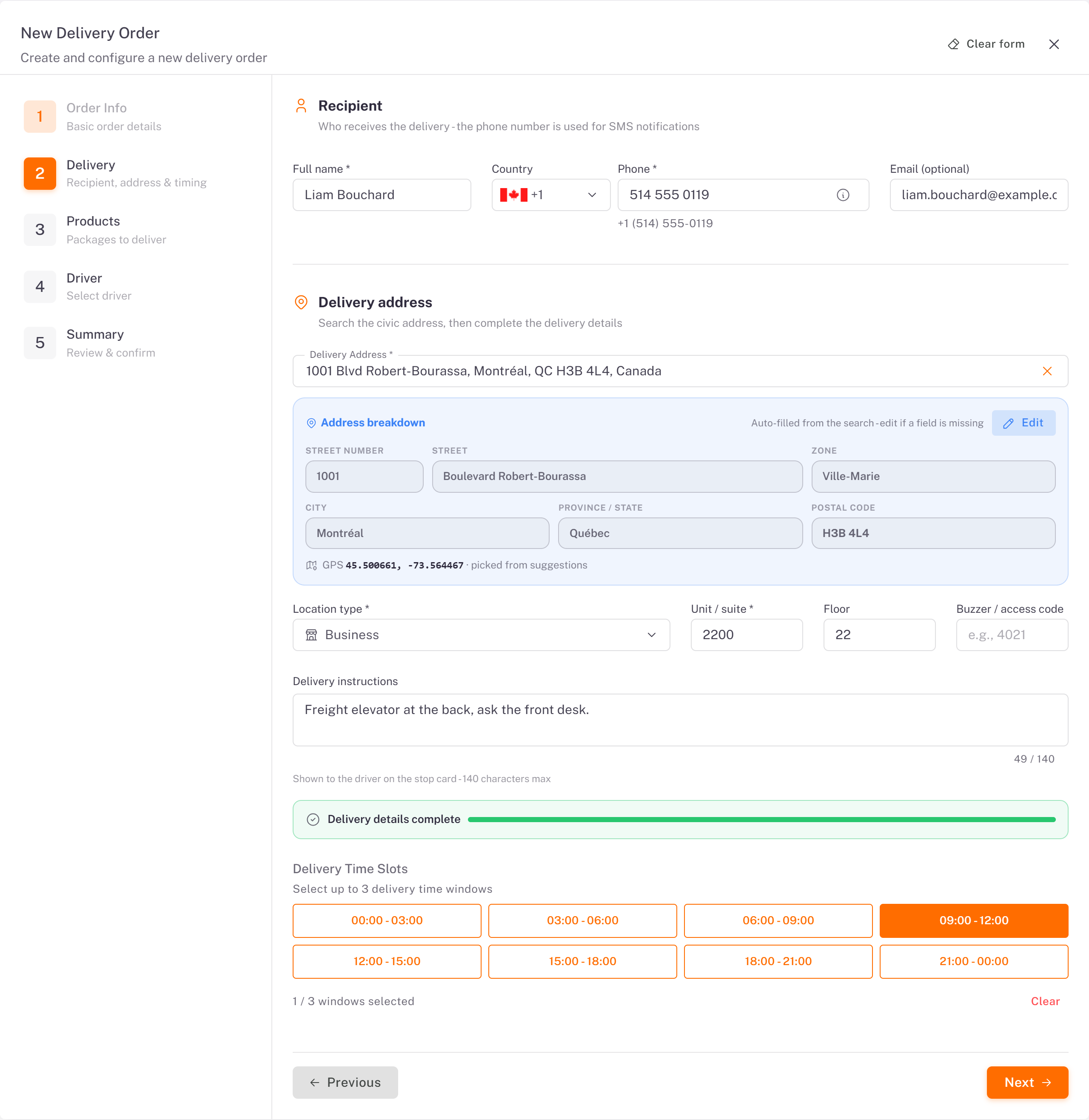
3. Delivery:
Under Recipient, enter the Full name, the Phone (choose the country, then type the number) and, if you have it, the email. The phone is used for the delivery text messages.
Search the Delivery Address and pick it in the suggestions. The Address breakdown and the GPS position fill in by themselves. Choose a precise address (number and building) to get the postal code.
Choose the Location type, then the Unit / suite, Floor and Buzzer / access code if needed, and add Delivery instructions for the driver.
Under Delivery Time Slots, select up to 3 windows of 3 hours, or leave them empty for any time of the day.
Click Next.
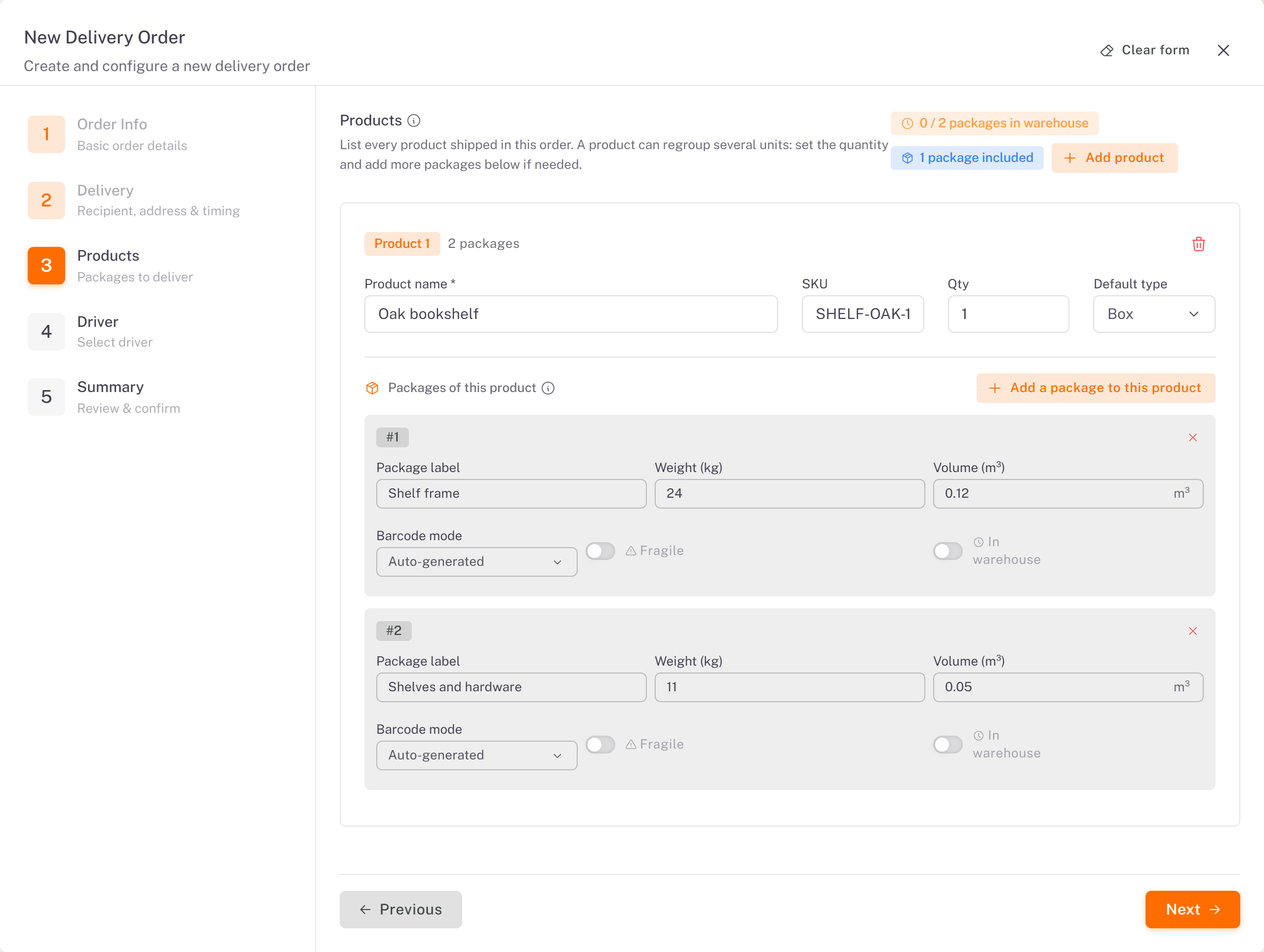
4. Products: click Add product, then enter the Product name, the SKU and the Qty. Each product comes with one package: give it a Package label, a Weight (kg) and a Volume (m³). Click Add a package to this product when the product ships in several cartons. Tick Fragile if needed. Click Next.
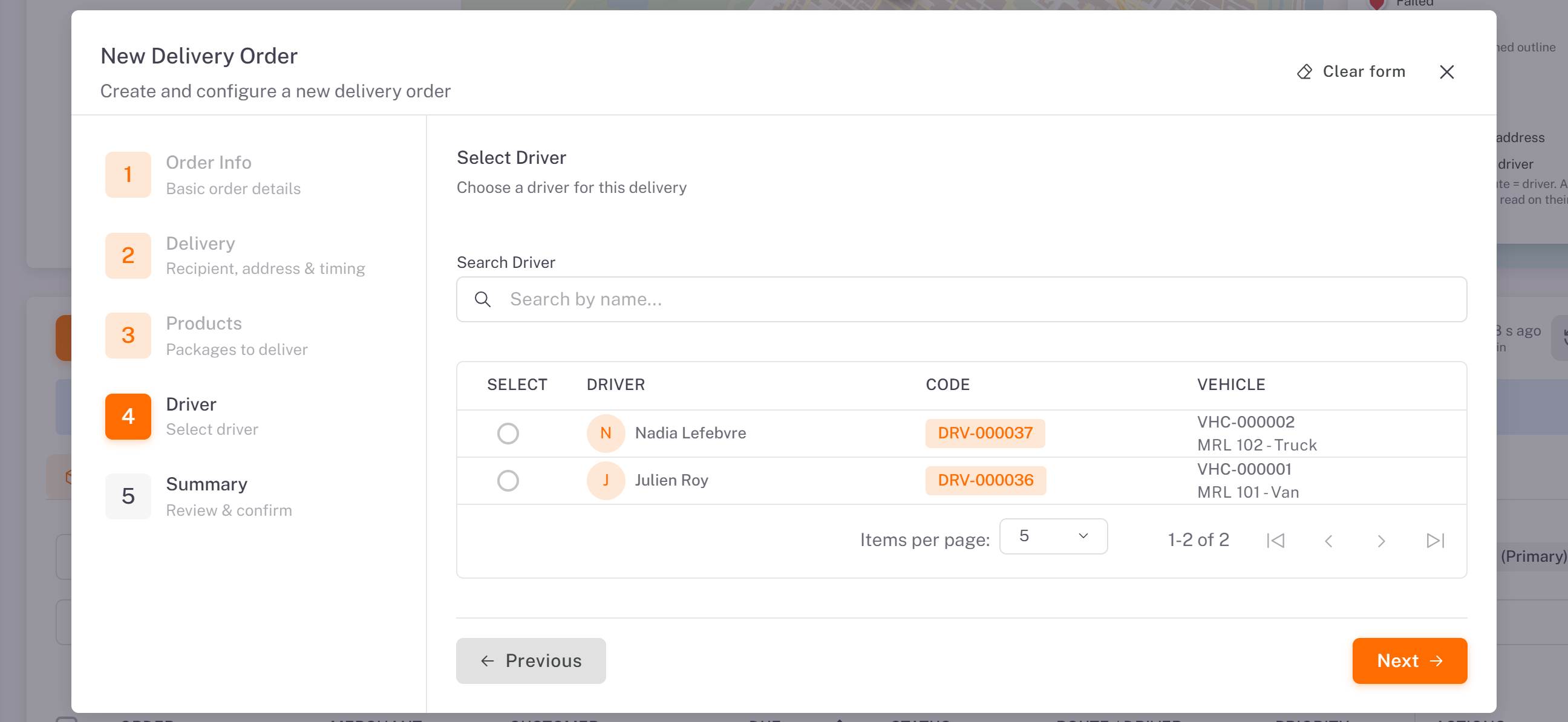
5. Driver (optional): pick a driver now, or leave it empty and choose the driver when you plan the route. Click Next.
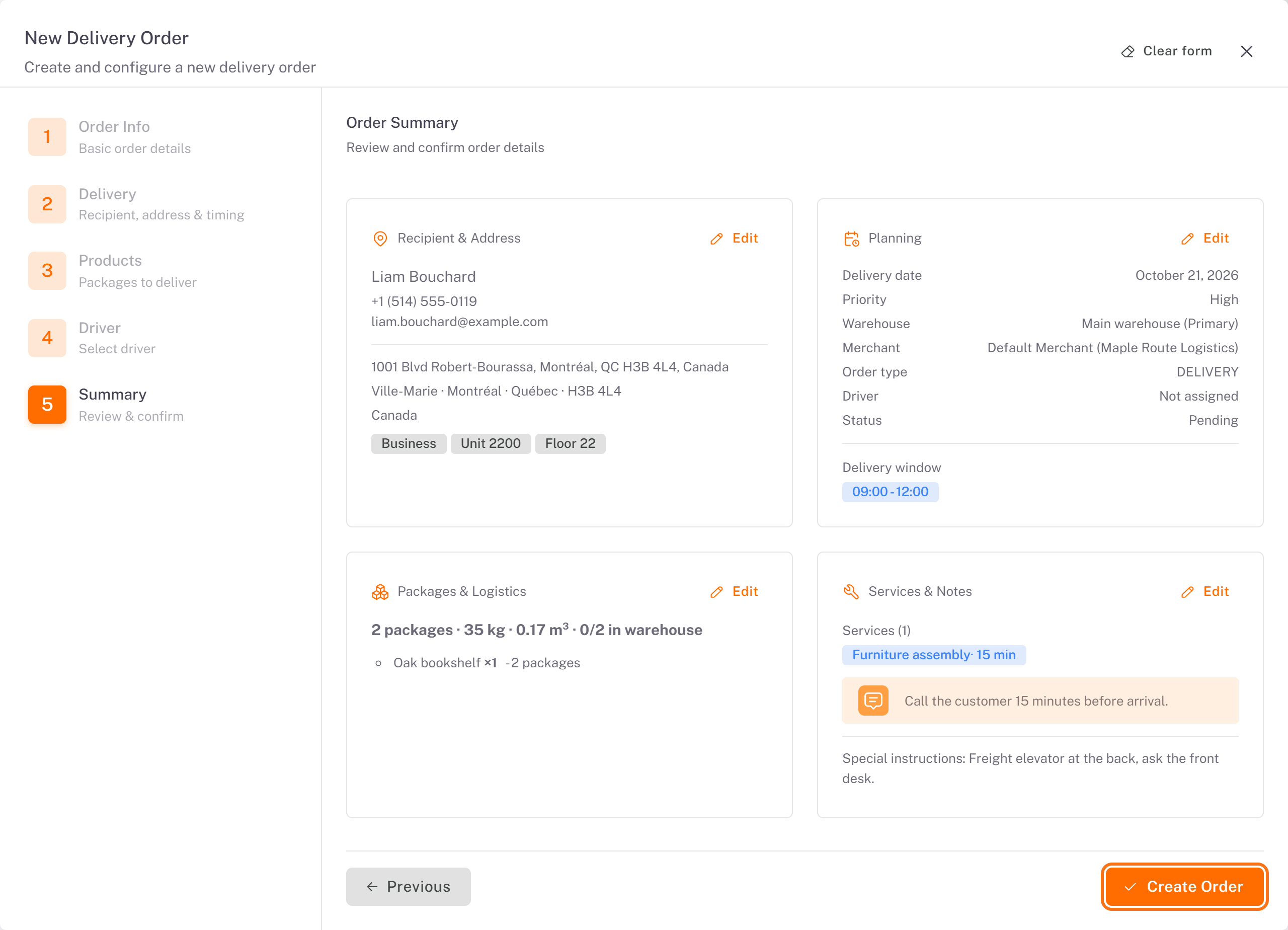
6. Summary: check each block. Each one has an Edit link to go back to it. Click Create Order.
Result
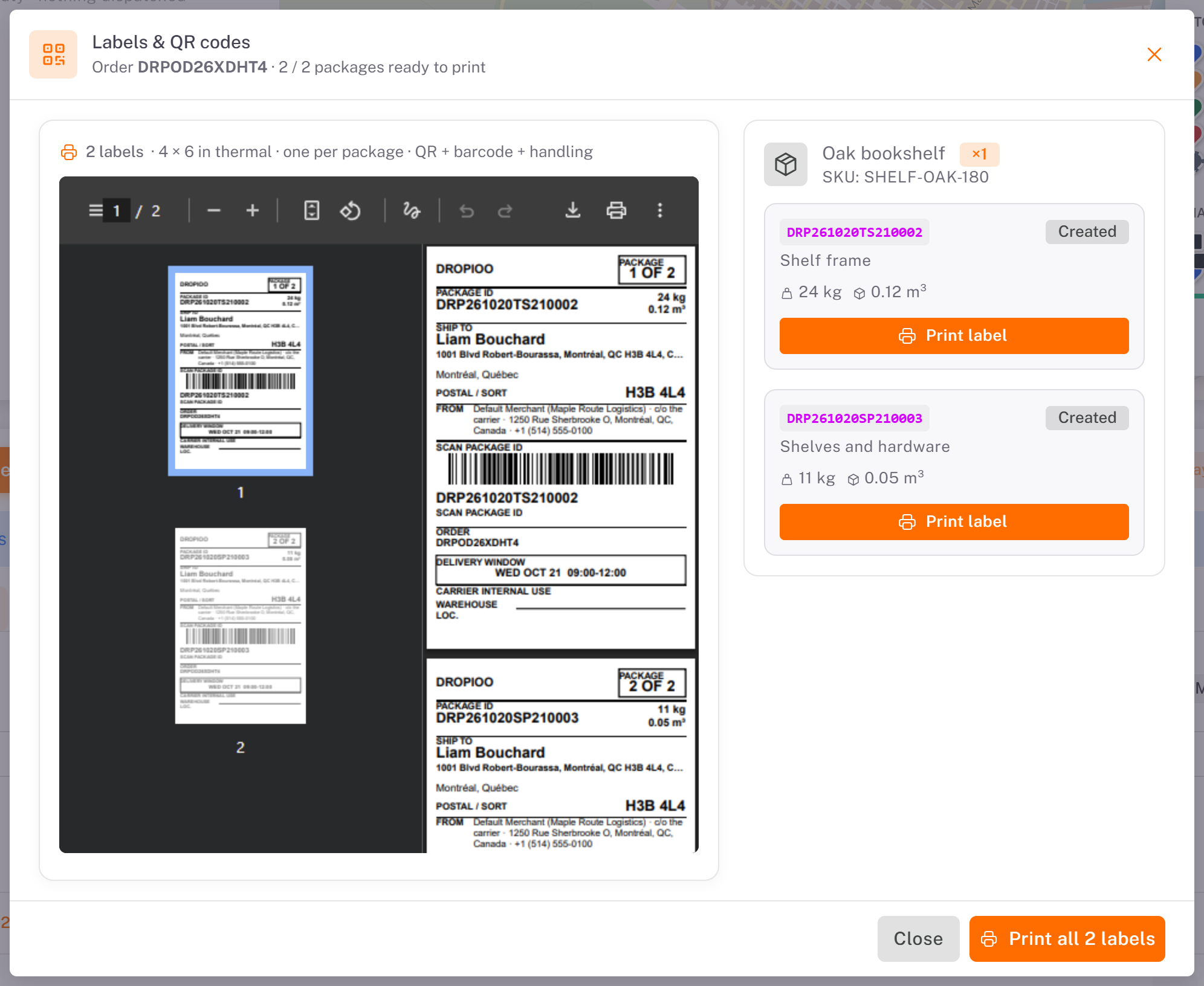
The Labels & QR codes window opens: one 4 × 6 in label per package. Click Print all N labels, or Print label for one package.
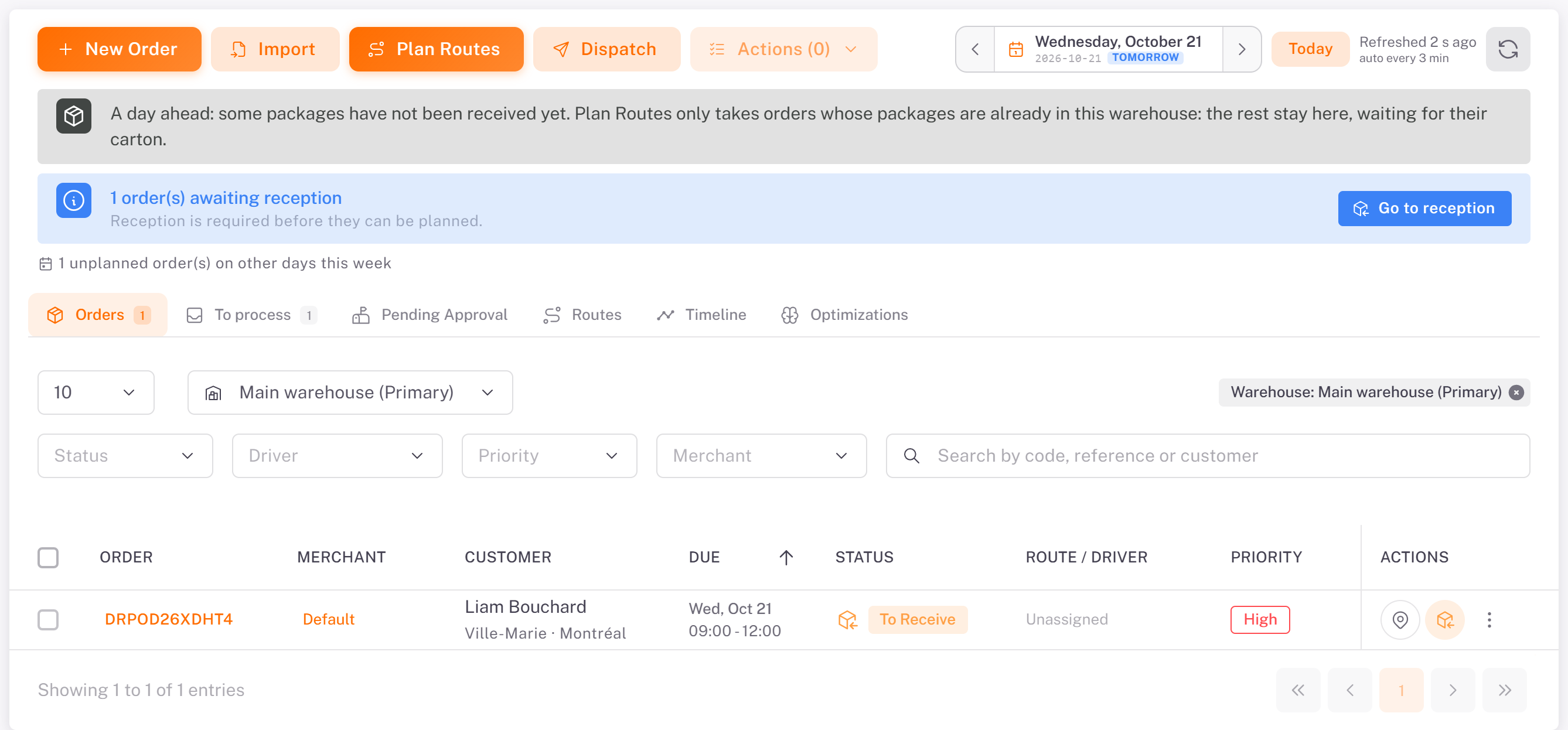
The order appears in the Orders tab, on its delivery day, with the status To Receive: its packages are expected at the warehouse. It can be planned once they are received.
Print the labels again
In the Orders tab, open the order's ⋮ menu and choose View details, then click Print labels.
Good to know
If a field is missing, Next takes you to the first field to fix.
Clear form empties the form and starts again.
An order created by your team does not need an approval. An order sent by a merchant waits in Pending Approval (see [Approving or Rejecting Merchant Orders](../03-approving-or-rejecting-merchant-orders/en.md)).
Next steps
Was this article helpful?
Still need help?
Contact support