
Table of contents
Before you begin
You have a role that can manage drivers.
At least one vehicle exists: every driver needs a default vehicle. See [Adding a Vehicle](../02-adding-a-vehicle/en.md).
You know the driver's mobile number, with its country.
Open the driver list
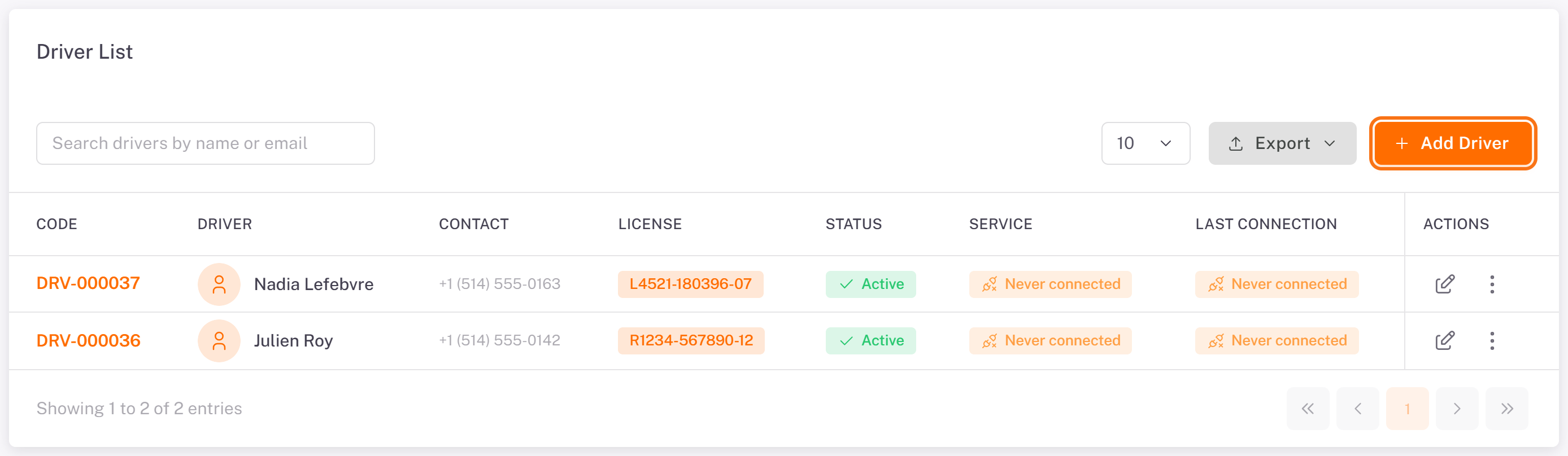
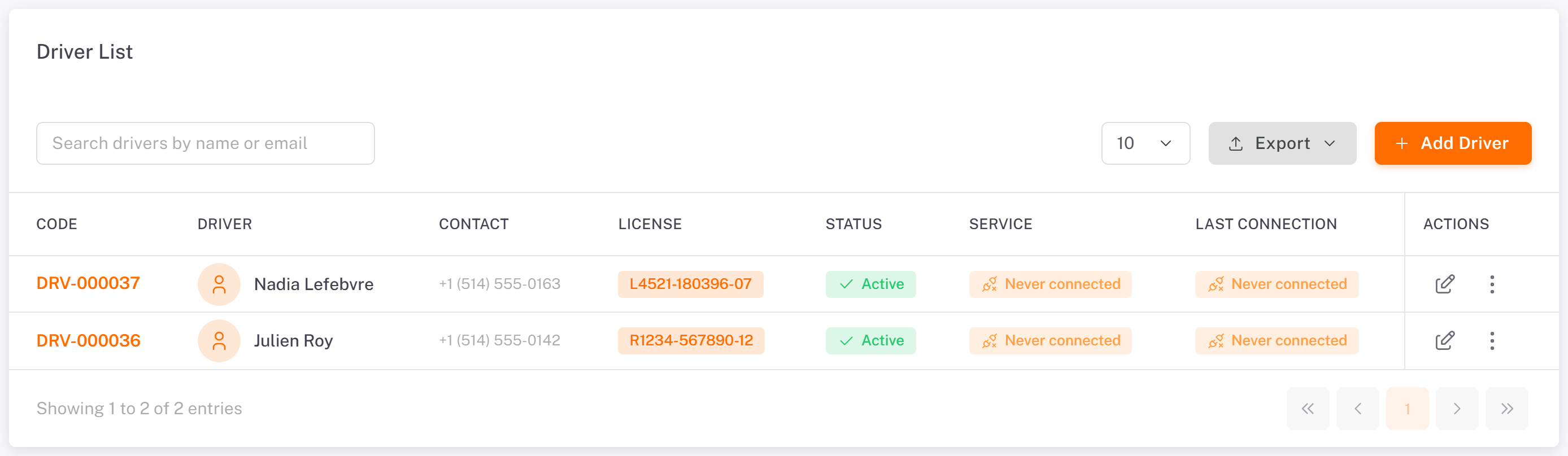
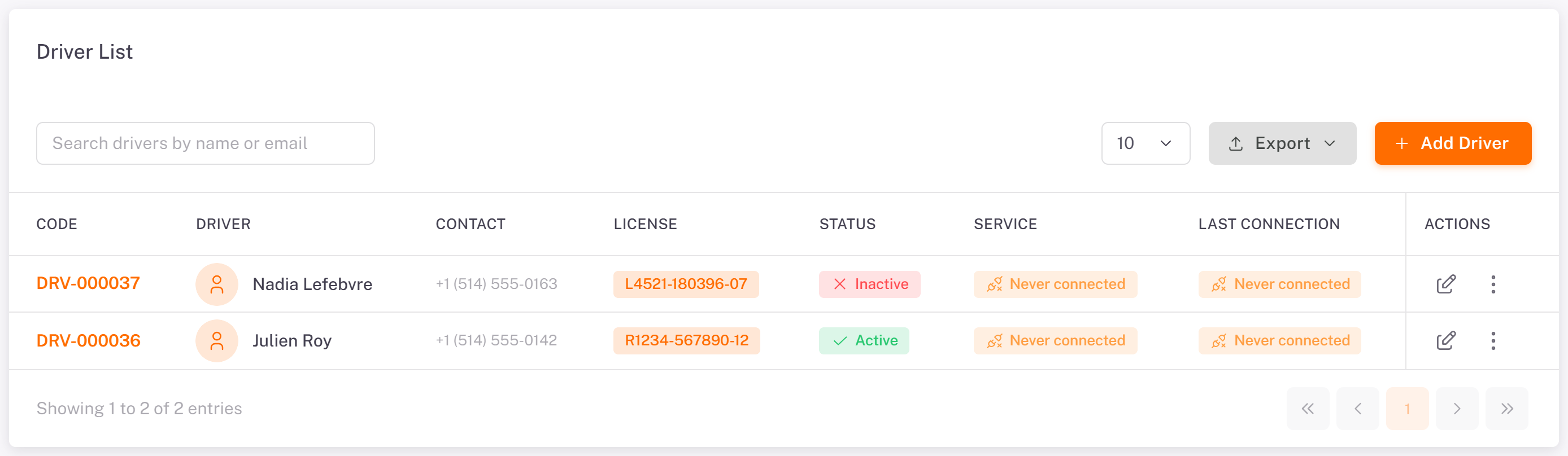
In the menu, open Drivers > Drivers. The Driver List shows each driver with their Status (Active or Inactive), their Service (On duty, Off duty, or Never connected until they sign in to the app for the first time) and their Last connection.
Add a driver
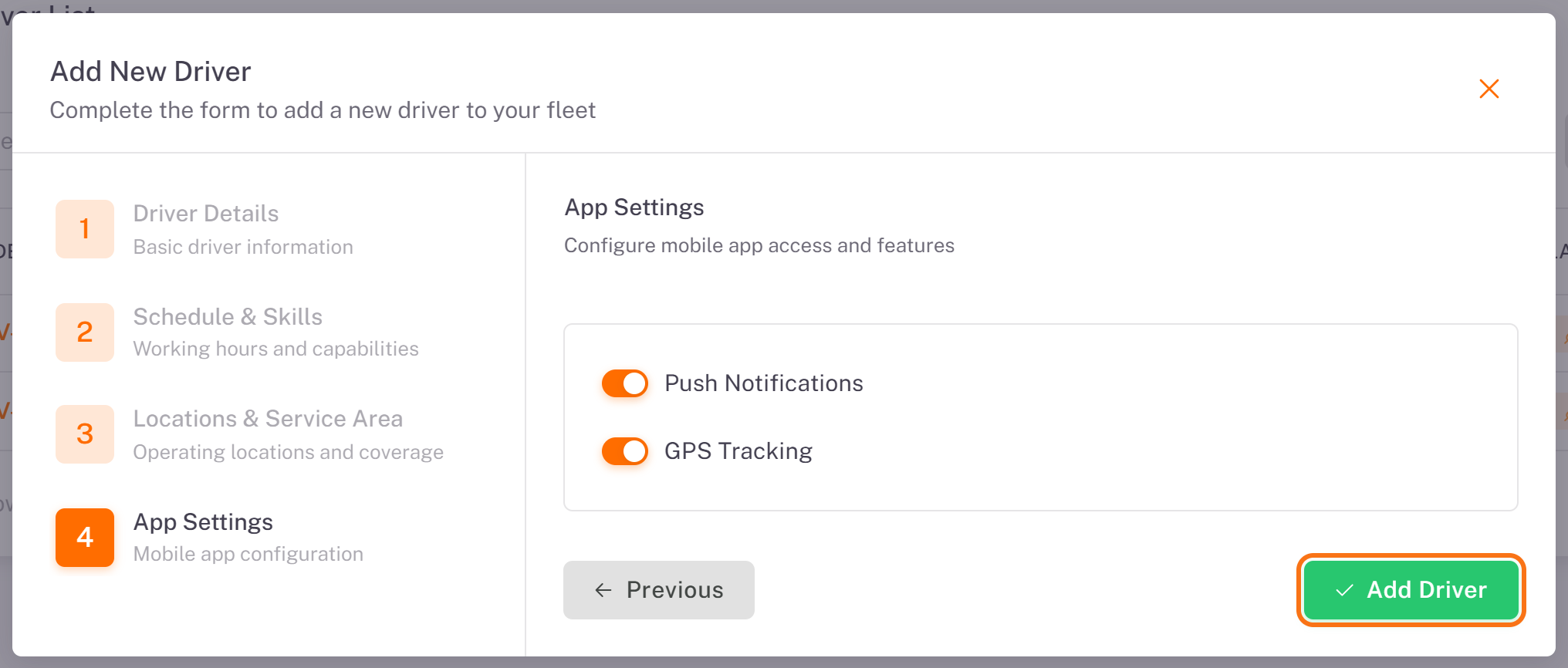
1. Click Add Driver. The Add New Driver form has four steps.
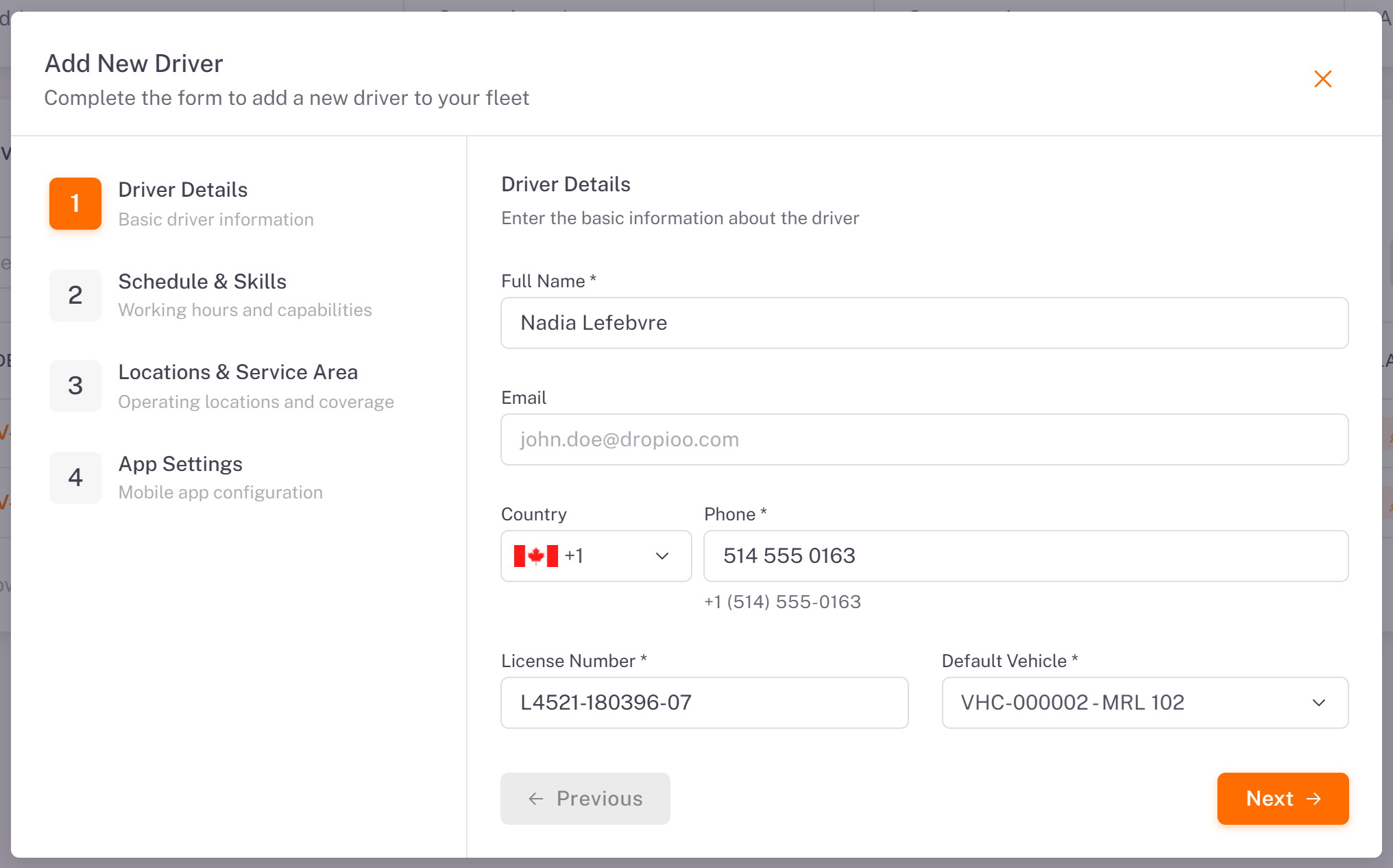
2. Driver Details: enter the Full Name, the Phone and the License Number, and choose the Default Vehicle. The Email is optional.
Choose the Country first, then type the number. The console adds the country code (for example +1). You can also paste a number that starts with + or 00: the country follows.
Each phone number can belong to only one driver of your company.
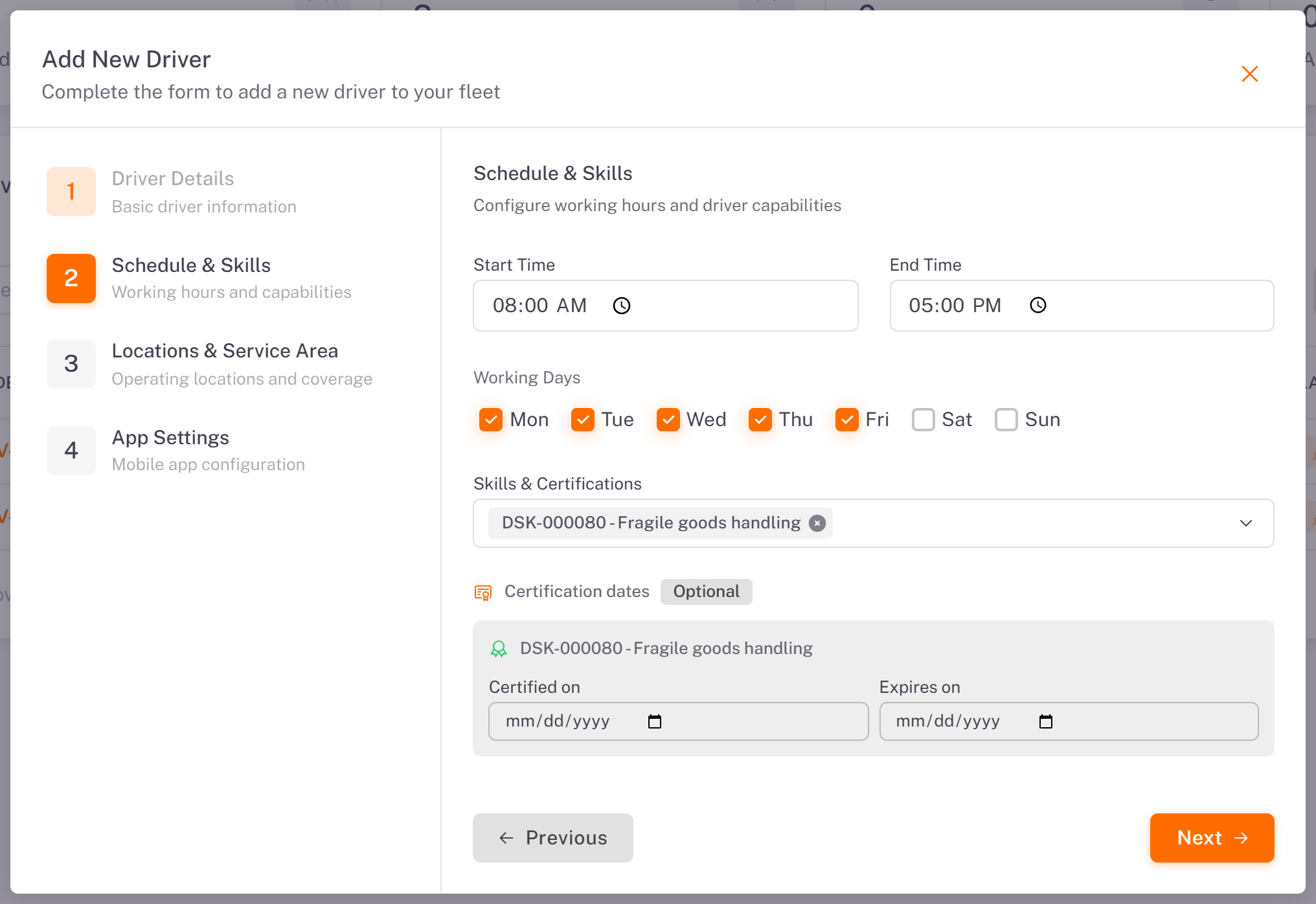
3. Schedule & Skills: set the Start Time, End Time and Working Days (Monday to Friday by default). Under Skills & Certifications, pick the driver's skills. For a skill that requires a licence, you can add its Certified on and Expires on dates (optional). See [Managing Driver Skills](../03-managing-driver-skills/en.md).
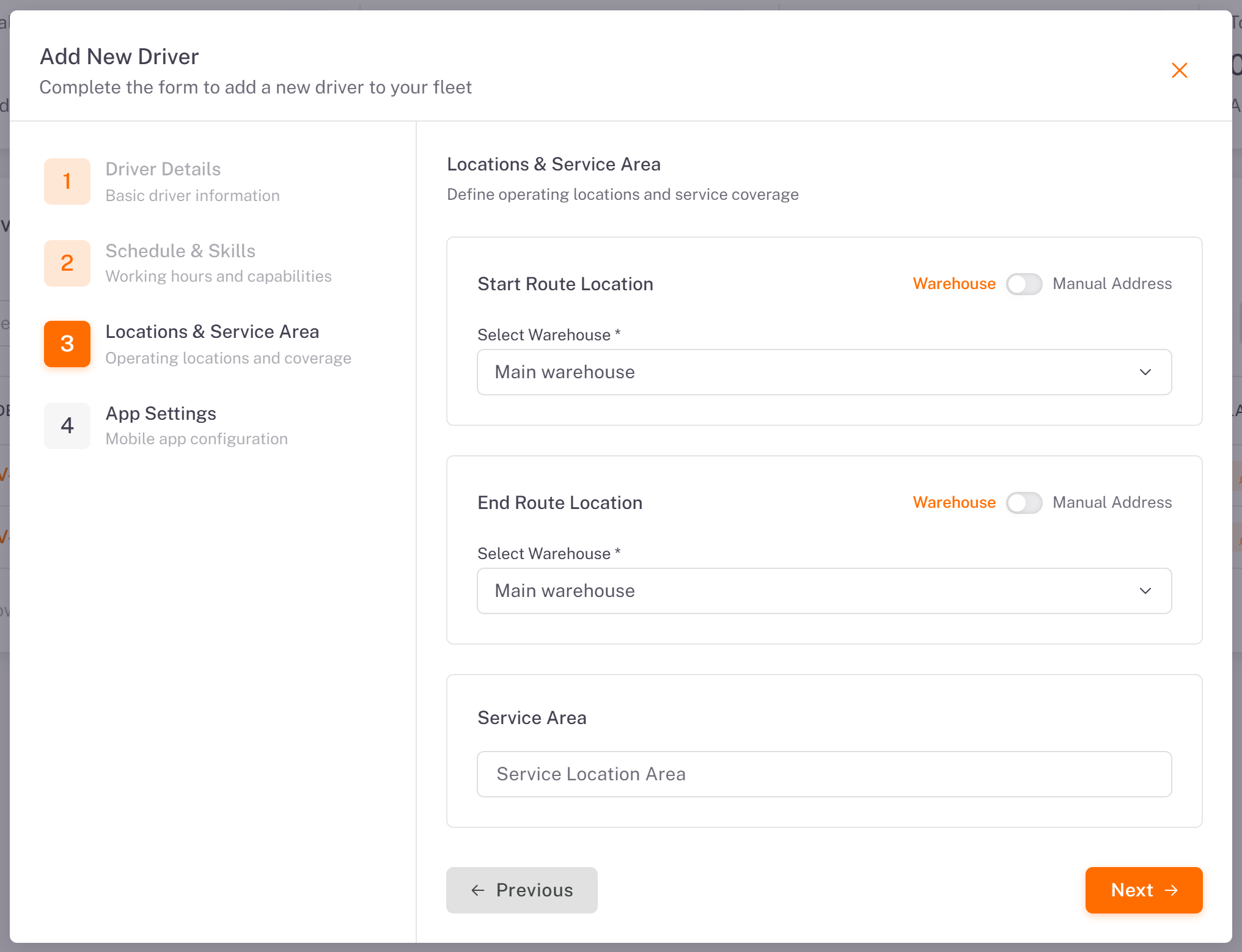
4. Locations & Service Area: the Start Route Location and End Route Location are set to your main warehouse. Switch to Manual Address if the driver starts or ends elsewhere. The Service Area is optional.
5. App Settings: leave Push Notifications and GPS Tracking on, then click Add Driver.
The driver receives a 6-digit activation code by SMS. They enter it in the driver app to activate their account (see [Activating and Signing In to the Driver App](../../05-driver-app/01-activating-and-signing-in/en.md)).
If the SMS cannot be delivered, the console shows SMS not sent: share the code manually with the code and a Copy code button. Send the code to the driver another way, then click I’ve shared the code.
The new driver appears in the list as Never connected until their first sign-in.
If the phone is refused, the message says why:
The phone number must start with its country code (+ or 00).
This phone number is too short: at least 4 digits are needed after the country code.
Another driver of your company already has this phone number.
View a driver's details
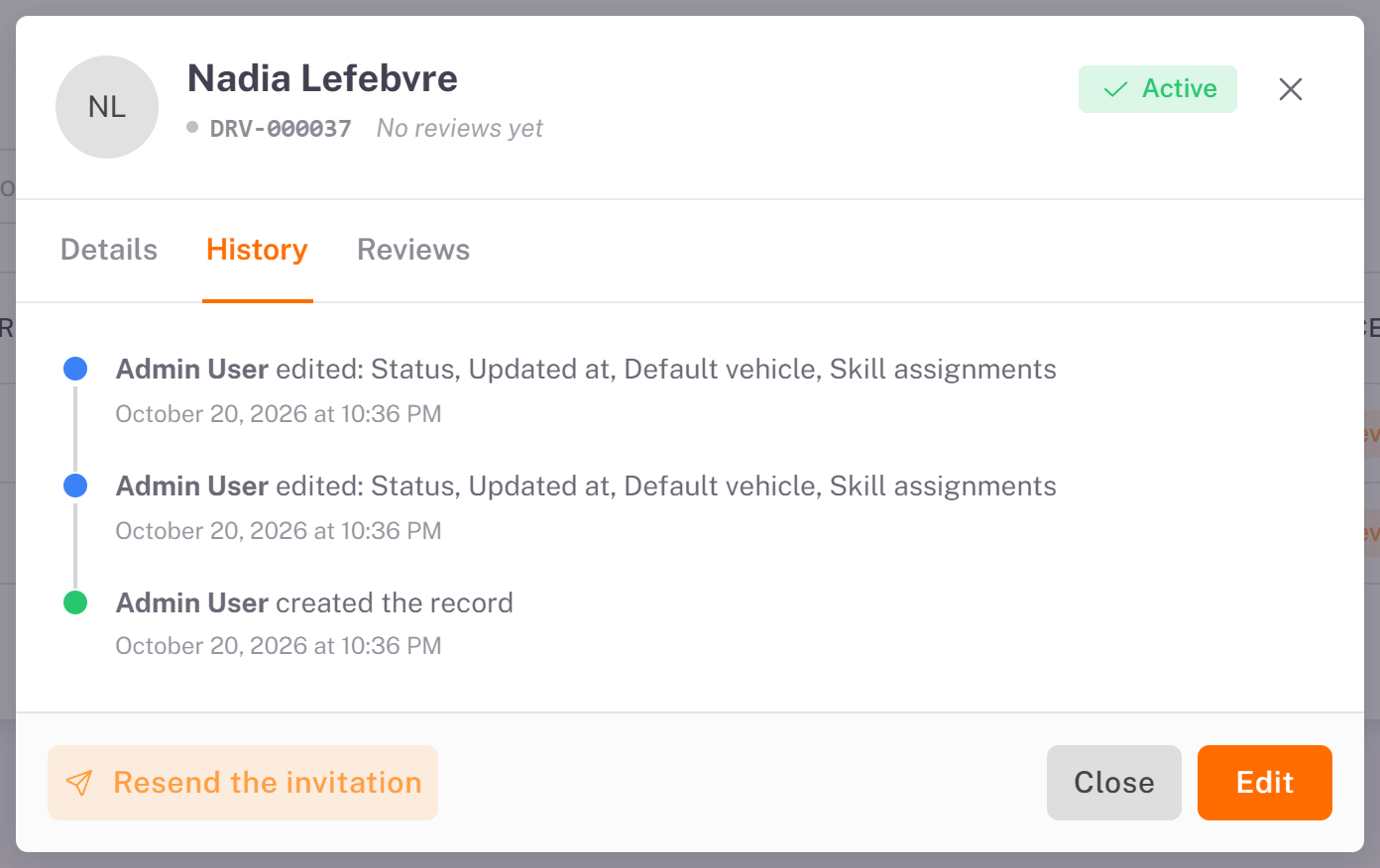
Click the driver's code in the list (or ⋮ > Details). The details window has three tabs:
Details: contact, licence and skills, vehicle and warehouses, working hours, mobile app (the activation code stays masked) and tracking.
History: who created or changed the record, and when.
Reviews: the customers' ratings of this driver.
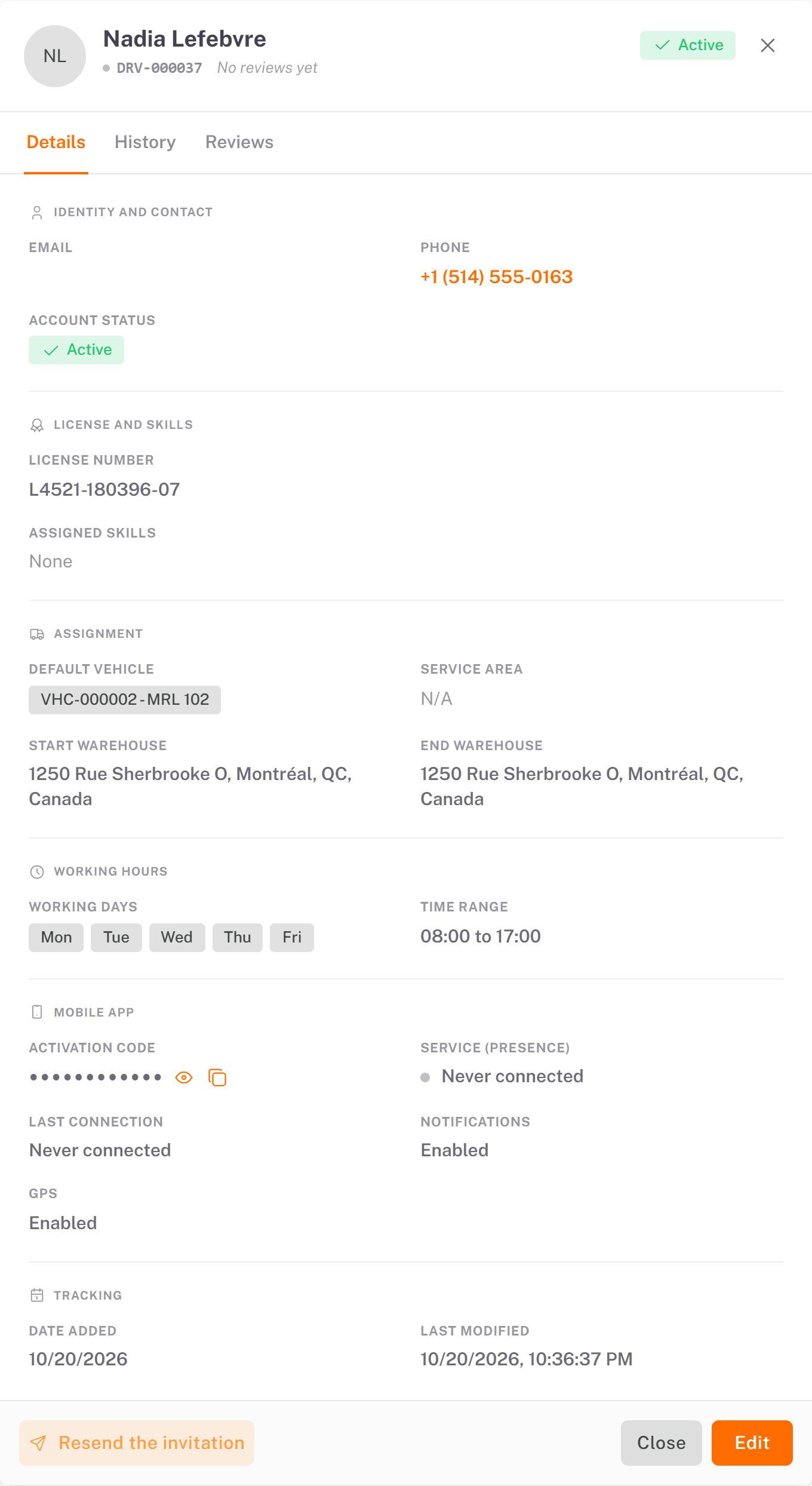
The driver never received their code? While the driver is Never connected, the details window shows Resend the invitation. Click it to send the code again by SMS (**Invitation resent by SMS.**).
To change the driver's information, click Edit.
Disable or enable a driver
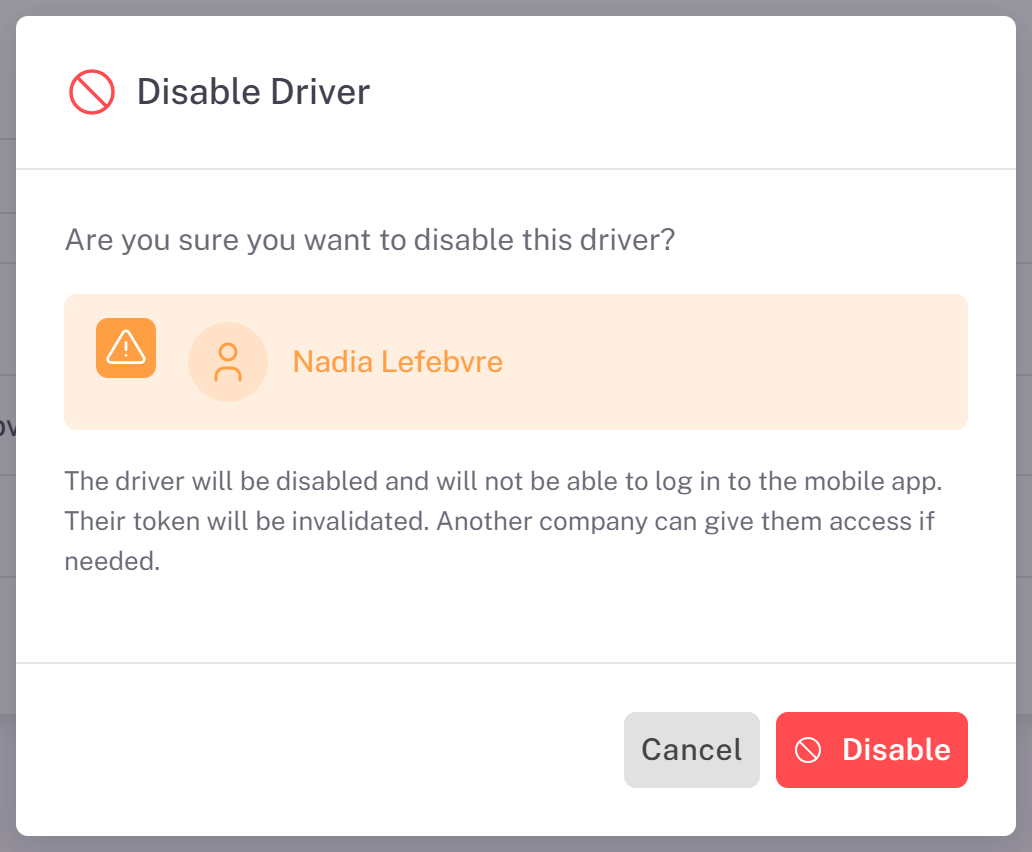
1. In the list, open the driver's ⋮ menu and choose Disable.
2. Confirm with Disable. The driver can no longer sign in to the driver app.
The driver now reads Inactive. Use ⋮ > Enable to give the access back.
A driver with an active route cannot be disabled or deleted. The console shows Cannot disable (or Cannot delete) and asks you to reassign the route to another driver first, with a Reason for reassignment.
Good to know
Email or app, at least one. The email is optional, but a route can only be sent to a driver who has an email or has signed in to the driver app.
The default vehicle is the one used when you plan routes for this driver.
Assigning a driver to a delivery happens when you plan a route, not on this screen.
Export downloads the list (Print, CSV, Excel or PDF). The activation codes are never exported.
Was this article helpful?
Still need help?
Contact support