
Table of contents
Before you begin
The merchant is one of your active partners. See [Managing Merchant Partners](../../01-setup/03-managing-merchant-partners/en.md).
Your role includes the permission to approve orders. Without it, the Pending Approval tab does not appear.
Steps
1. Open Plan & dispatch and click the Pending Approval tab. Its badge counts the orders waiting. Each row shows the order code, the merchant, the customer, the delivery date, the priority, the number of packages and items, and when it was submitted.
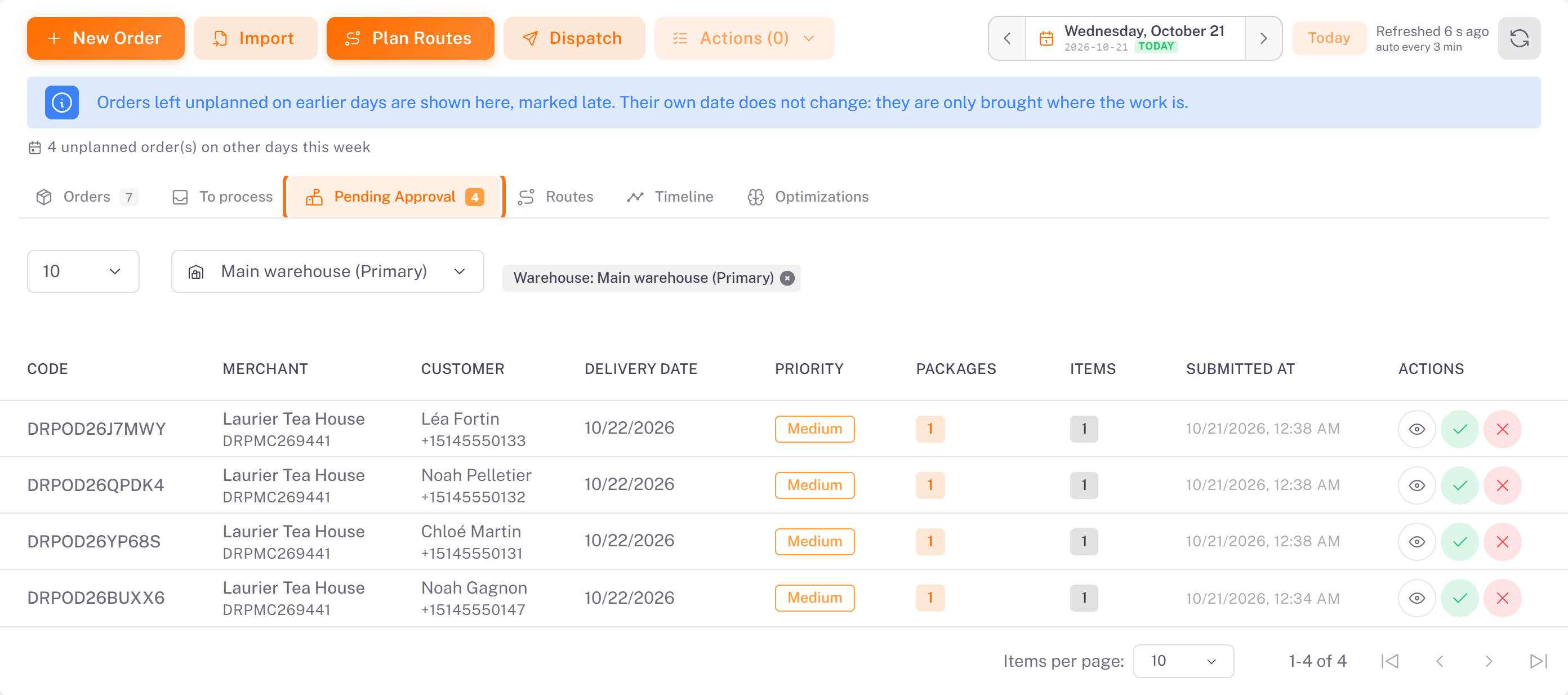
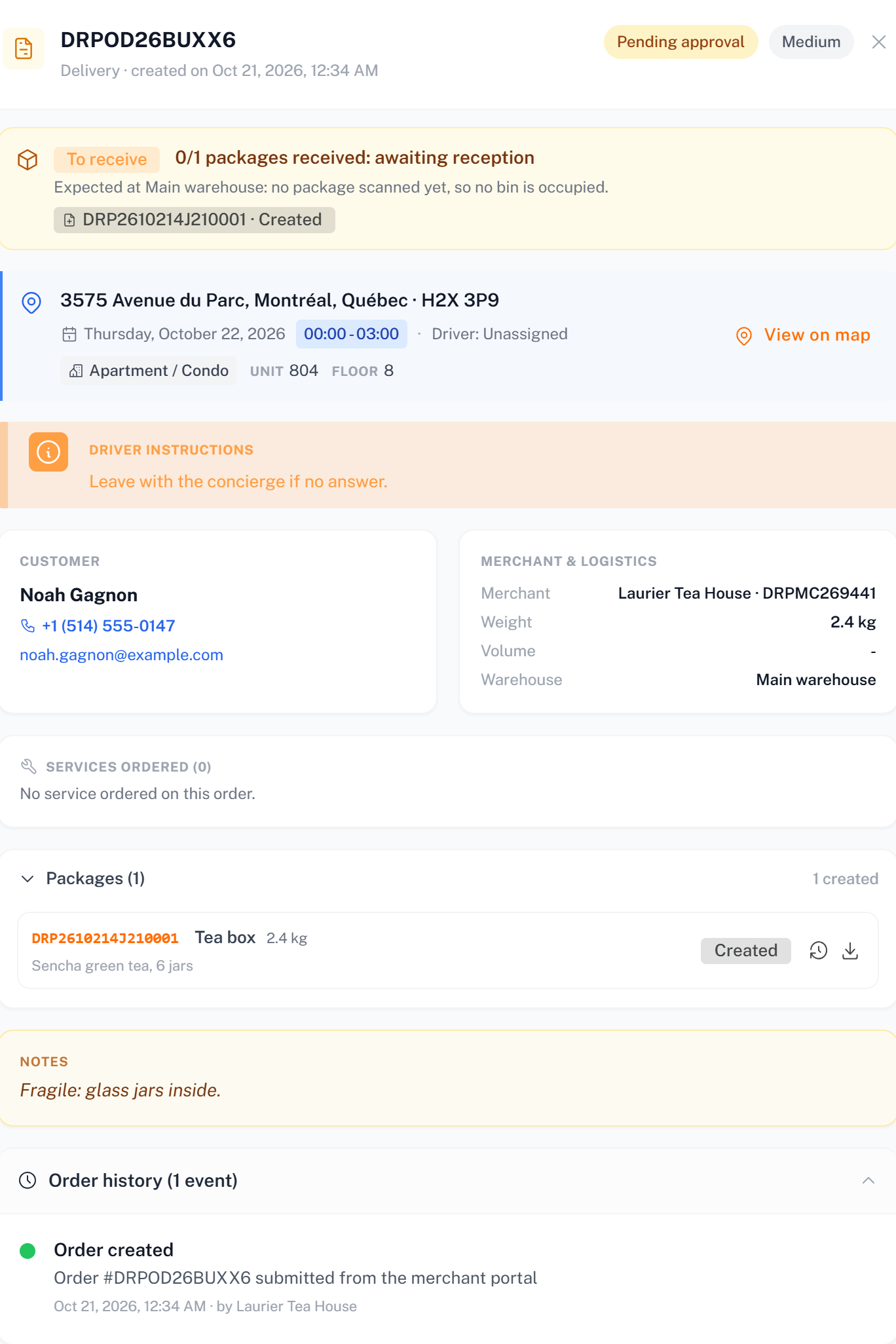
2. Click the eye icon (View Details) to check an order before deciding: delivery address and window, customer, packages, the merchant's notes and instructions.
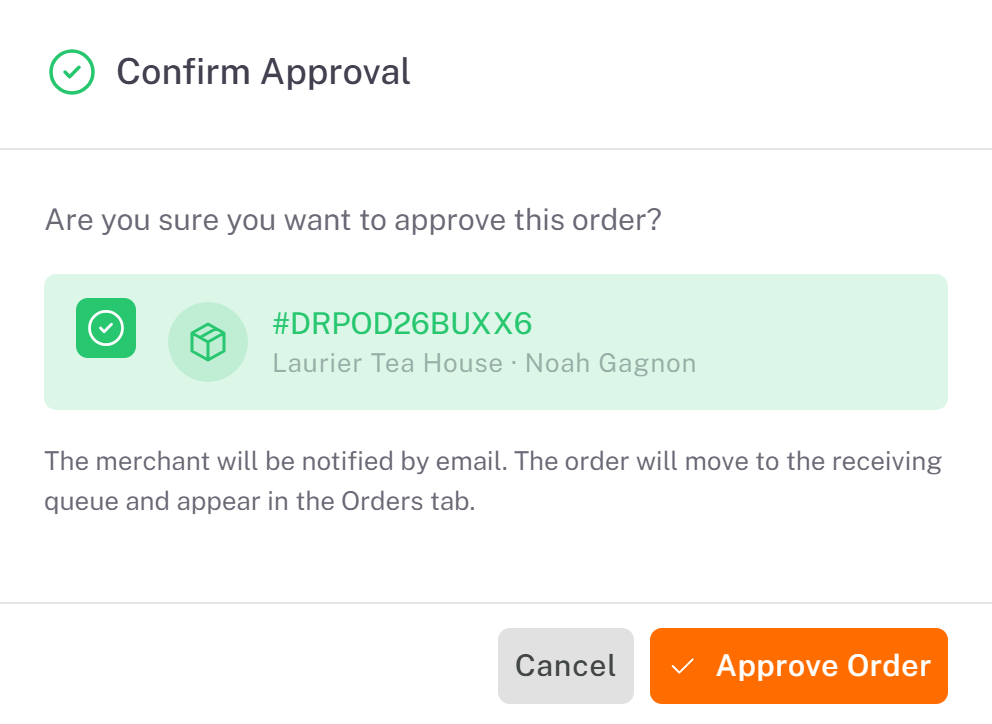
3. To accept it, click the check icon (Approve), then Approve Order in Confirm Approval. The merchant is notified by email.
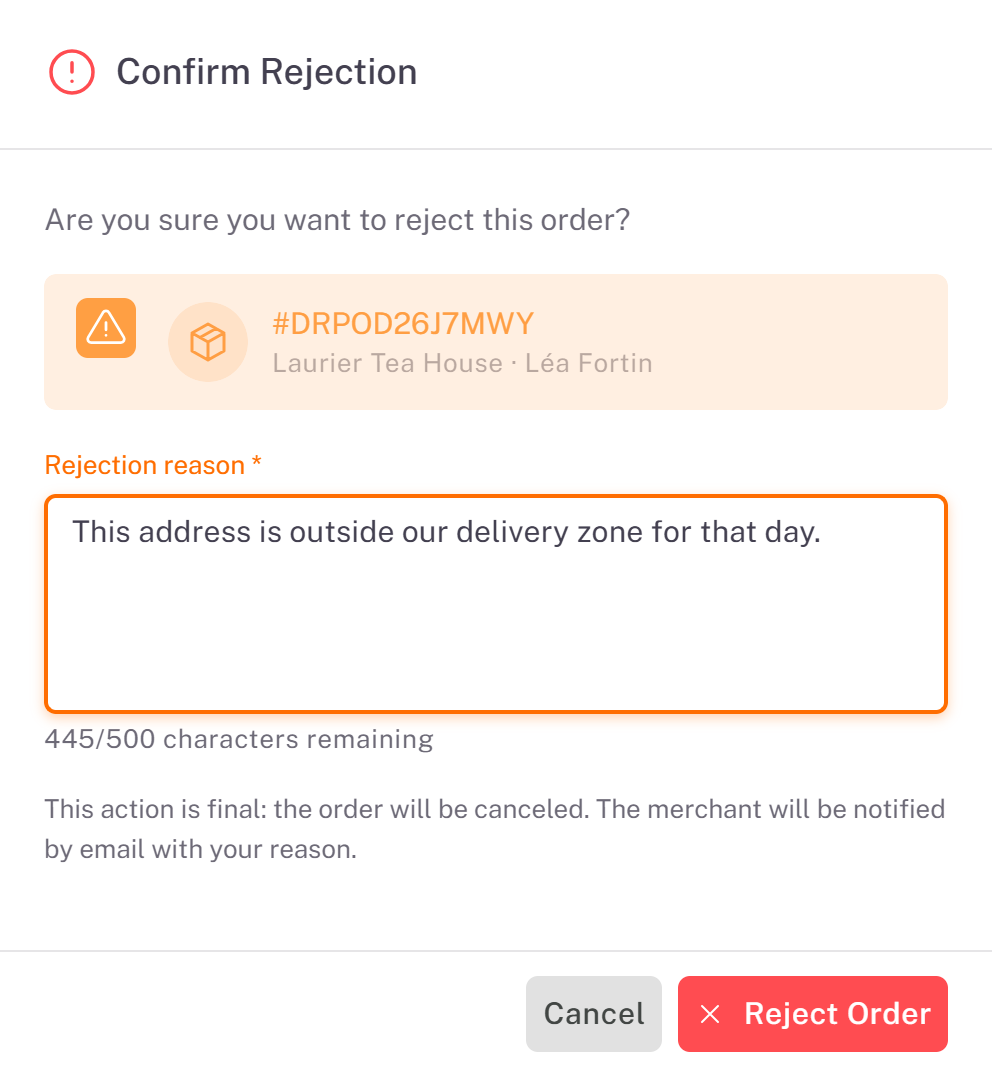
4. To refuse it, click the cross icon (Reject). In Confirm Rejection, enter the **Rejection reason** (required, up to 500 characters), then click Reject Order. This is final: the order is canceled, and the merchant receives your reason by email.
Result
An approved order leaves the Pending Approval tab and appears in the Orders tab, on its delivery day, with the status To Receive: you are now waiting for the merchant's packages at your warehouse. From there, it follows the usual path: reception, planning, dispatch.
The merchant follows the answer in their portal: Awaiting Receipt for an approved order, Canceled by … with your reason for a rejected one.
Good to know
Approve an order only when you can deliver it on its date: the merchant chose the date, the address and the time windows.
Need a change (date, address)? Reject with a clear reason so that the merchant can send a corrected order. While the order is still pending, the merchant can also edit it from the portal.
Was this article helpful?
Still need help?
Contact support