
Table of contents
Before you begin
The orders exist and read To Receive.
To store packages in bins, your warehouse has a layout. See [Setting Up Your Warehouse](../01-setting-up-your-warehouse/en.md). Without one, use Quick reception or Receive without storing.
Option A: scan the packages (Inbound)
In the menu, open Warehouse, then the warehouse's ⋮ > Inventory. Click Inbound.

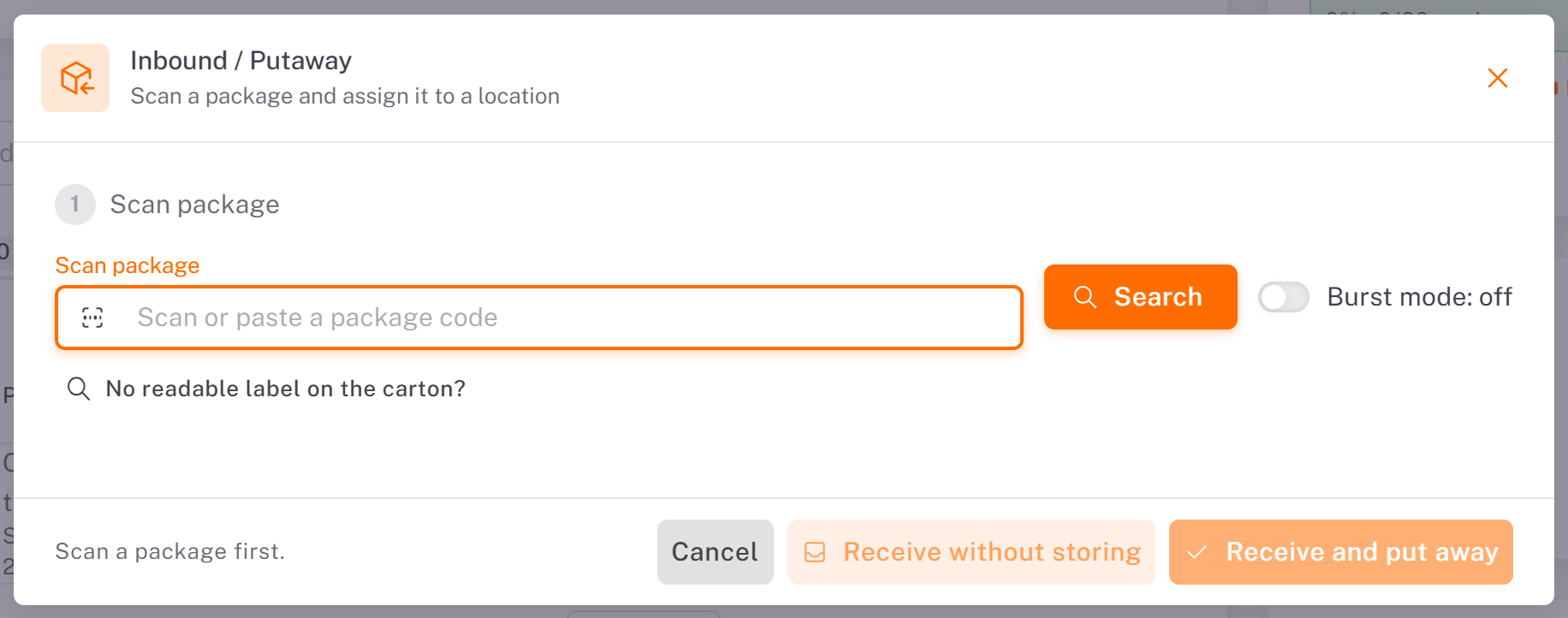
2. The Inbound / Putaway window opens on Scan package. Scan the package label with a barcode reader, or paste its code, then click Search. Turn on Burst mode to keep the window open and scan the next package right away.
3. The package shows with its order, product, merchant, weight and volume (1 / 2 means first of two packages of the order).
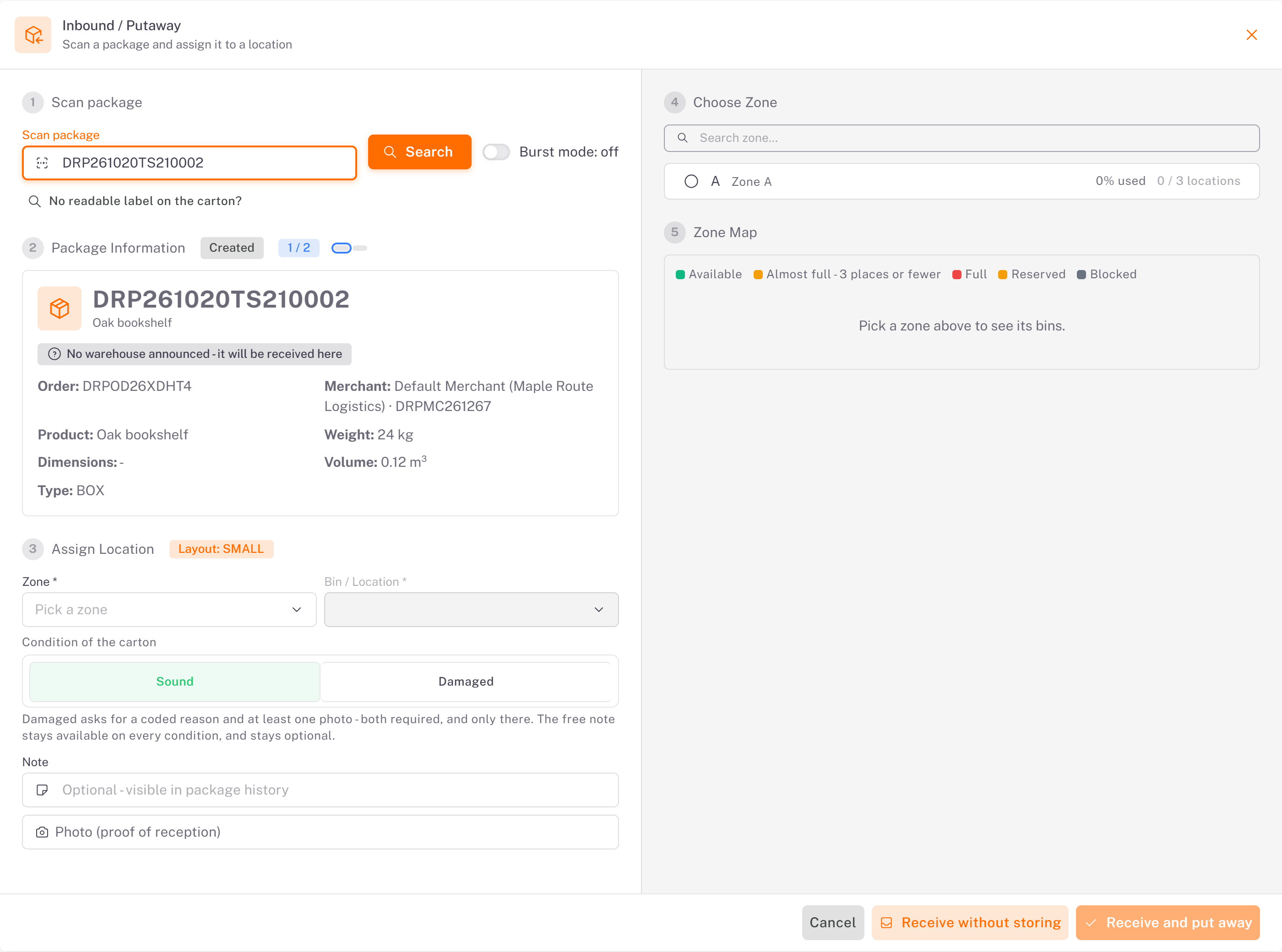
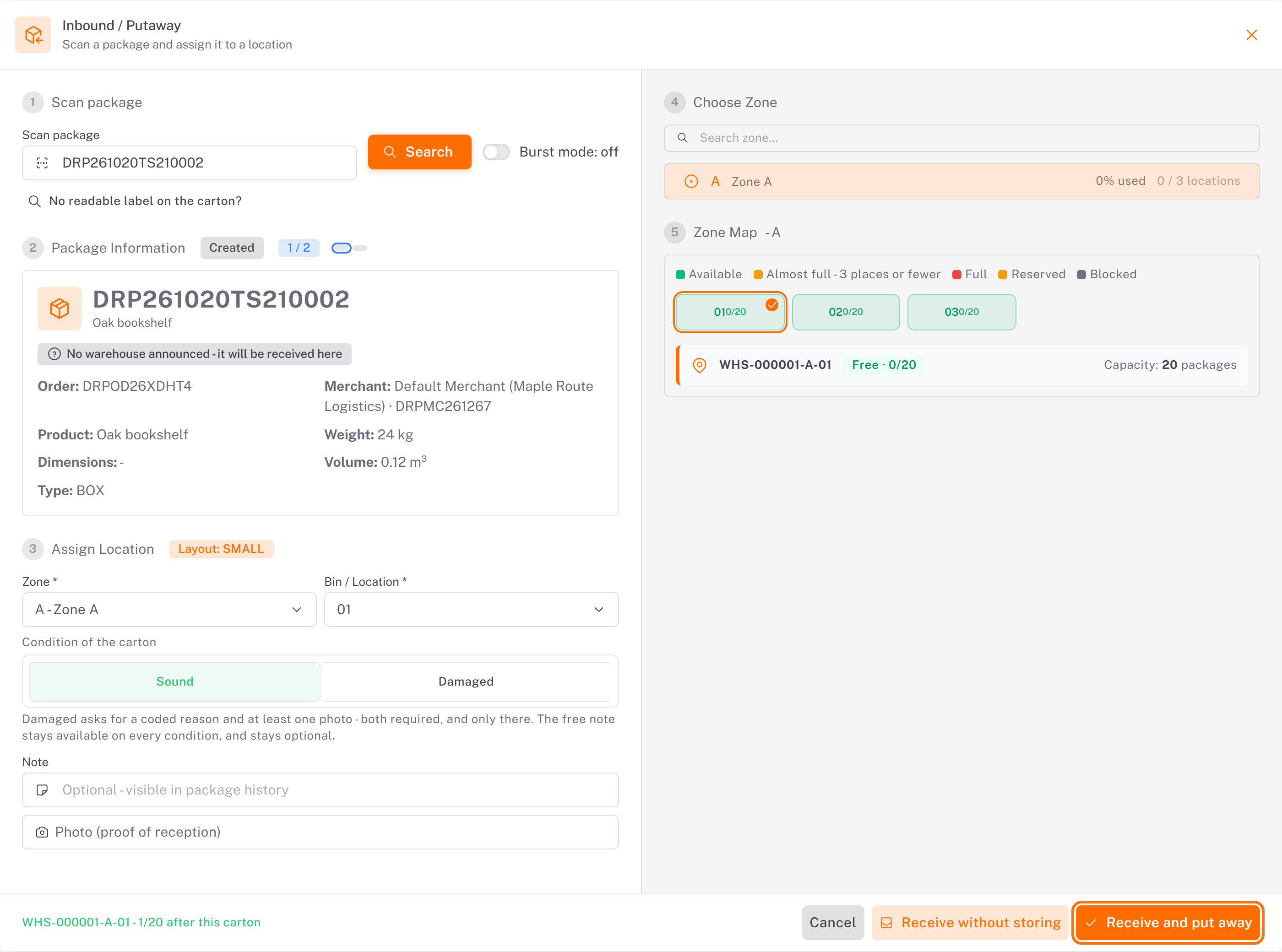
4. Assign Location: choose the zone on the right (**Choose Zone**), then click a free bin on the Zone Map. Check the Condition of the carton:
Sound: nothing else to do.
Damaged: choose a reason and add at least one photo (both required).
Add a Note if useful, then click Receive and put away. (Receive without storing receives the package without a bin: it stays "to put away".)
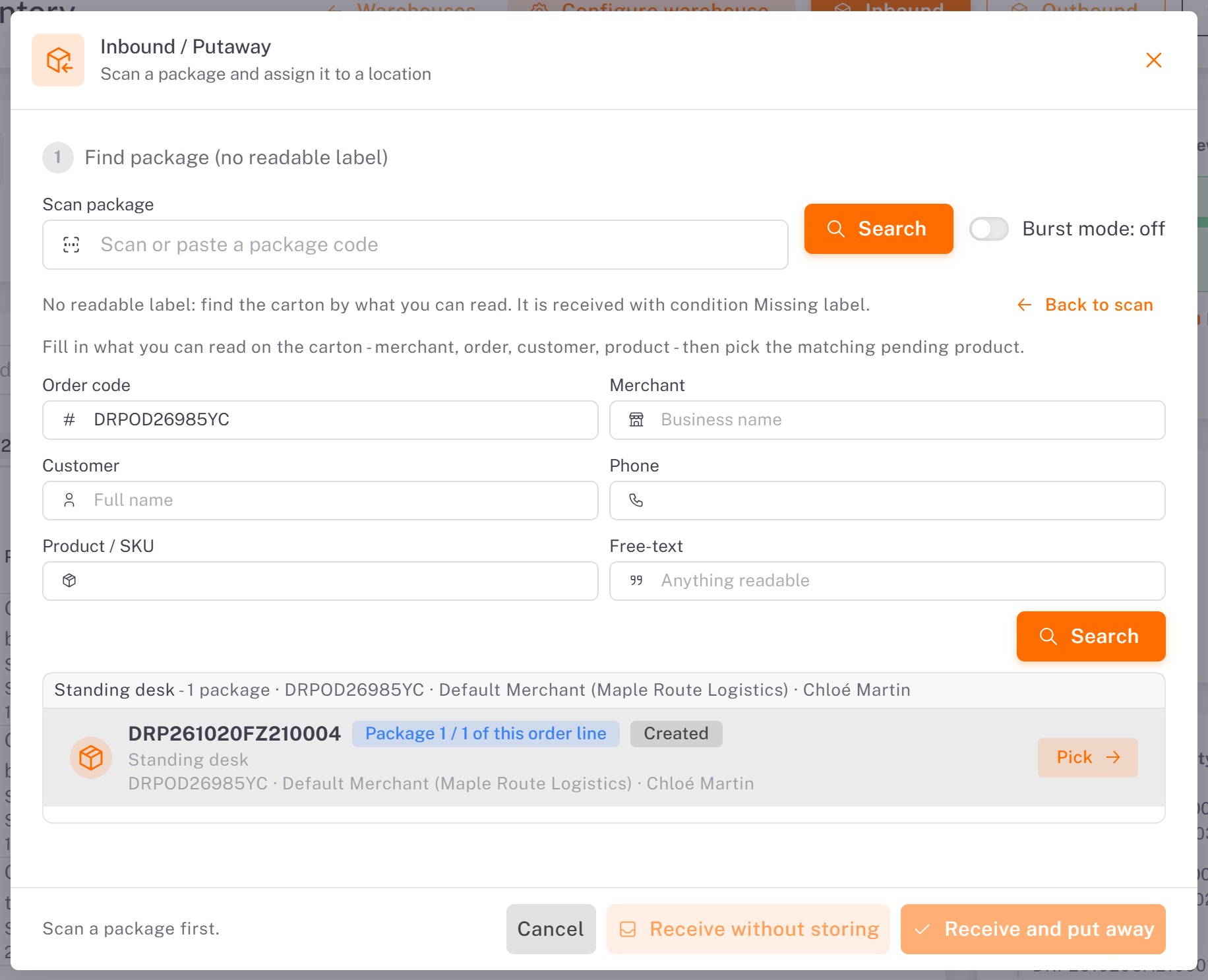
No readable label?
Click No readable label on the carton?. Fill in what you can read (Order code, Merchant, Customer, Phone, Product / SKU or Free-text), click Search, then Pick the matching package. Continue at step 4. The package is recorded with the condition Missing label.
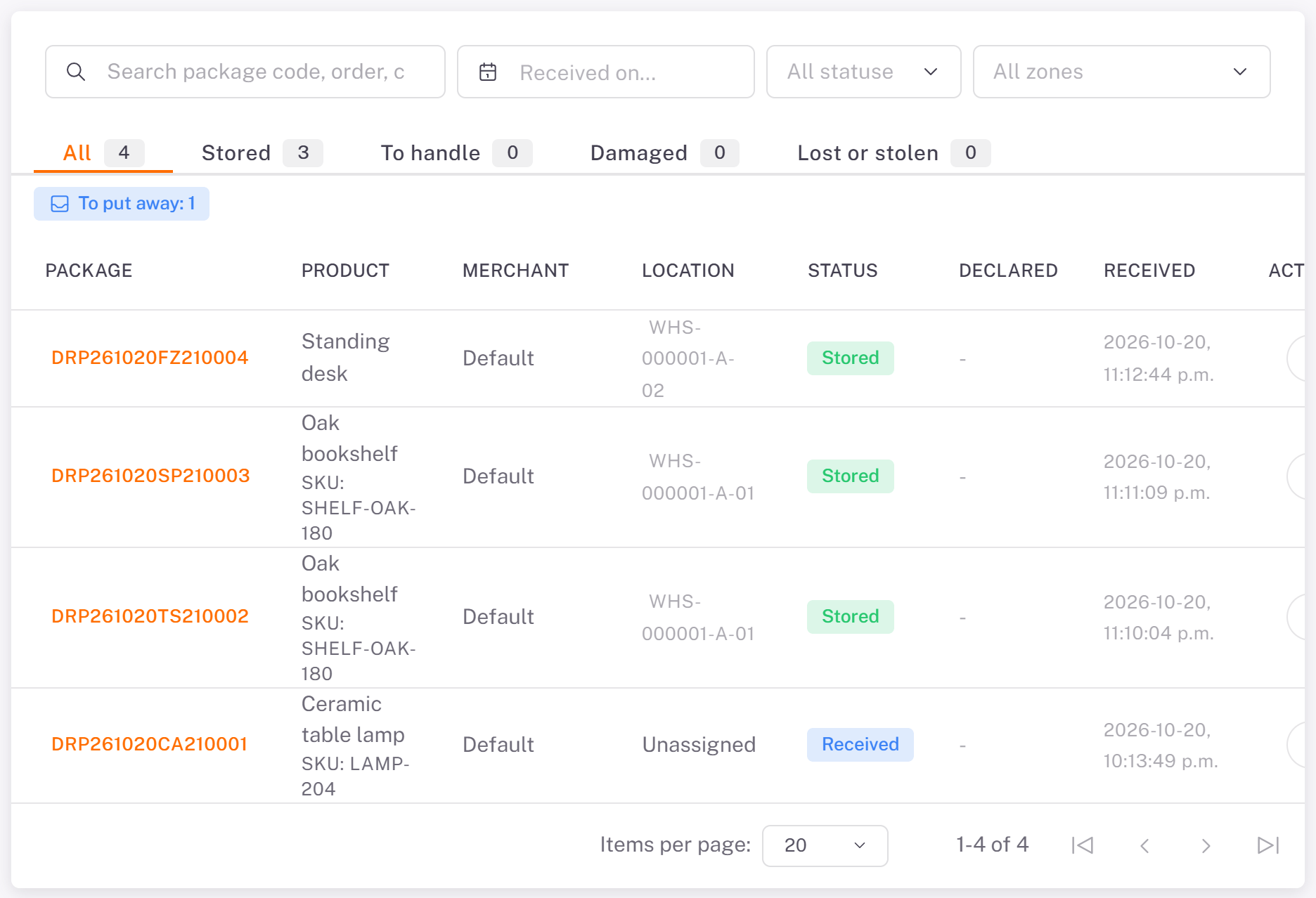
The inventory then lists the packages with their bin and the status Stored. To put away counts the packages received without a bin.
Option B: receive a whole order from its row
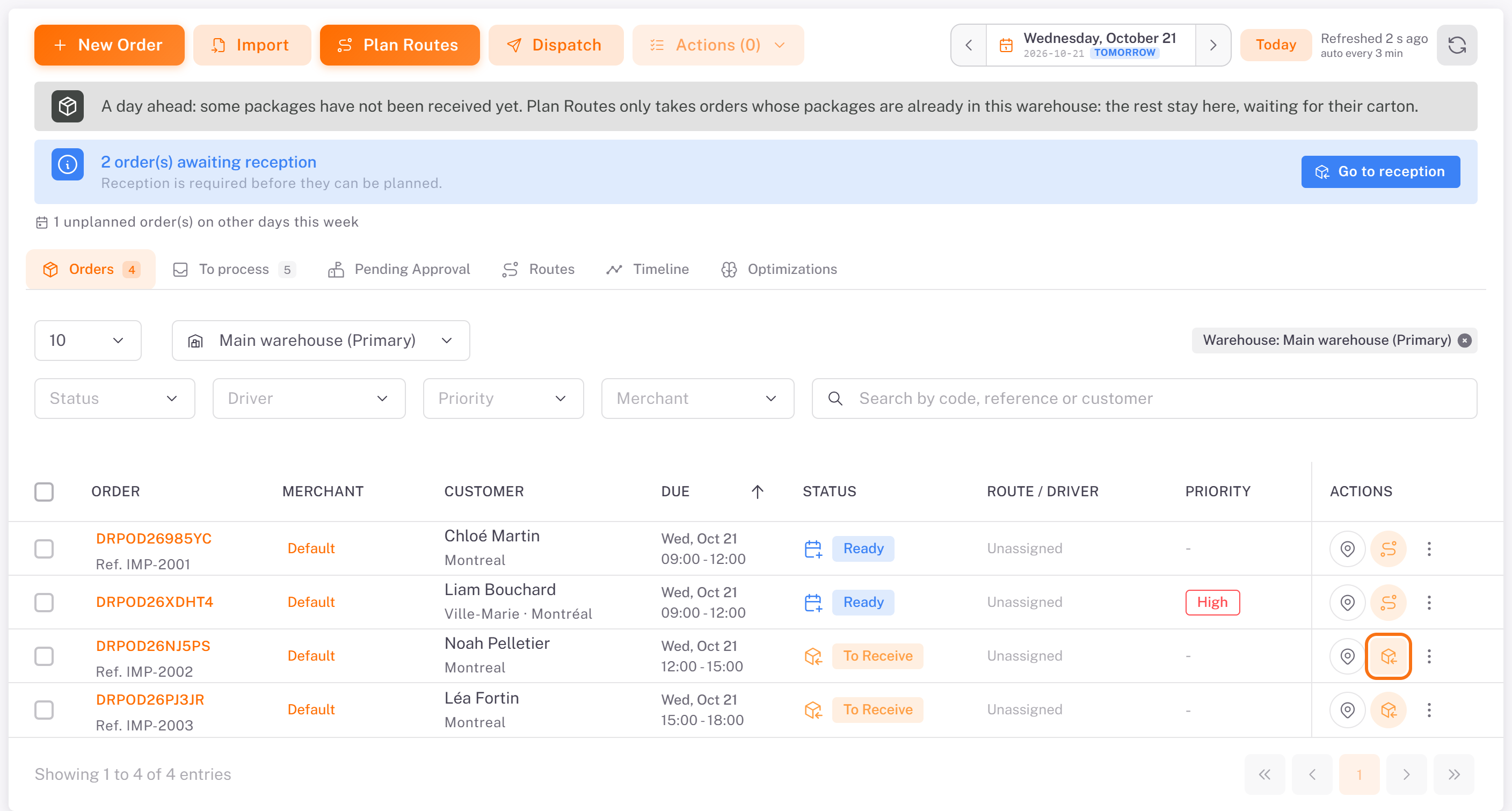
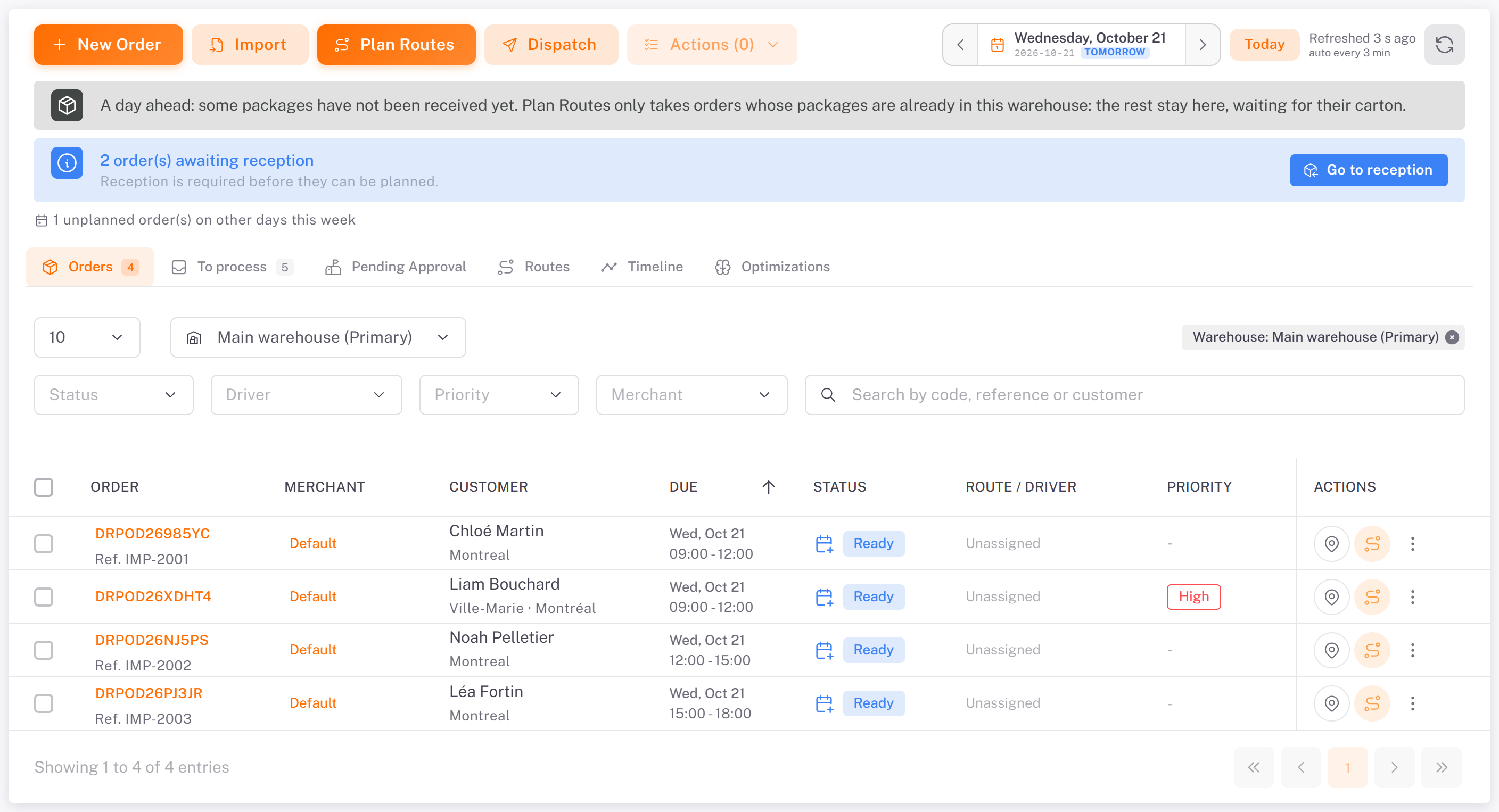
1. In Plan & dispatch, on the Orders tab, click the reception icon of the order (Receive at warehouse). The banner N order(s) awaiting reception also leads there with Go to reception.
2. In Order reception, choose:
Receive into a location: pick the Zone and the Storage location. Dropioo confirms where the checked packages will be stored.
Quick reception: tick the packages that arrived, without a location. Fastest when the warehouse is not organized by bin.
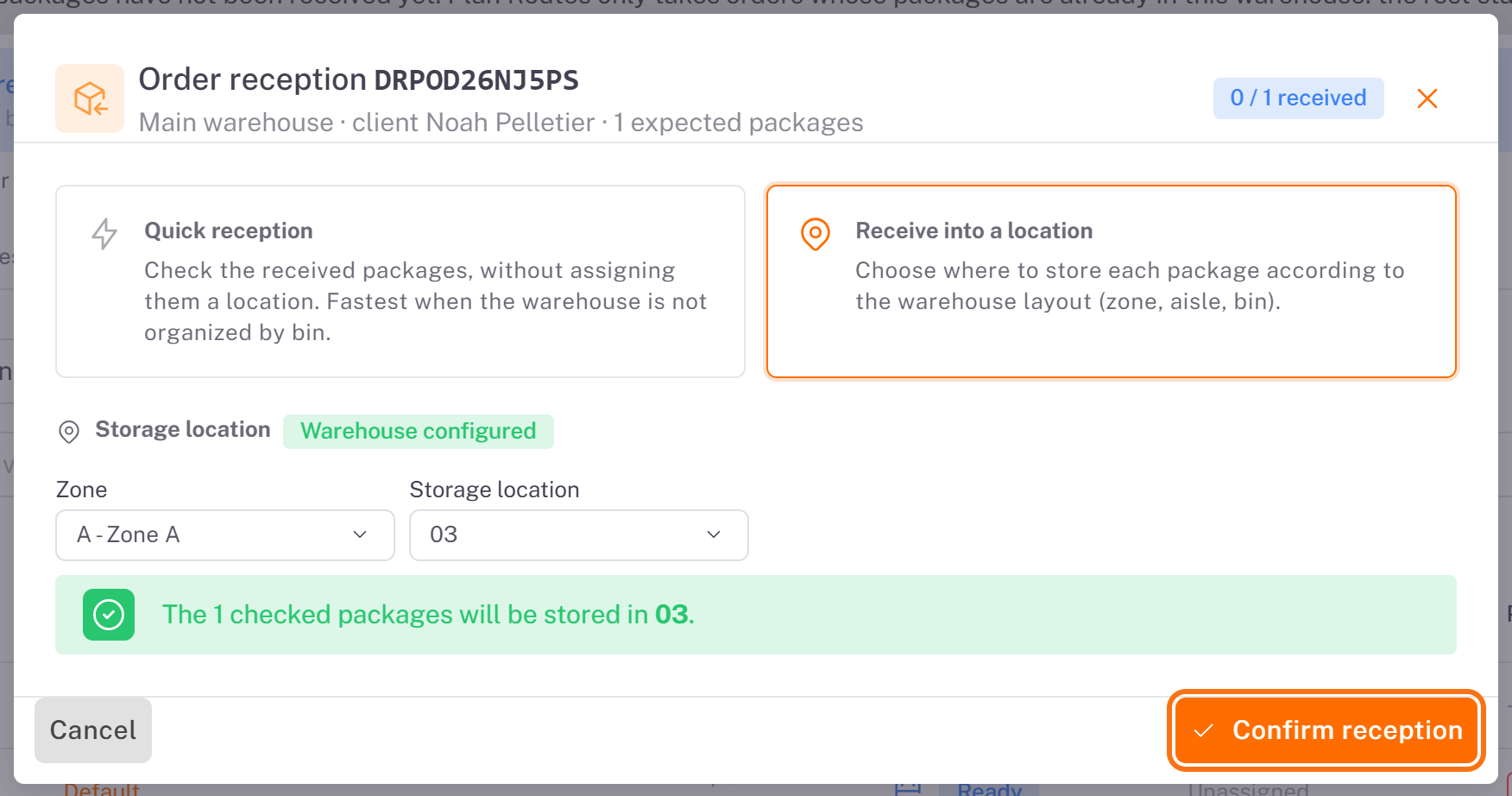
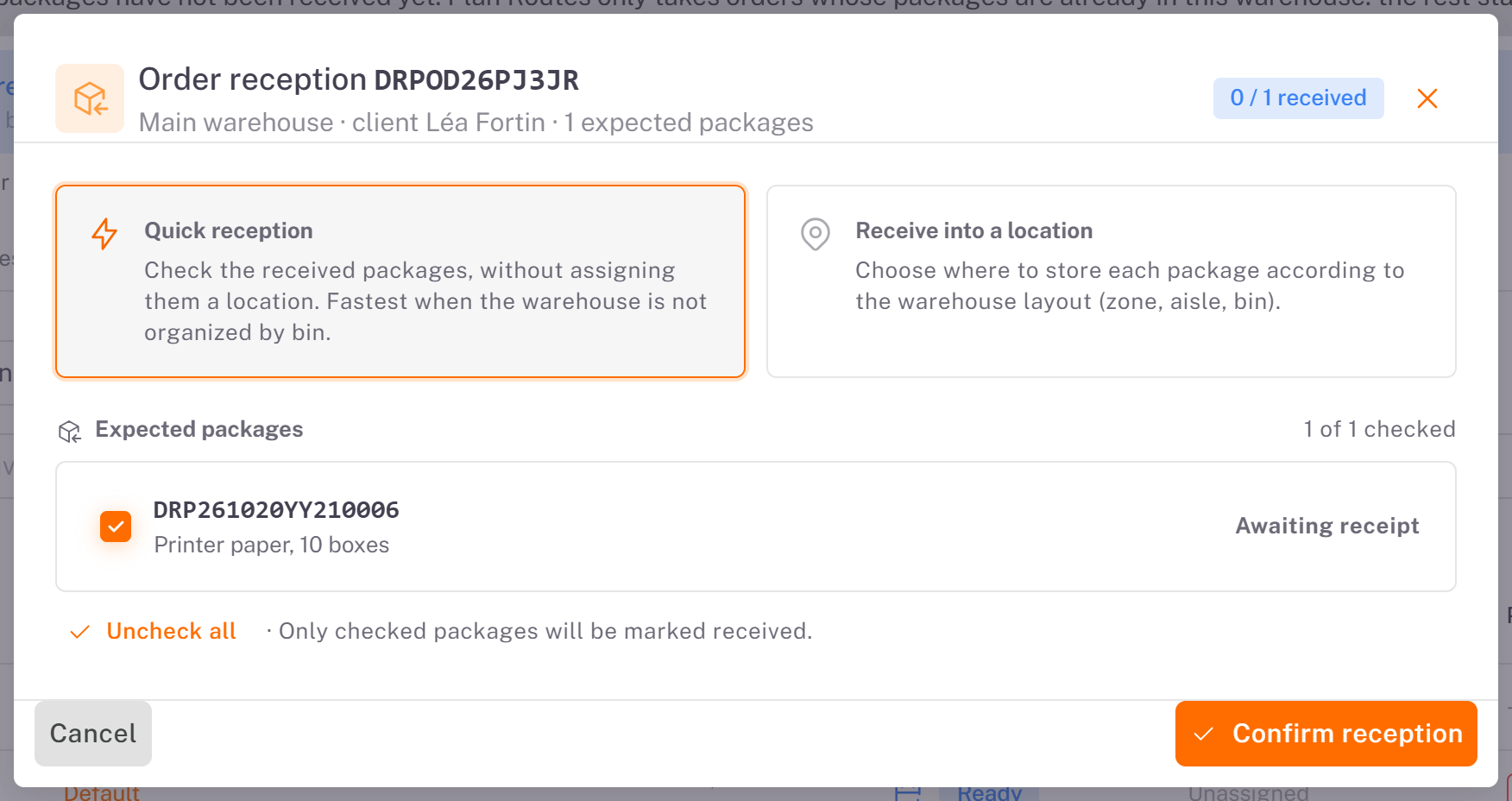
3. Click Confirm reception.
Result
When all the packages of an order are received, the order reads Ready: it can now be planned.
Good to know
Only the checked packages are received. The order becomes Ready once every package is in.
Plan Routes only takes orders whose packages are already in the warehouse.
Was this article helpful?
Still need help?
Contact support