
Table of contents
Before you begin
You must have:
A business email address you can open, to activate the account;
The address of your main warehouse or depot;
For the first route: one vehicle and one driver (you add them in step 6).
Every new account starts with a 30-day free trial. The trial starts when you activate your account, not when you sign up.
1. Create your account
1. Go to https://app.dropioo.com/register;
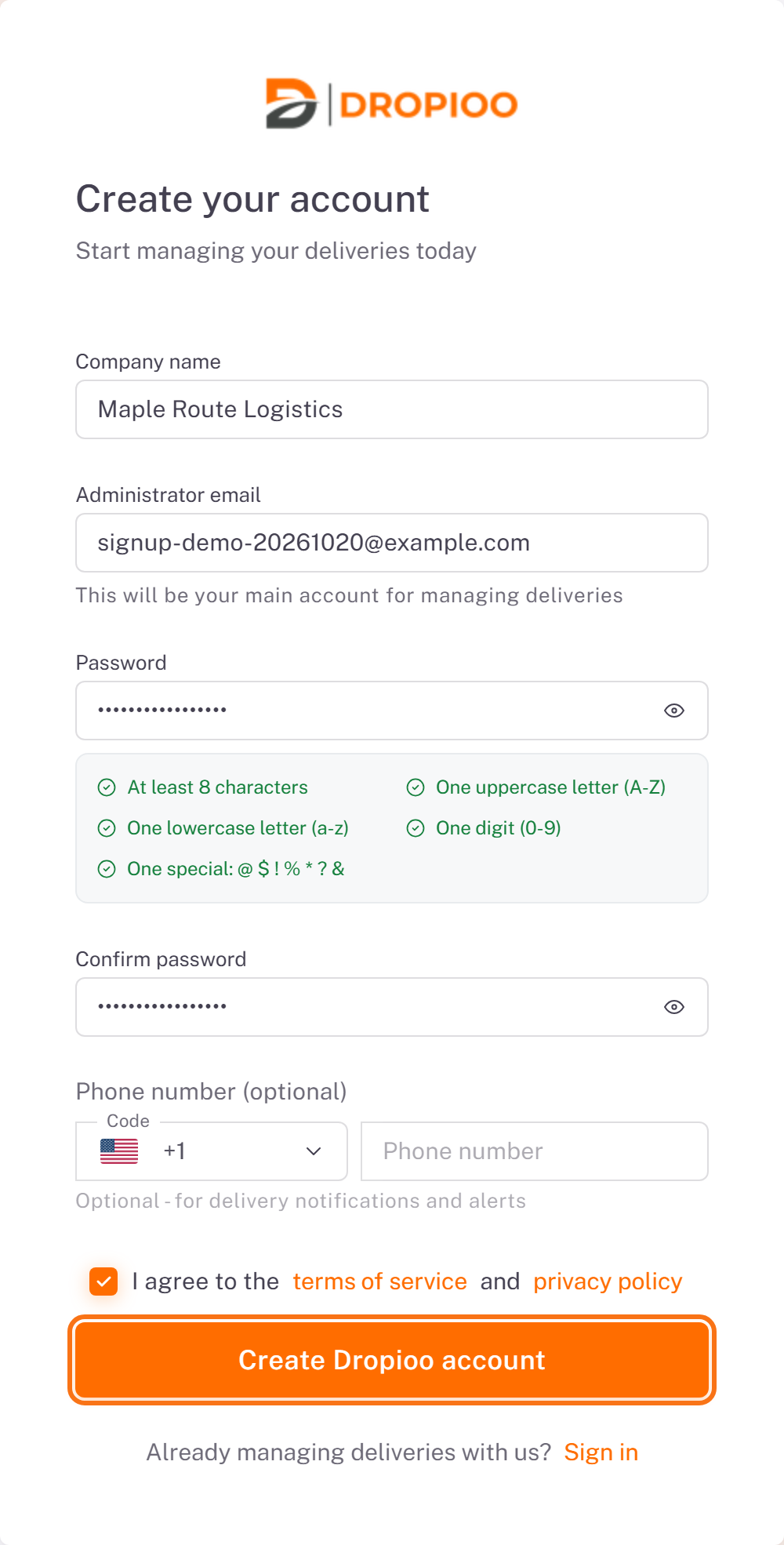
Fill in the Create your account form:
Company name: the name of your delivery company.
Administrator email: your business email. It becomes the main account of your company.
Password and Confirm password. The form shows the five rules the password must follow: at least 8 characters, one uppercase letter, one lowercase letter, one digit and one special character.
Phone number (optional).
3. Tick I agree to the terms of service and privacy policy.
4. Click Create Dropioo account.
2. Activate your account
Dropioo shows the Verify your email screen and sends you an activation email.
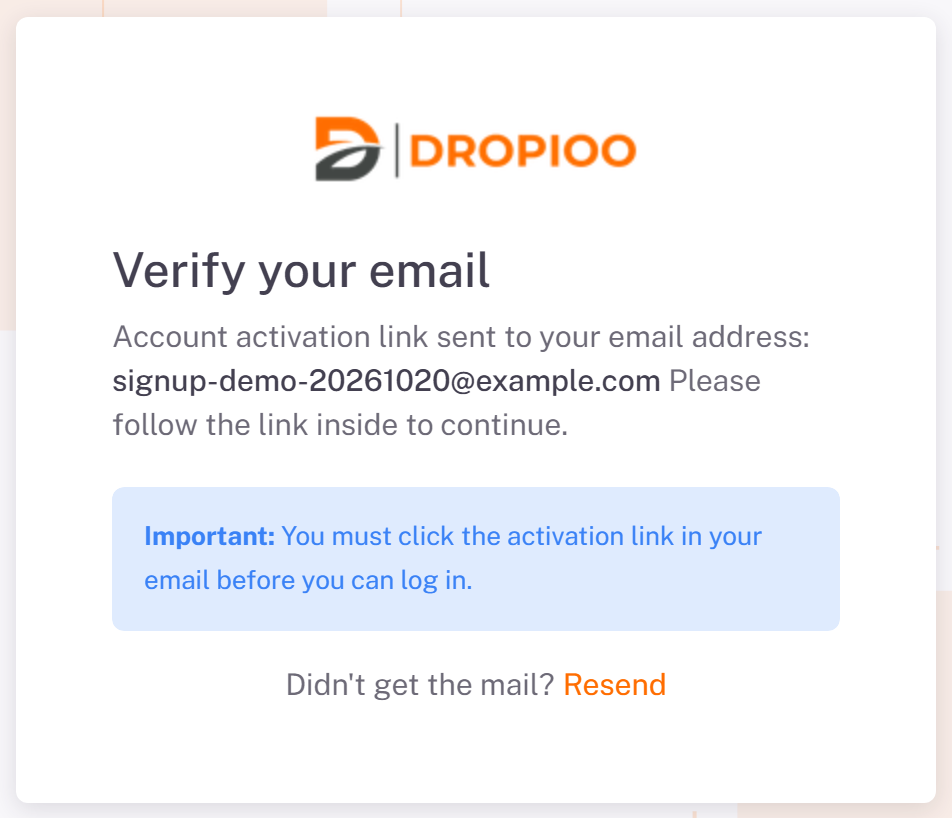
1. Open the email Verify Your Dropioo Account and click Verify your email address. The link is valid for 24 hours.
2. You land on the sign-in page with the message Email verified successfully. You can now log in.
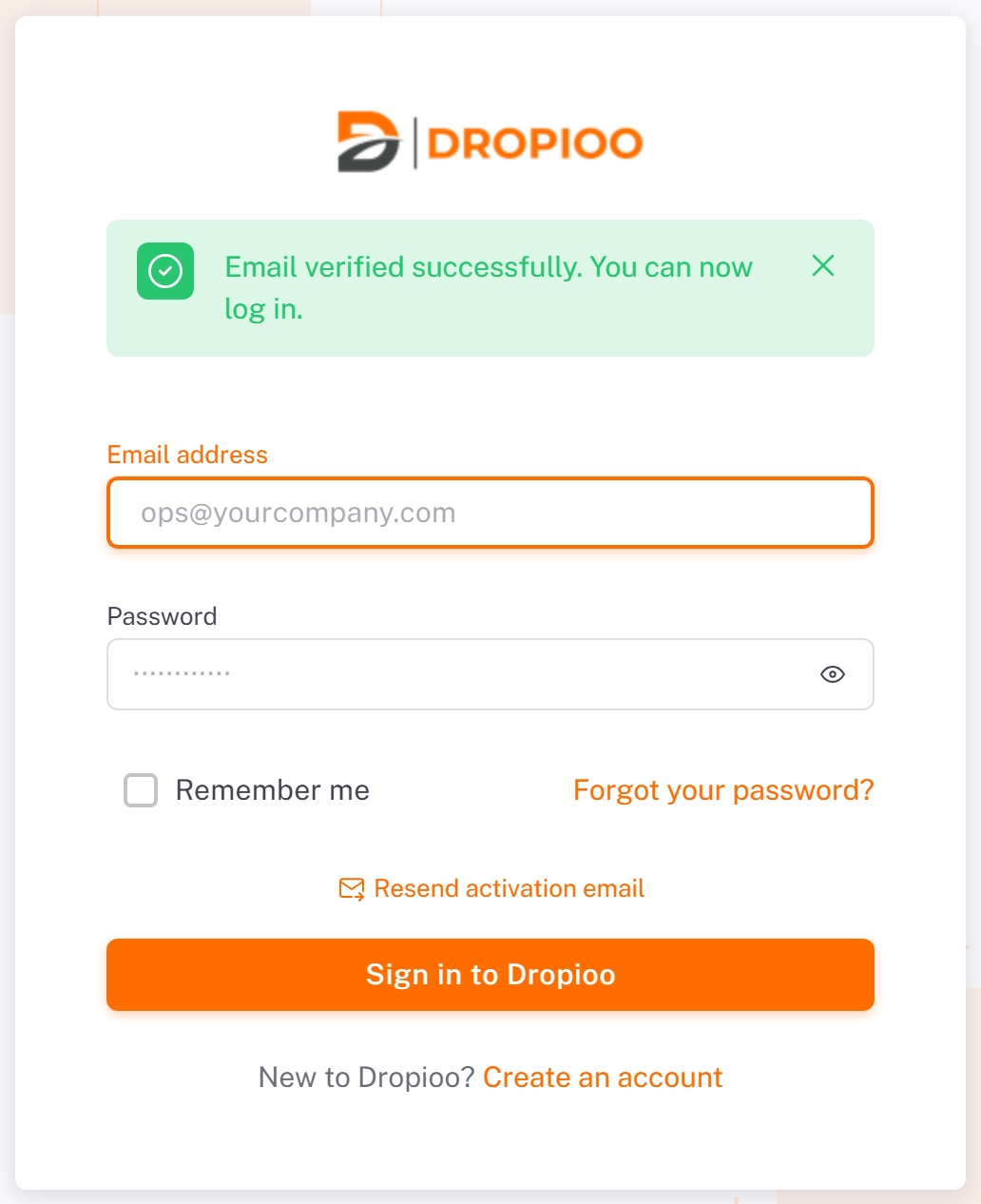
No email? Check your spam folder, then click Resend on the Verify your email screen, or Resend activation email on the sign-in page. You cannot sign in before the account is activated.
3. Sign in and complete the welcome wizard
1. Enter your Email address and Password, then click Sign in to Dropioo.
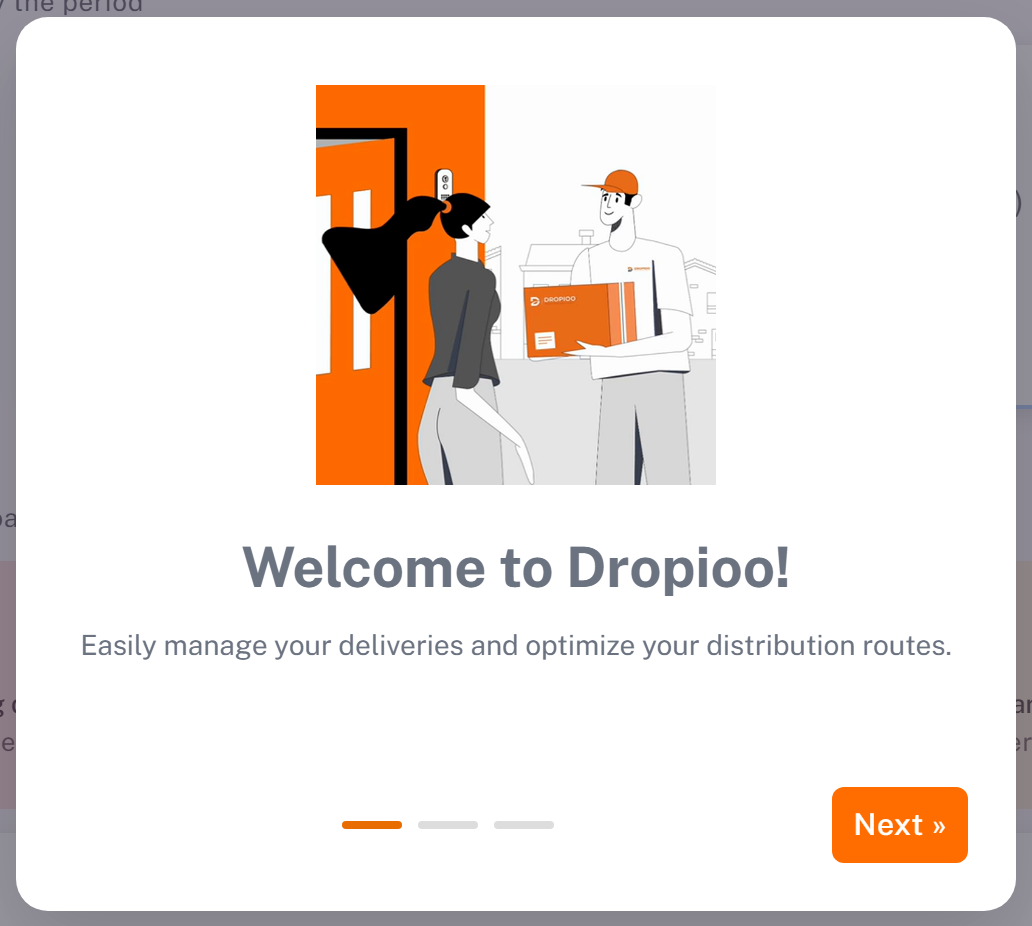
2. The first time, a welcome wizard opens on the dashboard. Click Next ».
3. Company Information: choose your Country and your Company Type, add a Description (optional), then click Next ».
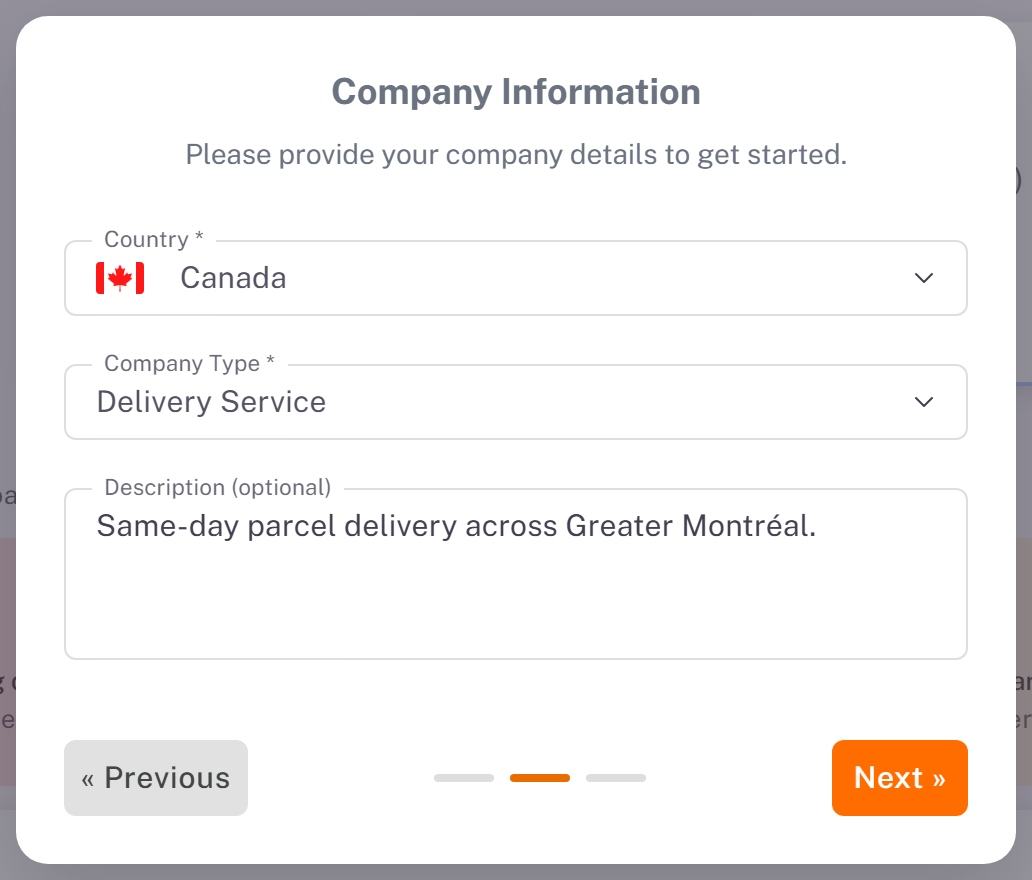
4. Location Setup: this step creates your main warehouse, the starting point of your routes
Keep or change the Warehouse name (Main warehouse by default).
Type the address and pick it in the suggestions. Dropioo fills in the **Address breakdown** and places the marker on the map.
Click Finish.
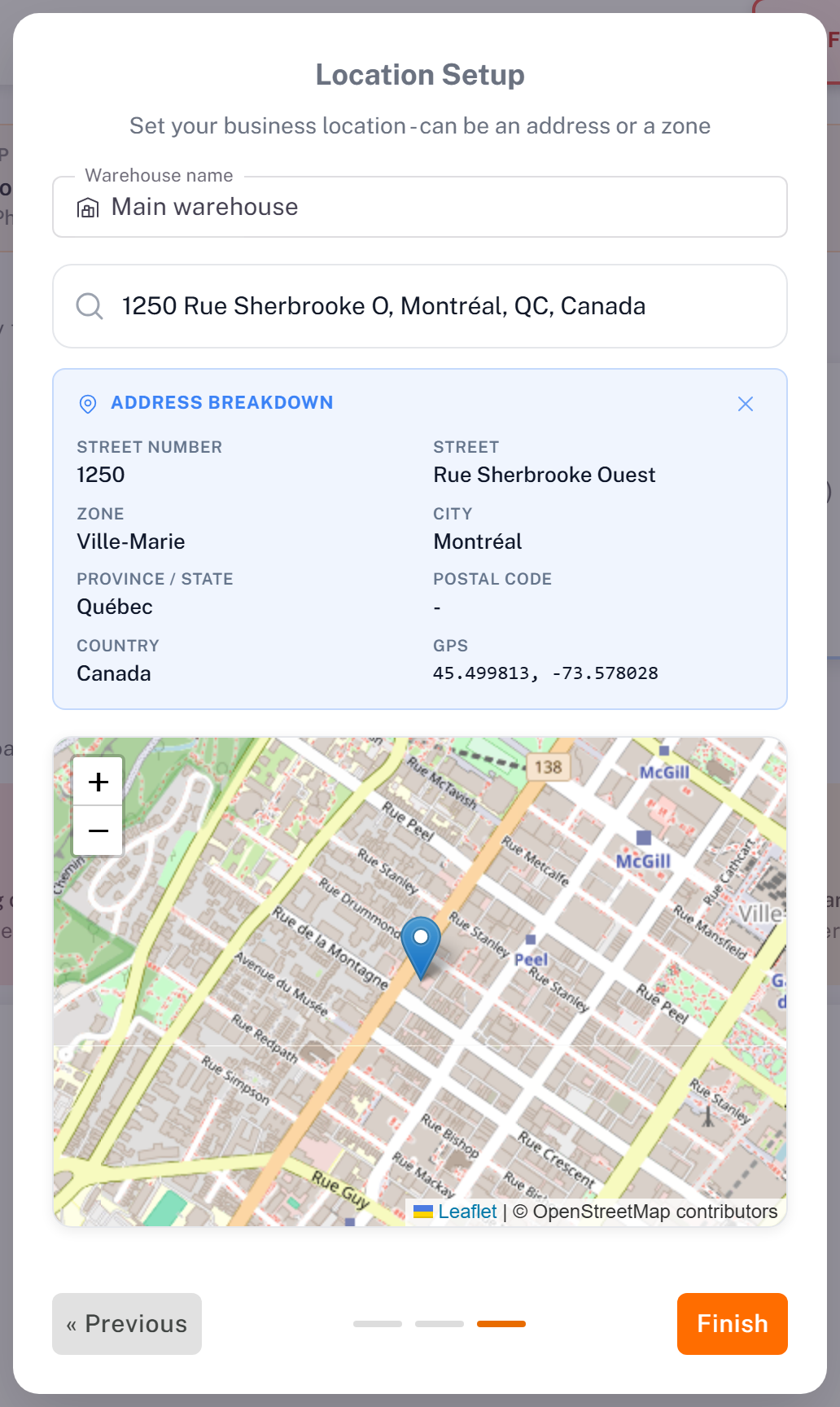
Tip: pick a precise address (street number and building) rather than a street name. A street-level suggestion leaves the postal code empty.
4. Take the guided tour (optional)
Right after the wizard, Dropioo offers a guided tour of the console. Click Start tour to follow it, or Skip to come back to it later.
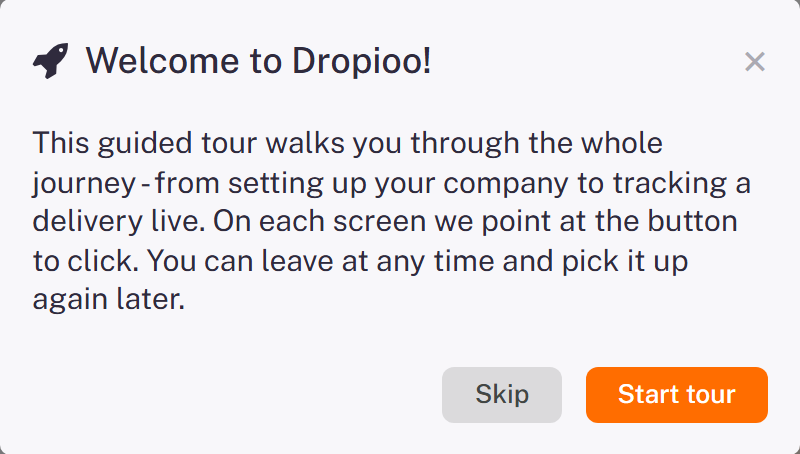
You can restart it at any time with Take the tour again in the activation checklist (step 5).
5. Follow the activation checklist
Until your account is ready, a banner at the top of each page shows **Finish setting up your account** with your progress and the next task. Its button (Configure, Add or Create) takes you straight to the right screen.

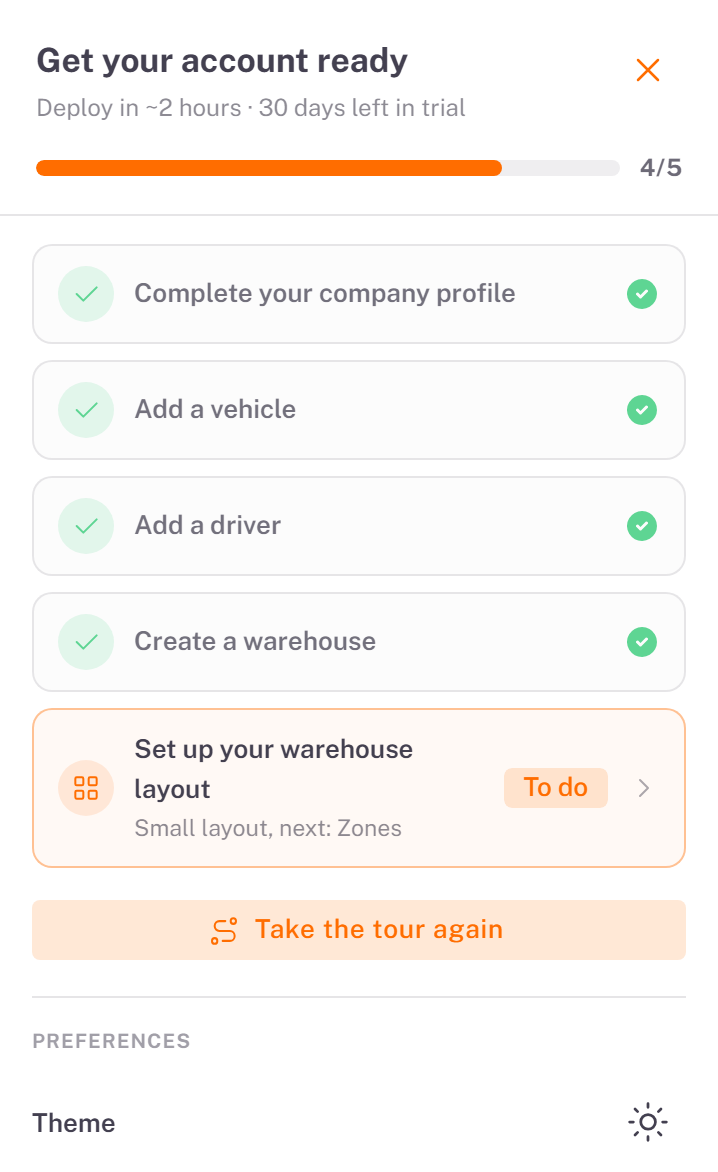
The rocket button on the right edge of the screen opens the full checklist, Get your account ready. It has five tasks:
What it asks for:
Complete your company profile : Country, address and phone of your company
Add a vehicle : At least one vehicle (unlocked by the profile)
Add a driver : At least one driver (unlocked by the vehicle)
Create a warehouse : Done by the welcome wizard
Set up your warehouse layout : The warehouse size, a zone and its storage locations
A task marked Blocked waits for another one: the vehicle and the warehouse need the company profile, the driver needs a vehicle, the layout needs the warehouse. The checklist disappears when the five tasks are done.
6. Complete your company profile, then add a vehicle and a driver
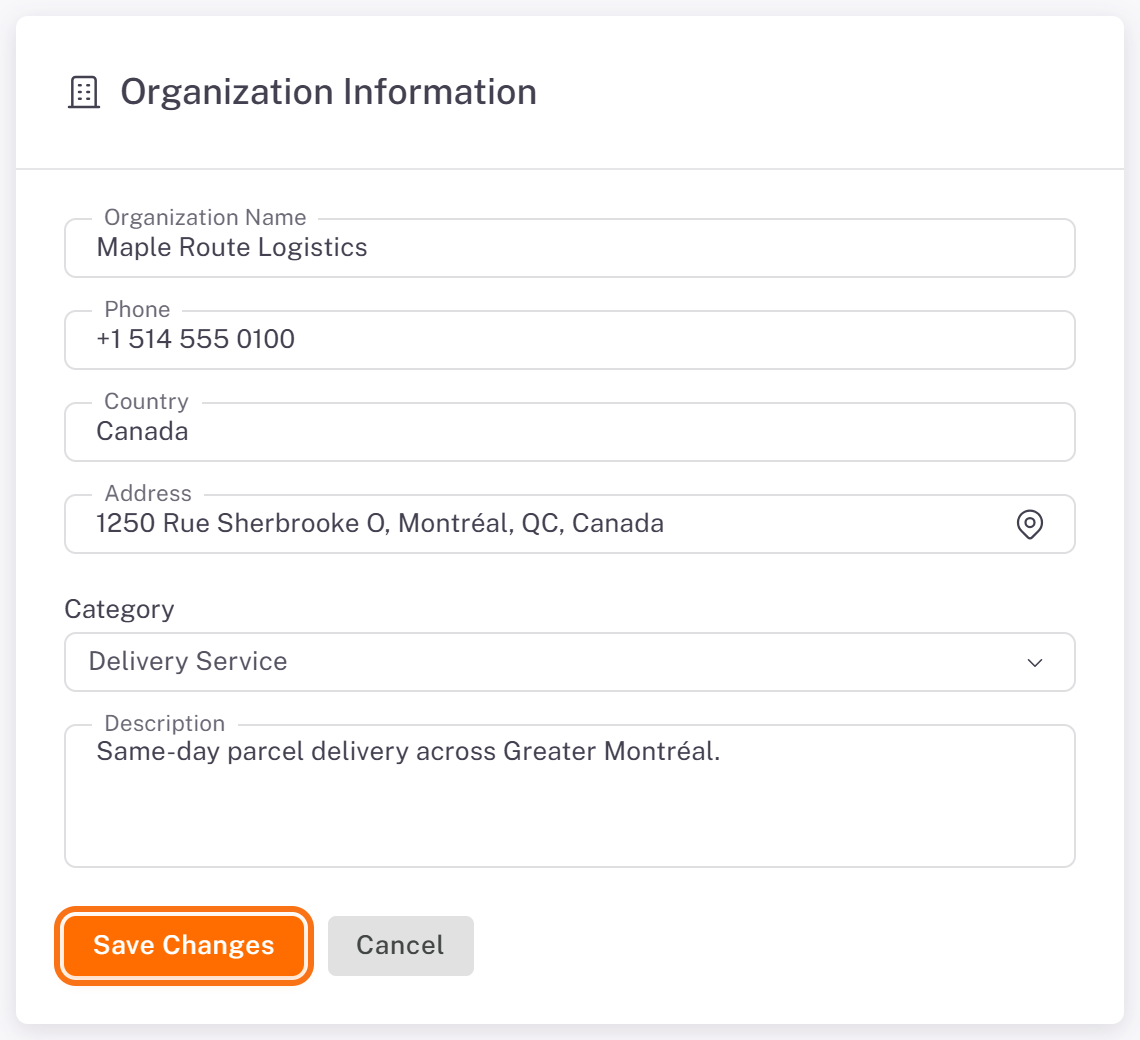
1. In the banner, click Configure. The Organization Information card opens;
2. Click Edit, fill in the missing fields (often the Phone), then click Save Changes.
3. Add a vehicle: see [Adding a Vehicle](../../02-fleet/02-adding-a-vehicle/en.md).
4. Add a driver: see [Managing Drivers](../../02-fleet/01-managing-drivers/en.md). The driver receives a 6-digit activation code by SMS, which they use to sign in to the driver app.
5. Set up your warehouse layout: see [Setting Up Your Warehouse](../../04-warehouse/01-setting-up-your-warehouse/en.md).
7. Create your first order
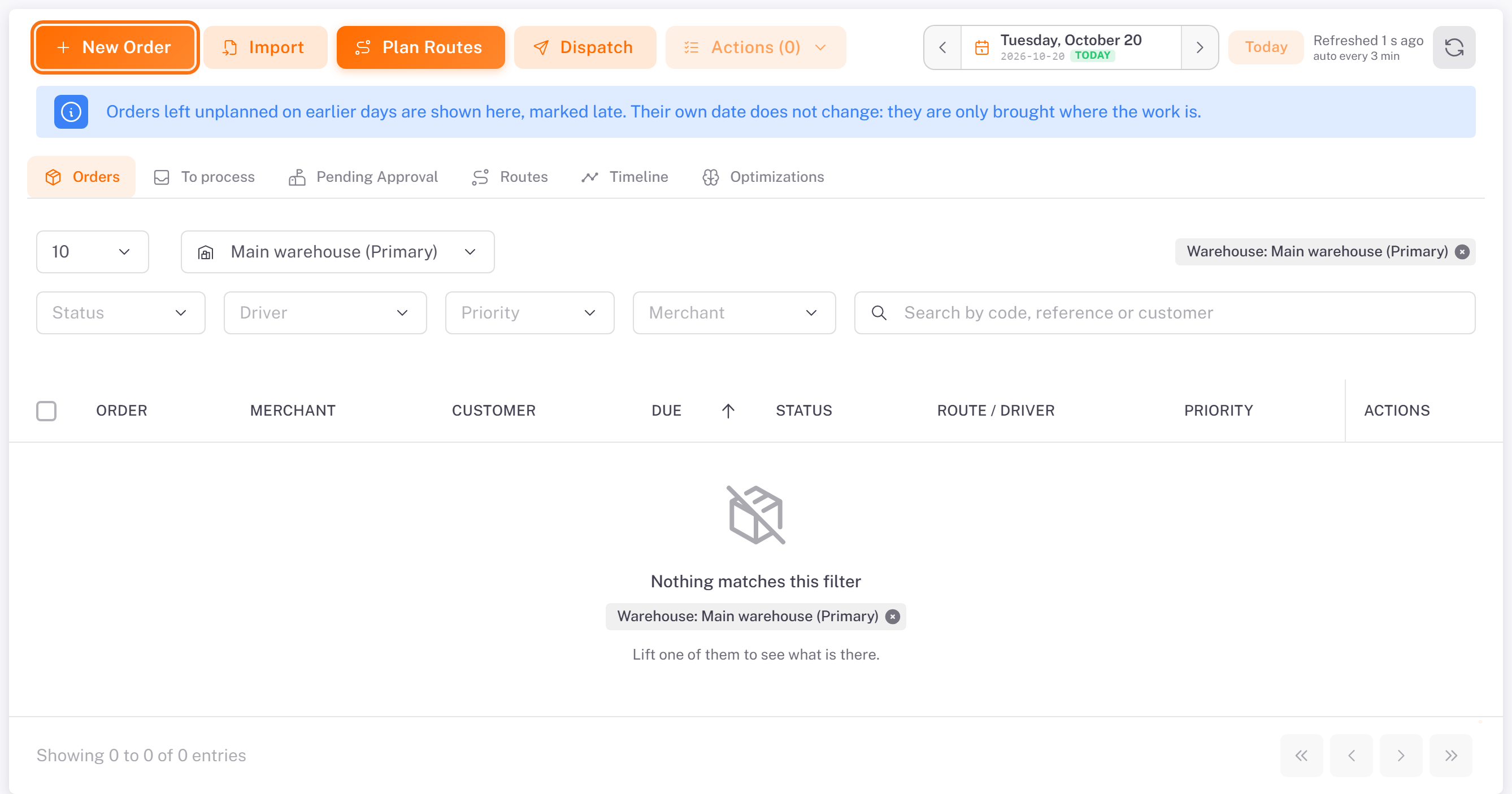
1. In the menu, open Plan & dispatch. The Orders tab lists the orders of the day.
2. Click New Order.
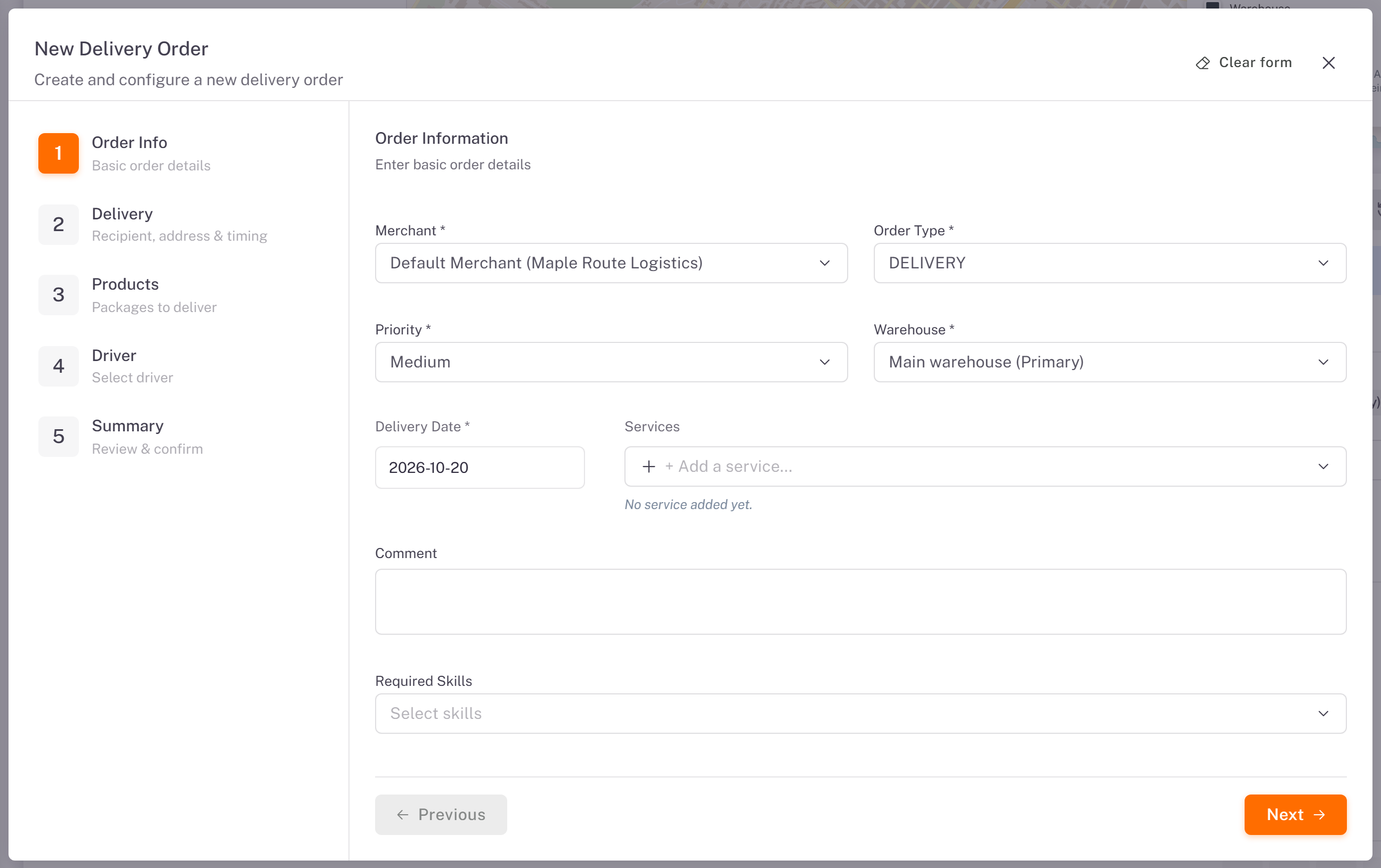
3. Order Info: the Merchant is already selected when you have only one. Choose the Order Type, the Priority and the Delivery Date (today or later). The Warehouse is your main warehouse. Click Next.
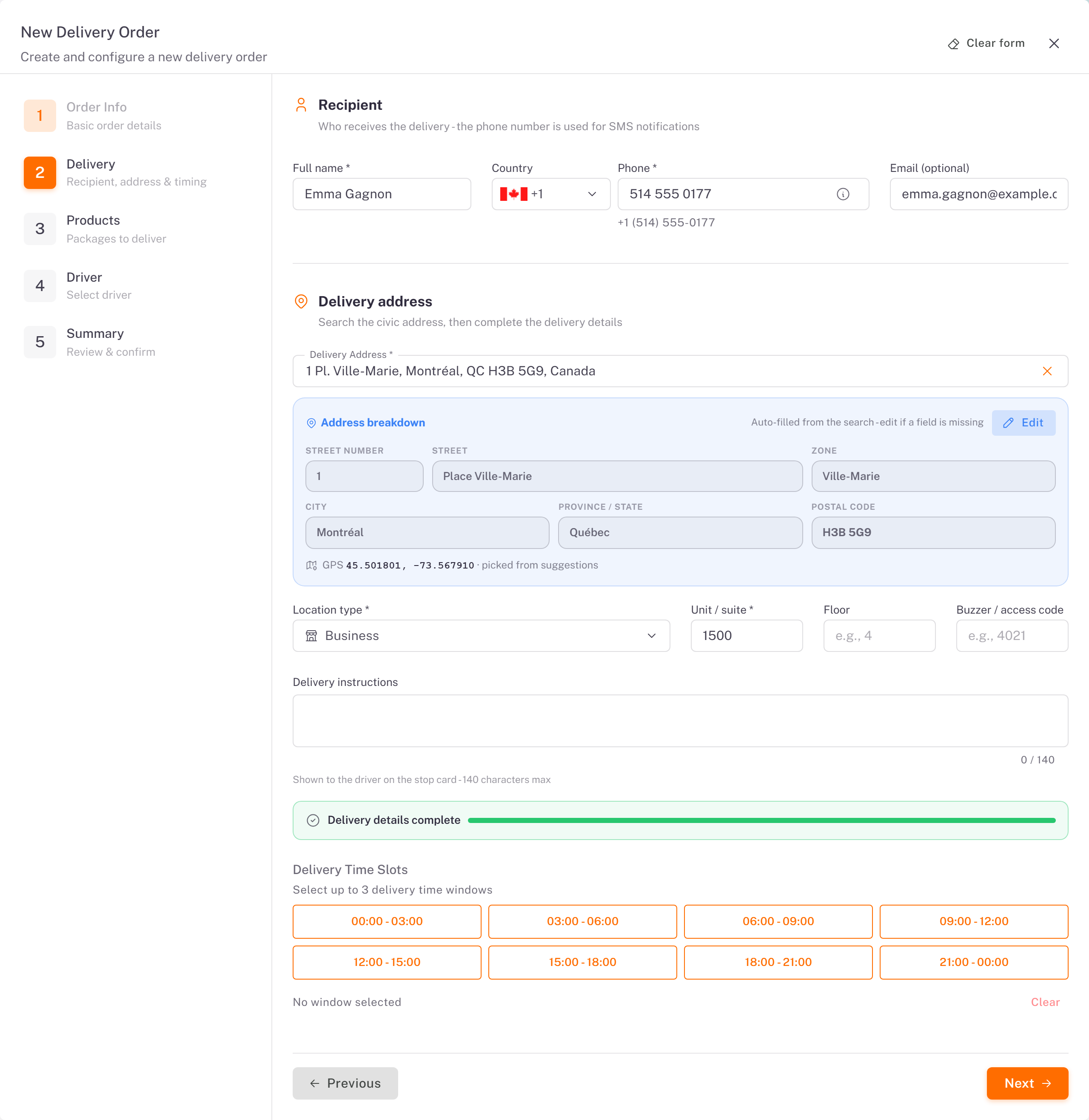
4. Delivery: enter the recipient (**Full name**, Phone, and an email if you have it), then search the Delivery Address and pick it in the suggestions. Choose the Location type and complete the unit, floor and buzzer if needed. Click Next.
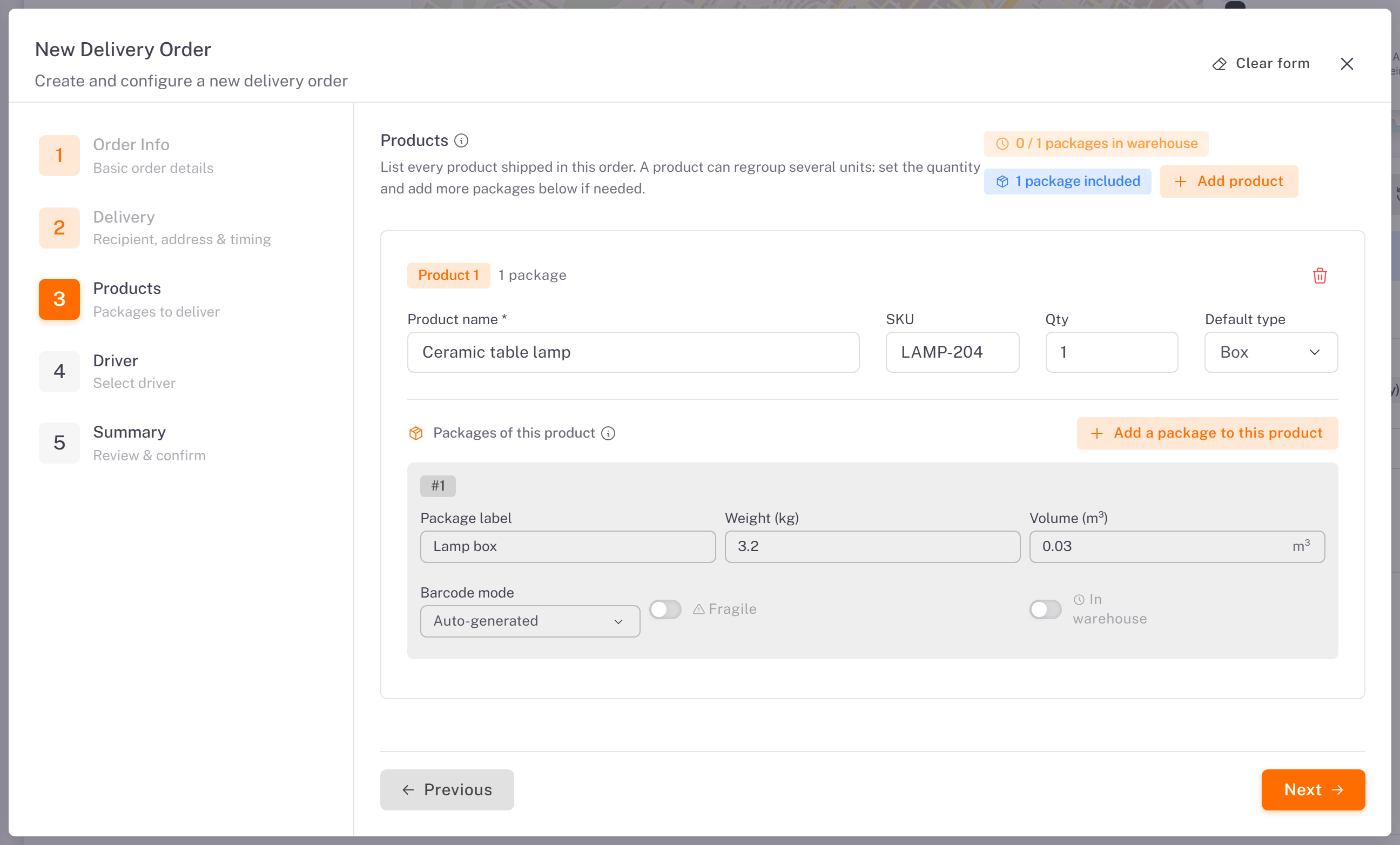
5. Products: click Add product, enter the Product name and the quantity. Each product comes with one package: add its label, weight and volume. Click Next.
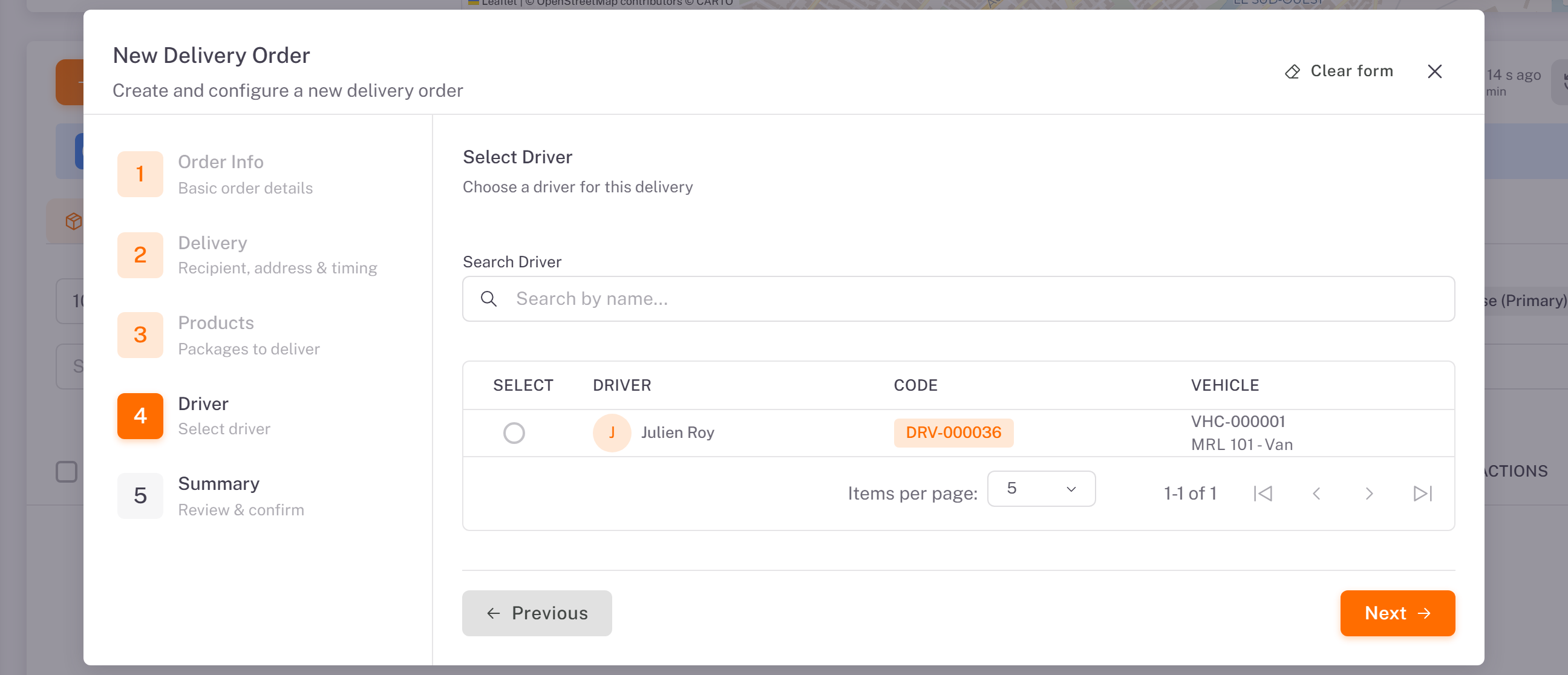
6. Driver: leave it empty. The driver is chosen when you plan the route. Click Next.
7. Summary: check the recipient, the planning details and the packages, then click Create Order.
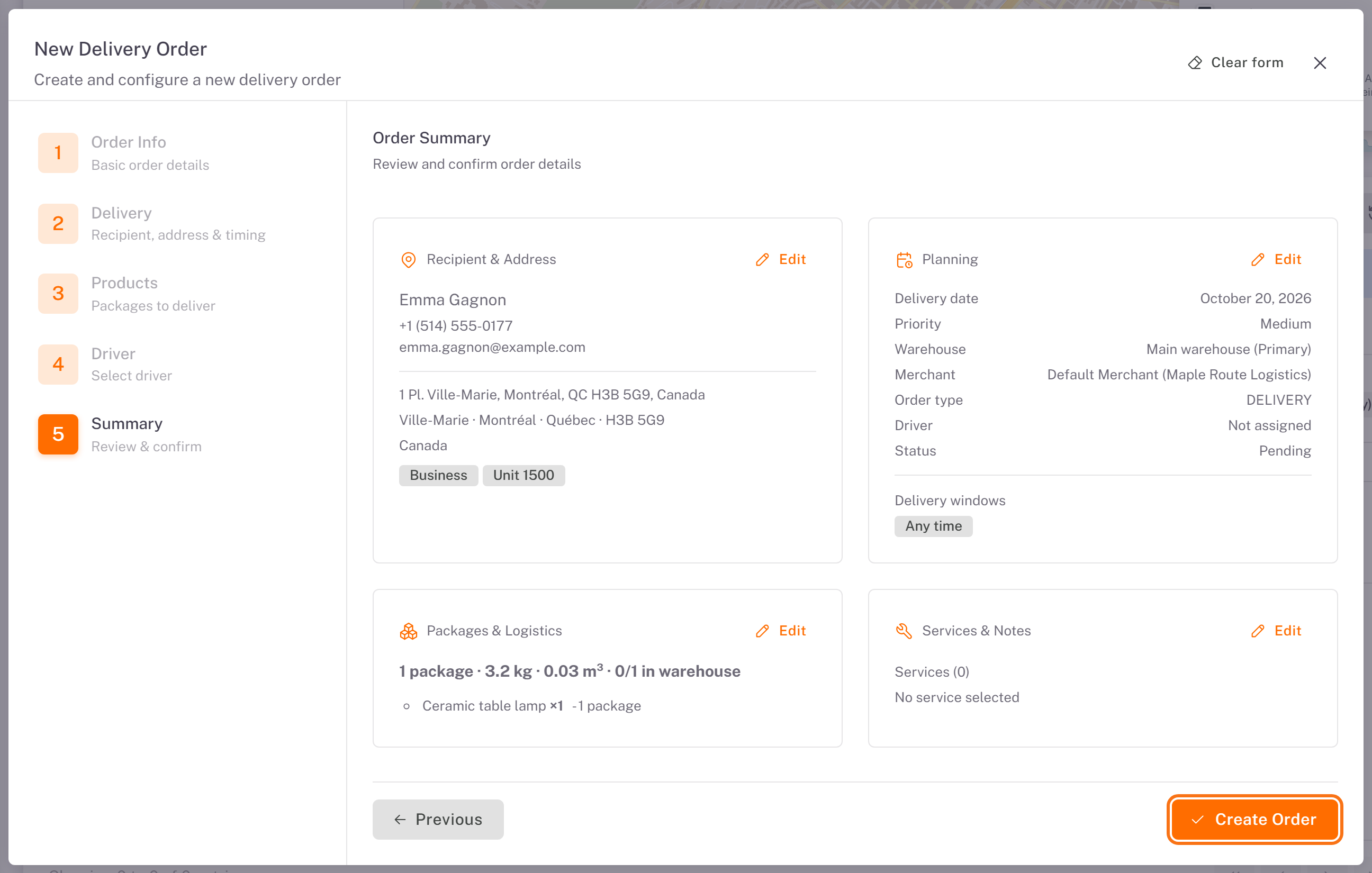
The order is created with the status To Receive: its packages are expected at the warehouse.
8. Print the labels
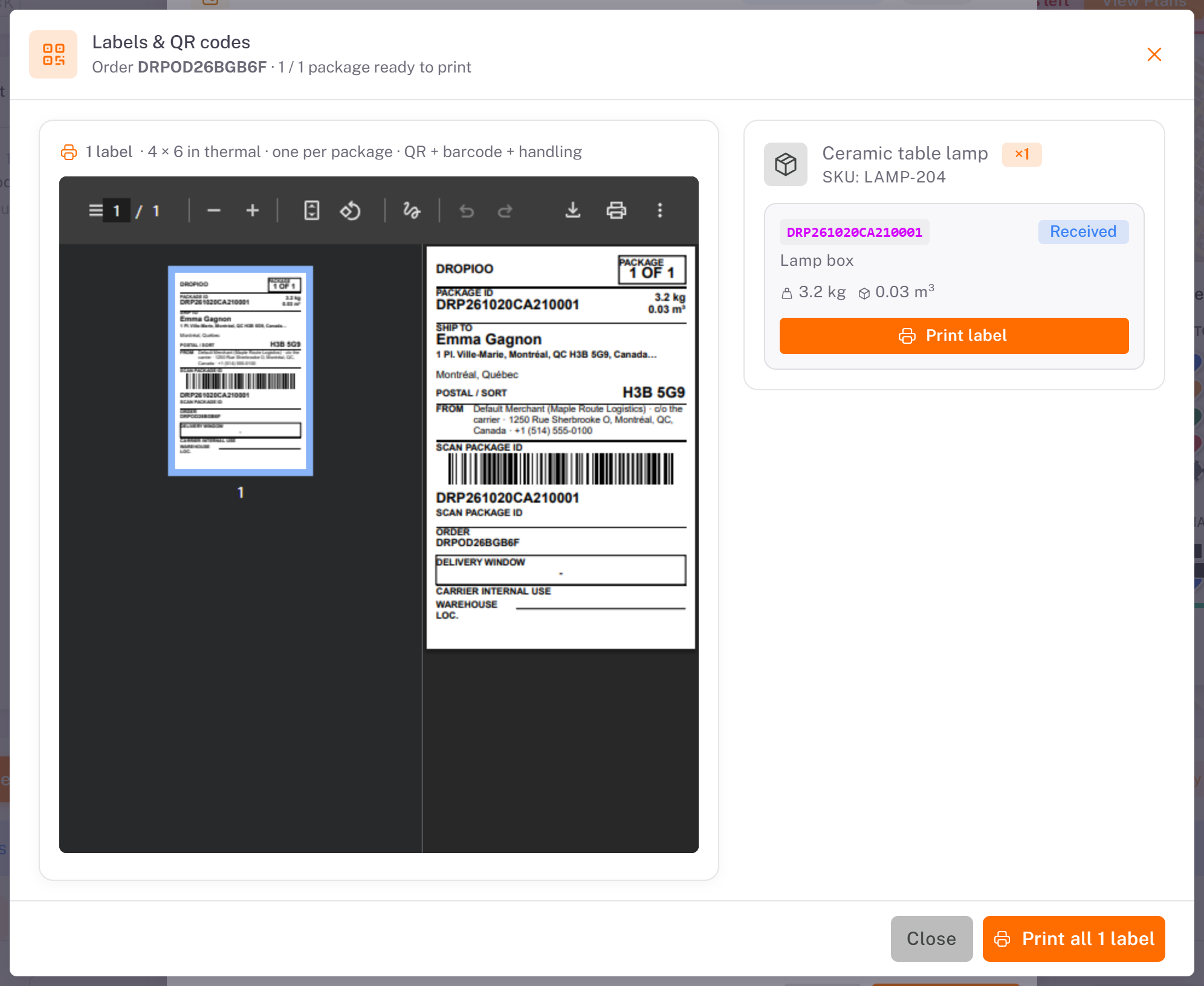
The Labels & QR codes window opens on its own. It shows one 4 × 6 in label per package. Click Print all N labels, or Print label on a single package, and stick each label on its package.
9. Follow the first-run guide
When you close the labels window, Dropioo shows Your first order is created. The guide follows your first order through its four steps: Order creation, Package reception, Planning and Dispatch to driver. Each step reads Done or To do.
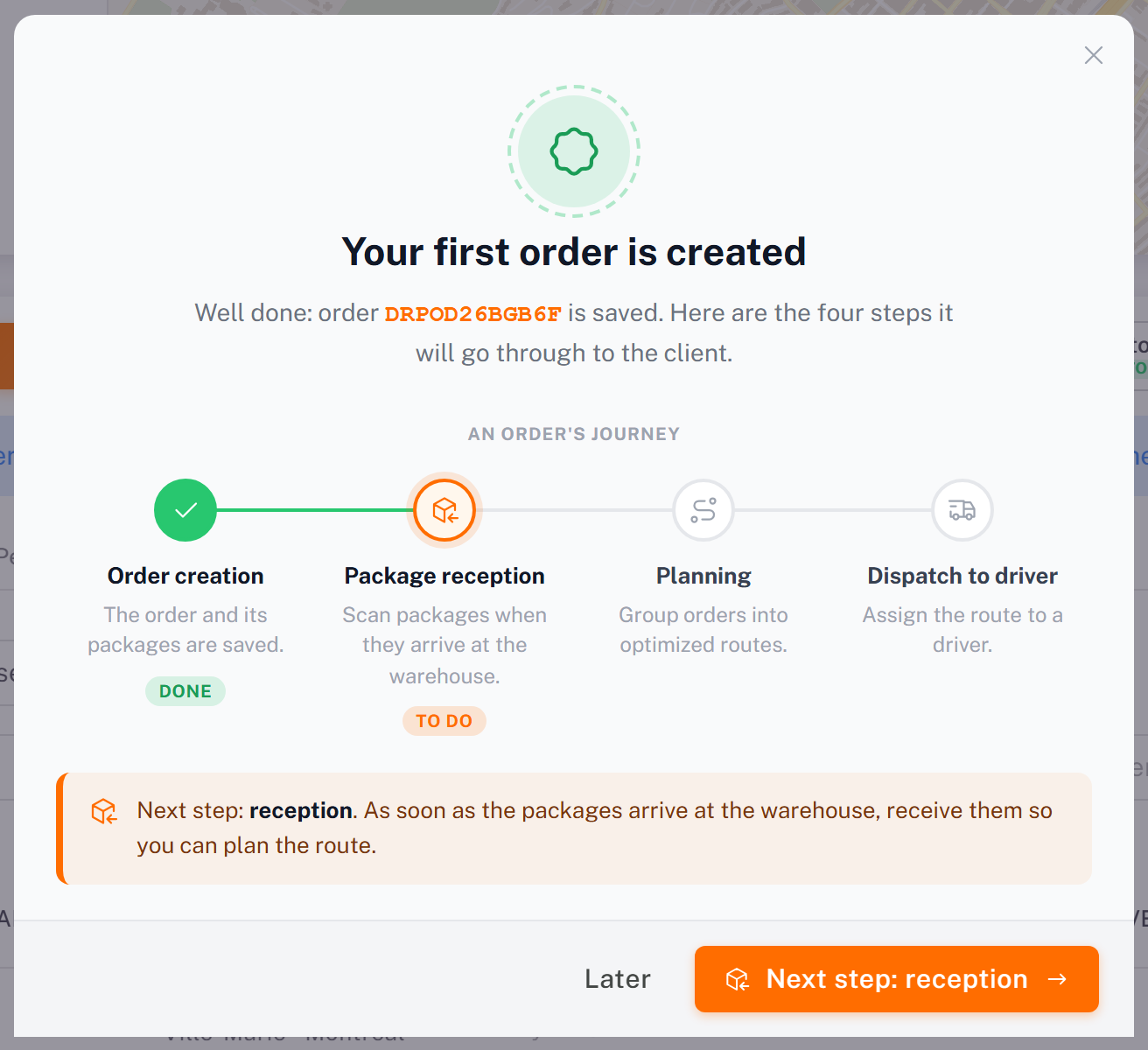
Click Next step: reception to go on, or Later to come back to it from the next step.
10. Receive the packages at the warehouse
An order can only be planned once its packages are at the warehouse.
1. In the Order reception window, choose Quick reception (no storage location) or Receive into a location (zone and bin).
2. Check the packages that arrived, then click Confirm reception.
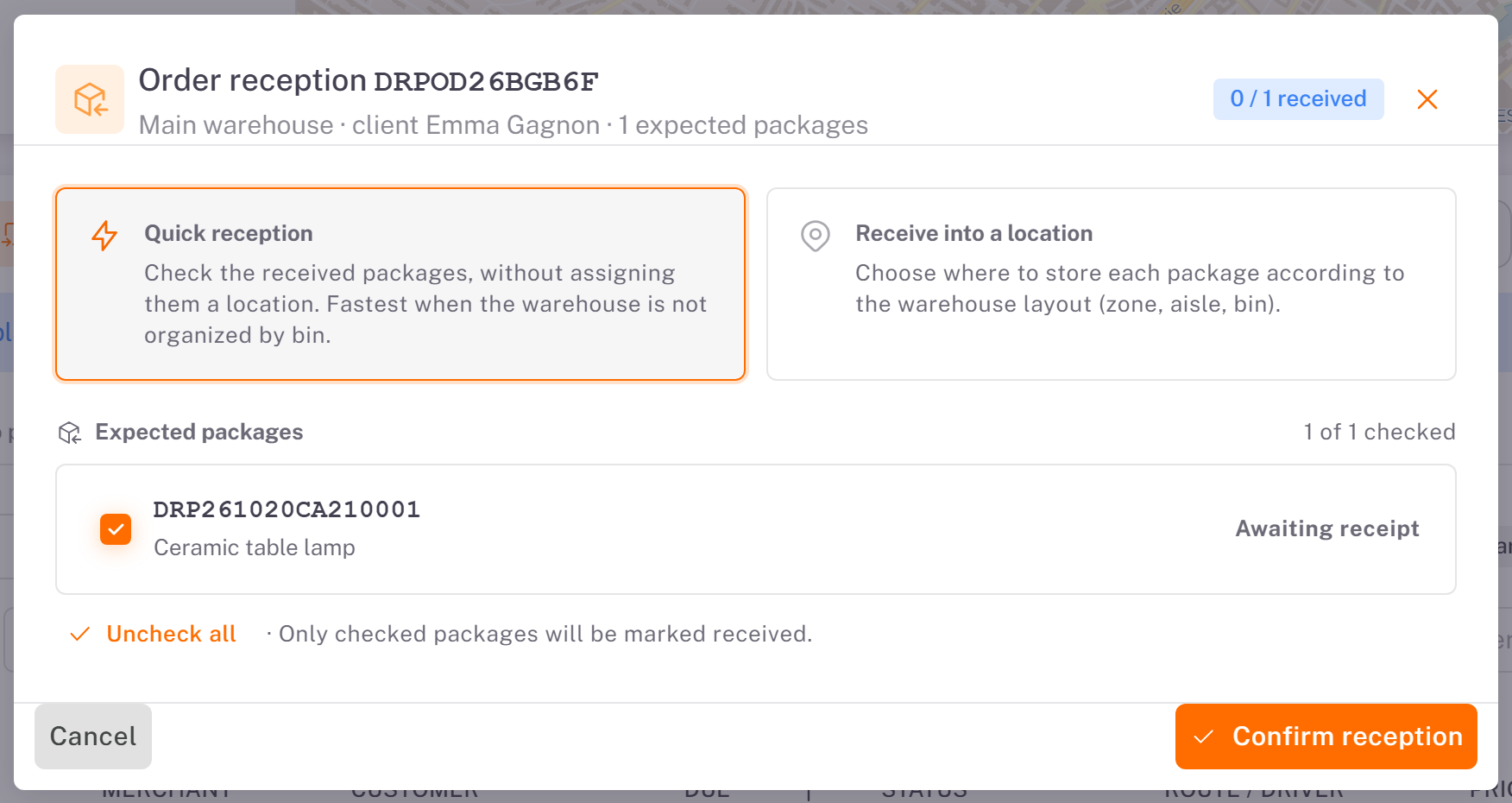
The guide moves on: Your packages are received. Click Next step: planning.
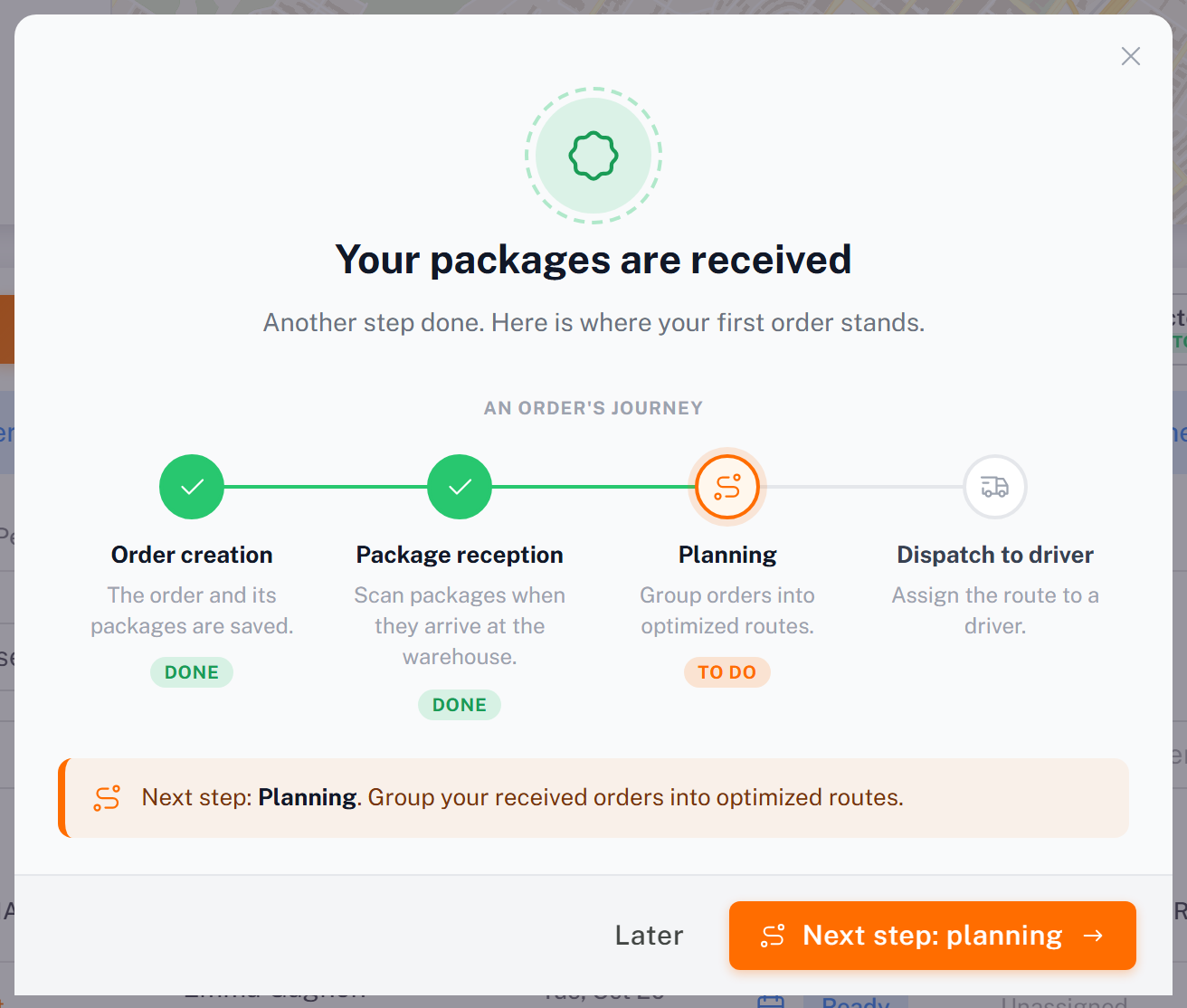
Later on, you can also receive an order from its row in the Orders tab (**Receive at warehouse**), or scan the packages from the warehouse. See [Receiving Packages at the Warehouse](../../04-warehouse/02-receiving-packages-at-the-warehouse/en.md).
11. Plan the route
1. Plan Routes opens on the Planning Mode step. Choose a mode, then click the button at the bottom right:
Manual planning: you assign the orders and order the stops yourself, up to 20 orders at a time.
AI planning: Dropioo builds optimized routes for you (time windows, capacities, skills and traffic). It is included from the Professional plan: on a Starter plan, the card is locked and shows Upgrade to Professional (see [Managing Your Subscription and Invoices](../../10-billing-plans/01-managing-your-subscription-and-invoices/en.md)).
This guide uses Manual planning.
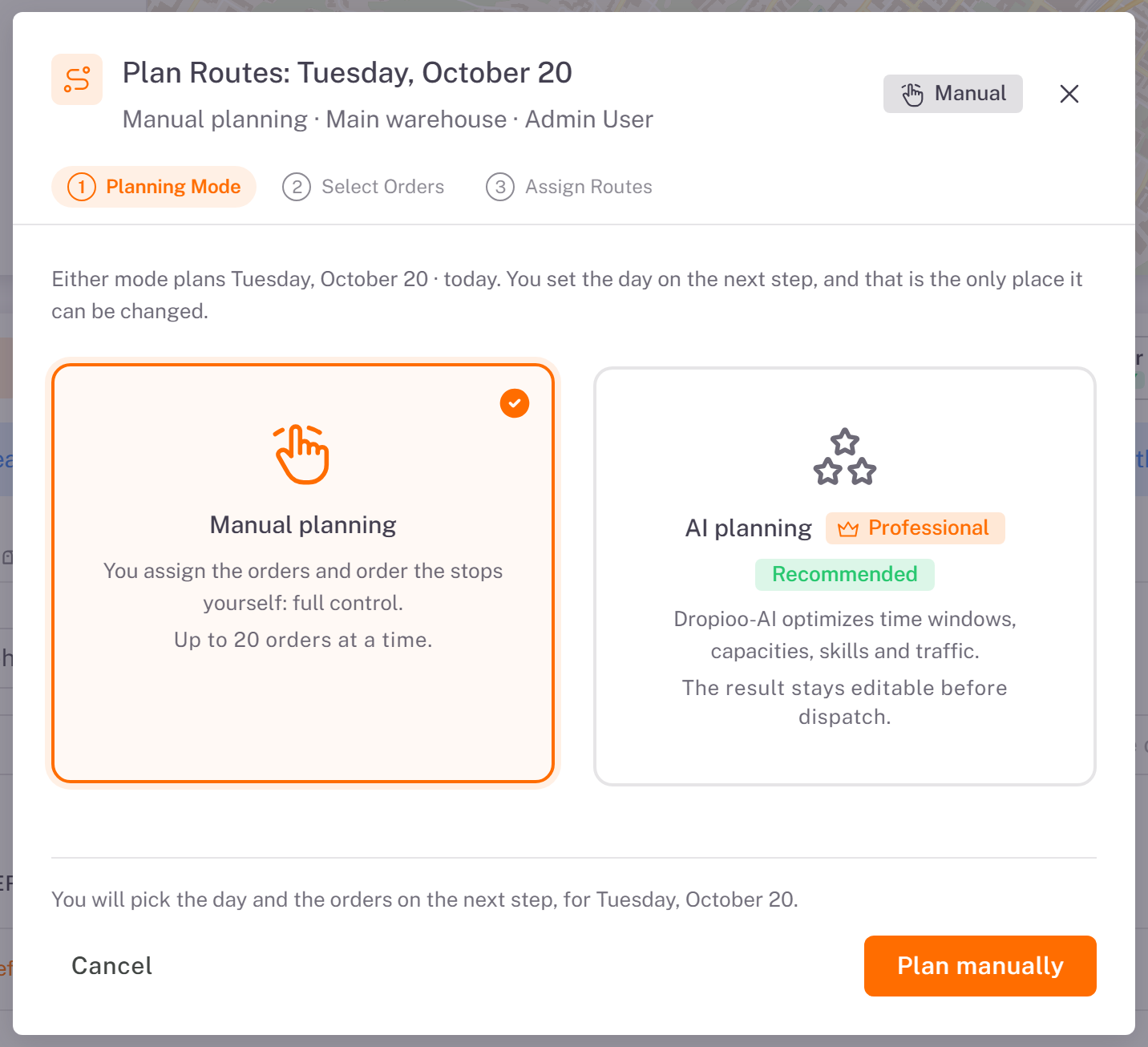
2. Select Orders: tick the order, then click Next.
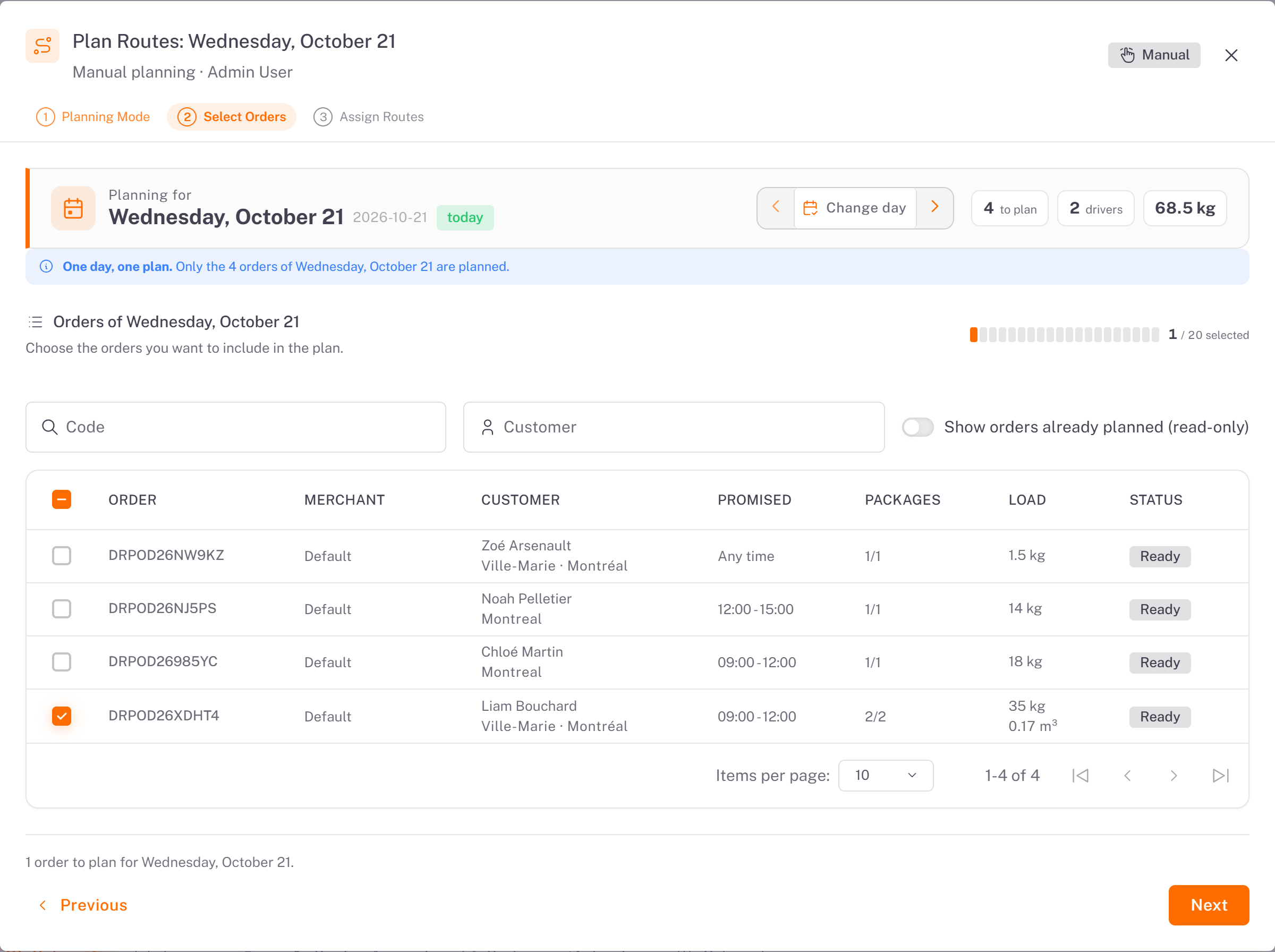
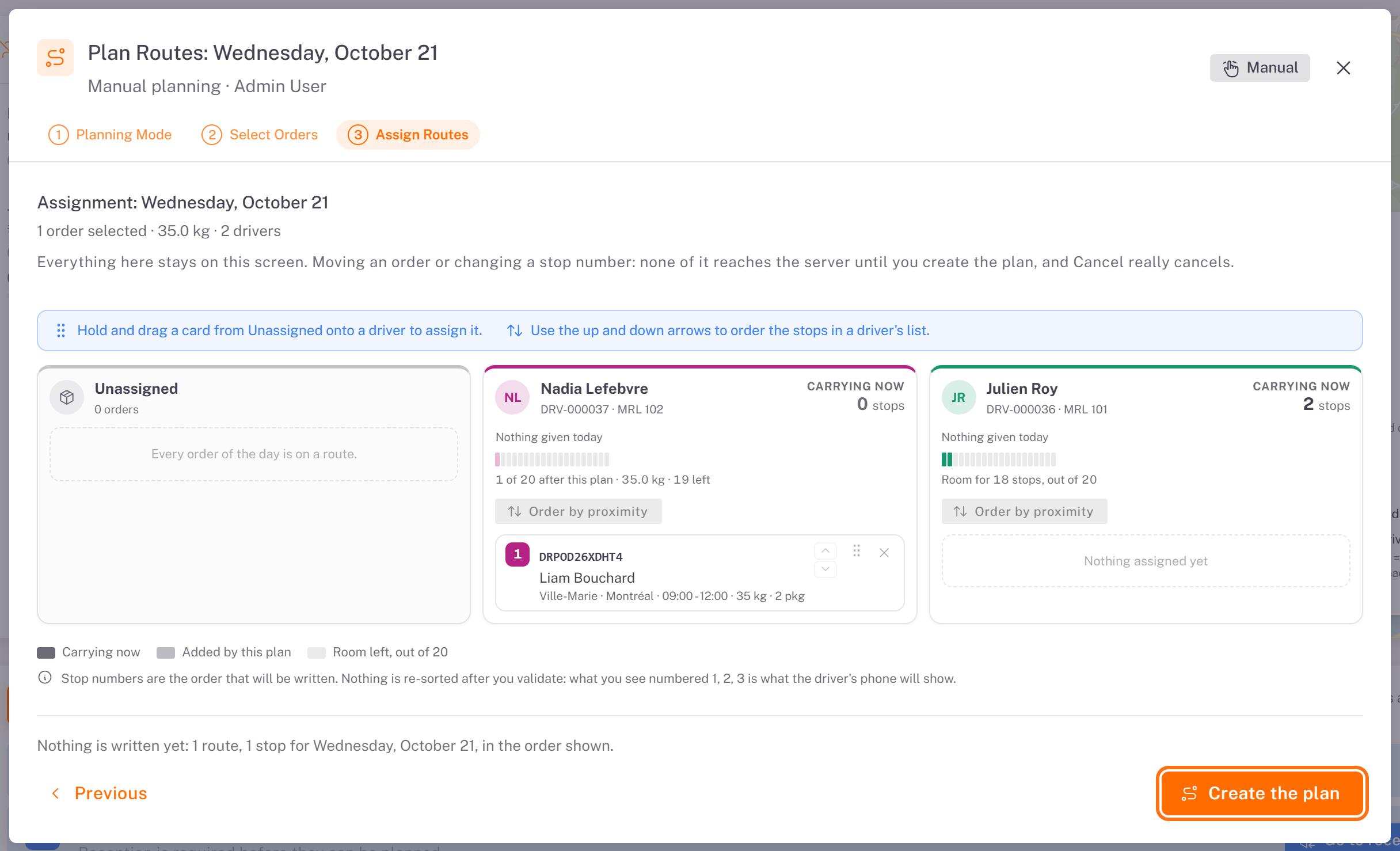
3. Assign Routes: tick the order in Unassigned, click Assign to… and choose your driver. The order becomes stop 1 of the driver's route. Click Create the plan.
12. Send the route to your driver
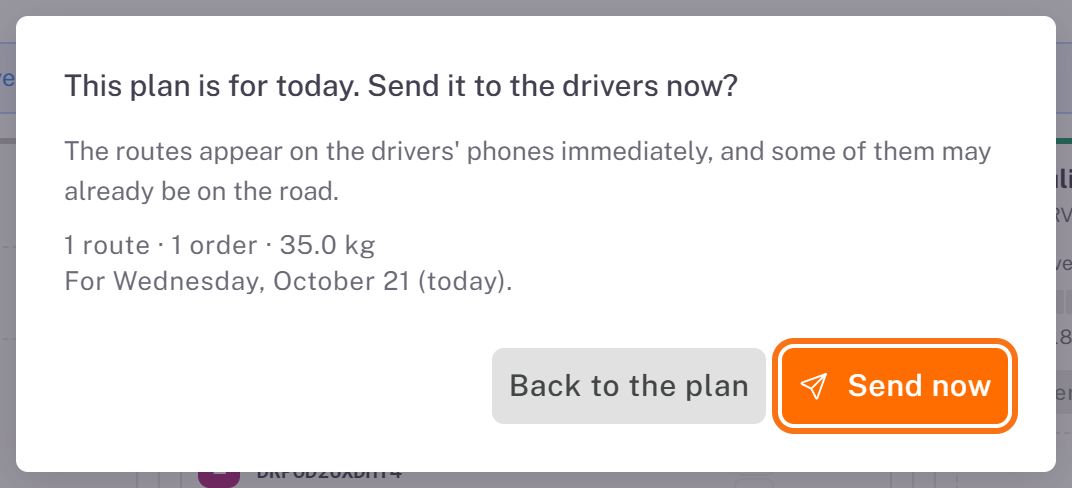
A route planned for today is sent to the driver as soon as you create it. Dropioo asks you to confirm: This plan is for today. Send it to the drivers now? Click Send now. (**Back to the plan** returns to the board without creating anything.)
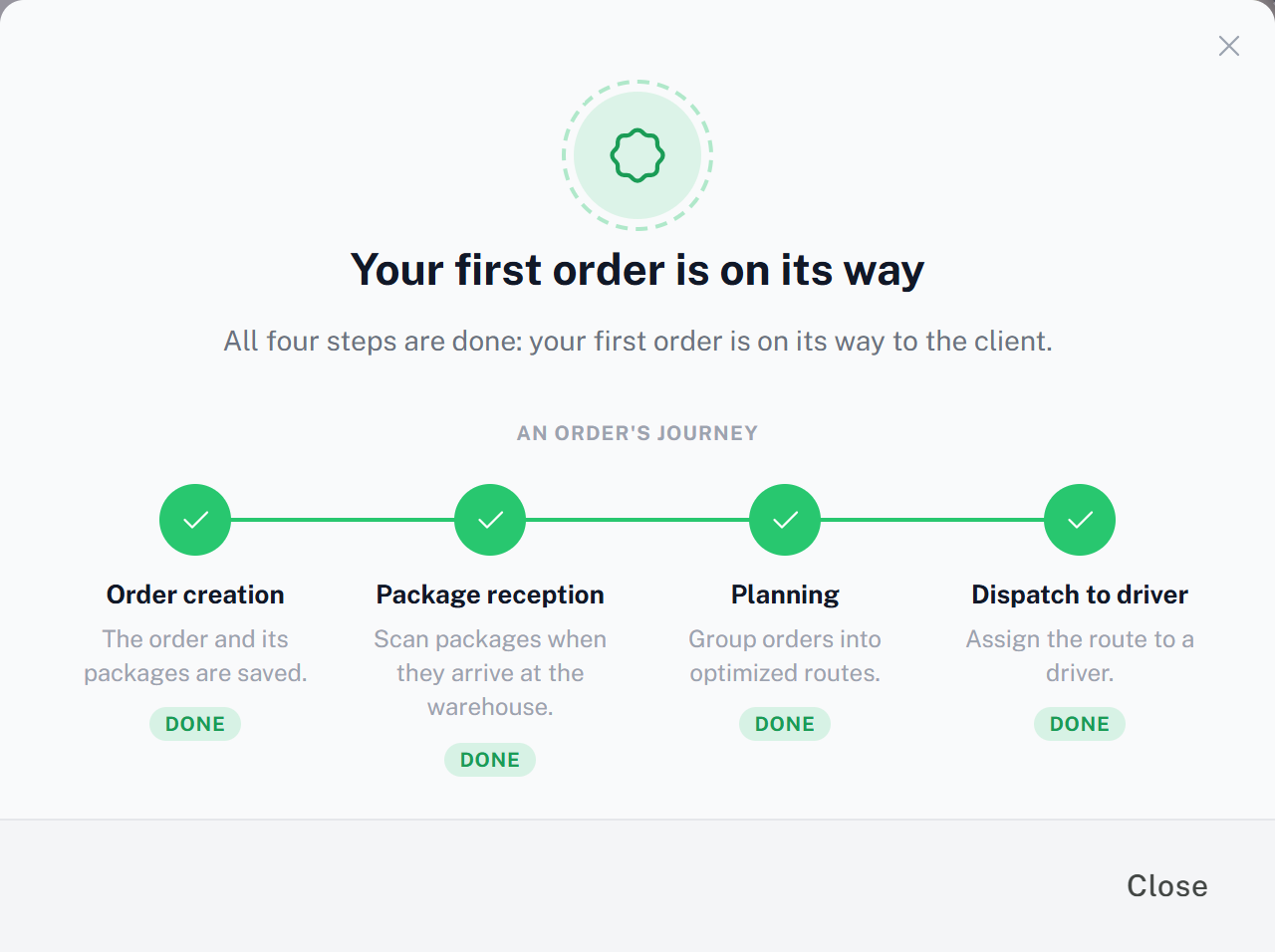
The guide shows its last screen: Your first order is on its way.
The route now appears on the Routes tab, and on your driver's phone as soon as they sign in to the driver app.
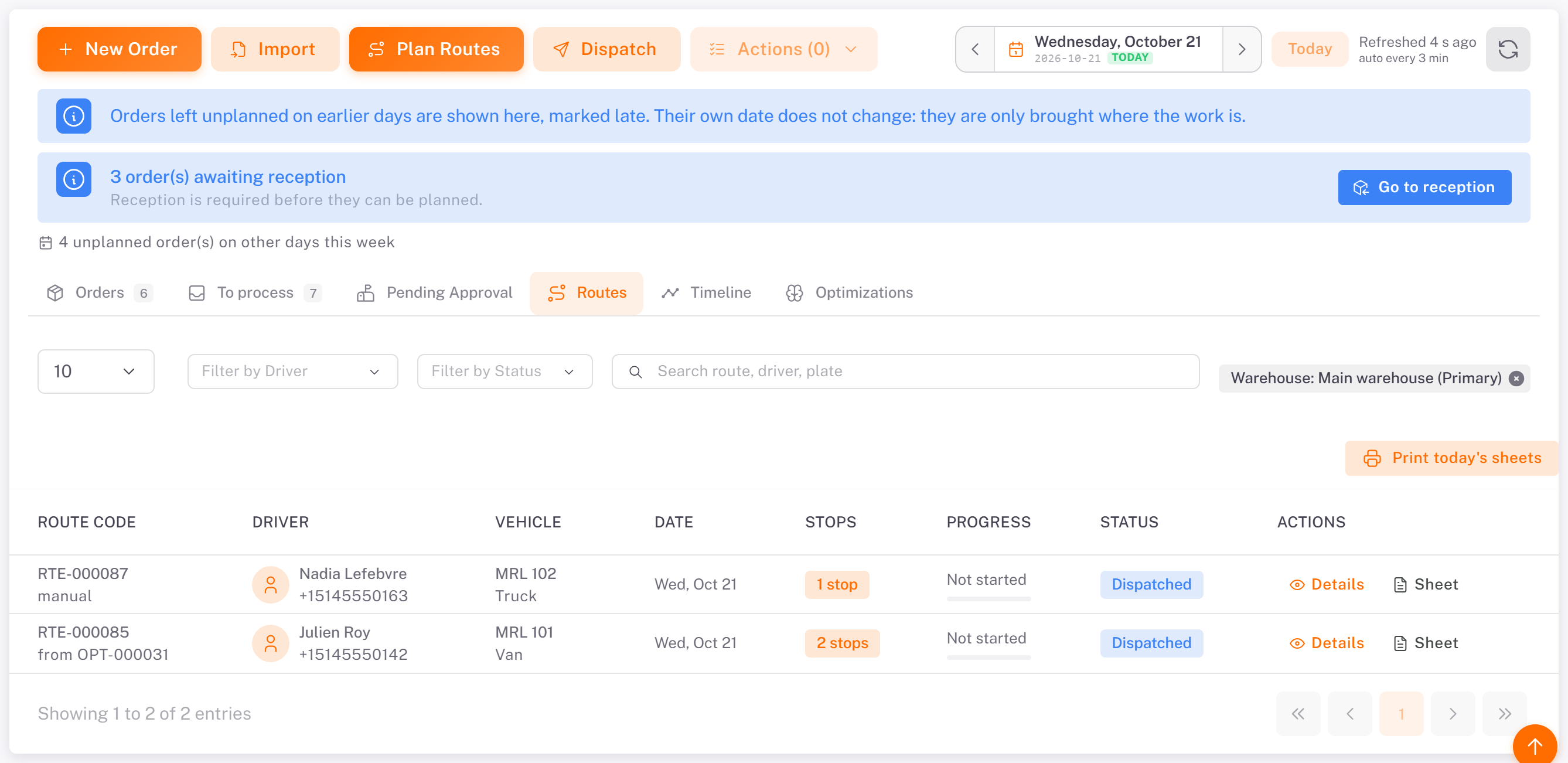
A route for a later day is not sent right away. The automatic dispatch sends it on its day (see [Configuring Automatic Dispatch](../04-configuring-automatic-dispatch/en.md)), or you send it yourself with Dispatch.
Good to know
One active route per driver. A driver who still has a route in progress cannot receive a new one. They finish it first, then receive the next one (several routes a day, one after the other).
A driver must be reachable. A route can be sent only to a driver who has an email address or has signed in to the driver app. Otherwise the console says the driver has no email and no registered device and cannot be notified.
One order, one stop. Two orders at the same address make two stops.
The Documentation link in the menu opens this help center.
Where to go next
Bring in your merchants: [Managing Merchant Partners](../03-managing-merchant-partners/en.md)
Create many orders at once: [Importing Orders from a File](../../03-routes-orders/02-importing-orders-from-a-file/en.md)
Plan a full day with the optimizer: [Planning and Sending Routes](../../03-routes-orders/04-planning-and-sending-routes/en.md)
Load the vehicle before departure: [Loading a Route at the Warehouse](../../04-warehouse/03-loading-a-route-at-the-warehouse/en.md)
Help your driver start: [Activating and Signing In to the Driver App](../../05-driver-app/01-activating-and-signing-in/en.md)
Follow deliveries live: [Following Your Drivers Live](../../02-fleet/04-following-your-drivers-live/en.md)
Choose a plan: [Managing Your Subscription and Invoices](../../10-billing-plans/01-managing-your-subscription-and-invoices/en.md)
Was this article helpful?
Still need help?
Contact support