
Table of contents
Open your merchants
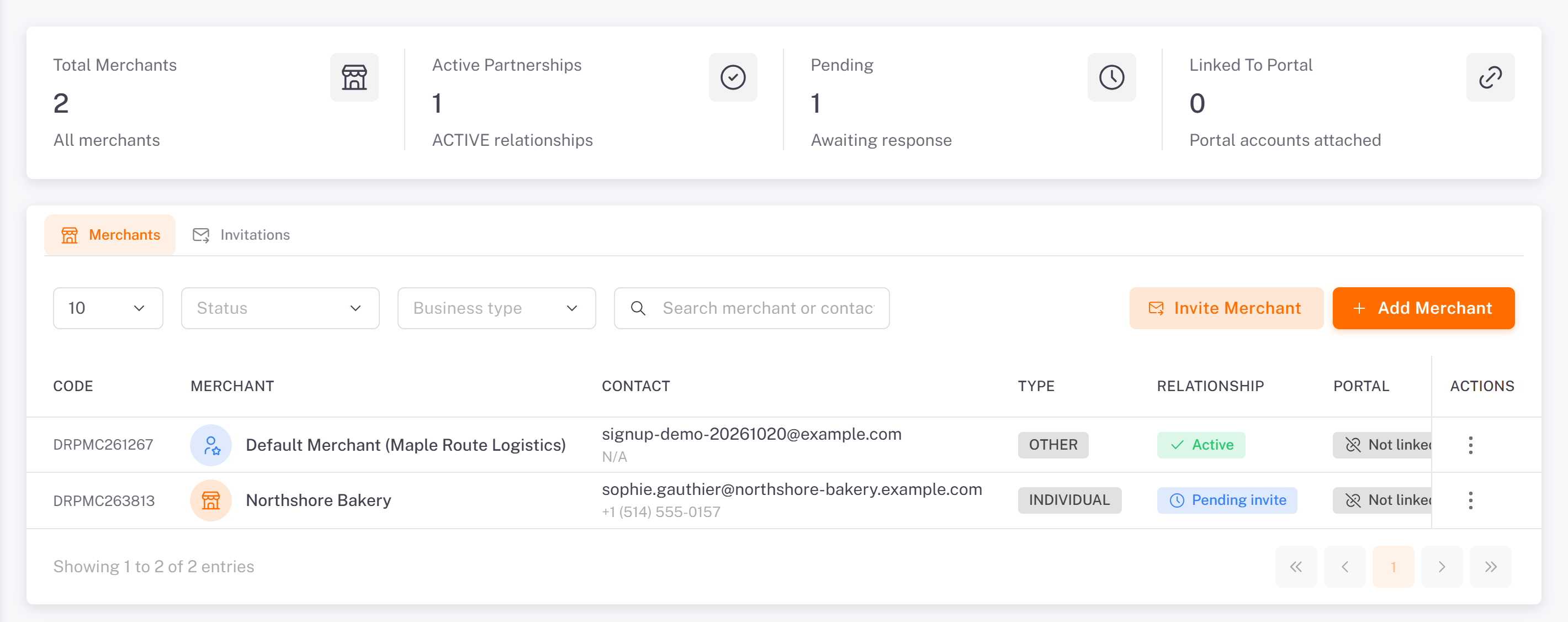
In the menu, open Merchants > List. The tiles count your merchants: Total Merchants, Active Partnerships, Pending (awaiting a response) and Linked To Portal (merchants with their own portal account). The Merchants tab lists them; filter by Status or Business type, or search a merchant or a contact.
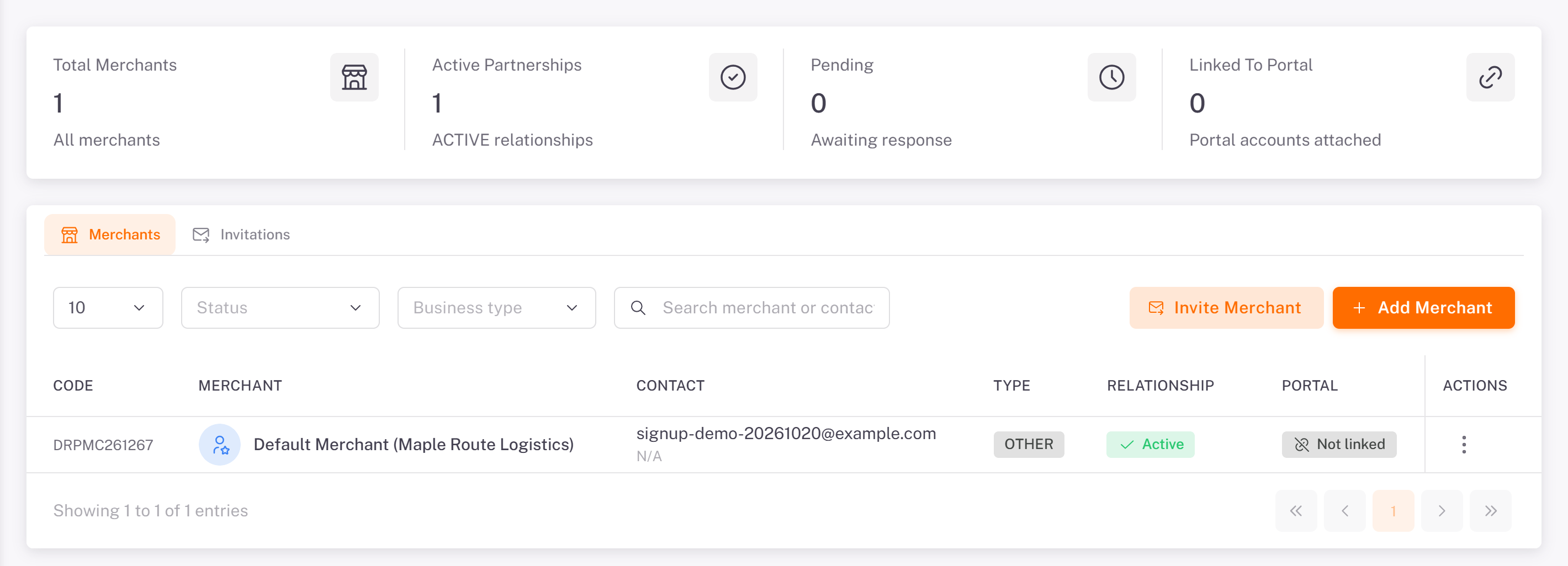
Your own company always appears as a merchant (Default Merchant): use it for your own shipments.
Invite a merchant to the portal
1. Click Invite Merchant.
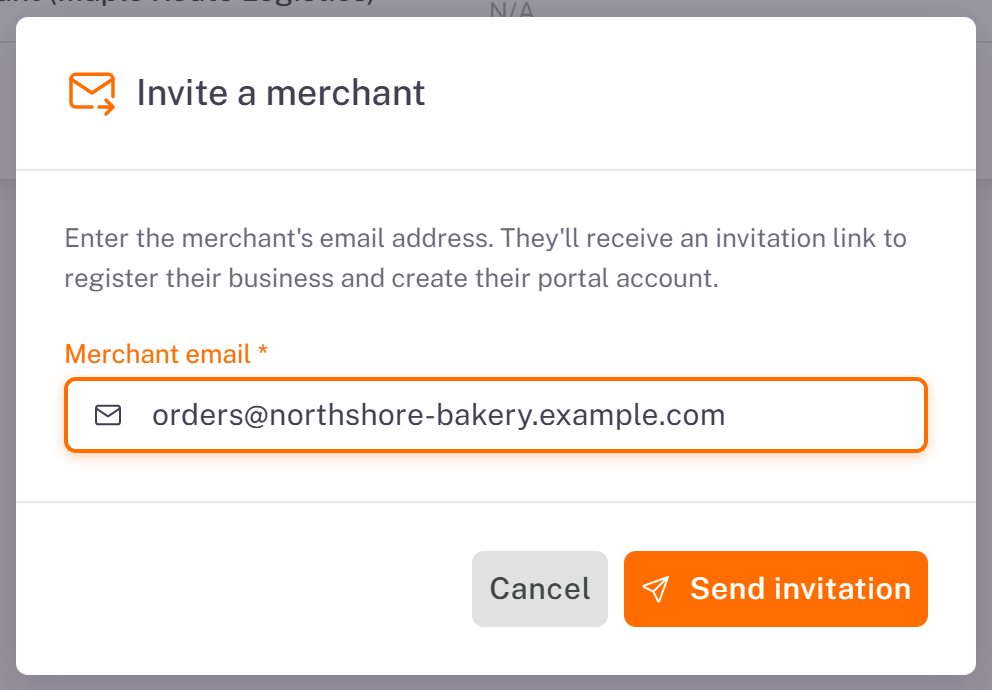
2. Enter the Merchant email, then click Send invitation. The merchant receives a link to register their business and create their portal account.
The Invitations tab follows the invitations sent, with Resend if needed.
Add a merchant yourself
Click Add Merchant. The Add New Merchant form has four steps; click Next after each one.
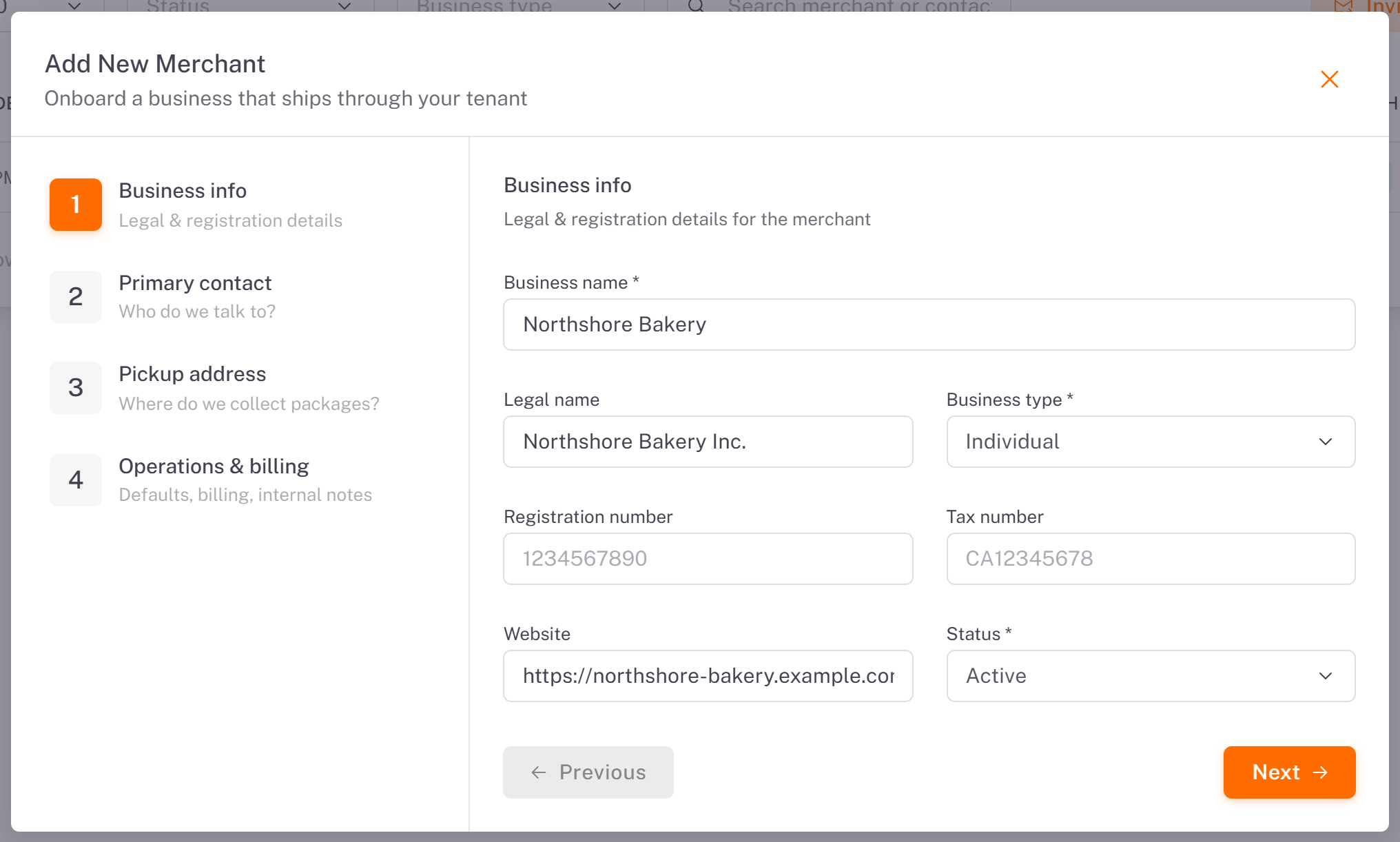
1. Business info: Business name, Legal name, Business type, Registration number, Tax number, Website and Status.
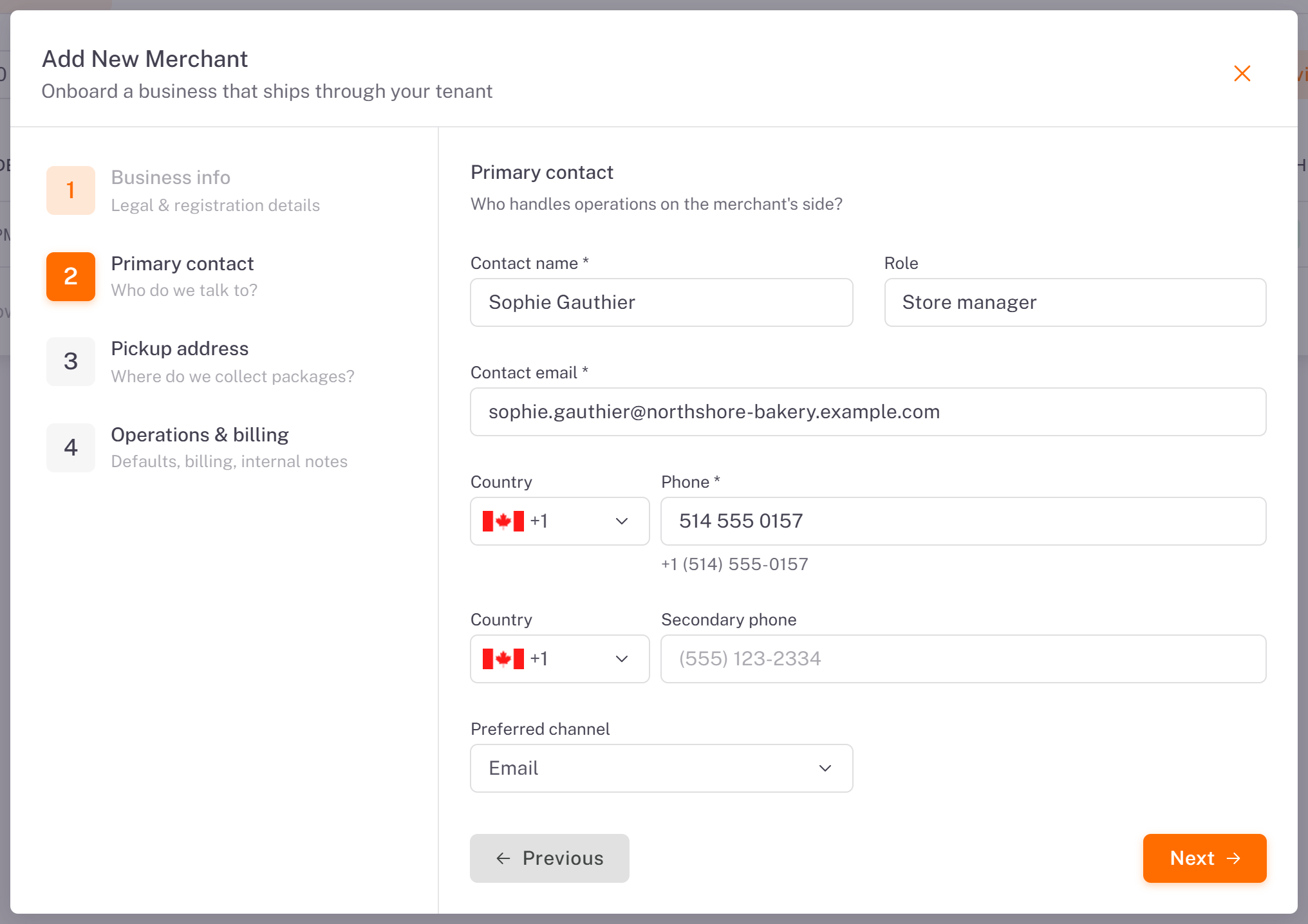
2. Primary contact: Contact name, Role, Contact email, Phone (with its country), Secondary phone and Preferred channel.
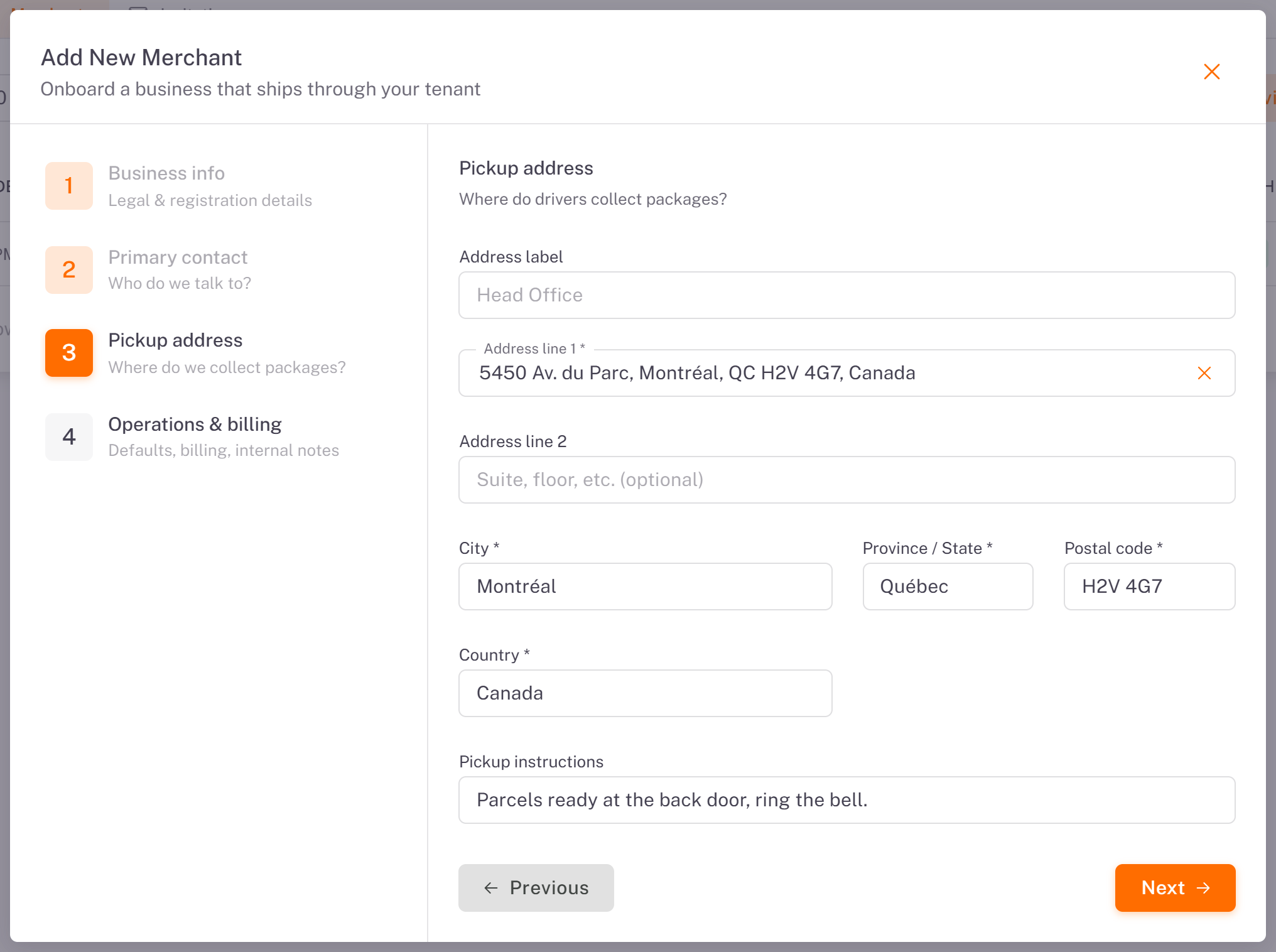
3. Pickup address: where your drivers collect the parcels. Type Address line 1 and pick it in the suggestions; complete the City, Province / State, Postal code and Country if needed, and add Pickup instructions.
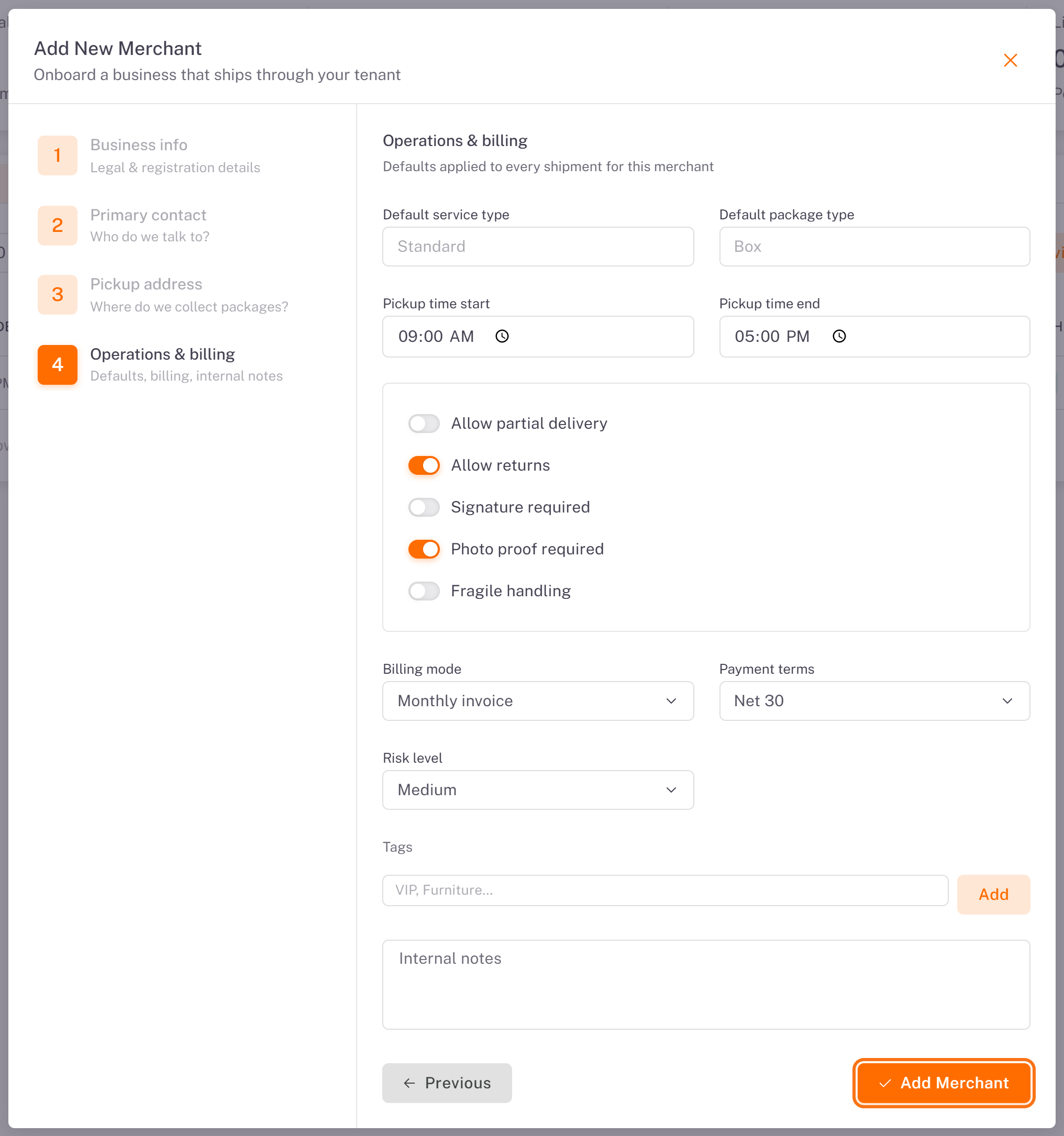
4. Operations & billing: the Default service type and Default package type, the pickup window (Pickup time start and end), the options (Allow partial delivery, Allow returns, Signature required, Photo proof required, Fragile handling), then Billing mode, Payment terms, Risk level, tags and Internal notes. Click Add Merchant.
The merchant appears in the list. The contact receives an invitation to the portal: the relationship reads Pending invite until they accept it.
Accept a partnership request
A merchant who already has a portal account can find you with your carrier code (shown in Settings > Account) and send you a request.
1. Open Merchants > Requests. Partnership Requests lists the requests with the merchant, the contact, the message and the date.
2. Open the ⋮ menu at the end of the row. Details shows the merchant's full information; Accept starts the partnership; Reject declines it (with an optional reason).
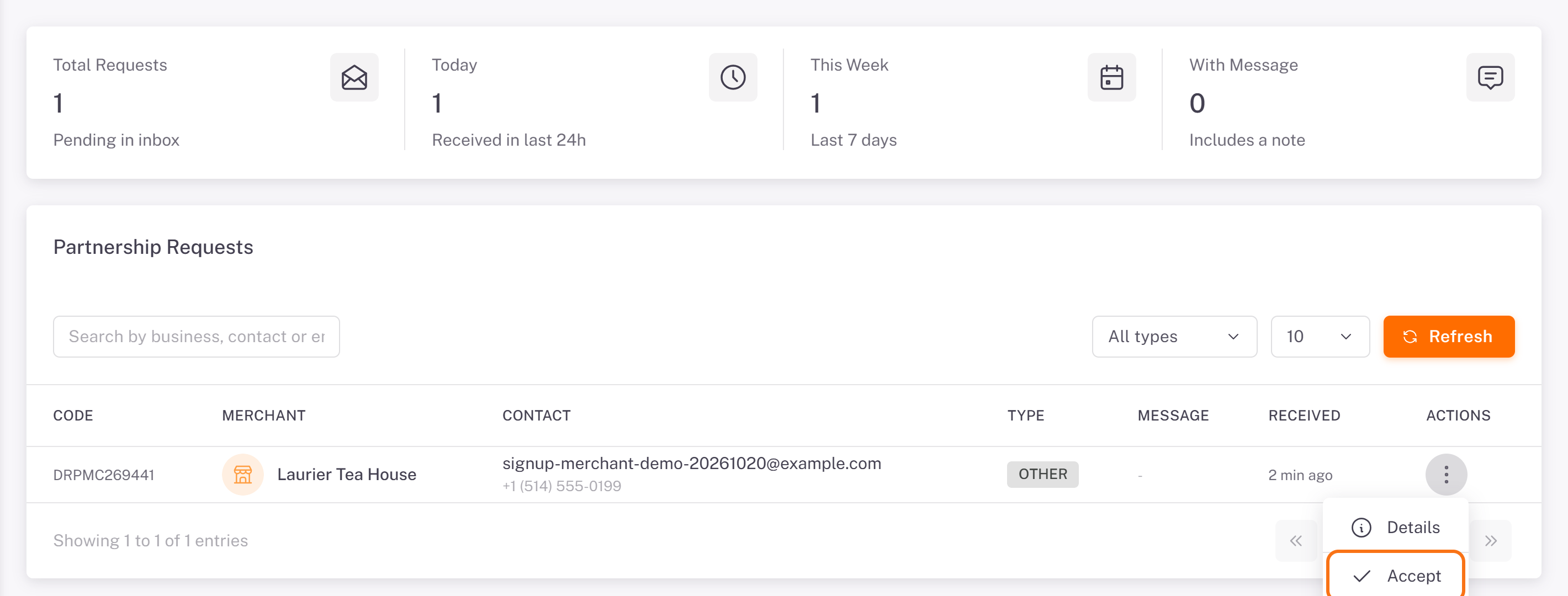
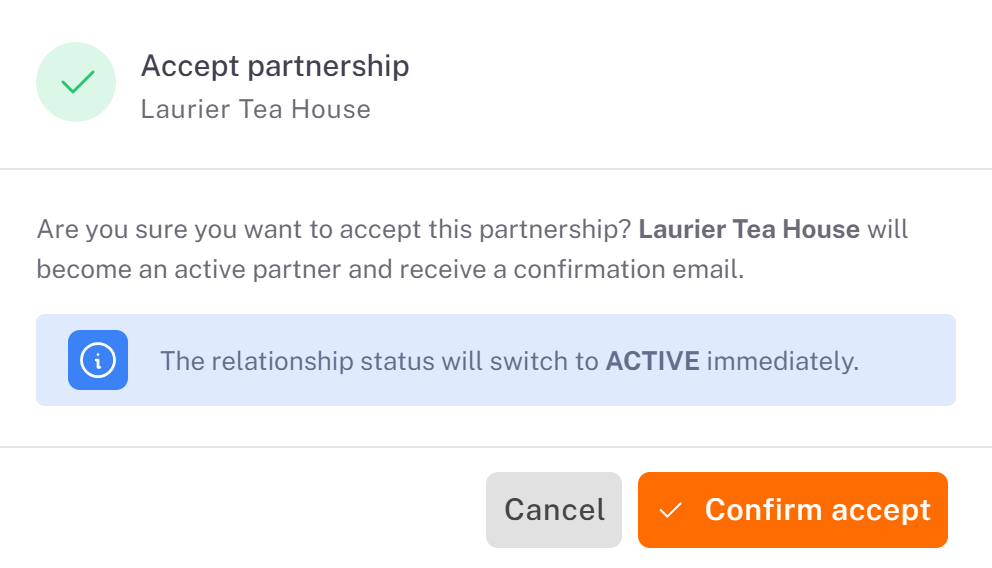
3. Confirm with Confirm accept. The partnership becomes active at once, and the merchant receives a confirmation email. The merchant now appears in Merchants > List.
Once accepted, the merchant can send you orders. You approve them in Plan & dispatch > Pending Approval: see [Approving or Rejecting Merchant Orders](../../03-routes-orders/03-approving-or-rejecting-merchant-orders/en.md).
Was this article helpful?
Still need help?
Contact support