
Table of contents
A driver refuses a route
Before loading, a driver can hand a route back from the app (**I can't make it** or Vehicle problem). Two other choices, I'll be late 30 min and I'll be late 1 h, only warn you: the route stays with the driver.
When a route is handed back:
a red banner appears at the top of the console: Round … refused by …, with Open the round to dispatch it;
the route goes back to Planned, still with its driver, and the automatic dispatch skips it;
the Route journal records Refused by the driver and the reason.

What to do: click Open the round to dispatch it. Send the route again to the same driver, or Reassign it to another driver, then Dispatch route. The banner stays until the route is dispatched again. You can also cancel the route (see below).
Once loading has started, the driver can no longer refuse: they end the route from the app with Slide to finish the route and a reason.
Interrupt a route on the road
If a driver cannot continue (accident, breakdown), interrupt their route: open it, then Interrupt route. Give an Interruption reason (for example Driver unavailable (vehicle accident)) and confirm. Pauses the route. You then transfer or reschedule the remaining stops.
A banner then lists the interrupted routes: N round interrupted, awaiting transfer. Each driver below can receive no other round until its remaining stops are transferred or rescheduled.

What to do: open the route and choose:
- Transfer to a driver: another driver takes the remaining stops;
- Reschedule remaining stops: the orders go back to planning, to be planned again.
The customers who were told "delivered today" receive a message that their delivery is postponed. The driver then ends the route in the app, and hands back the parcels still on board.
Cancel a route
A route that has not left yet (Planned or Dispatched) can be cancelled: open it, then More > Cancel route. Give a Cancellation reason and click Cancel route. Keep the route closes the window without cancelling.
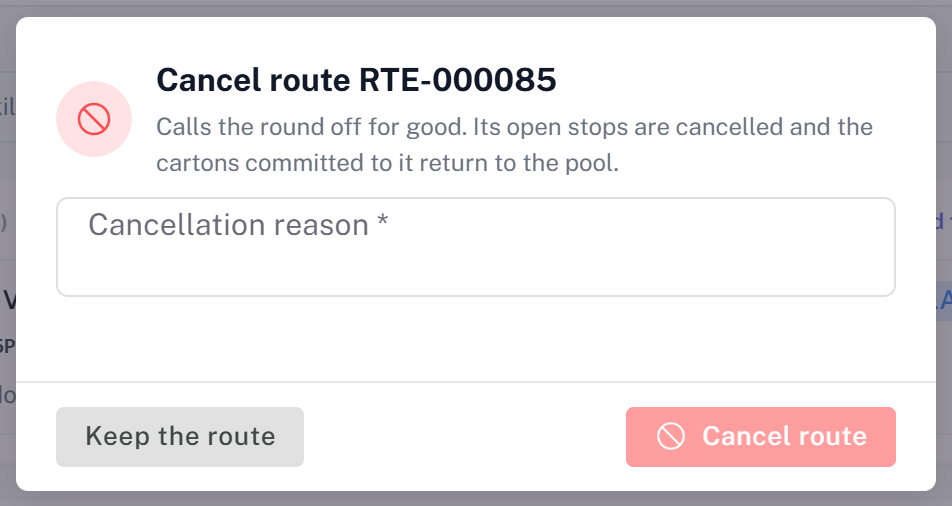
The open stops are cancelled and their orders go back to planning. A route that has already left cannot be cancelled: the console says … has already left: it cannot be cancelled. Interrupt it instead.
Was this article helpful?
Still need help?
Contact support