
Table of contents
Before you begin
Your file has one row per package. The rows that share the same order_reference form one order.
No file yet? Download the template from the import window (step 2 below).
Steps
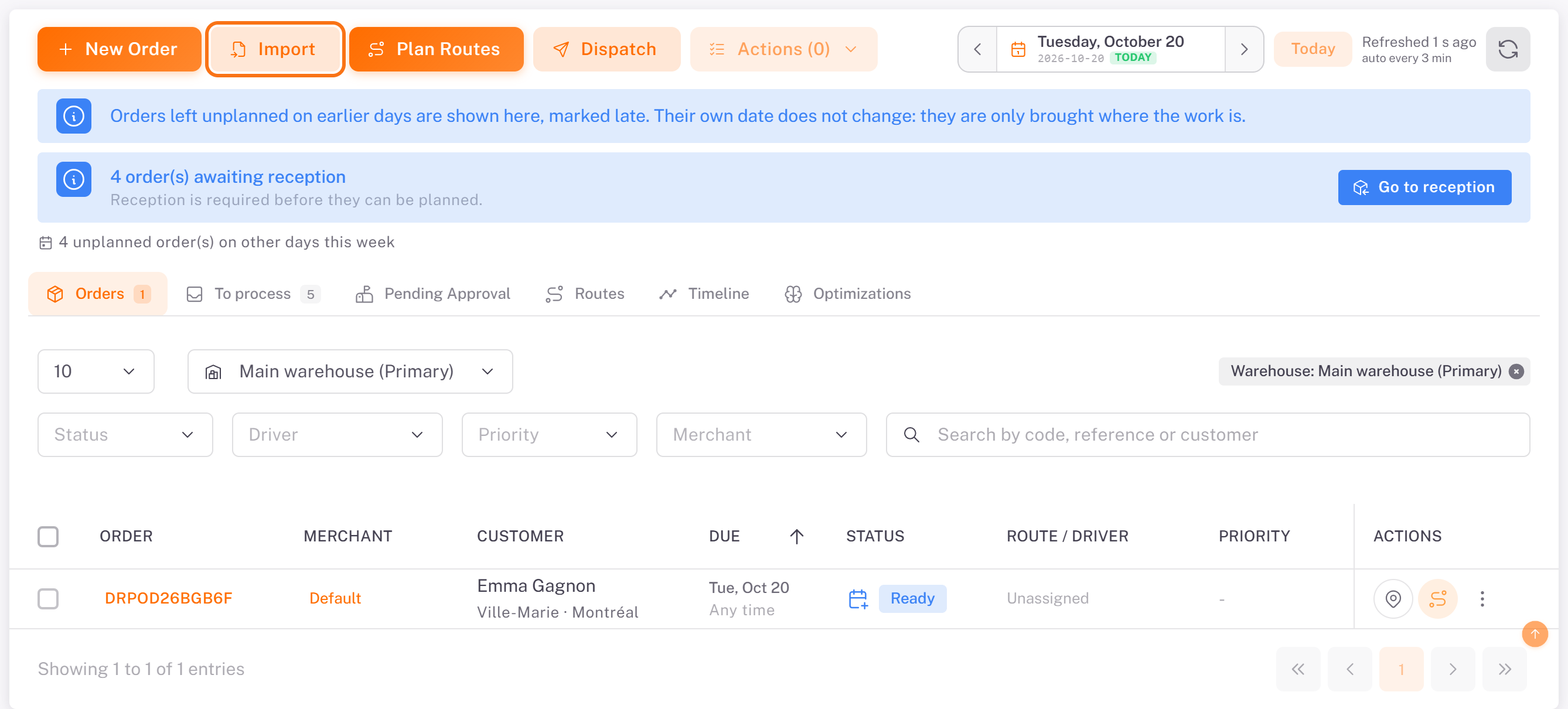
1. In the menu, open Plan & dispatch. On the Orders tab, click Import.
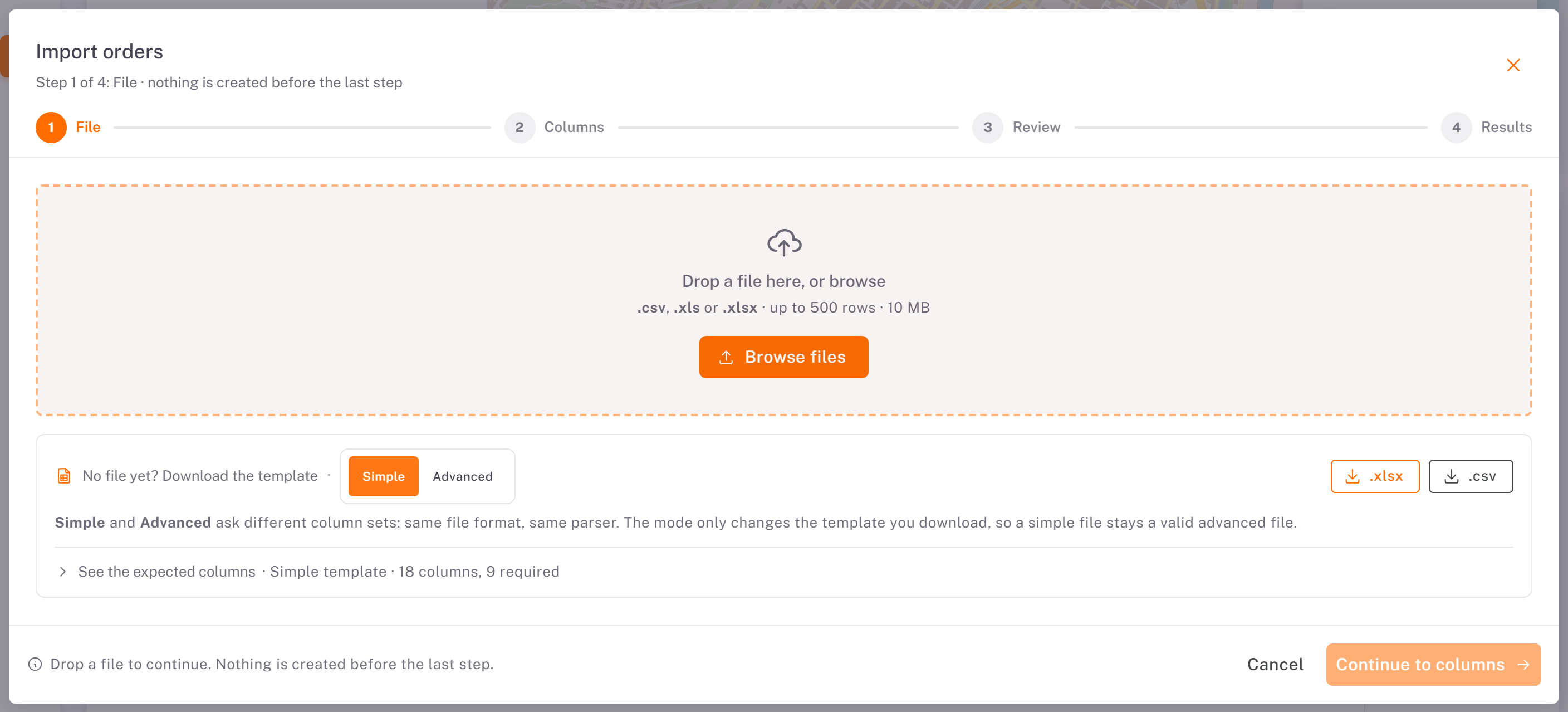
2. File (step 1 of 4): the Import orders window opens.
No file yet? Download the template: choose Simple or Advanced, then .xlsx or .csv. The Simple template has 18 columns, 9 of them marked with . The import also requires merchant_code, which the template does not star: fill it on every row. Click See the expected columns to read the rule of each column.
Drop your file in the frame, or click Browse files. Accepted: .csv, .xls or .xlsx, up to 500 rows and 10 MB.
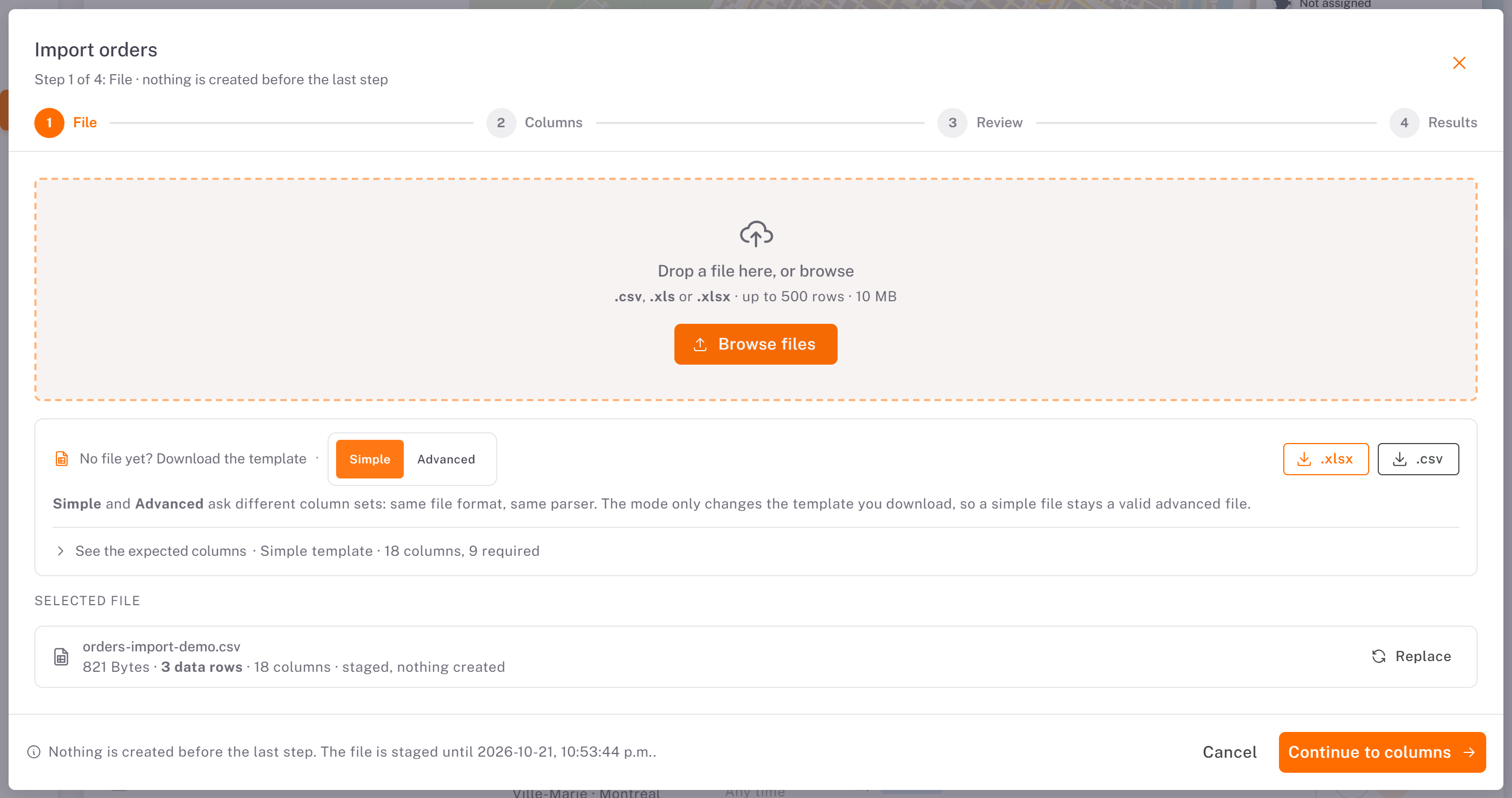
3. Your file shows under Selected file, with its number of rows and columns. Nothing is created yet. Click Continue to columns.
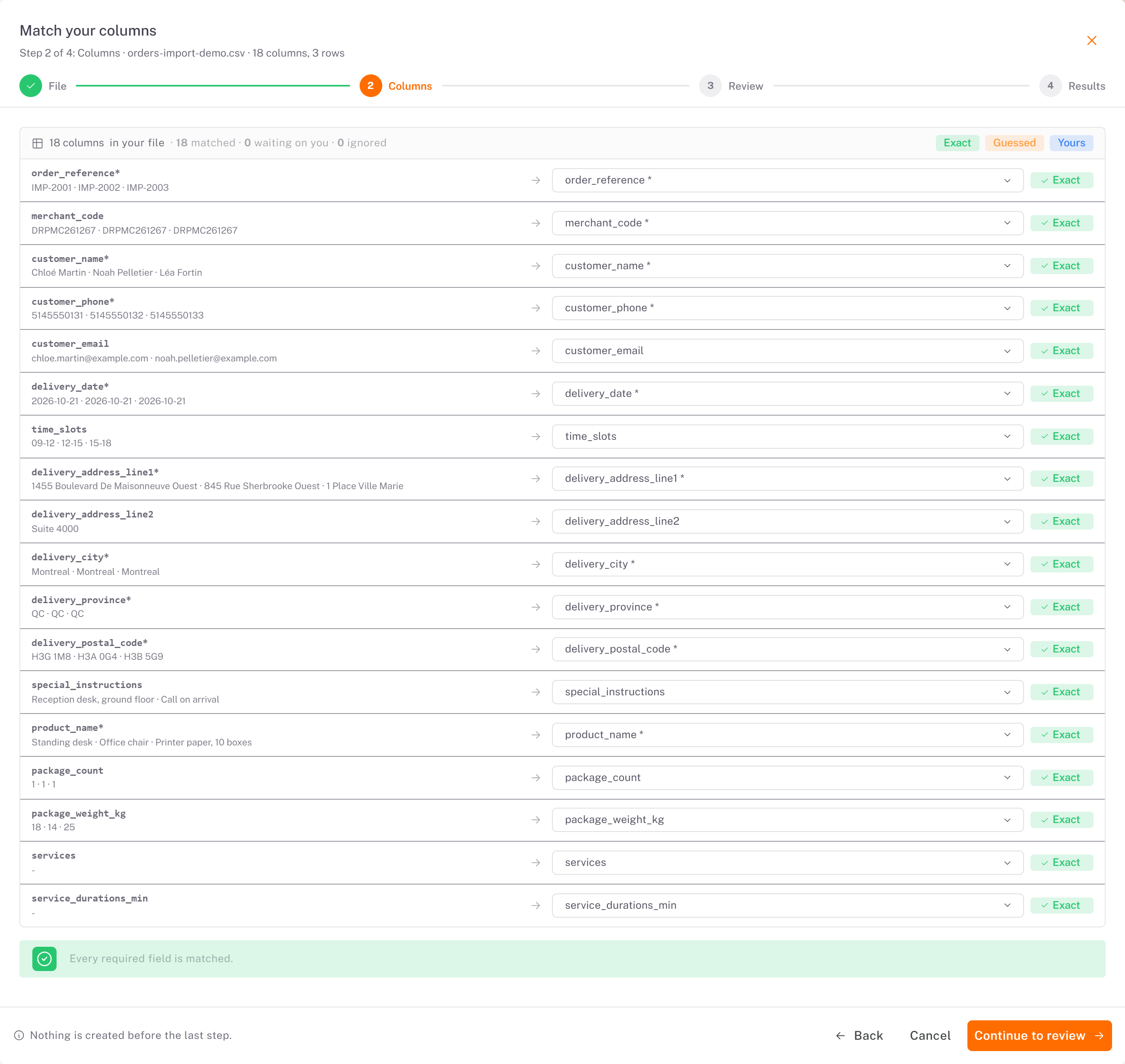
4. Columns (step 2 of 4): Match your columns. Dropioo matches each column of your file to a Dropioo field (Exact when the header is the template's one). Fix a column with its list if needed. When Every required field is matched, click Continue to review.
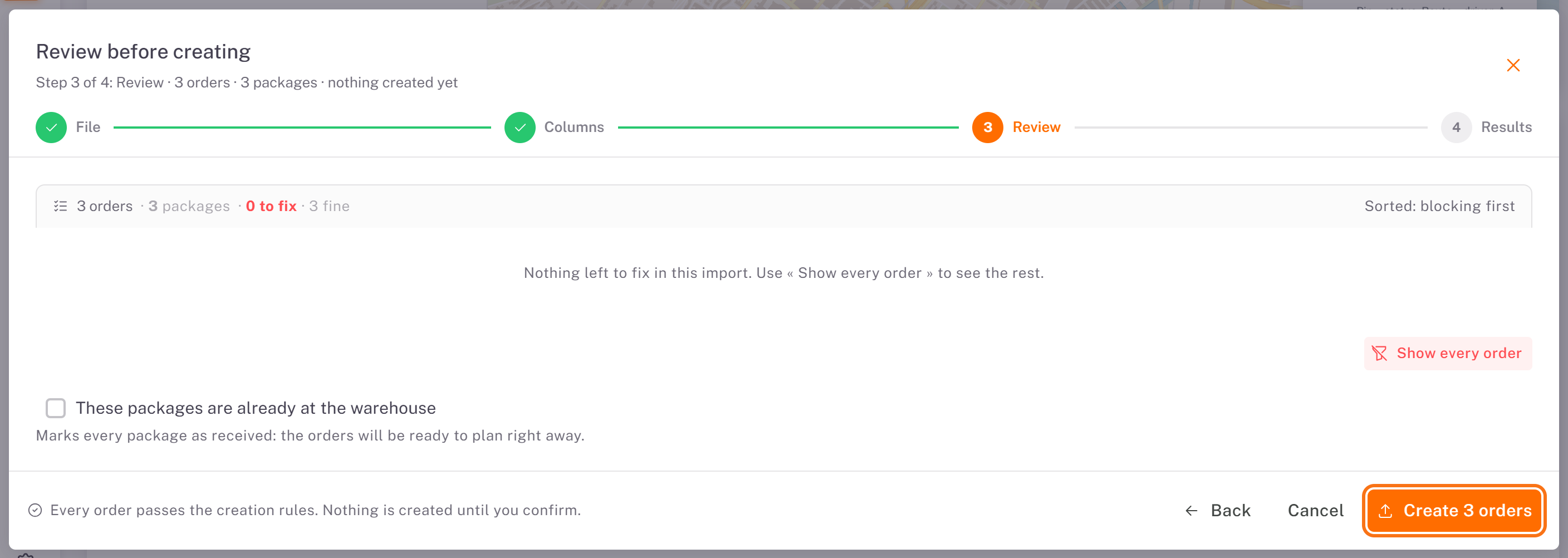
5. Review (step 3 of 4): Review before creating counts the orders and packages, and the orders to fix. The orders to fix are listed first, in red, with the faulty field named (see below).
Tick These packages are already at the warehouse if the packages are already in your warehouse: the orders will be ready to plan right away. Otherwise they wait for their reception.
When there is nothing left to fix, click Create N orders.
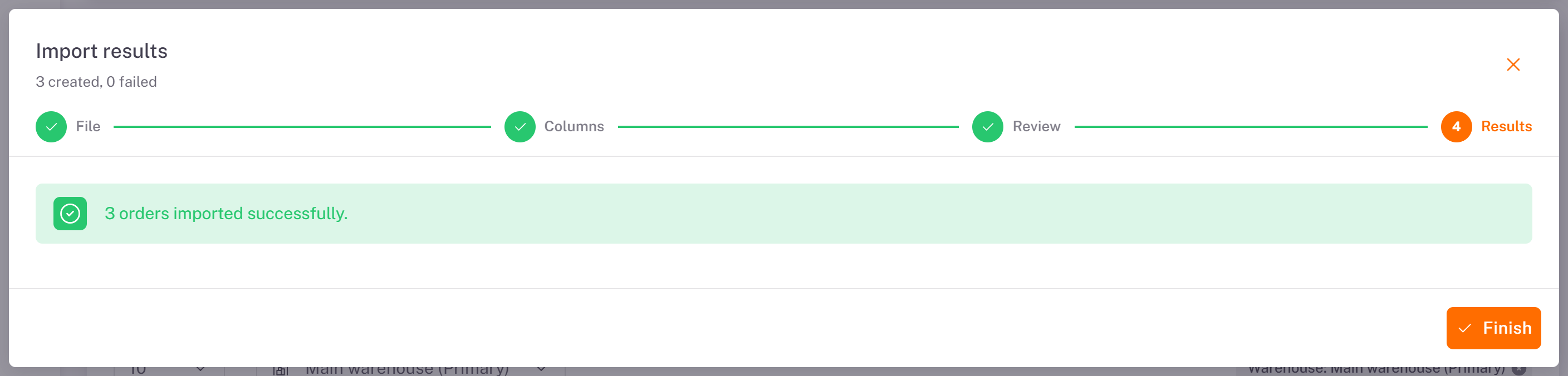
6. Results (step 4 of 4): Import results shows how many orders were created and how many failed. If some failed, Download failures gives you the rows to correct. Click Finish.
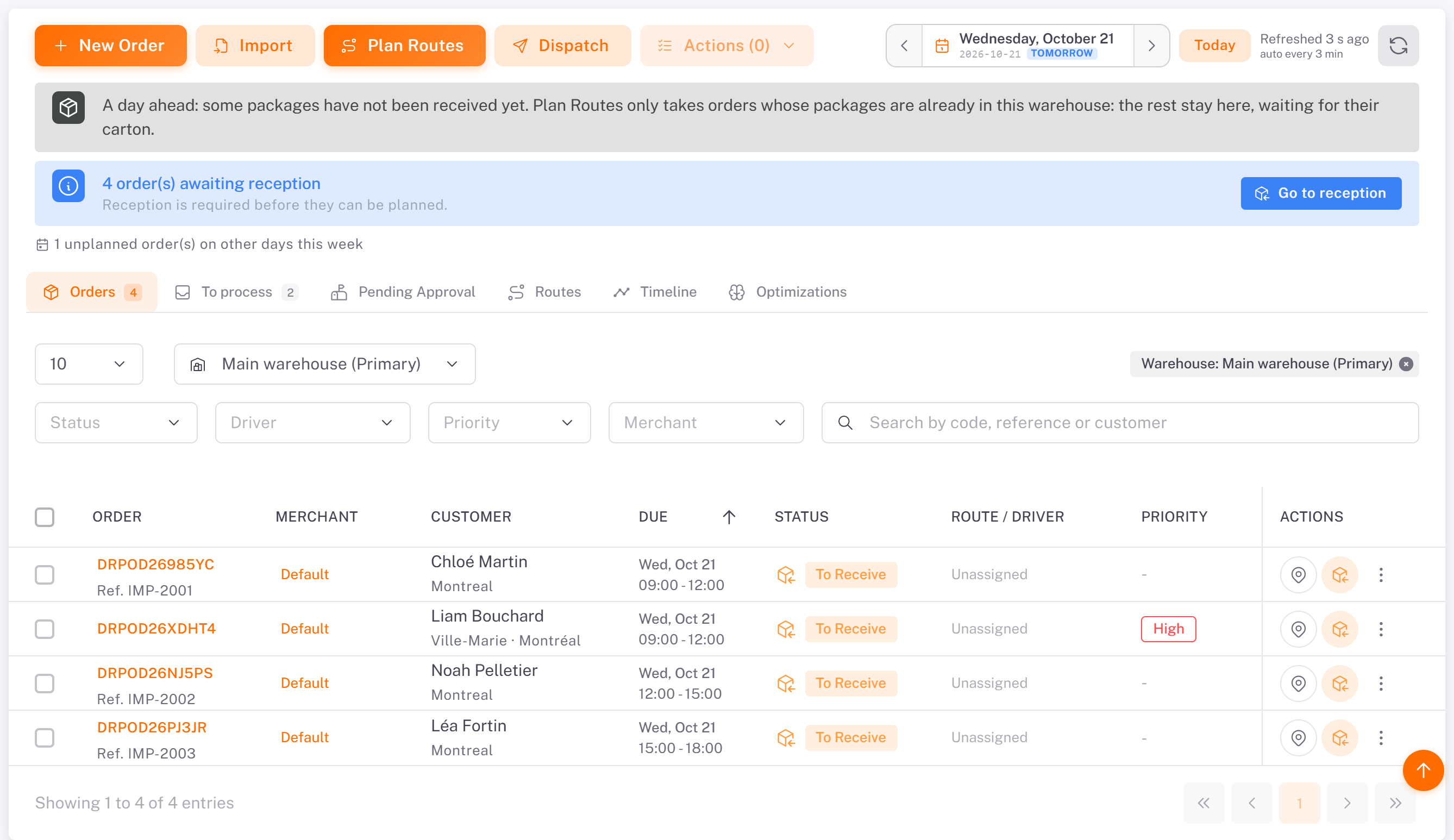
The orders appear on the Orders tab, on their delivery day, with their reference under the order number. Without the "already at the warehouse" box, their status is To Receive.
When rows need fixing
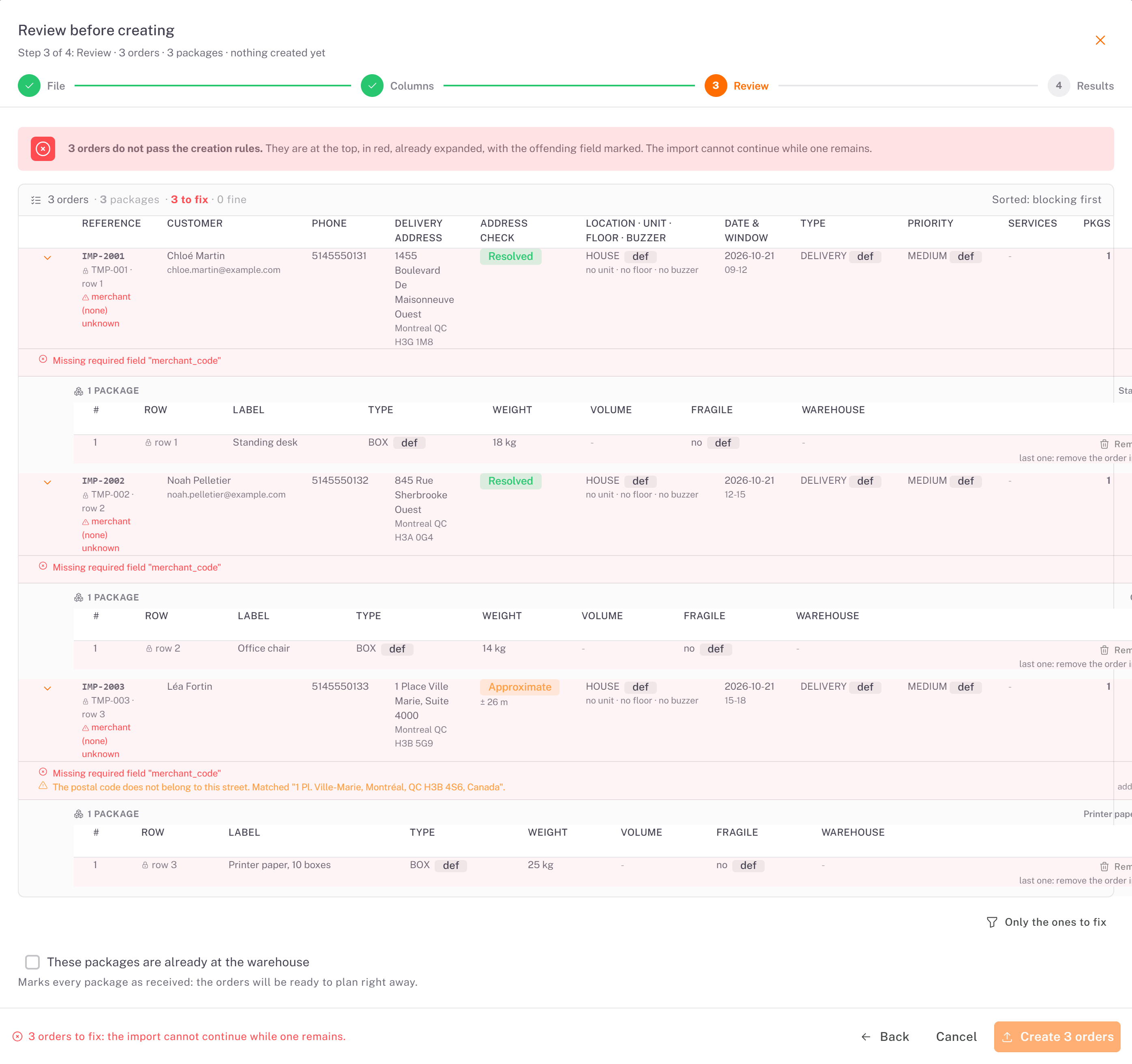
At the review, each order to fix is expanded and its problem is written under it, for example Missing required field "merchant_code" or a postal code that does not belong to the street. The import cannot continue while one remains. Fix the file and import it again, or remove the order from the import.
Columns to watch
Column Rule
order_reference :Groups the rows of one order. Repeat it on each package of the same order.
merchant_code: Required by the import, although the template does not star it. The code of the merchant (for your own shipments, your company's merchant code, shown in Merchants > List).
customer_phone :A 10-digit number.
delivery_date : YYYY-MM-DD.
time_slots Windows written 09-12, separated by \, 3 at most.
delivery_postal_code :Checked against the street Dropioo finds.
services The service code from your catalog (the exact name works too), separated by \.
Was this article helpful?
Still need help?
Contact support