
Table of contents
Before you begin
You have a role that can manage services.
Open the services list
In the menu, open Services. Services Management lists every service you can add to an order. Services marked Default are provided by Dropioo: you can use them, but you cannot modify or delete them.
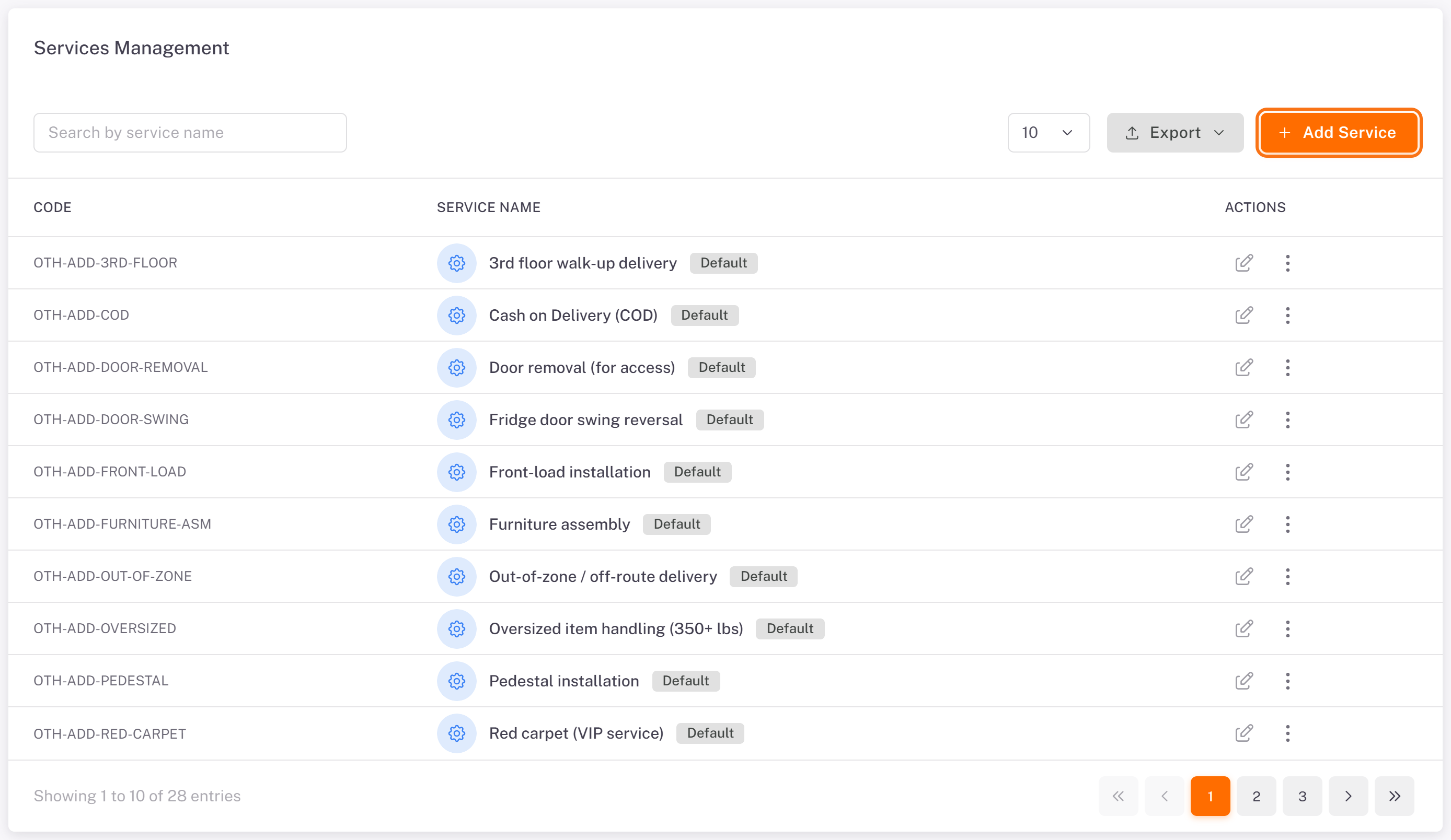
Add a service
1. Click Add Service.
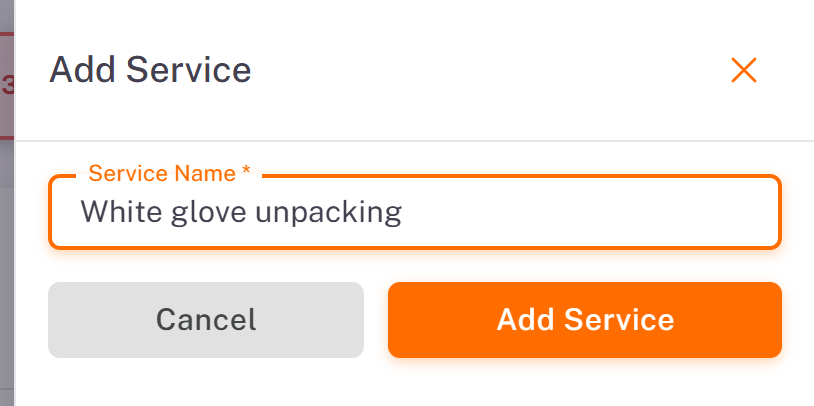
2. Enter the Service Name, for example "White glove unpacking".
3. Click Add Service.
The service appears in the list with its own code. Type its name in the search field to find it.
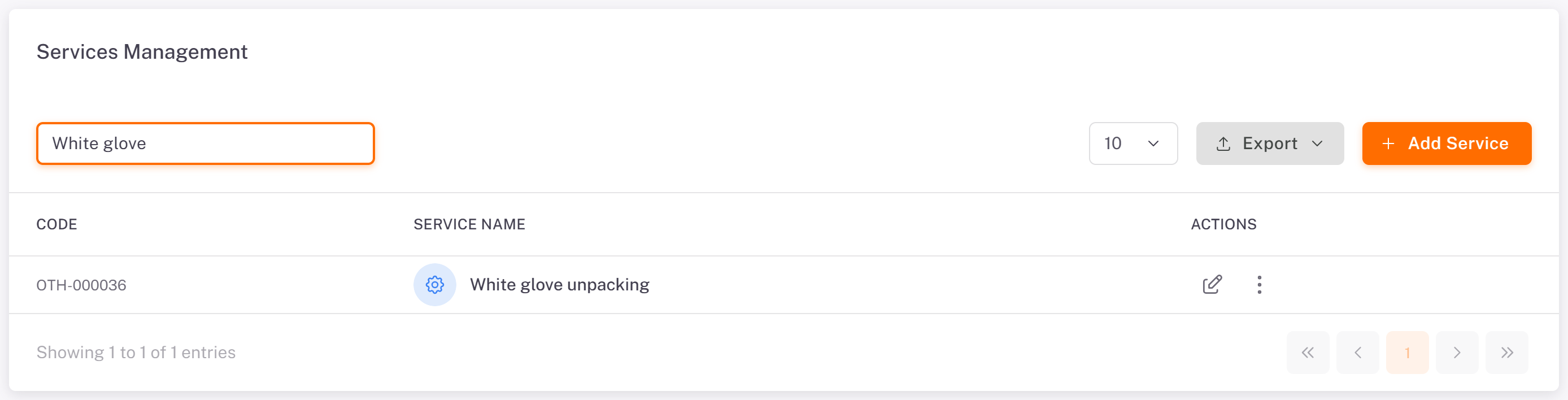
To rename one of your services, use the pencil icon. To delete it, use the ⋮ menu.
Use a service
On an order: in the New Order form, step Order Info, choose the service under Services. See [Creating a Single Order](../../03-routes-orders/01-creating-a-single-order/en.md).
In the driver app: at the stop, the driver sees the services to perform and marks them done, or adds one at the door. See [Completing the Proof of Delivery](../../05-driver-app/07-completing-the-proof-of-delivery/en.md).
In the statement: each driver's activity statement shows, per stop, whether the services were done. See [Reading a Driver's Activity Statement](../../02-fleet/05-reading-a-driver-activity-statement/en.md).
Was this article helpful?
Still need help?
Contact support