
Table of contents
Open the statement
In the menu, open Drivers > Activity statement.
1. Choose the driver.
2. Set the period with the two dates (From and To): 90 days at most.
3. If needed, filter by status, sector or warehouse, or search a customer, an address or an order.
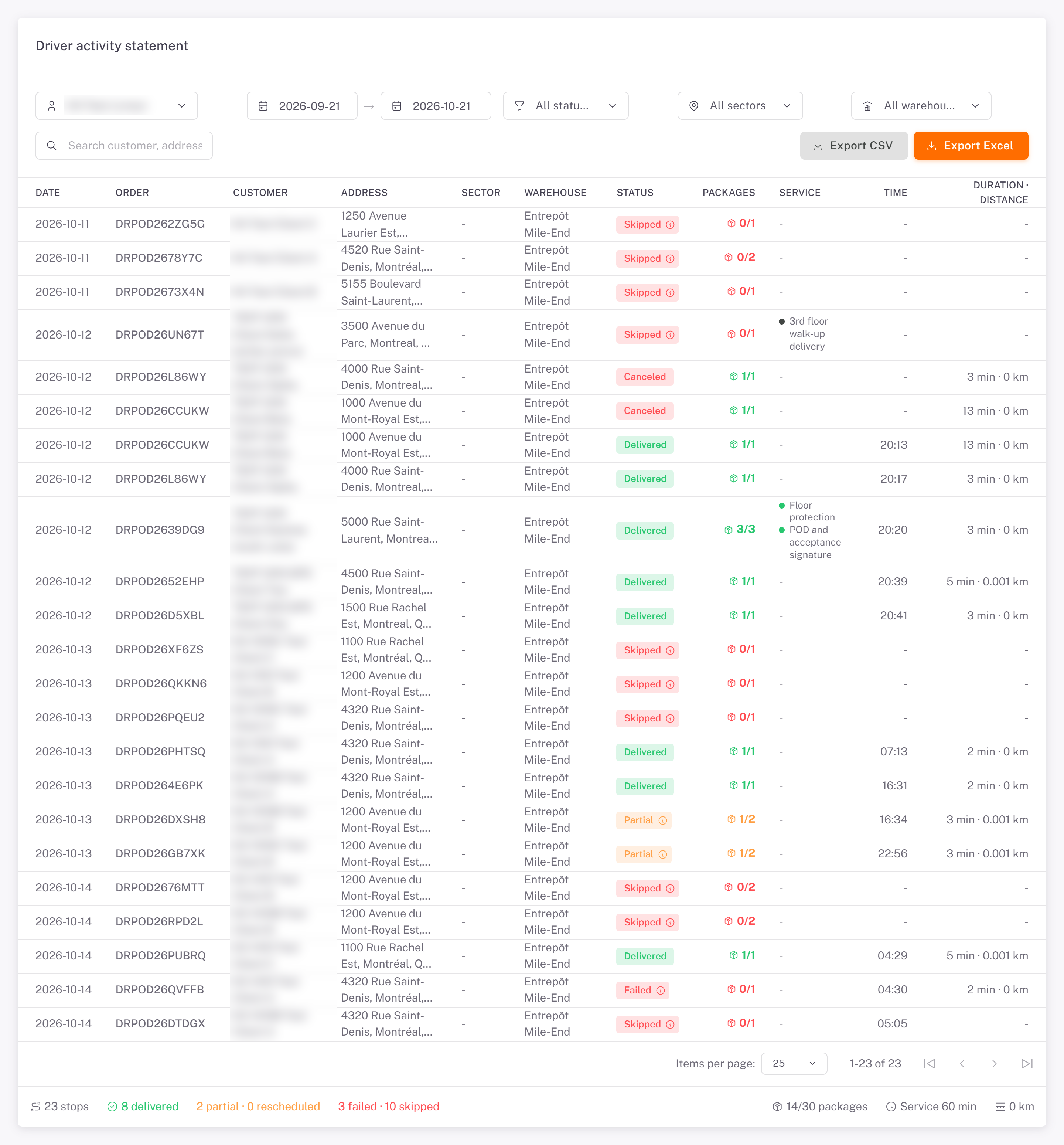
Read a line
Each line is one stop:
Column What it shows
Date, Order, Customer, Address The stop. A quick stop reads Quick stop with its type.
Sector, Warehouse Where it belongs.
Status Delivered, Partial, Rescheduled, Failed, Canceled, Skipped, Planned, Approaching or Arrived. For a failure, hover the info icon to read the reason.
Packages Packages delivered out of packages on the stop.
Service One dot per service: green done, red not done, grey not reported.
Time, Duration · distance When the stop was closed, how long it took, and the distance.
The bottom line sums up the period: stops, delivered, partial, rescheduled, failed and skipped, packages, service time and kilometers.
Export
Export CSV and Export Excel download every page of the period, with the failure reason in its own column.
Good to know
Every attempt counts: a failed stop stays in the statement even if the order was delivered later. The statement shows every trip the driver made.
A quick stop (a pickup or drop-off added to the route) counts like any other stop.
Was this article helpful?
Still need help?
Contact support