
Table of contents
Before you begin
You have a role that can manage skills.
Open the skills list
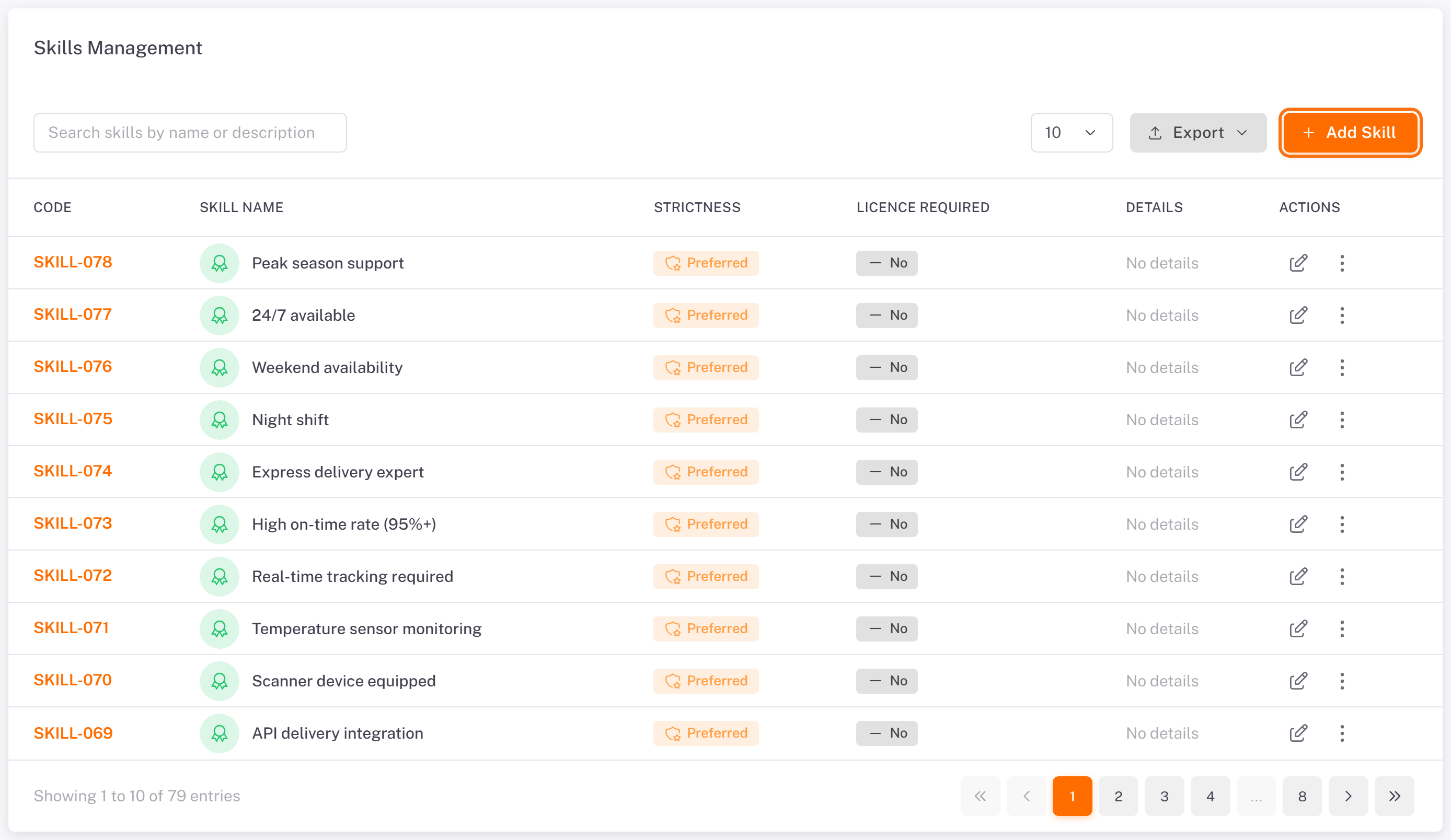
In the menu, open Drivers > Skills. Skills Management lists the skills available to your company:
the skills Dropioo provides to every company (codes SKILL-…);
your own skills (codes DSK-…).
The Strictness column shows whether a skill is Required or Preferred for planning. The Licence required column shows whether the skill is a credential with dates.
Add a skill
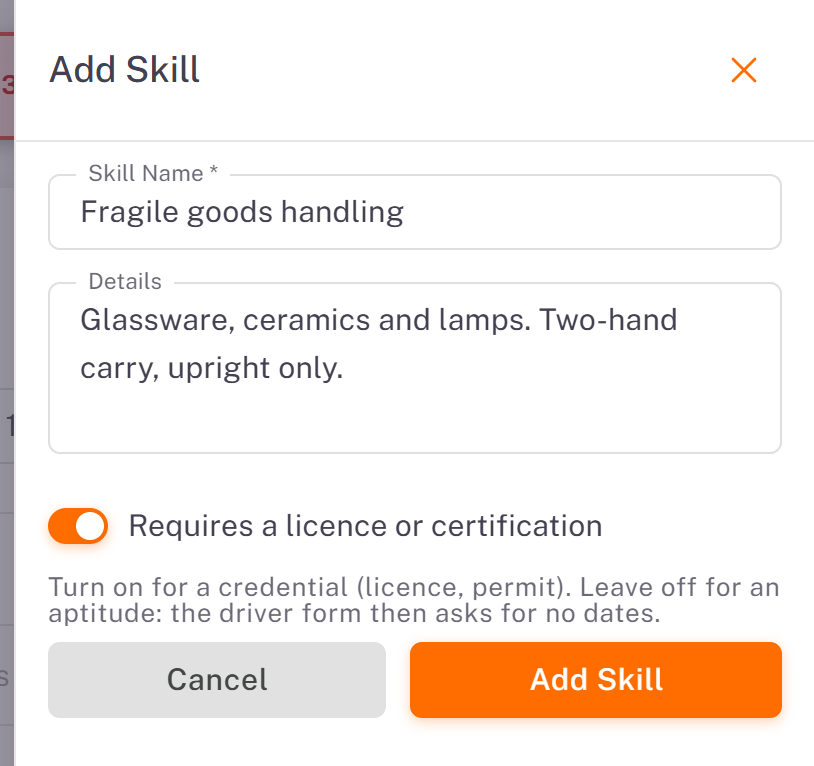
1. Click Add Skill.
2. Enter the Skill Name (required) and, if useful, Details for your team.
3. Turn on Requires a licence or certification if the skill is a credential (a licence or a permit). The driver form will then ask for its dates. Leave it off for an aptitude.
4. Click Add Skill.
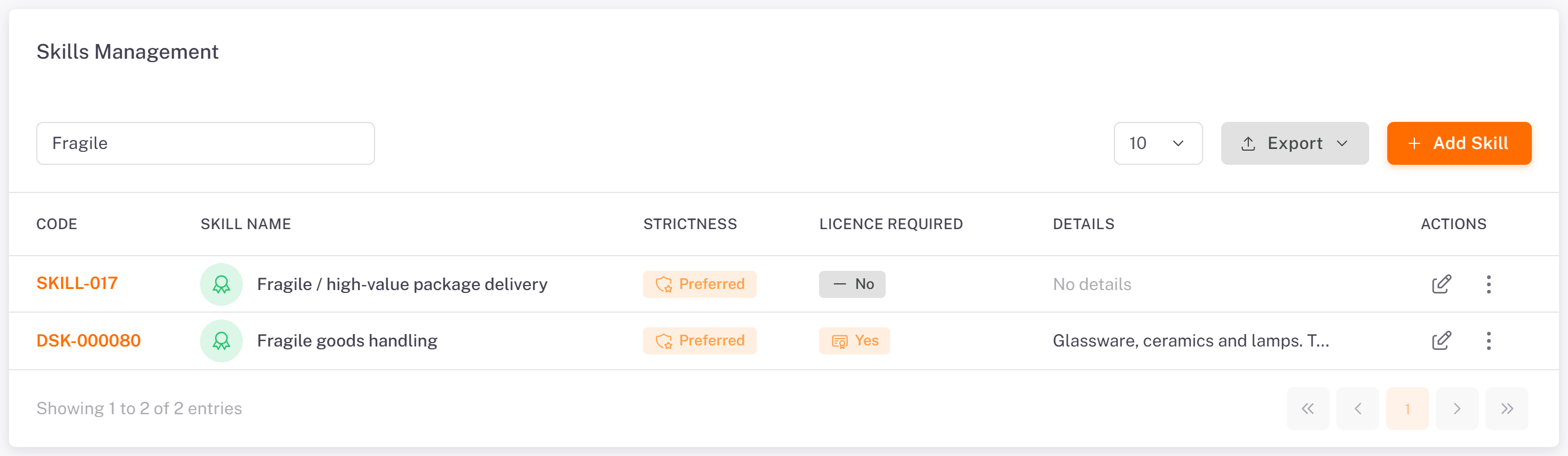
The skill appears in the list. Type its name in the search field to find it quickly.
Give a skill to a driver
Open the driver's form (Add Driver or Edit), step Schedule & Skills, and pick the skill under Skills & Certifications. For a skill that requires a licence, add the Certified on and Expires on dates (optional). See [Managing Drivers](../01-managing-drivers/en.md).
Require a skill on an order
When you create an order, choose the skill in Required Skills (step Order Info). See [Creating a Single Order](../../03-routes-orders/01-creating-a-single-order/en.md).
Edit or delete a skill
Use the pencil icon to edit a skill, or the ⋮ menu to delete it. If drivers have the skill, the console warns Skill is in use: deleting it removes it from their profiles, and it cannot be undone. Confirm with Delete anyway.
Was this article helpful?
Still need help?
Contact support