
Table of contents
Add orders to a route
Use it for an order that arrives after the planning.
1. In Plan & dispatch, on the Orders tab, tick the order (or several).
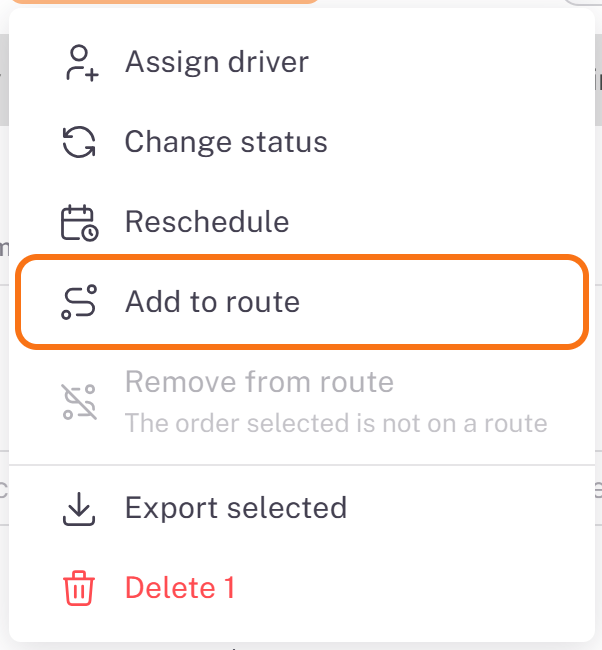
2. Open Actions (n) and choose Add to route.
3. In Add n orders to route, choose the route under Select a route (the routes of the day shown, not yet finished). Each order becomes a stop of that route, at its own address. Click Add to route.
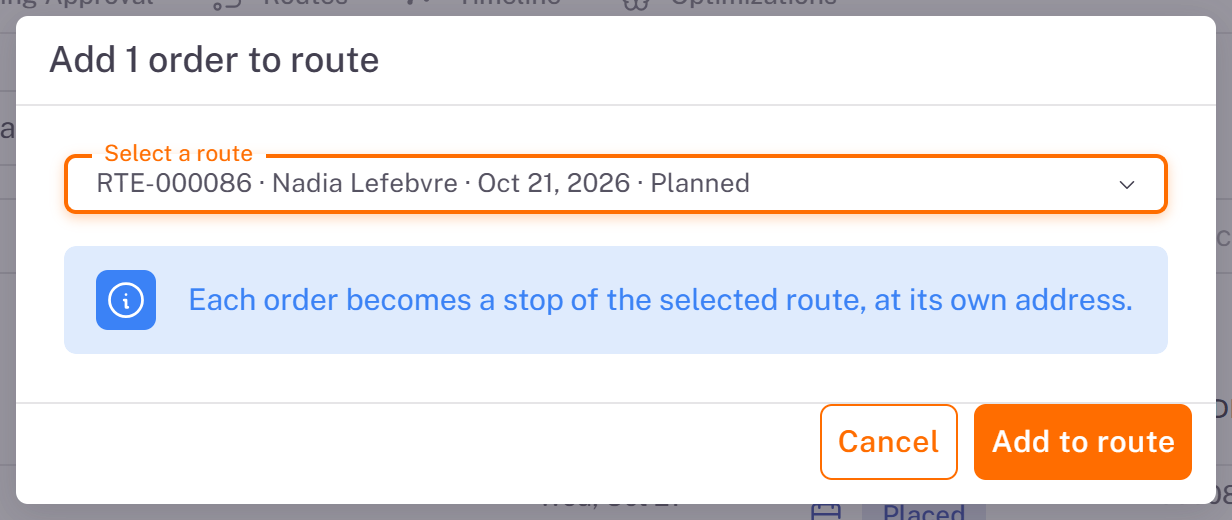
The order takes the route's date, driver and vehicle. If the driver has already left, the console warns that the parcel is at the depot: the driver can still load it, the app shows it to them.
An order can be added only if:
it is Ready: all its physical packages are at the warehouse (a lost or damaged package no longer counts);
it is on no other route in progress;
none of its cartons is in a return not processed yet;
it was not refused (a rejected merchant order is closed).
Otherwise the console says why the order was refused.
Add a quick stop
A quick stop sends the driver somewhere without a customer order: pick up returns at the warehouse, drop off material, collect at a merchant.
1. Open the route (Routes tab, Details), then More > Add quick stop.
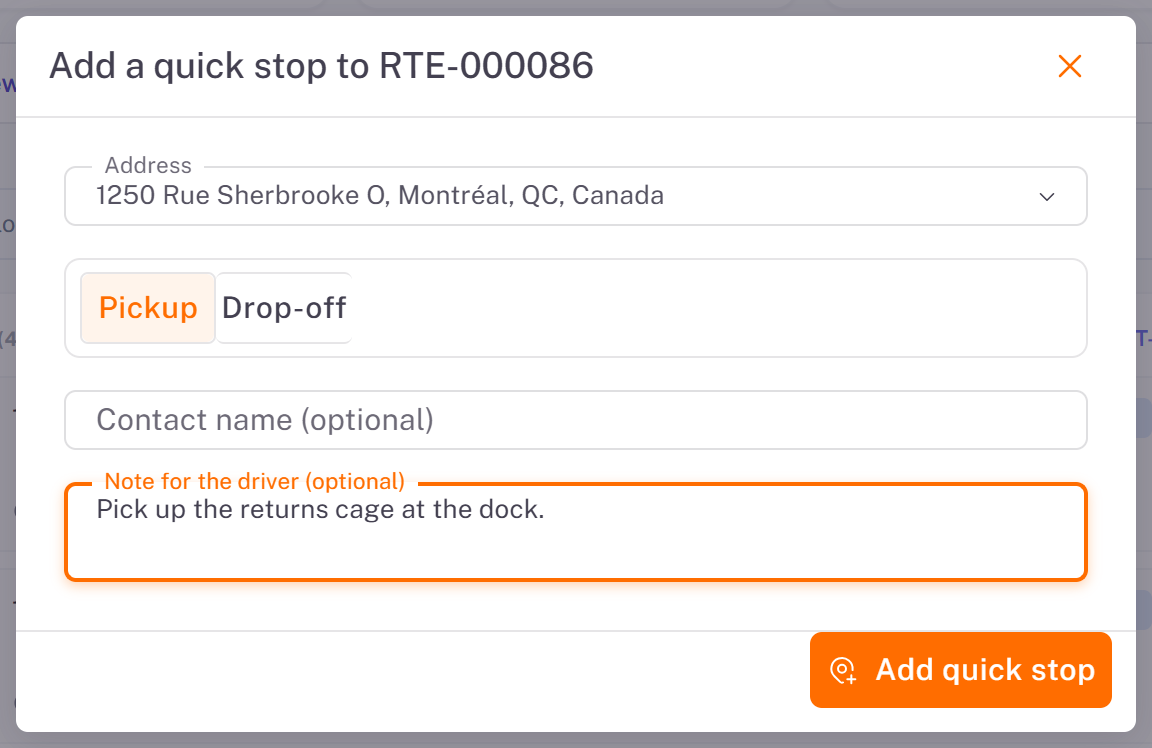
2. In Add a quick stop to RTE-…:
- Address: your main warehouse by default, change it if needed.
- Choose Pickup or Drop-off.
- Contact name (optional) and Note for the driver (optional).
3. Click Add quick stop.
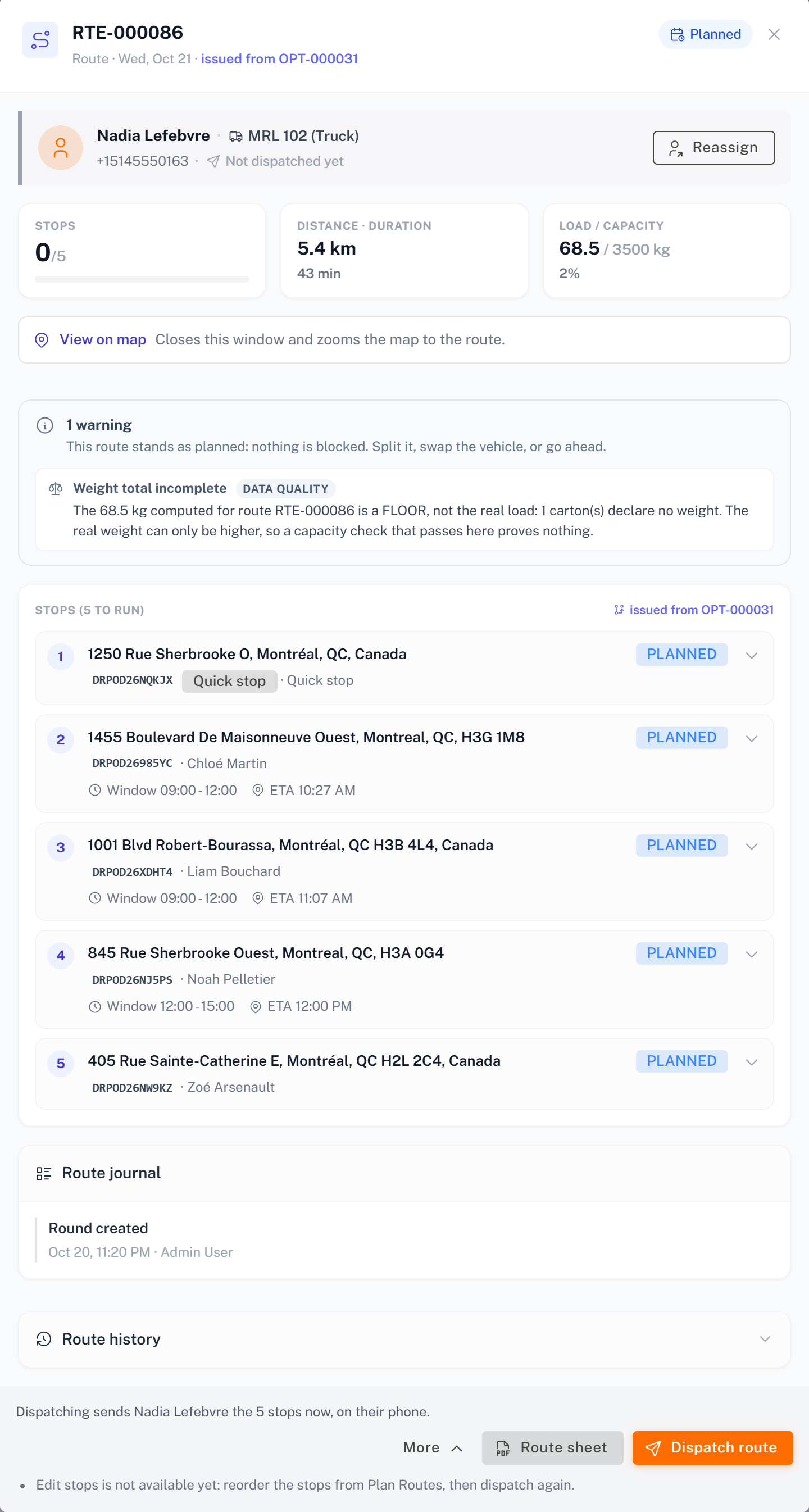
The stop is placed right after the stop the driver is on (first if the route has not left). It carries a Quick stop badge in the route.
Good to know about quick stops:
No photo and no recipient name are asked from the driver.
The merchant does not see it.
It counts in your plan's quota and in the statistics, like any stop.
It can be added to a route whose stops are all done, as long as the driver has not finished it: the route reopens. It cannot be added to a cancelled, closed, expired or interrupted route.
If it fails, it is simply closed; it is never rescheduled.
Was this article helpful?
Still need help?
Contact support