
Table of contents
Find the failed orders
The Dashboard counts them under Needs you now (Failed orders this week).
The notification center tells you as soon as a delivery fails (Delivery failed: …).
In Plan & dispatch, the order reads Failed (or Partially Delivered when some packages were delivered).
Read the order
Open the order (its code, or ⋮ > View details).
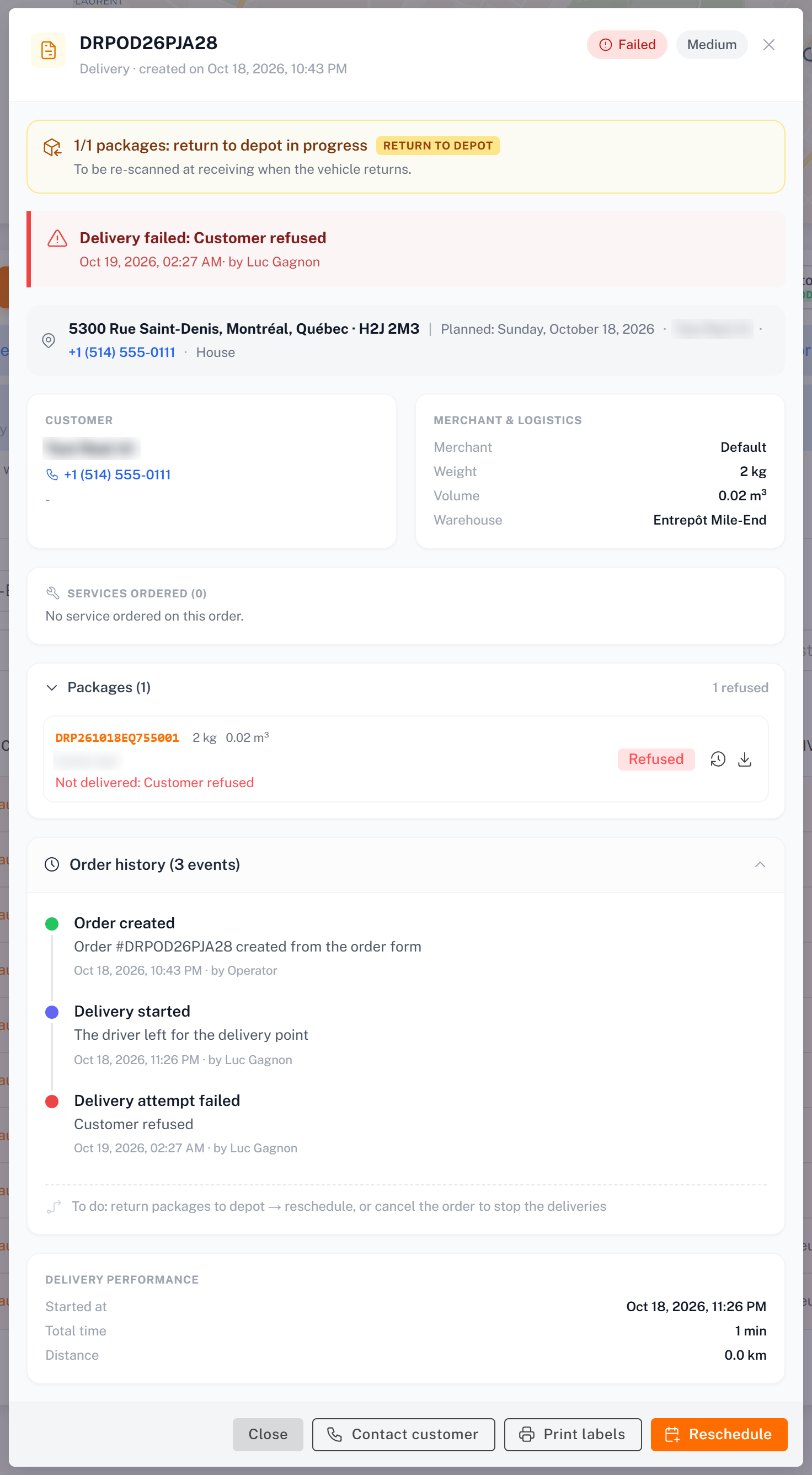
The red banner Delivery failed: <reason> gives the driver's reason (**Customer absent**, Customer refused, Wrong address, Damaged, Other reason or End of day), the time and the driver.
A yellow banner shows where the packages are, for example return to depot in progress: the driver brings them back.
Each package reads Not delivered: <reason>.
Order history lists every step, down to the failed attempt.
The line To do at the end of the history tells you what remains.
See the package and its photos
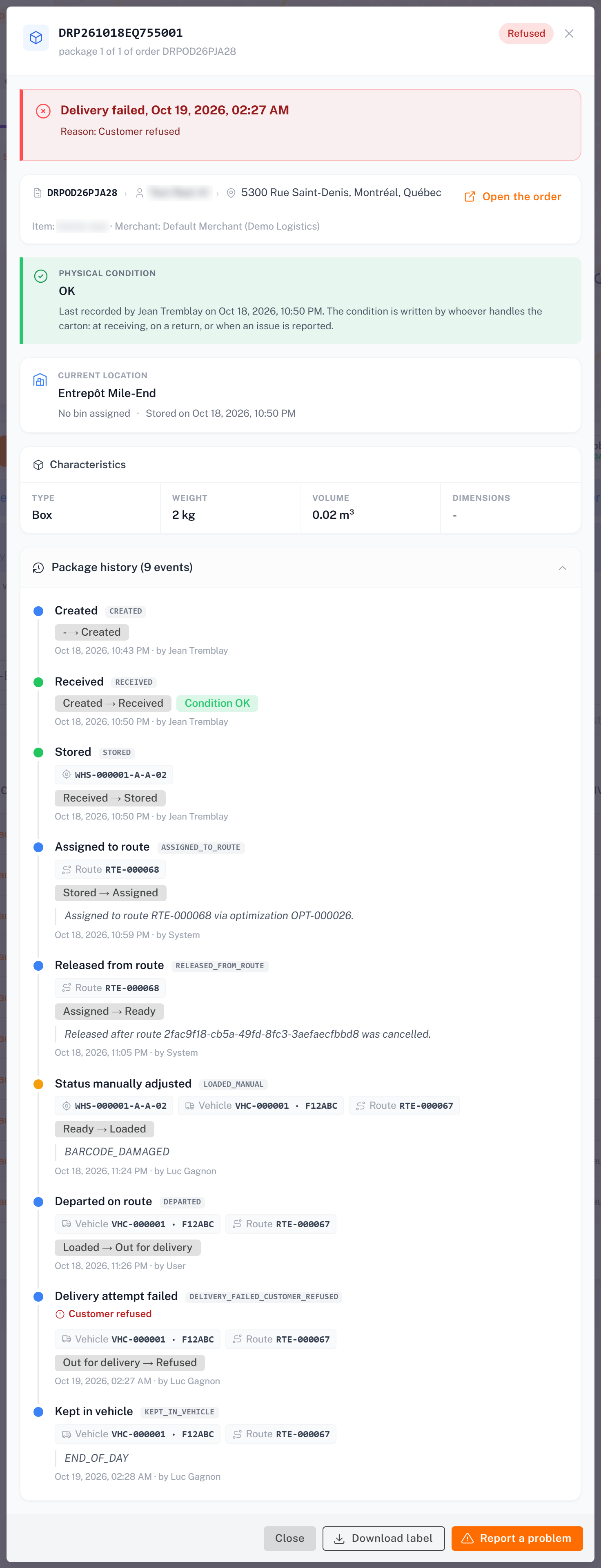
Click a package code to open the package's own detail. The Delivery failed card gives the date and reason, and, when the driver took photos of this package, Photos of this failure shows them (a photo is required for a damaged package; the failure above, a refusal, has none). The photos of a failed package are shown only in its detail, never mixed with the order's proof of delivery.
Reschedule the order
1. When the packages are back at the depot (see [Processing Returns and Unidentified Packages](../../04-warehouse/04-processing-returns-and-unidentified-packages/en.md)), click Reschedule in the order.
2. In Reschedule Order: …, choose the Reason Category and the Reschedule Reason, the New Delivery Date (today or later) and, if you want, a New Driver (Optional) picked from the list. Add Additional Comments if useful.
3. Click Reschedule Order.
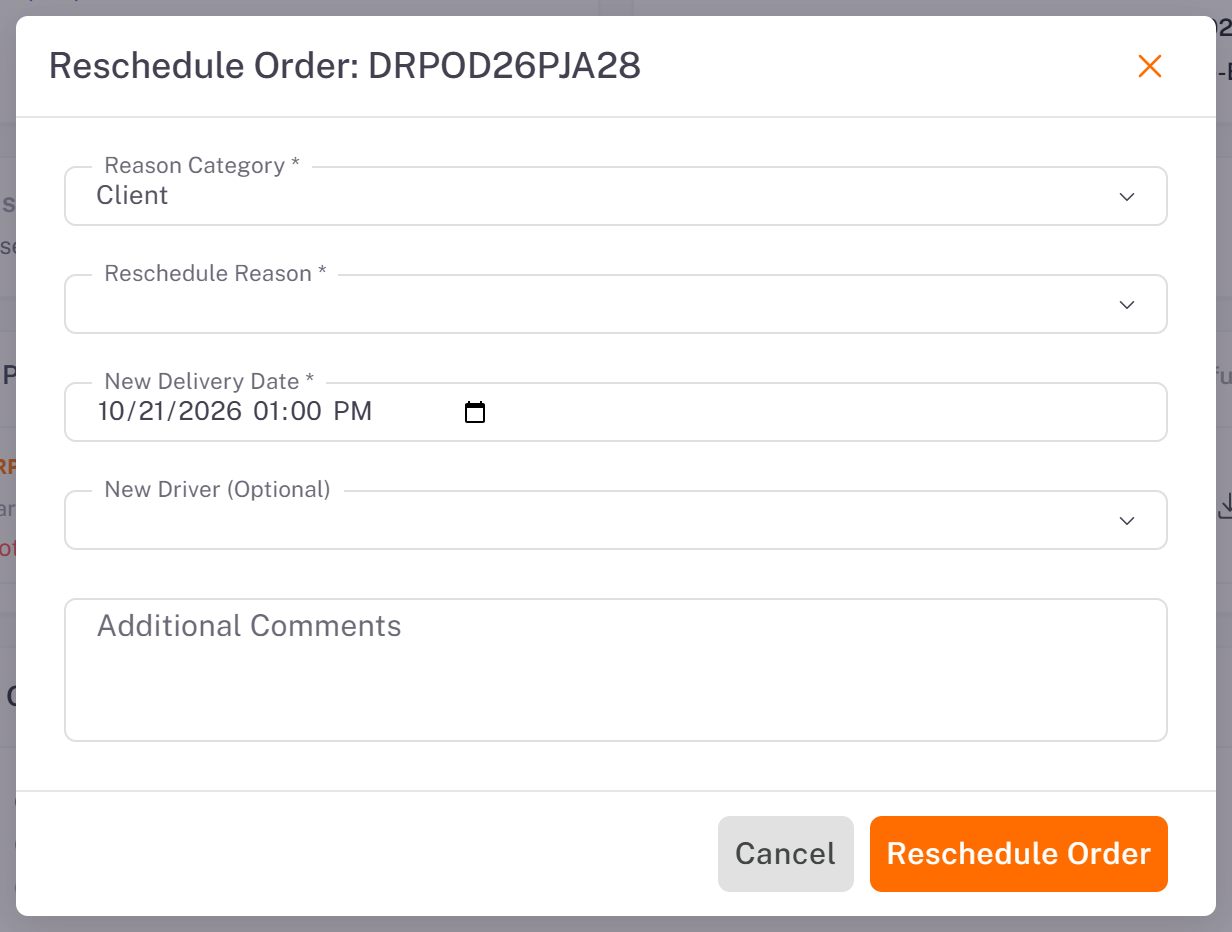
If the new date is today and the driver already has a route in progress, the order is added to it; otherwise a new route is created for that driver. The order history shows Delivery date changed, with the old and the new date.
An order with a carton in a return not processed yet cannot go back on a route: process the return first.
Cancel the order instead
If the order will not be delivered, cancel it from its return: Decide, then Cancel order. The merchant sees the order as Canceled.
Was this article helpful?
Still need help?
Contact support