
Table of contents
Before you begin
You have a role that can manage vehicles.
You know the licence plate, the type and the load capacity of the vehicle.
Steps
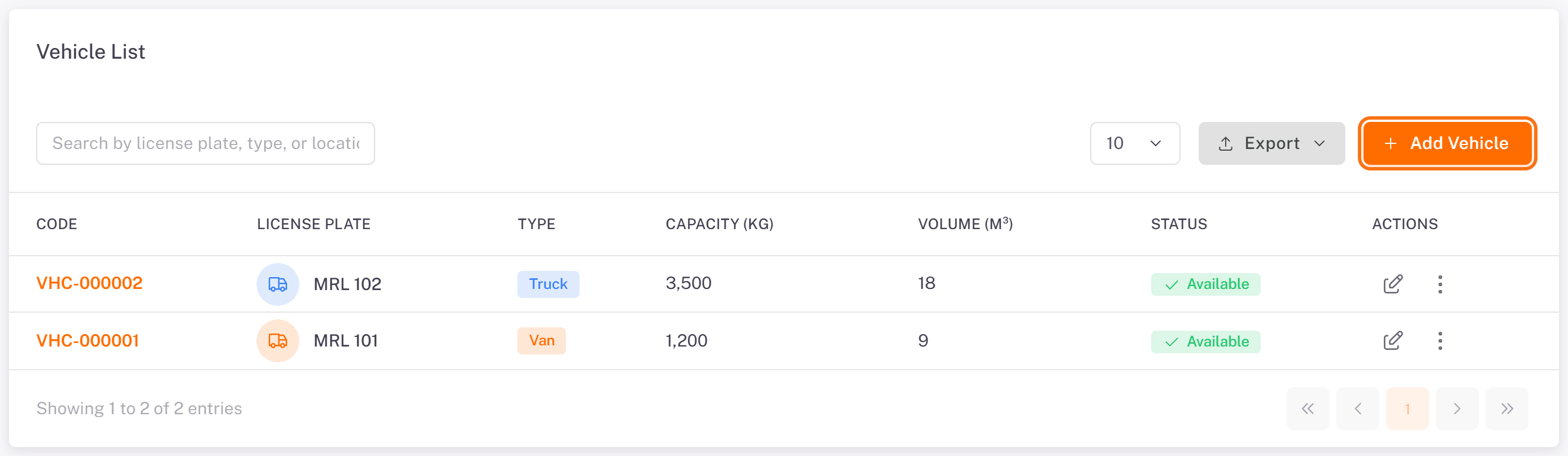
1. In the menu, open Drivers > Vehicles. The Vehicle List shows your vehicles. Click Add Vehicle
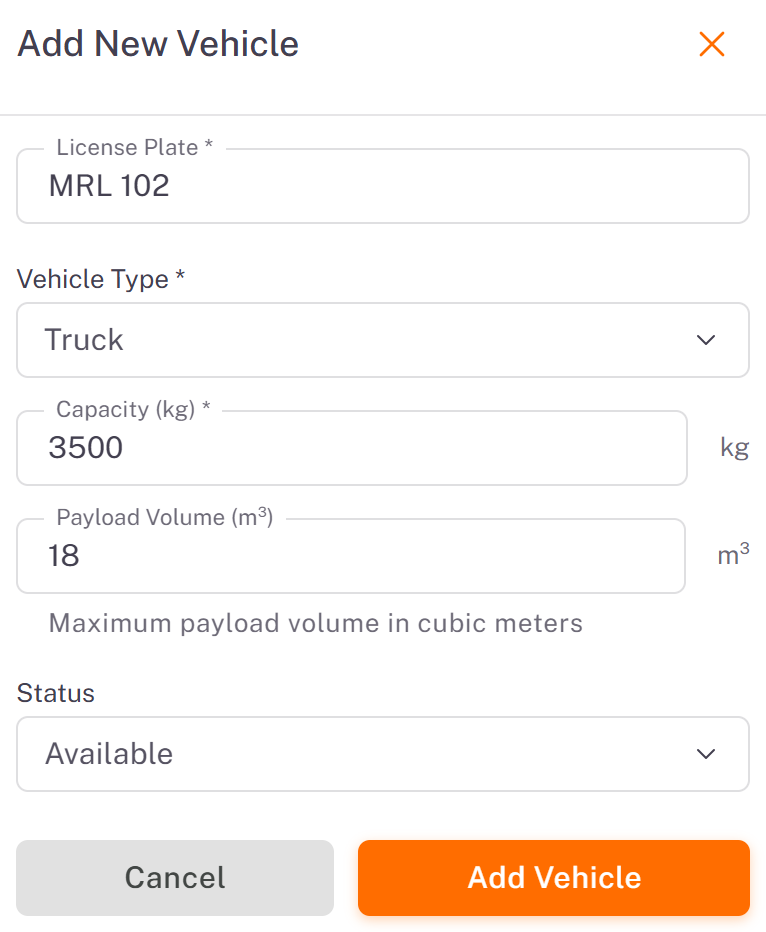
2. In the Add New Vehicle panel, fill in:
License Plate (required).
Vehicle Type (required): Car, Motorcycle, Refrigerated Truck, Truck or Van.
Capacity (kg) (required): the maximum load.
Payload Volume (m³) (optional): the usable volume.
Status: Available by default. Use In Maintenance or Out of Service when the vehicle cannot run.
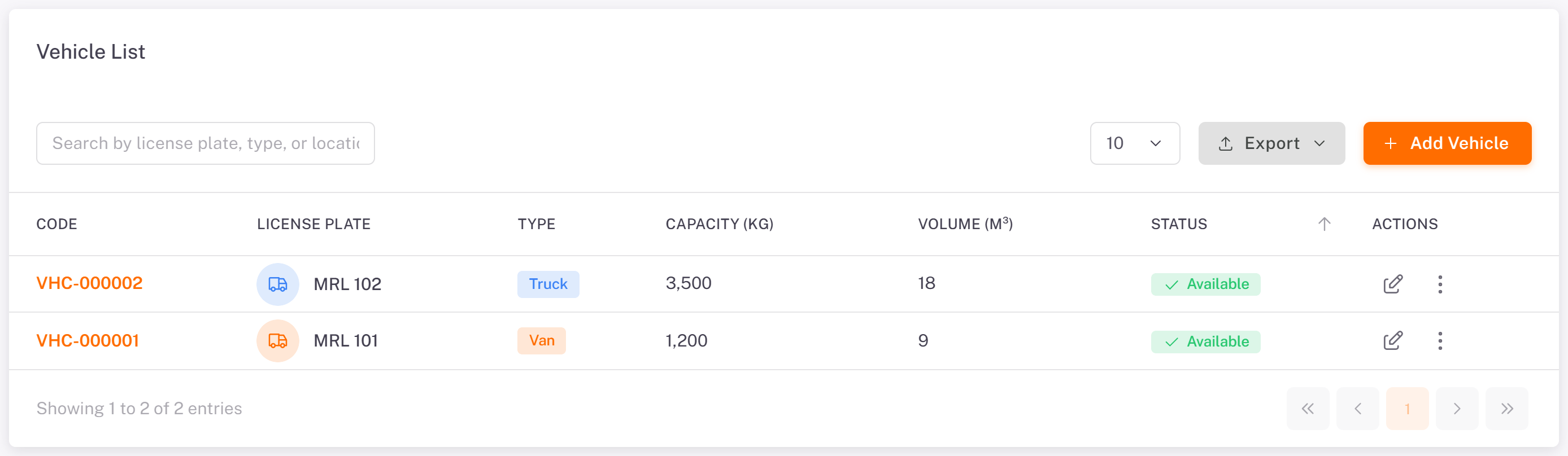
3. Click Add Vehicle. The vehicle appears in the list with its code (VHC-…).
Next step
Give the vehicle to a driver: in the driver's form, choose it as Default Vehicle. See [Managing Drivers](../01-managing-drivers/en.md).
Good to know
AI planning takes the vehicle's capacity into account when it builds routes.
The Status is for your team's information: change it when a vehicle goes to the garage.
Was this article helpful?
Still need help?
Contact support