
Table of contents
ORDER DISPATCHING PROCESS
Procedure Sheet – DROPIOO Platform
Contents
This procedure outlines how to dispatch orders assigned to a planned route to the designated drivers, ensuring the operational tracking of deliveries.
Prerequisites
An optimized route containing scheduled orders (see Route Optimization Process);
Designated drivers must be active and available in the system.
Procedure Steps
Step 1 – Accessing Dispatch
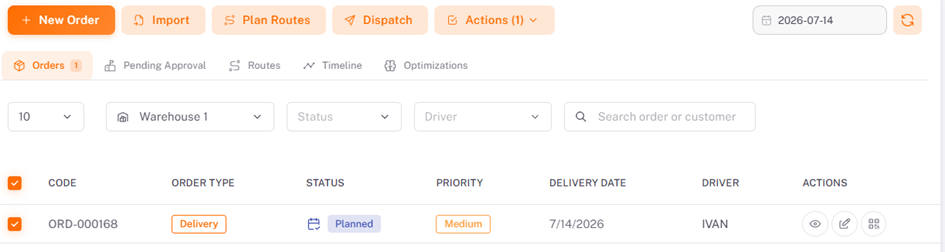
Navigate to the "Dispatch" section. This feature allows you to send scheduled orders to drivers for execution.
Step 2 – Selecting Orders to Dispatch
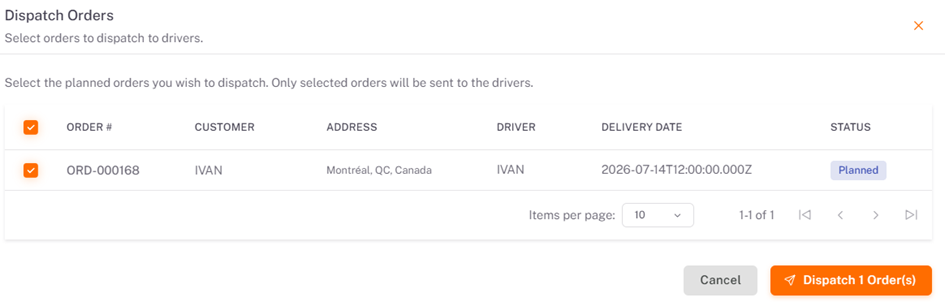
From the orders assigned to the planned route, select those you wish to assign to the drivers.
Note: Only selected orders will be sent to drivers.
Step 3 – Verifying Information
Before sending, verify the details displayed by the system for each order:
Order code (e.g.,
ORD-000093);Customer name;
Delivery address;
Assigned driver;
Scheduled delivery date and time;
Order status (e.g.,
Planned/Scheduled).
Step 4 – Confirming Dispatch
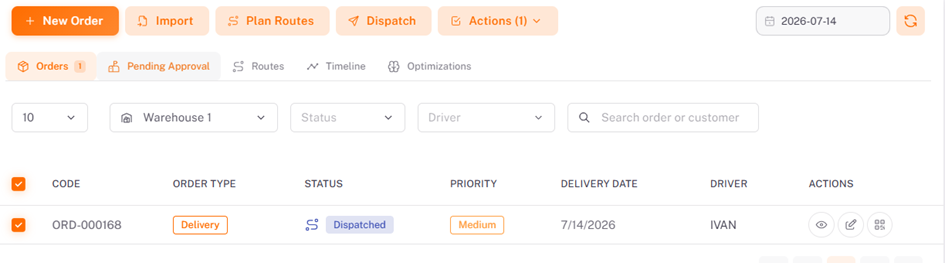
Click on "Dispatch Order" to confirm sending the orders to the selected drivers.
Upon completion of this procedure:
The order status changes from "Planned" to "Dispatched".
Designated drivers receive their delivery assignments, which can then be monitored through the Delivery & Tracking Process.
Note: Order dispatching is a critical step to transmit delivery assignments to drivers, ensuring real-time operational tracking of orders on the DROPIOO platform.
Order Actions
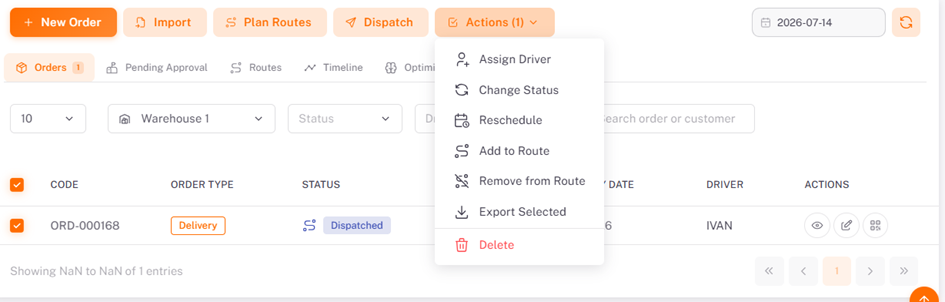
The "Actions" menu provides quick access to various operations available for each order. From this section, users can view order details, edit them if necessary, or perform other management-related tasks.
These shortcuts streamline order tracking and enable quick interventions throughout the planning and delivery lifecycle.
Was this article helpful?
Still need help?
Contact support