
Table of contents
Dropioo Merchant Getting Started Guide
Part 2 – Initial Merchant Profile Setup
After successfully creating and activating your merchant account, the next step is to configure your workspace.
The onboarding process ensures that your business information is complete before you begin managing orders and working with delivery partners.
1. Initial Workspace Configuration
Overview
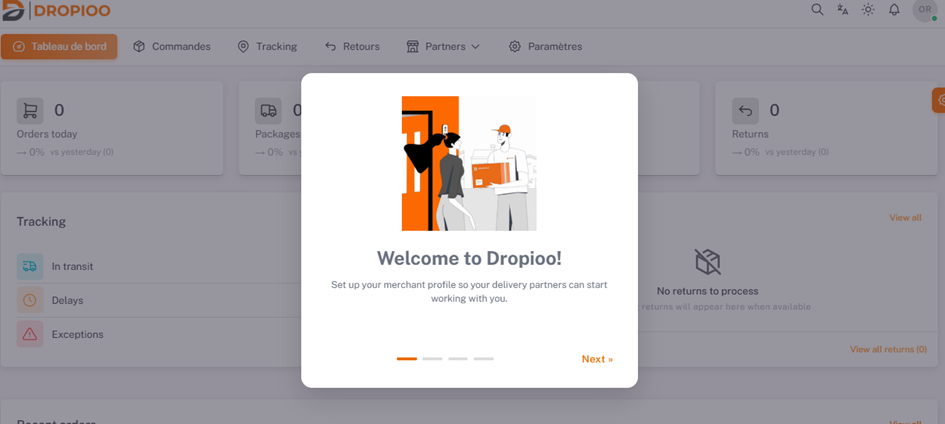
The first time you sign in to Dropioo Merchant, a welcome screen appears to guide you through the initial configuration of your account.
This guided setup helps you:
Identify your business.
Configure your pickup location.
Connect with delivery partners.
Prepare your workspace for daily operations.
The onboarding wizard only takes a few minutes to complete.
Starting the Setup
After signing in:
The Welcome to Dropioo! window appears automatically.
Review the introductory information.
Click Next to begin configuring your merchant profile.
The setup wizard will guide you through each required section.
Tip: Complete every onboarding step before creating your first delivery order. A fully configured workspace ensures a smoother logistics process.
2. Business Identity
Overview
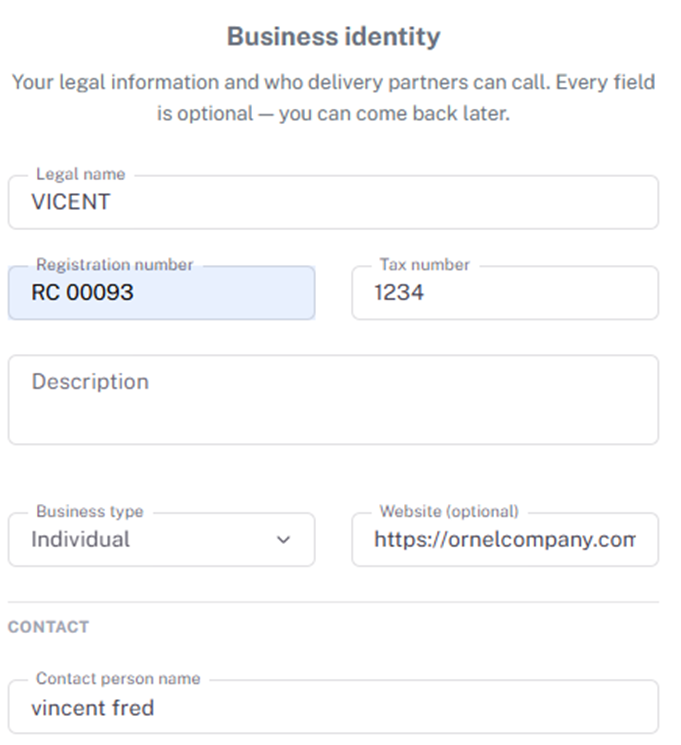
The Business Identity section stores the official information about your company.
This information is used throughout the platform and may also be shared with connected logistics partners during order processing.
Business Information
Provide the following information.
Legal Name
Enter the registered legal name of your business.
This name identifies your organization throughout the Dropioo platform.
Registration Number / Tax Number
Enter your company's registration number and tax identification number, if applicable.
These details help verify your business information and maintain accurate administrative records.
Business Description
Provide a brief description of your business activities.
A clear description helps delivery partners better understand the nature of your shipments.
Example: Wholesale supplier of consumer electronics delivering products across multiple cities.
Business Type
Select the legal structure that best matches your organization.
Examples include:
Individual Business
Company
Corporation
Website
If your company has a website, enter its URL.
Although optional, providing a website helps strengthen your business profile.
Contact Information
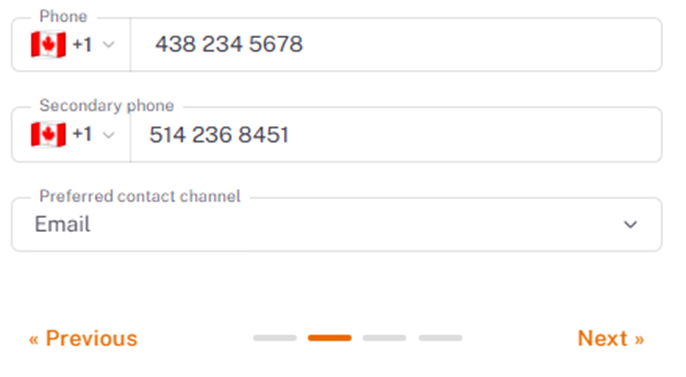
Provide the primary contact responsible for logistics operations.
Include:
Contact person's name
Primary phone number
Secondary phone number (optional)
Preferred communication channel
Accurate contact information allows delivery partners to communicate efficiently whenever necessary.
Saving Your Information
After completing all required fields:
Review the entered information.
Verify its accuracy.
Click Next to continue.
Best Practice: Keep your company information up to date. Accurate business details reduce delays and improve communication with logistics partners.
3. Pickup Address
Overview
The Pickup Address identifies the location where delivery partners collect shipments from your business.
Providing an accurate pickup address is essential for efficient dispatch operations.
Address Information
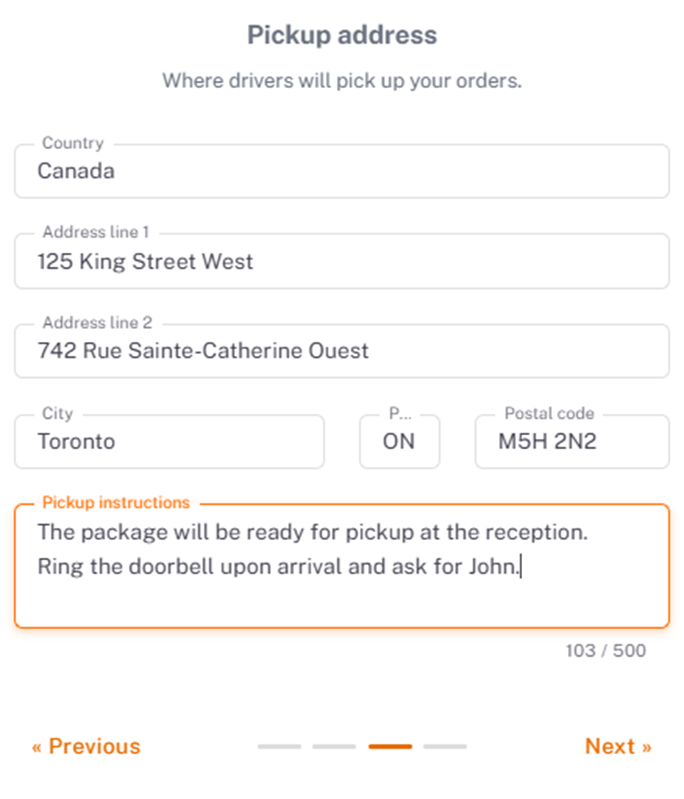
Complete the following fields:
Country
Address Line 1
Address Line 2 (optional)
City
Province or State
Postal Code
Ensure that the address corresponds to the physical location where packages are prepared for collection.
Pickup Instructions
Provide clear instructions that help delivery personnel locate your pickup point quickly.
Examples include:
Packages available at reception.
Ring the bell upon arrival.
Use the warehouse entrance at the rear of the building.
Contact the warehouse supervisor before pickup.
Well-written pickup instructions reduce waiting time and improve collection efficiency.
Saving the Pickup Address
After reviewing the information:
Verify the address.
Confirm the pickup instructions.
Click Next.
Your pickup location will be saved to your merchant profile.
Important: Incorrect pickup addresses may result in delayed collections or failed pickup attempts.
4. Finding a Delivery Partner
Overview
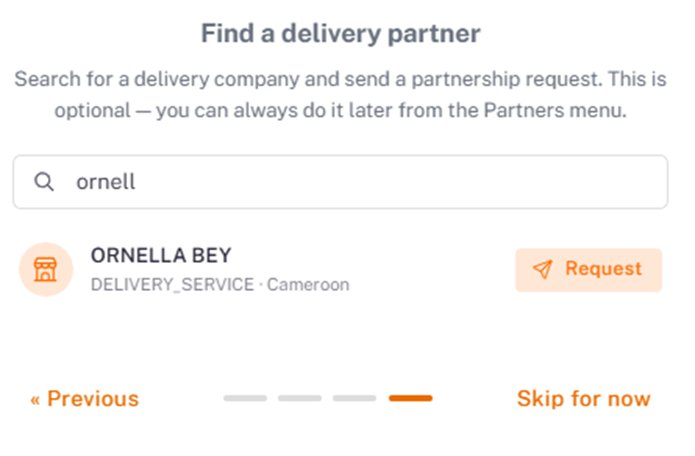
Dropioo Merchant enables businesses to connect directly with logistics providers through the platform.
Before orders can be assigned for delivery, you must establish a connection with one or more delivery partners.
Searching for a Delivery Partner
To search for available providers:
Open the Find a Delivery Partner page.
Enter the company name in the search field.
Review the available results.
You can search for providers operating in your preferred service area.
Sending a Partnership Request
Once you have found a suitable logistics provider:
Locate the desired partner.
Click Request.
Wait for the provider to review your invitation.
The request will remain pending until the logistics company accepts your invitation.
Note: Orders cannot be assigned to a logistics provider until your partnership request has been accepted.
5. Dashboard Overview
Overview
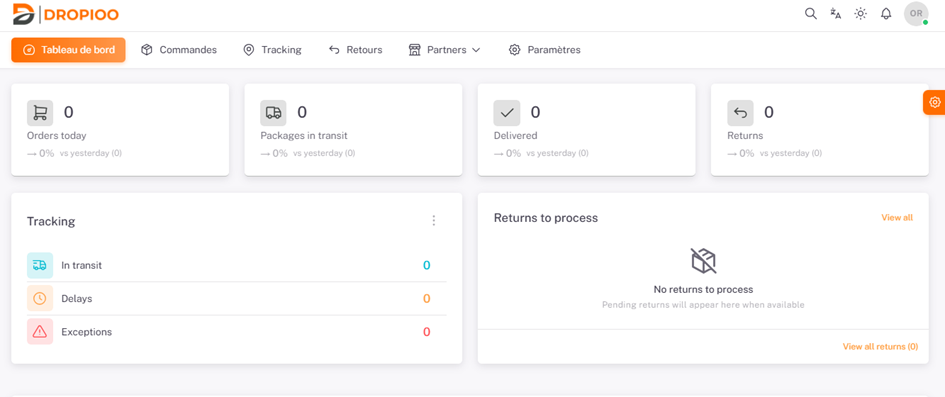

After completing the onboarding process, you will be redirected to the Dropioo Merchant Dashboard.
The dashboard provides a centralized overview of your logistics activities and gives you quick access to the platform's main features.
Key Performance Indicators
The Dashboard displays important operational metrics, including:
Orders created today.
Packages currently in transit.
Successfully delivered shipments.
Returned orders.
These indicators allow you to monitor daily business activity at a glance.
Operational Monitoring
The Dashboard also provides real-time visibility into your logistics operations.
You can quickly review:
Deliveries currently in progress.
Delayed shipments.
Delivery exceptions.
Pending return requests.
This information helps managers identify issues early and respond more effectively.
Was this article helpful?
Still need help?
Contact support