
User Manual: "Merchants" (Dropioo)
Procedure Sheet - DROPIOO Platform
Overview
This manual explains how a delivery company manages partner merchants, processes partnership requests, and handles the flow of invitations and packages within the Dropioo platform.
1. Navigating to the "Merchants" Section
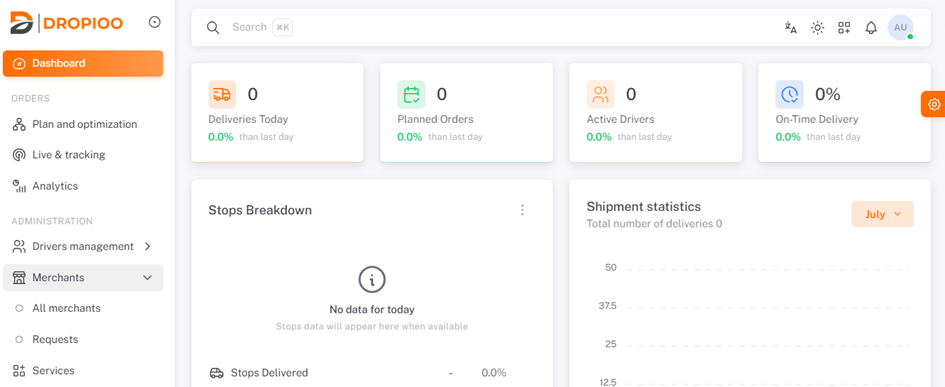
To access the merchant management :
In the left-hand side menu, under the ADMINISTRATION section, click on Merchants.
The tab will expand to display two main sub-menus:
All merchants
Requests
2. Viewing and Managing Merchants ("All merchants")
To view the complete list of your merchant partners and monitor your business relationships:
In the left-hand menu under Merchants, click on All merchants.
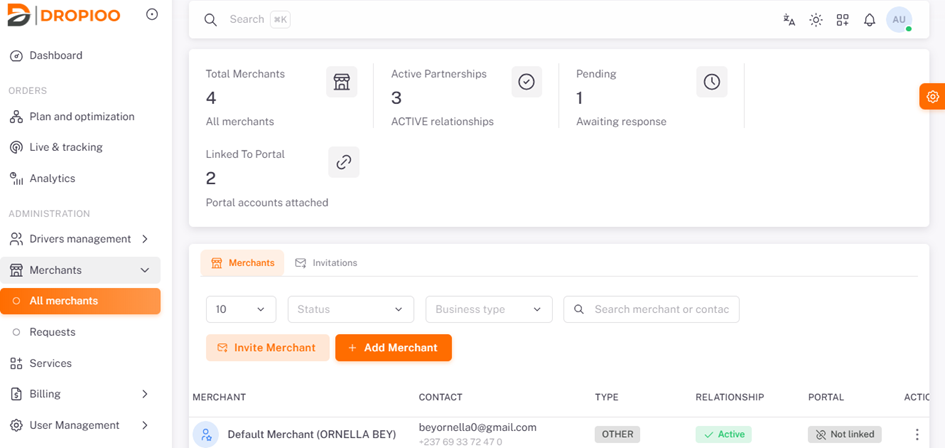
Overview (Top Metrics)
Total Merchants: Total number of registered merchants.
Active Partnerships: Number of active partnerships.
Pending: Number of requests or invitations awaiting a response.
Linked To Portal: Number of merchants with an attached portal account.
Filters and Search
You can filter by Status (e.g., Active), Business type, or use the Search merchant or contact bar to quickly find a partner
3. Adding or Inviting a Merchant
If the delivery company wants to onboard a merchant onto the platform directly, two options are available at the top of the table in All merchants:
Option A: Invite a Merchant ("Invite Merchant")
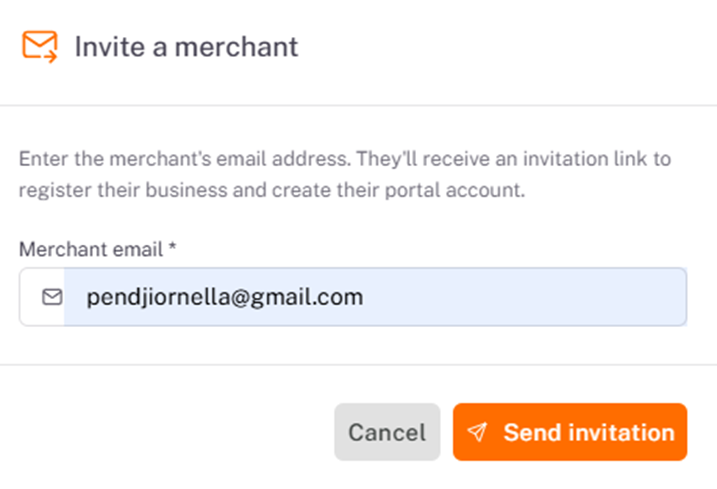
Click the orange Invite Merchant button (or go to the Invitations tab and click the corresponding button).
An Invite a merchant pop-up window will appear.
Enter the merchant's email address in the Merchant email * field.
Click to Send invitation button.
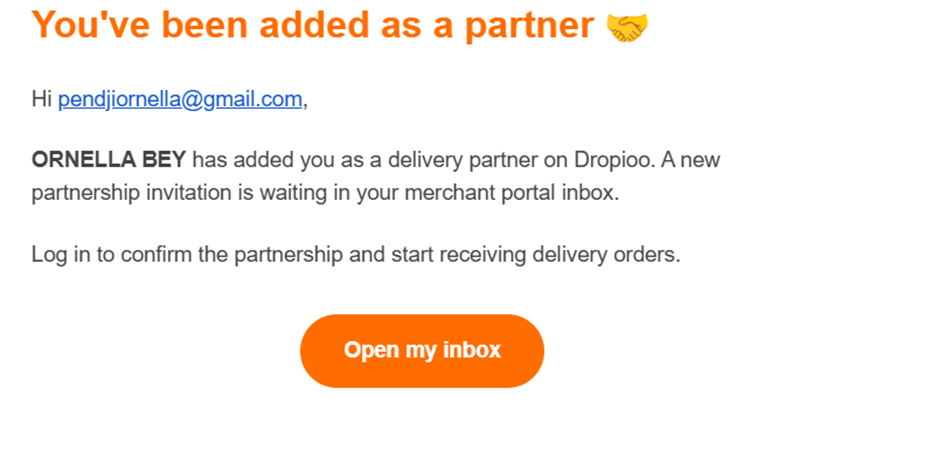
The merchant will receive an email ("You've been added as a partner") with an Open my inbox button inviting them to log in and confirm the partnership.
Option B: Create a Merchant Directly ("Add Merchant")
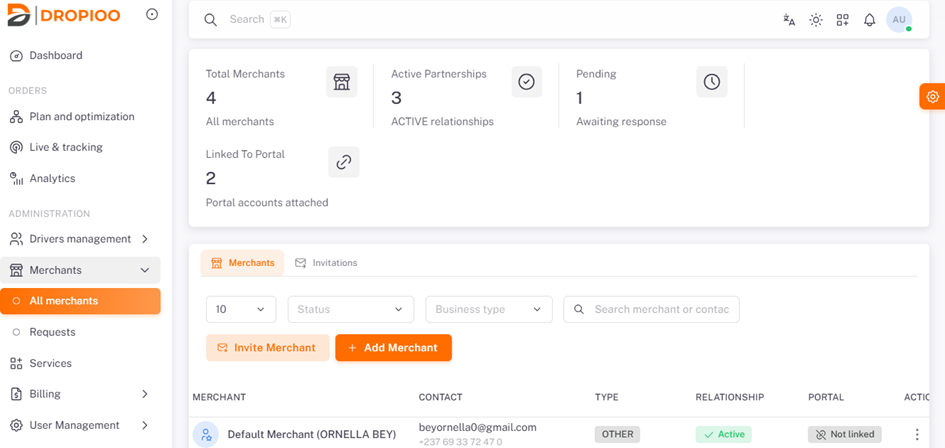
To register a merchant manually, click the orange + Add Merchant button. A 4-step form will open:
Step 1: Business info
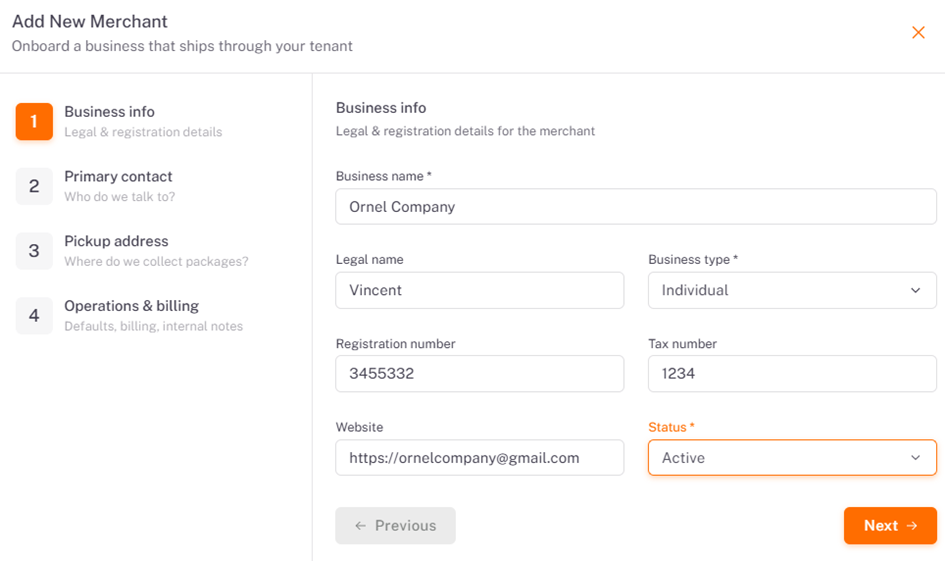
Fill in: Business name , Legal name, Business type (e.g., Individual), Registration number, Tax number, and Website.
Select the Status * (e.g., Active).
Click Next →.
Step 2: Primary contact
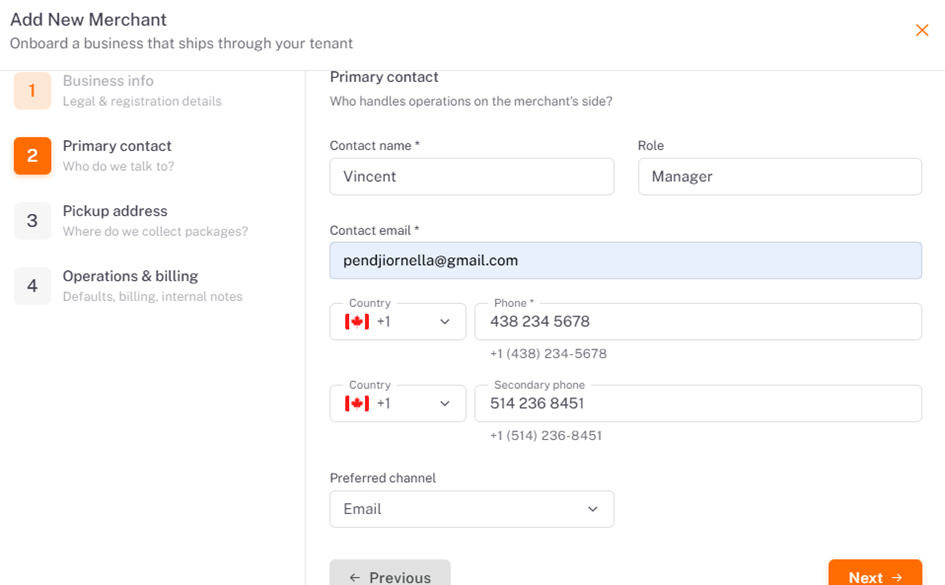
Enter: Contact name , Role (e.g., Manager), Contact email , phone numbers (Phone *, Secondary phone), and Preferred channel.
Click Next →.
Step 3: Pickup address
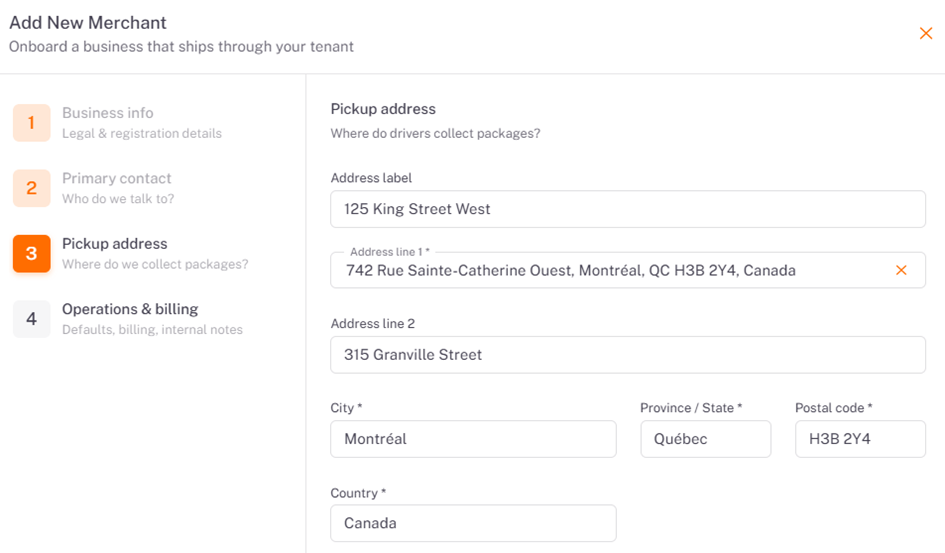

Provide the address details where your drivers will collect packages: Address label, Address line 1 , Address line 2, City , Province / State , Postal code , and Country *.
Enter Pickup instructions (e.g., "The package will be ready for pickup at the reception").
Click Next →.
Step 4: Operations & billing
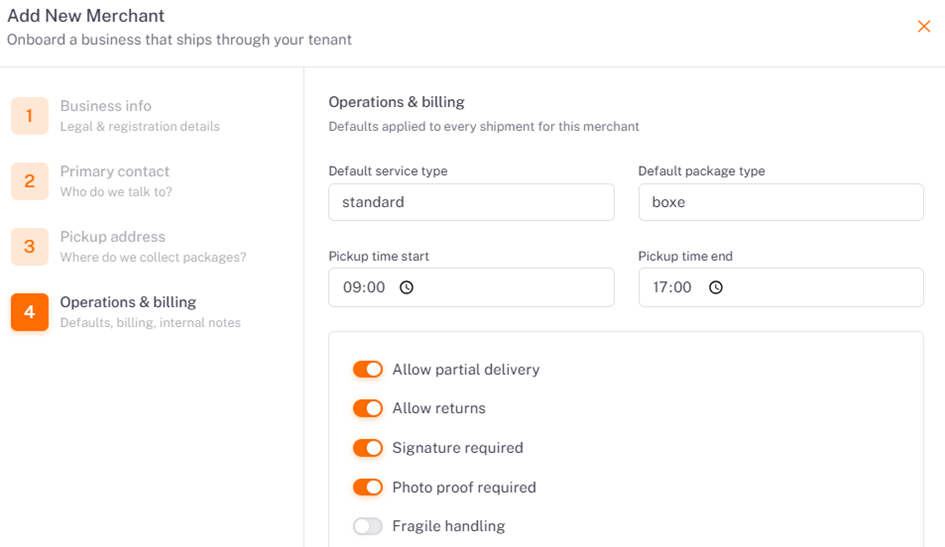
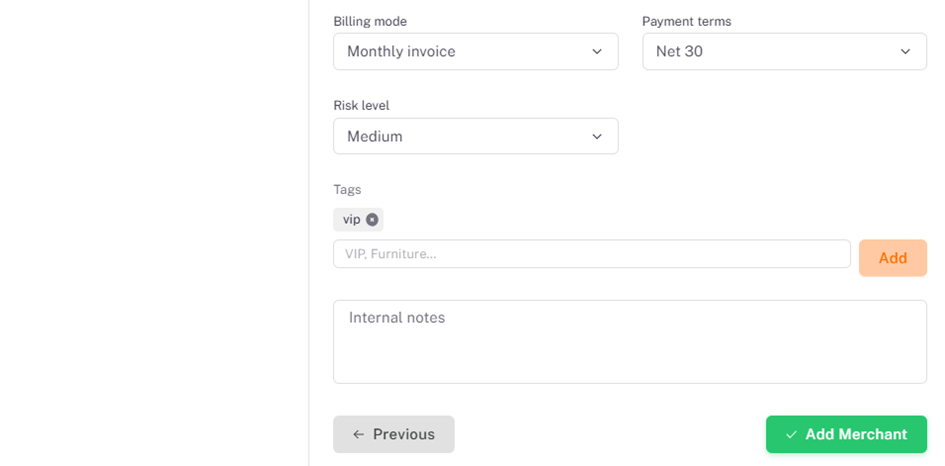
Select the Default service type, Default package type, and the pickup window (Pickup time start / Pickup time end).
Enable or disable logistics options (Allow partial delivery, Allow returns, Signature required, Photo proof required, Fragile handling).
Set the Billing mode, Payment terms, Risk level, Tags (e.g.,
vip), and any Internal notes.Click the green ✓ Add Merchant button to complete the registration.
4. Receiving and Accepting Invitations ("Requests")
When a merchant wishes to entrust their deliveries to your company, they send a partnership invitation.
Procedure:
Accessing Requests:
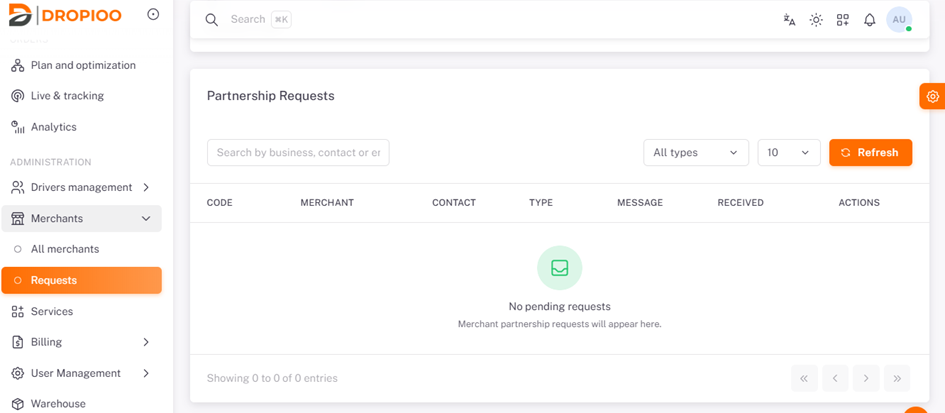
In the left-hand menu under Merchants, click directly on the Requests sub-menu.
Note: It is in this view (Partnership Requests) that the delivery company receives invitations sent by merchants.
Accepting the Invitation:
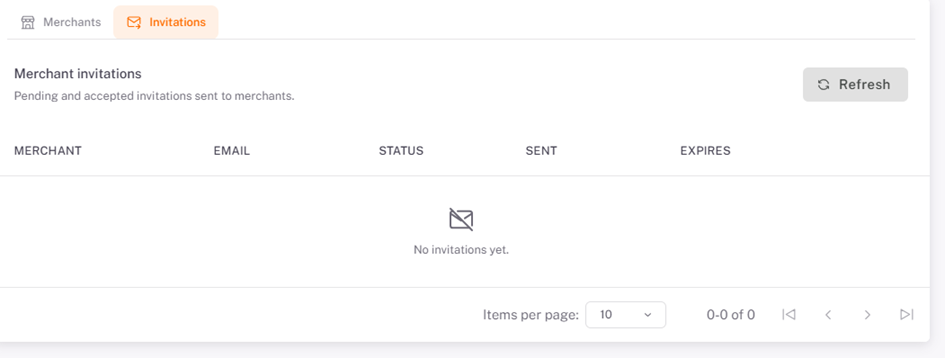
In the pending requests table, you will see the merchant's name, contact details, date received, and an ACTIONS column.
Click the acceptance button (or confirm the partnership) corresponding to the received request.
Consequences of Acceptance:
Package Reception: As soon as you accept the merchant's invitation, the partnership becomes Active. The merchant will now be able to transfer their orders/packages to you.
Warehousing: Once the packages are transferred by the merchant, the delivery company takes control of these items and can process them, assign them to drivers, or place them in their warehouse (accessible via the Warehouse section in the menu) for further logistics management.
Was this article helpful?
Still need help?
Contact support