
Table of contents
Driver Creation Process
Procedure Sheet – DROPIOO Platform
Prerequisites
Have administrative access to Drivers Management > Driver List;
Have the driver's complete personal information (first name, last name, phone number, email);
Have a valid driver's license number;
Have a vehicle already registered in the system to assign, if applicable;
Have previously configured driver skills in the "Skills" module if they need to be assigned.
Overview
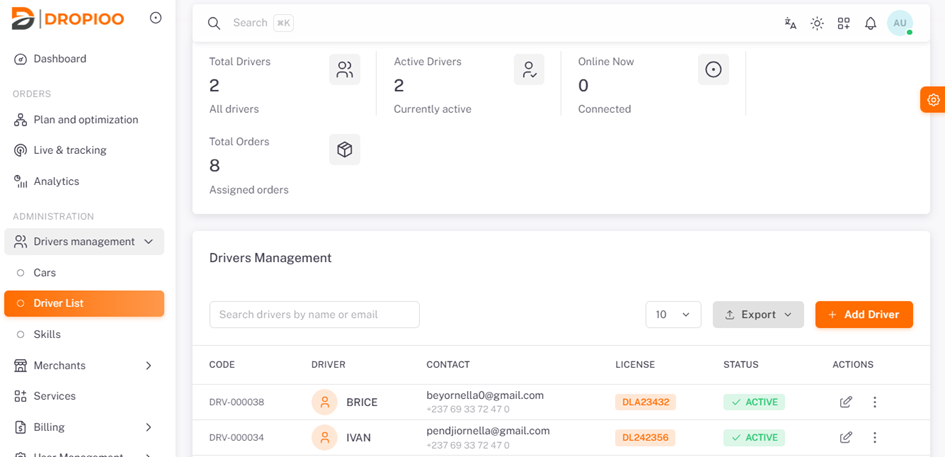
To create a driver, navigate to Administration, click on "Drivers Management", select "Driver List".
Driver creation steps
The user must click "Add a new driver
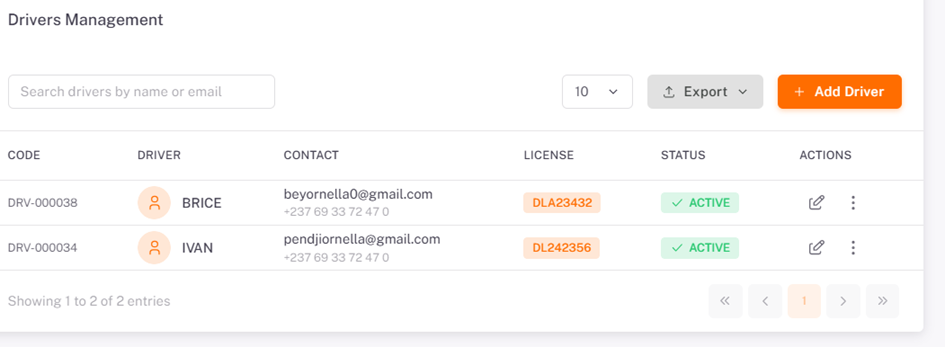
Step 1: Driver Details
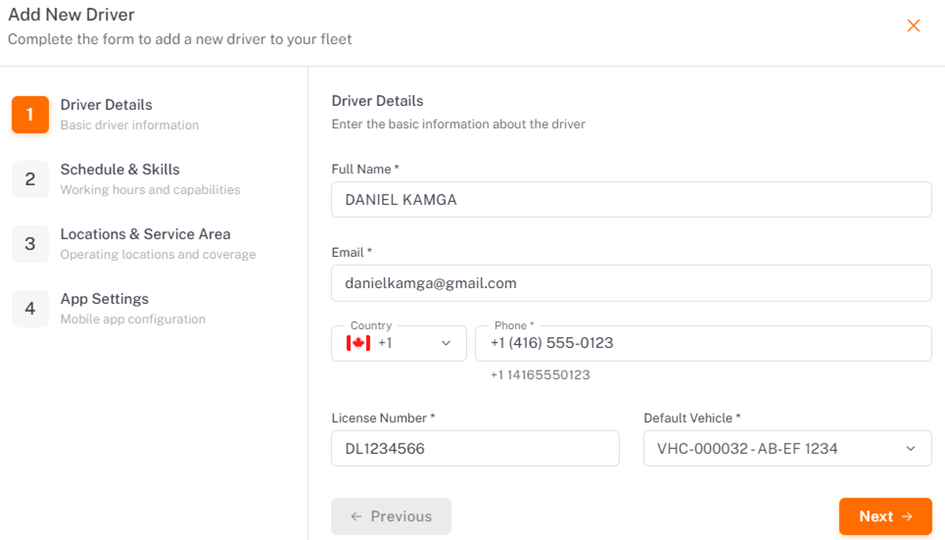
The user must enter:
Driver’s First and Last Name;
Driver's Country code and Phone Number;
Email Address;
Driver's License Number;
Vehicle Assignment (if available), then click Next.
Step 2: Schedule & Skills
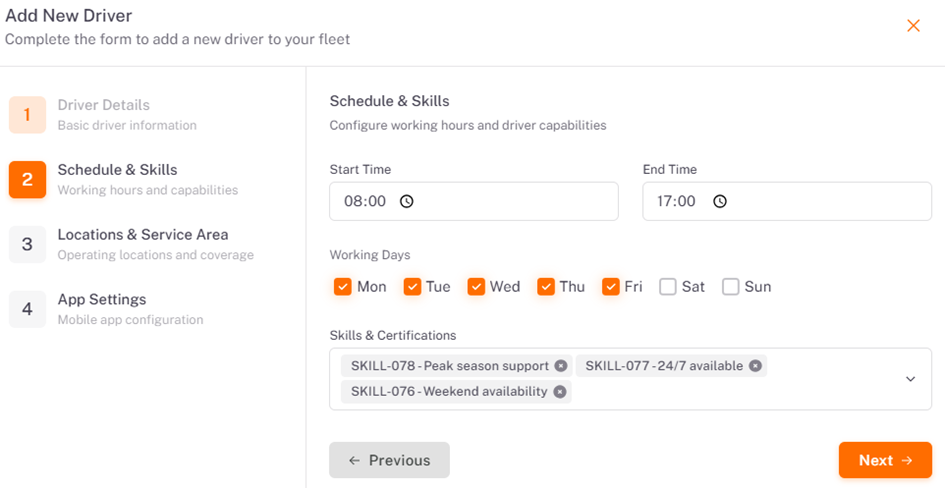
The user must enter:
Shift Start and End Times;
Working Days selection;
Skills and Certifications input, then click Next.
Step 3: Locations & Service Area
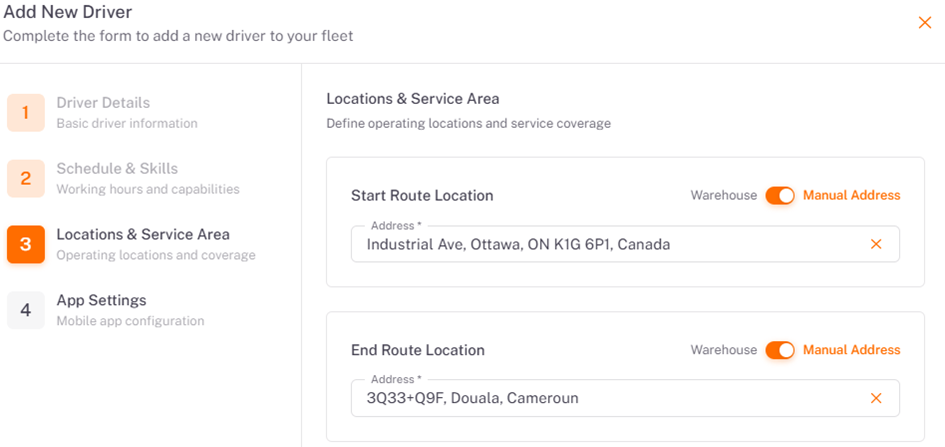
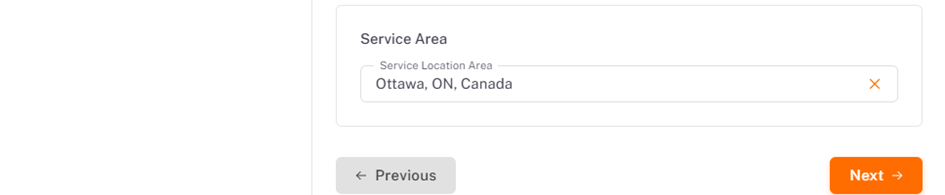
The user must enter:
Route Starting Point (selectable or manually entered);
Route Ending Location (selectable or manually entered).
Service Area, then click Next
Step 4: App Settings
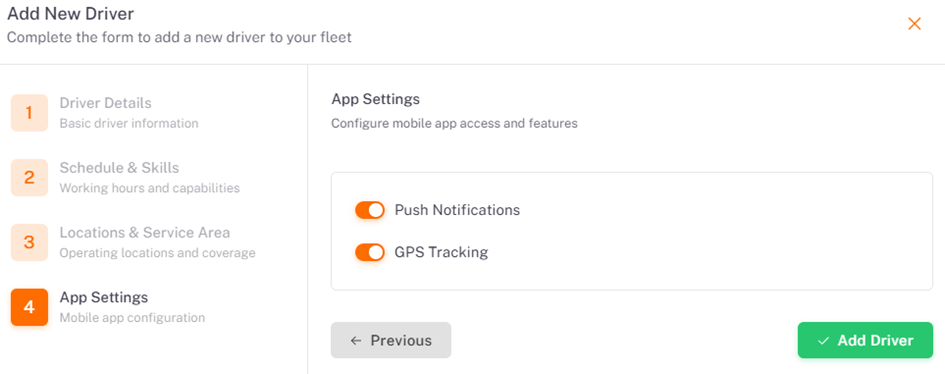
The user must configure the mobile application's access and features by clicking on:
Push Notifications setup;
GPS Tracking configuration, then click "Add Driver".
Driver Management Overview
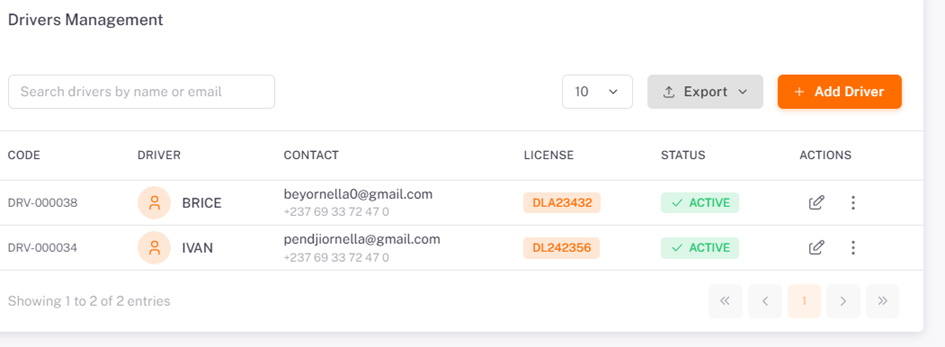
Allows searching drivers by name, phone number, or status, reviewing registered drivers, checking active/inactive status, and managing vehicle assignments
Note:If no drivers are registered, the system displays: "No data available"
Was this article helpful?
Still need help?
Contact support