
Table of contents
ORDER CREATION PROCESS: VIA FILE IMPORT
Procedure Sheet – DROPIOO Platform
Prerequisites
Active and configured DROPIOO account (warehouse created).
At least one vehicle and one driver registered in the system.
Customer details and product delivery data available.
Steps
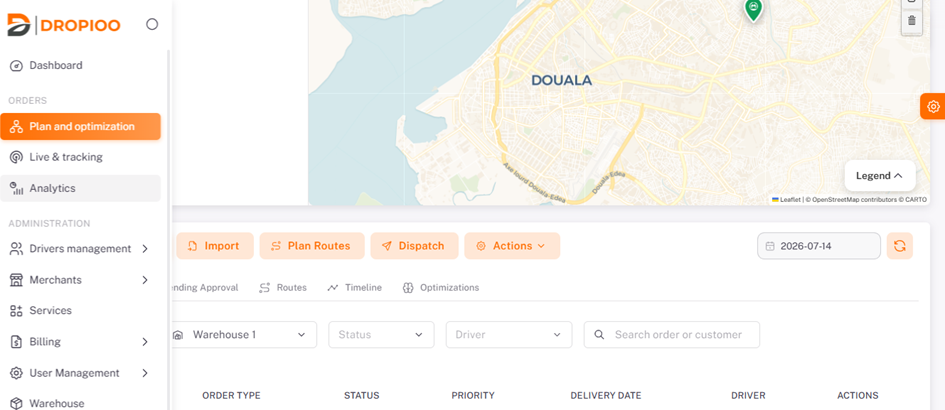
From the dashboard, the user must navigate to the "Plan and optimization" menu, then click on the "Import" button located next to "New Order".
Creating a Delivery Order
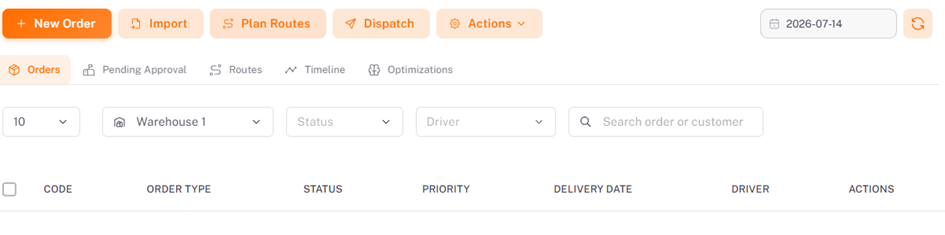
The user must click "Import", review the provided system specifications, and download the standardized import template provided by the platform.
Order Creation Steps
Step 1: Upload the Order File
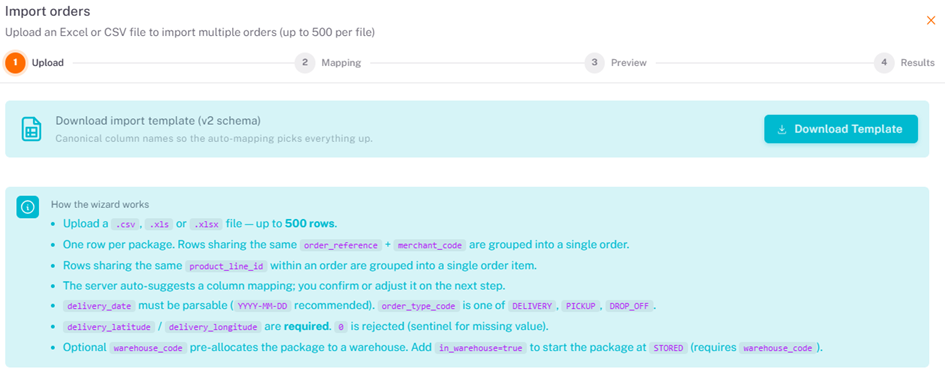
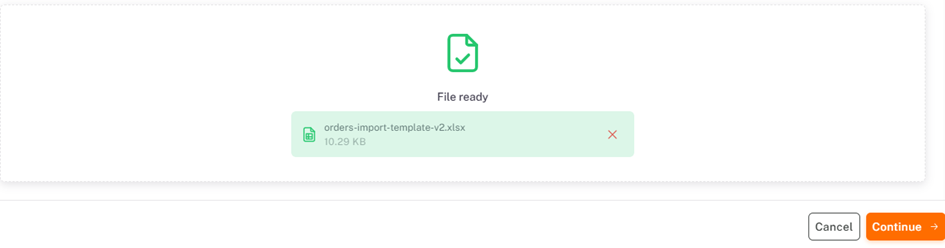
This step enables the batch import of multiple orders simultaneously (up to 500 entries per file) using an Excel or CSV file. Drag and drop the document directly into the designated upload area, or click "Select a file" to browse your local directory, then click "Continue".
Step 2: Data Mapping
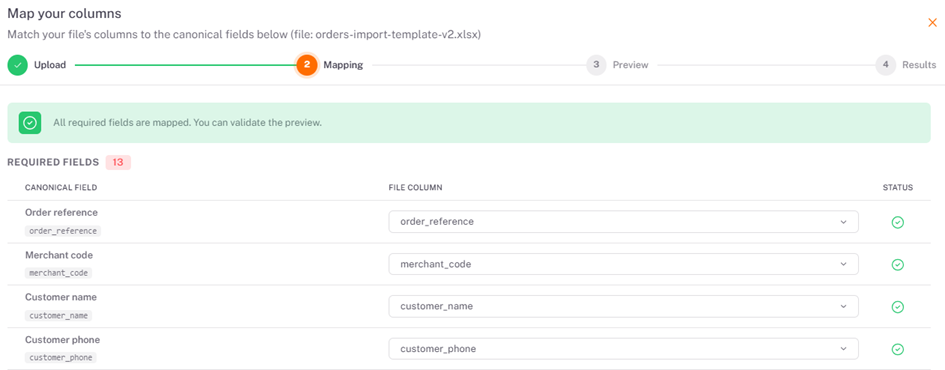
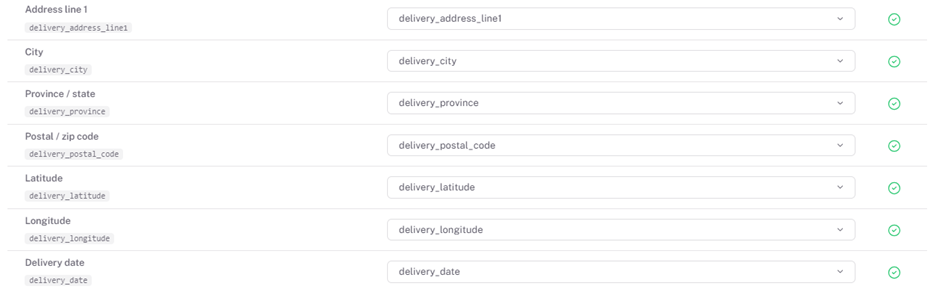
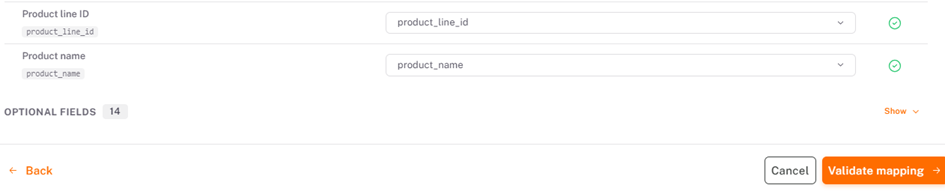
Once the file is successfully uploaded, the user must map the data columns of the imported file to the corresponding input fields required by the system (e.g., customer name, address, product reference, city, etc.), then click "Validate Mapping".
Step 3: Data Preview
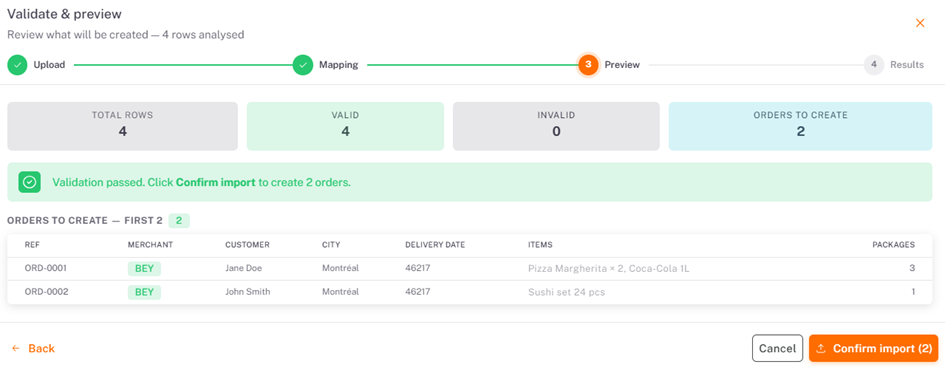
A structural preview of the imported dataset is rendered before final commitment. This allows the user to ensure that all information is correctly parsed and to adjust anomalies if necessary. Following verification, click "Confirm Import".
Step 4: Final Results
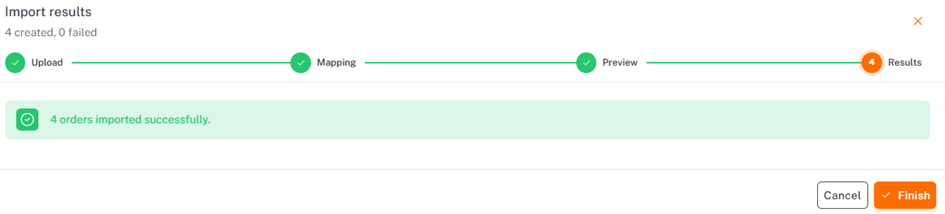
This confirmation screen displays the execution summary of the import pipeline (the total volume of successfully created orders alongside any potential processing errors or rejected data rows). Click "Finish" to complete the workflow.
Viewing Created Orders
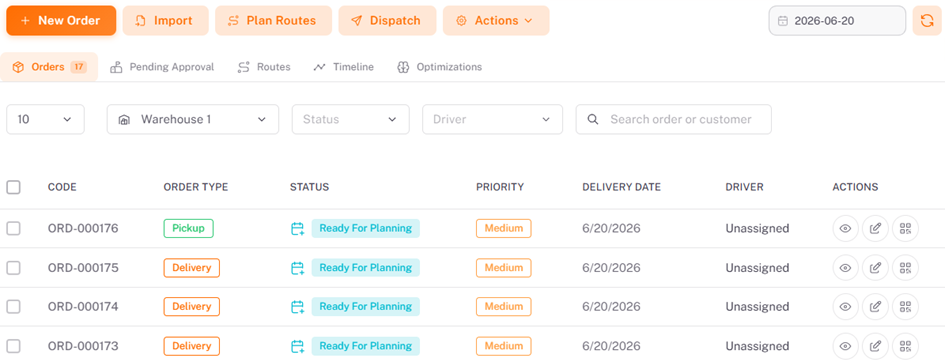
This centralized dashboard acts as the primary cockpit for tracking, filtering, and handling all system orders post-creation, regardless of whether they were manually inputted or batch-imported.
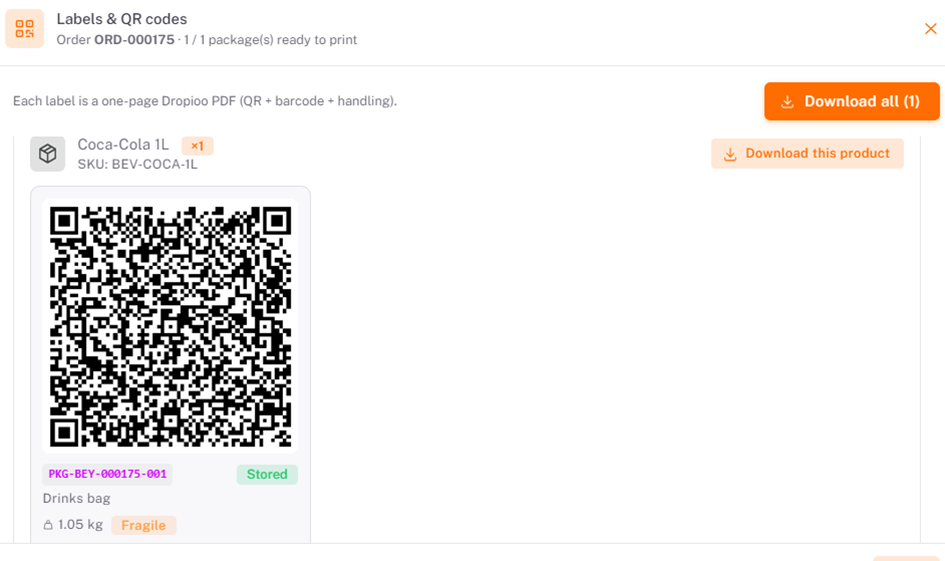
Once the orders are created, the platform automatically generates their associated QR codes and shipping labels, which are ready for download.
Was this article helpful?
Still need help?
Contact support